This tutorial walks you through the process of running Robot Framework tests in GitLab pipelines. This is a very important step in achieving CI/CD. Ideally, tests should be run after each change (minor/major) before the latest change is merged into the master branch. Let’s assume that 100 changes are merged into the master branch a day and tests are run every time before deployment. In this case, there is no QA manually starting 100 tests a day. Now, what should be done to overcome this problem. Now add a test to your GitLab pipeline. Adding a test stage to your pipeline automatically runs the tests when you run the pipeline.
Table of Contents
- What is GitLab CI/CD Workflow?
- What is a headless browser?
- Prerequisite
- Implementation Steps:
- GitLab Section
What is GitLab CI/CD Workflow?
Once the proposed changes are built, then push the commits to a feature branch in a remote repository that’s hosted in GitLab. The push triggers the CI/CD pipeline for your project. Then, GitLab CI/CD runs automated scripts (sequentially or in parallel) to build as well as to test the application. After a successful run of the test scripts, GitLab CI/CD deploys your changes automatically to any environment (DEV/QA/UAT/PROD). But if the test stage is failed in the pipeline, then the deployment is stopped.
To use GitLab CI/CD, we need to keep 2 things in mind:
a) Make sure a runner is available in GitLab to run the jobs. If there is no runner, install GitLab Runner and register a runner for your instance, project, or group.
b) Create a .gitlab-ci.yml file at the root of the repository. This file is where CI/CD jobs are defined.
The Selenium tests run on a headless browser in the pipeline.
What is a headless browser?
A headless browser is like any other browser but without a Head/GUI (Graphical User Interface). A headless browser is used to automate the browser without launching the browser. While the tests are running, we could not see the browser, but we can see the test results coming on the console.
Prerequisite
- Install Python
- Install PIP
- Install Robot Framework
- Install Robot framework Selenium Library
- Install PyCharm IDE
- GitLab Account
Implementation Steps:
Step 1 – Create a new Project
Step 1.1 – Open PyCharm and create a new project. Go to File and select New Project from the main menu.

Step 1.2 – Choose the project location. Click the Browse button next to the Location field and specify the directory for your project.
Deselect the Create a main.py welcome script checkbox because you will create a new Python file for this tutorial.

Click on the Create Button.
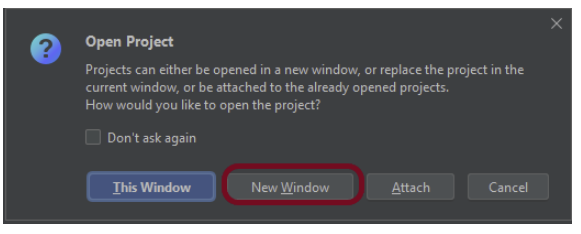
Step 1.3 – A new dialog will appear asking to Open the project using any one of the given options. I have selected New Window as I like to have separate windows for each project.
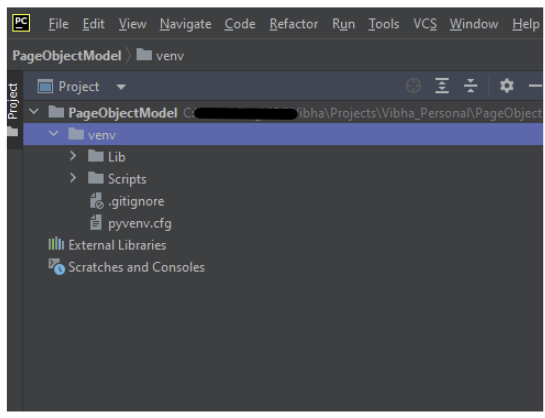
Below is the image of the new project created in PyCharms.
Step 2 – Create 2 new directories in the new project
Right-Click on the project, select New->Directory, and provide the name as TestCases and Resources

Step 3 – Create Test Files
This directory contains multiple test case files consisting of test steps.
Right-click on the new directory select New File and provide the name LoginPageTests.robot and ForgetPasswordTests.robot as shown below:
Below is the code for LoginPageTests.robot
*** Settings ***
Documentation       Tests to login to Login Page
Library     SeleniumLibrary
Test Setup      Open the Browser with URL
Test Teardown   Close Browser Session
Resource       ../Resources/GenericResources.robot
Resource       ../Resources/LoginResources.robot
Resource      ../Resources/DashboardResources.robot

*** Test Cases ***

Validate Unsuccessful Login using invalid credentials

    LoginResources.Fill the login form     ${valid_username}       ${invalid_password}
    LoginResources.Verify the error message is correct


Validate Unsuccessful Login for blank username

     LoginResources.Fill the login form     ${blank_username}       ${valid_password}
     LoginResources.Verify the error message is displayed for username


Validate Unsuccessful Login for blank password

     LoginResources.Fill the login form     ${valid_username}       ${blank_password}
     LoginResources.Verify the error message is displayed for password


Validate successful Login

    LoginResources.Fill the login form     ${valid_username}       ${valid_password}
    DashboardResources.Verify Dashboard page opens
Below is the code for ForgetPasswordTests.robot
*** Settings ***
Documentation       Tests to validate Forgot Your Password Page functionality
Library     SeleniumLibrary
Test Setup      Open the Browser with URL
Test Teardown   Close Browser Session
Resource       ../Resources/GenericResources.robot
Resource       ../Resources/LoginResources.robot
Resource      ../Resources/ForgetPasswordResources.robot


*** Test Cases ***

Validate Reset Password Functionality

    LoginResources.Go to Forgot Your Password Page
    ForgetPasswordResources.Verify Forgot Your Password Page opens
    ForgetPasswordResources.Fill the Forgot Password Page
    ForgetPasswordResources.Verify the message

Validate Cancel Functionality

    LoginResources.Go to Forgot Your Password Page
    ForgetPasswordResources.Verify Forgot Your Password Page opens
    ForgetPasswordResources.Cancel the Reset Password
    ForgetPasswordResources.Verify that Login Page is displayed
Step 4 – Create a Resource file for each page
It maintains the files which contain page elements as well as corresponding keywords.
Right-click on the new directory select New File and provide the name as LoginResources.robot, DashboardResources.robot, GenericResources.robot, and ForgetPasswordResources.robot as shown below:
GenericResources.robot contains the keywords that are common to all the tests, like opening of the browser or closing of the browser.
*** Settings ***
Documentation    A resource file with reusable keywords and variables.
Library     SeleniumLibrary

*** Variables ***
${valid_username}     Admin
${valid_password}       admin123
${invalid_username}     1234
${invalid_password}     45678
${blank_username}
${blank_password}
${url}      https://opensource-demo.orangehrmlive.com/web/index.php/auth/login
${browser_name}      Chrome

*** Keywords ***

Open the Browser with URL
    Open Browser   ${url}    headlesschrome
    Maximize Browser Window
    Set Selenium Implicit Wait    5

Close Browser Session
    Close Browser
Below is the code for LoginResources.robot
*** Settings ***
Documentation        All the page objects and keywords of landing page
Library     SeleniumLibrary

*** Variables ***
${login_error_message}      css:.oxd-alert-content--error
${dashboard_title}       css:.oxd-topbar-header-breadcrumb-module
${missing_username_error_message}    xpath://*[@class='oxd-form']/div[1]/div/span
${missing_password_error_message}   xpath://*[@class='oxd-form']/div[2]/div/span
${forgot_password_link}   xpath://div[@class='orangehrm-login-forgot']/p

*** Keywords ***

Fill the login form
    [Arguments]    ${username}      ${password}
   Input Text    css:input[name=username]   ${username}
   Input Password    css:input[name=password]   ${password}
   Click Button    css:.orangehrm-login-button


Verify the error message is correct
    Element Text Should Be    ${login_error_message}    Invalid credentials


Verify the error message is displayed for username
     Element Text Should Be    ${missing_username_error_message}      Required

Verify the error message is displayed for password
      Element Text Should Be    ${missing_password_error_message}      Required

Go to Forgot Your Password Page
    Click Element      ${forgot_password_link}
Below is the code for DashboardResources.robot
*** Settings ***
Documentation        All the page objects and keywords of Dashboard page
Library     SeleniumLibrary

*** Variables ***
${dashboard_title}       css:.oxd-topbar-header-breadcrumb-module

*** Keywords ***

Verify Dashboard page opens
    Element Text Should Be    ${dashboard_title}      Dashboard
Below is the code for ForgetPasswordResources.robot
*** Settings ***
Documentation       All the page objects and keywords of Forget Password page
Library     SeleniumLibrary

*** Variables ***
${forgot_page_title}       css:.orangehrm-forgot-password-title
${username}     css:.oxd-input--active
${reset_btn}     css:.orangehrm-forgot-password-button--reset
${cancel_btn}    css:.orangehrm-forgot-password-button--cancel
${reset_message}      xpath://div[@class='orangehrm-card-container']/h6
${login_page_title}   xpath://*[@class='orangehrm-login-slot']/h5

*** Keywords ***

Verify Forgot Your Password Page opens
    Element Text Should Be    ${forgot_page_title}      Reset Password

Fill the Forgot Password Page
   Input Text        ${username}     abc@gmail.com
   Click Button    ${reset_btn}

Verify the message
    Element Text Should Be    ${reset_message}      Reset Password link sent successfully

Cancel the Reset Password
    Click Button    ${cancel_btn}

Verify that Login Page is displayed
    Element Text Should Be    ${login_page_title}       Login
All the below-mentioned keywords are derived from SeleniumLibrary. The functionality of keywords mentioned above:
1. Create Webdriver − The keyword creates an instance of Selenium WebDriver.
2. Go To – This keyword navigates the current browser window to the provided url.
3. Maximize Browser Window – This keyword maximizes the current browser window.
4. Set Selenium Implicit Wait – This keyword sets the implicit wait value used by Selenium.
5. Input Text − This keyword is used to type the given text in the specified textbox identified by the locator name:username.
6. Input Password – This keyword is used to type the given text in the specified password identified by the locator name:password.
The difference compared to Input Text is that this keyword does not log the given password on the INFO level.
7. Click button – This keyword is used to click the button identified by the locator. In this case, it is “Login” button.
8. Element Text Should Be – This keyword is used to verify that the current page contains the exact text identified by the locator. Here, we are checking the exact text “Invalid Credentials”.
These keywords are present in SeleniumLibrary. To know more about these keywords, please refer to this document – https://robotframework.org/SeleniumLibrary/SeleniumLibrary.htm.
To run this script, go to the command line and go to directory tests.
Step 5 – Execute the tests
We need the below command to run the Robot Framework script.
robot .
The output of the above program is

GitLab Section
Step 6 – Create a blank project in GitLab
To know, how to create a blank new project in GitLab, please refer to this tutorial.
Step 7 – Push the project from the local repository to the Gitlab Repository
To know, how to push the changes in GitLab, please refer to this tutorial.
Step 8 – Create a .gitlab-ci.yml file in the project in GitLab
There are many ways to create a new file in GitLab. One of the ways is to create a file as shown in the below image.
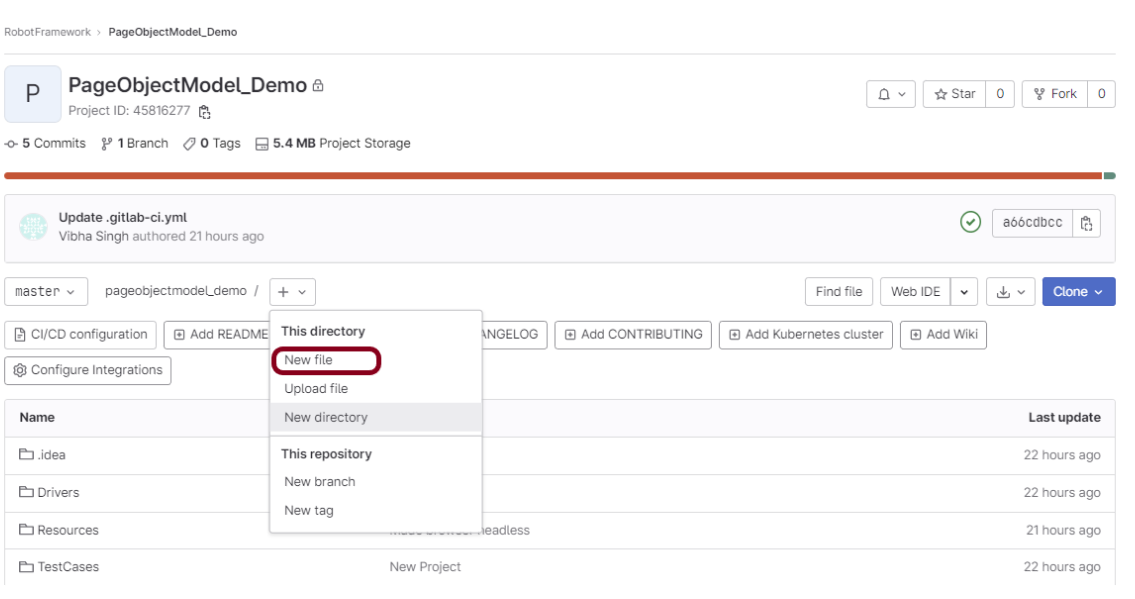
It is a YAML file where you configure specific instructions for GitLab CI/CD. In the .gitlab-ci.yml, we can define:
- The scripts you want to run.
- Other configuration files and templates you want to include.
- Dependencies and caches.
- The commands you want to run in sequence and those you want to run in parallel.
- The location to deploy your application to.
- Whether you want to run the scripts automatically or trigger any of them manually.
Below is the sample pipeline.
stages:
  - test

image: ppandiyan/robotframework

run-tests:
  stage: test
  script:
    - robot --outputdir testOutput .
  artifacts:
    paths:
      - testOutput
    expire_in: 1 day
Image – ppandiyan/robotframework is used in this test. This docker file contains headlesschrome, headlessfirefox and Python2.7.
This gitlab-ci.yml has only 1 stage – a test that contains the command to run the tests as well as also create an artifact that contains all the surefire reports which can be saved as Test Evidence.
Step 9 – Run the tests in the GitLab pipeline
Now, when a new change is committed, a pipeline kicks off and it runs all the tests.

Step 10 – Check the status of the pipeline
Once the Status of the pipeline changes to either failed or passed that means the tests are already executed.

Let us see the logs of the execution it shows that all the tests are passed here.
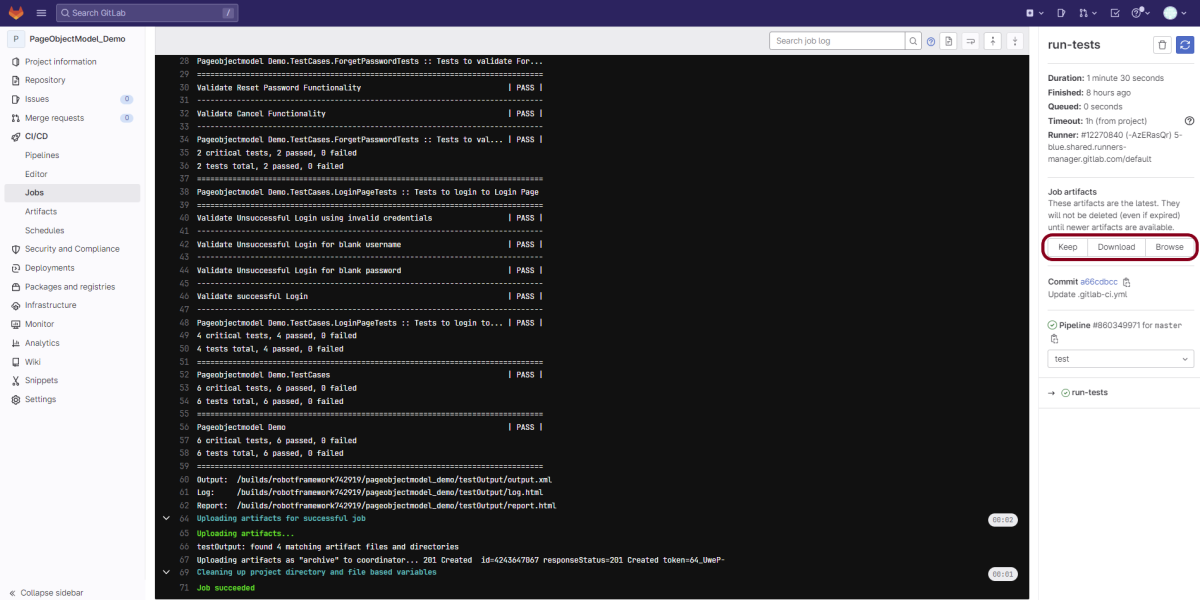
As I have added an artifact also in the gitalb-ci.yml, which is highlighted in the image. This artifact creates a folder with the name “testOutput” and the folder contains reports, logs as well as output files. This artifact gives us the option to download the reports or browse the report. This report will be available for 1 day only as mentioned in the gitlab-ci.yml.
Step 11 – Download the report
Once, will click on the download button, it will download “report.zip”. Unzip the folder and it looks like something as shown below:

Example of Report.html
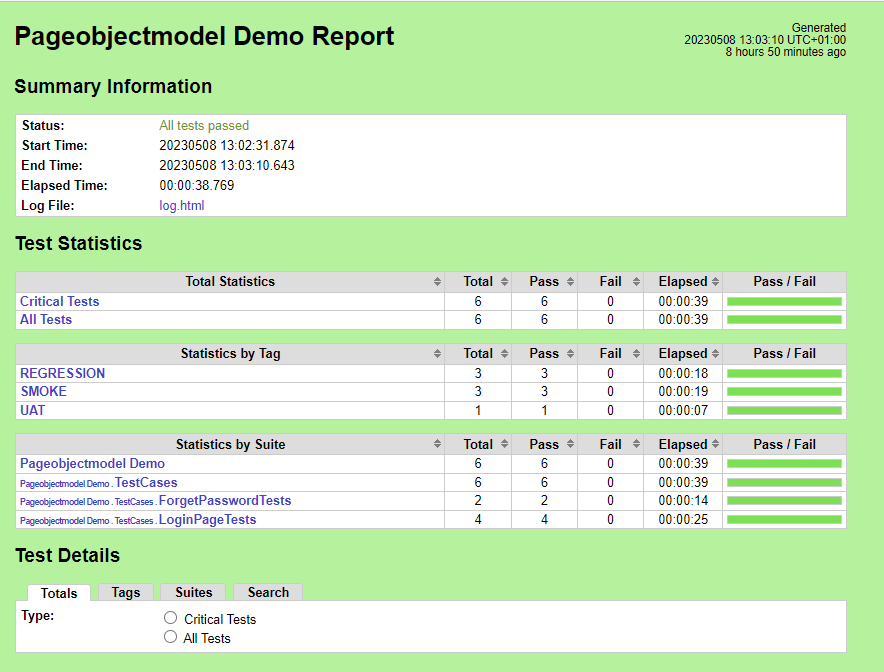
Example of Log.html

Congratulations. This tutorial has explained the steps to run Robot Framework tests in GitLab CI/CD. Happy Learning!!

