It is not possible to test APIs or web services directly using Selenium WebDriver. Selenium is primarily designed for automating web browser interactions and performing functional testing of web applications by simulating user actions.
3) b) No
4) b) No
5) a) Yes
6) a) Yes
By using testing frameworks such as TestNG or JUnit, you can configure and run your Selenium tests in parallel.
7) b) No
Selenium cannot handle security testing on its own. However, it can assist in certain aspects of security testing when integrated with specialized security tools.
8) a) Yes
9) c) To initialize web elements defined in a Page Object class
10) d) new WebDriverWait().until(ExpectedConditions.visibilityOfElementLocated())
11) d) Actions.contextClick(element)
12) b) ((TakesScreenshot) driver).getScreenshotAs(OutputType.FILE)
13) a) Yes
14) a) Yes
15) a) By using the @DataProvider annotation
16) c) Configure the testng.xml file with parallel execution settings
17) a) Jenkins
18) a) HTML Publisher Plugin
19) c) Cross-Browser Testing
20) a) To execute browser tests without a graphical user interface, reducing resource consumption
21) b) Use GitHub Secrets to store and access sensitive information
22) a) Yes
23) b) No
Selenium is not designed for performance testing. For performance testing, specialized tools such as JMeter, Gatling, and LoadRunner are more appropriate.
24) b) No
Selenium does not have inbuilt functionality specifically for testing Excel files. We can use external libraries in conjunction with Selenium to work with Excel files, like Apache POI.
JSON Web Token (JWT) is an open standard (RFC 7519) that defines a compact and self-contained way for securely transmitting information between parties as a JSON object. This information can be verified and trusted because it is digitally signed. JWTs can be signed using a secret (with the HMAC algorithm) or a public/private key pair using RSA or ECDSA.
What is the JSON Web Token structure?
JSON Web Tokens consist of three parts separated by dots (.), which are:
Header: Contains metadata about the token, such as the algorithm used.
{
"typ":"JWT",
"alg":"HS256"
}
Payload: Contains claims, like subject, issuer, expiration, etc.
1. The JWT.decode() method from the auth0 library decodes the token into its components without verifying the signature.
DecodedJWT decodedJWT = JWT.decode(jwtToken);
2. Retrieving Components:
Header: The Base64Url-encoded header. Payload: The Base64Url-encoded payload. Signature: The cryptographic signature. getSubject() extracts the sub claim (subject). getIssuer() extracts the iss claim (issuer).
3. The Base64.getUrlDecoder() decodes the Base64Url-encoded header and payload into human-readable JSON strings.
String decodedHeader = new String(java.util.Base64.getUrlDecoder().decode(header));
String decodedPayload = new String(java.util.Base64.getUrlDecoder().decode(payload));
1. The DecodedJWT.getSubject() and DecodedJWT.getIssuer() methods already extract and decode the claims. The attempt to decode them manually as Base64 will fail. They are not separately Base64-encoded. They are JSON values embedded in the payload.
2. The header and payload are Base64Url-encoded, so you we decode them to get the full JSON structures.
3. The signature cannot be “decoded” because it is a hash. It can only be validated using the appropriate cryptographic key.
JSON Web Token (JWT) is an open standard (RFC 7519) that defines a compact and self-contained way for securely transmitting information between parties as a JSON object. This information can be verified and trusted because it is digitally signed. JWTs can be signed using a secret (with the HMAC algorithm) or a public/private key pair using RSA or ECDSA.
What is the JSON Web Token structure?
JSON Web Tokens consist of three parts separated by dots (.), which are:
Header: Contains metadata about the token, such as the algorithm used.
{
"typ":"JWT",
"alg":"HS256"
}
Payload: Contains claims, like subject, issuer, expiration, etc.
1. Stateless Authentication: JWTs allow for stateless authentication, meaning the server doesn’t need to store user session information. This scalability and reduced server-side storage make JWTs advantageous for distributed systems.
2. Performance: Since JWTs are stateless, server-side lookup is eliminated. It Reduces server load and Improves response times for authenticated requests.
3. Interoperability: JWTs are designed to work across different technologies and systems. This interoperability is particularly useful in microservices architectures, where services may be implemented in different languages.
4. Cross-Domain Authentication: JWTs work well for Single Sign-On (SSO) and cross-domain authentication since they are independent of the application’s storage mechanisms.Users can log in once and access multiple applications without repeatedly authenticating.
5. Secure Data Transfer: The use of signatures in JWTs ensures that the data has not been tampered with during transmission. This provides a level of security when exchanging information between the client and server. Ensures token integrity with algorithms like HS256 (HMAC) or RS256 (RSA).
6. Expiration and Revocation: JWTs include an exp (expiration) claim and can include a revocation mechanism via blacklists. Tokens expire automatically after a set time.
7. Flexibility with Custom Claims: JWT allows adding custom claims like user roles, permissions, or metadata. Tailor the token to your application’s needs.
2. To create a JWT, we use the JWT.create() method. The method returns an instance of the JWTCreator.Builder class. We will use this Builder class to build the JWT token by signing the claims using the Algorithm instance:
Explanation of Claims and Methods:
withIssuer(“QA_Automation”): Adds the iss (issuer) claim, identifying the source of the token.
withSubject(“QA_Automation Details”): Adds the sub (subject) claim, describing the token’s purpose or context (e.g., user or system identity).
withIssuedAt(new Date()): Sets the iat (issued at) claim to the current timestamp, indicating when the token was created.
withExpiresAt(new Date(System.currentTimeMillis() + 10000L)): Sets the exp (expiration) claim to 10 seconds from the current time. After this, the token will no longer be valid.
withJWTId(UUID.randomUUID().toString()): Adds a unique identifier (jti claim) for the token using a random UUID.
withNotBefore(new Date(System.currentTimeMillis() + 100L)): Adds the nbf (not before) claim, setting the token to be valid 100 milliseconds in the future.
In this tutorial, we will change the font style in Excel using Apache POI.
What is Apache POI?
Apache POI, where POI stands for (Poor Obfuscation Implementation) is the Java API for Microsoft Documents. It offers a collection of Java libraries. These libraries help us to read, write, and manipulate different Microsoft files such as Excel sheets, PowerPoint, and Word files.
Add the below mentioned dependencies to the project. The latest dependencies can be downloaded from Maven.
<!-- POI -->
<dependency>
<groupId>org.apache.poi</groupId>
<artifactId>poi</artifactId>
<version>5.3.0</version>
</dependency>
<!-- POI XML -->
<dependency>
<groupId>org.apache.poi</groupId>
<artifactId>poi-ooxml</artifactId>
<version>5.3.0</version>
</dependency>
Every system comes bundled with a huge collection of fonts such as Arial, Impact, Times New Roman, etc. The collection can also be updated with new fonts, if required. Similarly there are various styles in which a font can be displayed, for example, bold, italic, underline, strike through, etc.
Apache POI provides methods to handle font in excel sheet. We can create font, set color, set size etc. The Font is an interface which provides methods to handle the font.
Font font = workbook.createFont();
Implementation
Step 1 – Create a blank workbook.
XSSFWorkbook workbook = newXSSFWorkbook();
Step 2 – Create a blank sheet and assign name to the sheet – Example_Sheet.
Step 7– Write the workbook to a File and close the workbook. Catches any IOException errors that might occur during the file creation or writing process.
Below is the sample code for changing the font style in the excel in Java.
package com.example.Excel;
import org.apache.poi.ss.usermodel.*;
import org.apache.poi.xssf.usermodel.XSSFSheet;
import org.apache.poi.xssf.usermodel.XSSFWorkbook;
import java.io.FileOutputStream;
import java.io.IOException;
public class ApplyFont_Excel {
public static void main(String[] args) throws IOException {
// create blank workbook
XSSFWorkbook workbook = new XSSFWorkbook();
// Create a blank sheet
XSSFSheet sheet = workbook.createSheet("Example_Sheet");
//Create a row
Row row = sheet.createRow(0);
//Create a cell
Cell cell = row.createCell(0);
//Set the value of the cell
cell.setCellValue("Happy Days");
//Create a new font
Font font = workbook.createFont();
font.setFontHeightInPoints((short) 24);
font.setFontName("Arial");
font.setBold(true);
font.setItalic(true);
font.setColor(IndexedColors.DARK_RED.getIndex());
font.setUnderline(Font.U_SINGLE);
//Create a cell style and set the font
CellStyle style = workbook.createCellStyle();
style.setFont(font);
//Apply the style to the cell
cell.setCellStyle(style);
//Write the output to the file
try {
FileOutputStream outputStream = new FileOutputStream("src/test/StyledCell.xlsx");
workbook.write(outputStream);
outputStream.close();
System.out.println("StyledCell.xlsx Workbook is successfully created");
} catch (IOException e) {
e.printStackTrace();
} finally {
workbook.close();
}
}
}
The output of the above program is
StyledCell.xlsx excel is created in src/test folder.
Open the excel and it looks like the below shown image:
To apply different font styles to different rows in an Excel sheet using Apache POI, you can define separate CellStyle objects, each associated with a unique Font, and apply these styles to the desired cells.
package com.example.Excel;
import org.apache.poi.ss.usermodel.*;
import org.apache.poi.xssf.usermodel.XSSFSheet;
import org.apache.poi.xssf.usermodel.XSSFWorkbook;
import java.io.FileOutputStream;
import java.io.IOException;
public class ApplyFontMultipleRows_Excel {
public static void main(String[] args) throws IOException {
// create blank workbook
XSSFWorkbook workbook = new XSSFWorkbook();
// Create a blank sheet
XSSFSheet sheet = workbook.createSheet("Example_Sheet");
//Create a new font1
Font font1 = workbook.createFont();
font1.setFontHeightInPoints((short) 12);
font1.setFontName("Arial");
font1.setBold(true);
font1.setItalic(true);
font1.setColor(IndexedColors.DARK_RED.getIndex());
font1.setUnderline(Font.U_SINGLE);
//Create a new font2
Font font2 = workbook.createFont();
font2.setFontHeightInPoints((short) 14);
font2.setFontName("Times New Roman");
font2.setBold(true);
font2.setItalic(true);
font2.setColor(IndexedColors.BLUE.getIndex());
//Create a new font3
Font font3 = workbook.createFont();
font3.setFontHeightInPoints((short) 16);
font3.setFontName("Courier New");
font3.setBold(true);
font3.setColor(IndexedColors.GREEN.getIndex());
//Create a cell style and set the font
CellStyle style1 = workbook.createCellStyle();
style1.setFont(font1);
CellStyle style2 = workbook.createCellStyle();
style2.setFont(font2);
CellStyle style3 = workbook.createCellStyle();
style3.setFont(font3);
// Apply styles to rows
Row row1 = sheet.createRow(0);
Cell cell1 = row1.createCell(0);
cell1.setCellValue("Underlined Italic Bold Arial");
cell1.setCellStyle(style1);
Row row2 = sheet.createRow(1);
Cell cell2 = row2.createCell(0);
cell2.setCellValue("Bold Italic Times New Roman");
cell2.setCellStyle(style2);
Row row3 = sheet.createRow(2);
Cell cell3 = row3.createCell(0);
cell3.setCellValue("Courier New");
cell3.setCellStyle(style3);
//Write the output to the file
try {
FileOutputStream outputStream = new FileOutputStream("src/test/FontStyle.xlsx");
workbook.write(outputStream);
outputStream.close();
System.out.println("Workbook FontStyle.xlsx is created");
} catch (IOException e) {
e.printStackTrace();
} finally {
workbook.close();
}
}
}
The output of the above program is
Open the excel and it looks like the below shown image:
In this example: 1. We created three different “Font“ objects with different styles (Underlined Italic Bold Arial, Times New Roman Bold Italic, and Courier New Italic). 2. We created three corresponding “CellStyle” objects and set the respective fonts. 3. We applied these styles to specific cells in different rows.
Congratulations on making it through this tutorial and hope you found it useful! Happy Learning!! Cheers!!
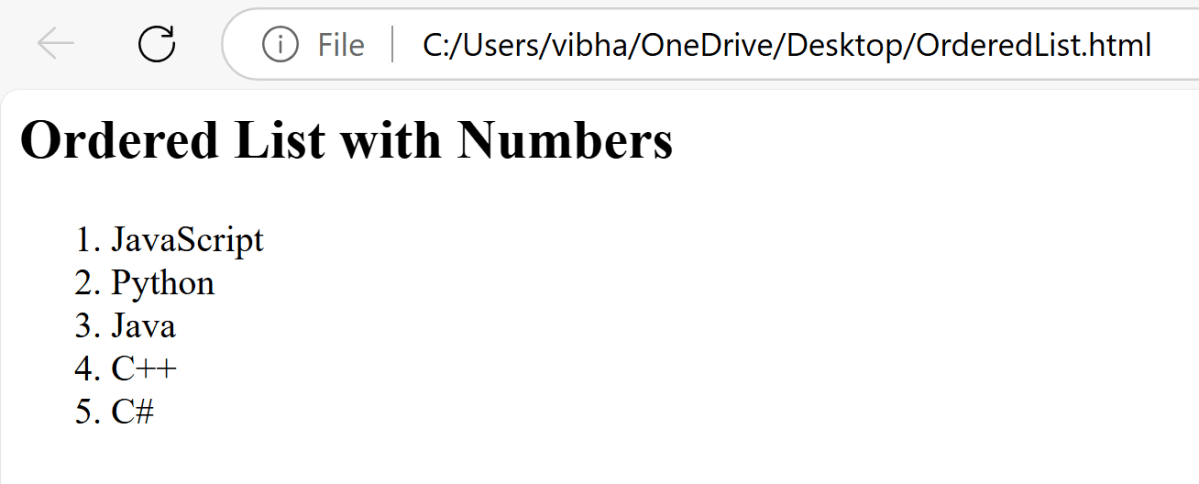
HTML Ordered List is created by the HTML <ol> tag, to display elements in an ordered form, either numerical or alphabetical. Within the <ol> tag, list items <li> are used to define the items in sequential order.
This attribute is used to specify the start value of the list.
<ol>
<html>
<head>
<title>Numbered List Example</title>
</head>
<body>
<h2>Ordered List with Numbers</h2>
<ol>
<li>JavaScript</li>
<li>Python</li>
<li>Java</li>
<li>C++</li>
<li>C#</li>
</ol>
</body>
</html>
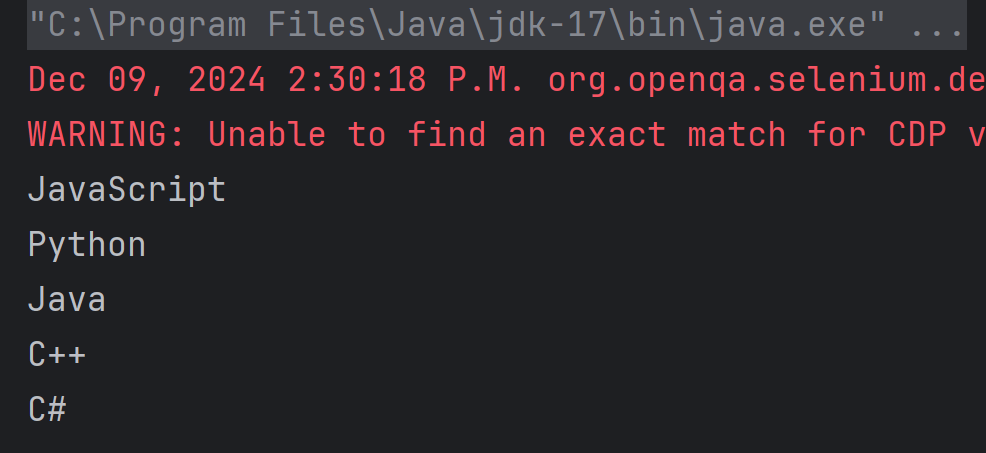
Below is the program to print all the elements present in the ordered list in Selenium.
package com.example;
import org.openqa.selenium.Alert;
import org.openqa.selenium.By;
import org.openqa.selenium.WebDriver;
import org.openqa.selenium.WebElement;
import org.openqa.selenium.chrome.ChromeDriver;
import org.openqa.selenium.chrome.ChromeOptions;
import java.time.Duration;
import java.util.List;
public class OrderedList {
public static void main(String[] args) {
// Setup the webdriver
ChromeOptions options = new ChromeOptions();
WebDriver driver = new ChromeDriver(options);
// Put an Implicit wait and launch URL
driver.manage().timeouts().implicitlyWait(Duration.ofSeconds(5));
//Start Browser
String filePath = "file:///C:/Users/vibha/OneDrive/Desktop/OrderedList.html";
driver.get(filePath);
//maximize browser
driver.manage().window().maximize();
//Locate the ordered list using its tag name
WebElement orderedList = driver.findElement(By.tagName(("ol")));
//Fetch all the list items
List<WebElement> listItems = orderedList.findElements(By.tagName("li"));
//Iterate through the list and print the contents
for (int i = 0; i < listItems.size(); i++) {
System.out.println(listItems.get(i).getText());
}
//Close the main window
driver.quit();
}
}
The output of the above program is
1. Initialize WebDriver
Initialize the WebDriver. Here, it is ChromeDriver.
// Setup the webdriver
ChromeOptions options = new ChromeOptions();
WebDriver driver = new ChromeDriver(options);
The previous tutorial explained the How to rerun failed tests in Cucumber. There are multiple times that we need to rerun the failed tests twice to overcome the intermittent network or environment issues. This can be achieved by creating multiple TestRunner class.
In the main test runner, configure Cucumber to generate a JSON report for the initial test run and capture any failed tests in a rerun file. We are using rerun plugin to logs the paths of failed scenarios in a text file – rerun.txt that will be created inside the target folder.
Set Up a Runner for running the failed tests first time
Create a second runner that reads from the rerun.txt file and generates a new rerun1.txt file that contains the path of failed tests and create a separate JSON report for failed test reruns.
import io.cucumber.testng.AbstractTestNGCucumberTests;
import io.cucumber.testng.CucumberOptions;
@CucumberOptions(tags = "",
features = "@target/rerun.txt",
glue = "com.example.definitions",
plugin = {
"pretty",
"html:target/cucumber-reports/cucumber-rerun1-report.html",
"json:target/cucumber-reports/cucumber-rerun1-report.json",
"rerun:target/rerun1.txt"
}
)
public class RunnerTestsFailed extends AbstractTestNGCucumberTests {
}
Set Up a Runner for running the failed tests second time
Create a third runner that reads from the rerun1.txt file and generates a separate JSON report for failed test reruns.
import io.cucumber.testng.AbstractTestNGCucumberTests;
import io.cucumber.testng.CucumberOptions;
@CucumberOptions(tags = "",
features = "@target/rerun1.txt",
glue = "com.example.definitions",
plugin = {
"pretty",
"html:target/cucumber-reports/cucumber-rerun2-report.html",
"json:target/cucumber-reports/cucumber-rerun2-report.json"
}
)
public class RunnerTestsSecondFailed extends AbstractTestNGCucumberTests {
}
Mention all the Test Runner details in the testng.xml
We need to mention all the TestRunner class name in the testng.xml. This will run first runner that will generate a file rerun.txt which in turns contain the path of the failed scenarios. Then, second runner will use this new file rerun.txt as input to the feature file and rerun the failed tests and generate second file – rerun1.txt which is used as input to the third Test Runner file.
<?xml version="1.0" encoding="UTF-8"?>
<!DOCTYPE suite SYSTEM "https://testng.org/testng-1.0.dtd">
<suite name="Suite">
<test name="Cucumber with TestNG Test">
<classes>
<class name="com.example.runner.RunnerTests"/>
<class name="com.example.runner.RunnerTestsFailed"/>
<class name="com.example.runner.RunnerTestsSecondFailed"/>
</classes>
</test> <!-- Test -->
</suite> <!-- Suite -->
Add cucumber-reporting Plugin to pom.xml
Use the cucumber-reporting plugin by Masterthought to combine the JSON files into a single report. Configure the plugin in your pom.xml to read both the main and rerun JSON files.
Use the below command to run the tests and generate the consolidated Test Report.
mvn clean verify
RunnerTests class generates cucumber-report.json file whereas RunnerTestsFailed generates cucumber-rerun-report.json files are present in target/cucumber-reports folder.
MasterThought plugin uses these json files to generate a consolidated report in target/cucumber-html-reports.
There are different types of HTML reports gets generated as a part of the test execution cycle.
1. feature-overview – This HTML report gives an overall overview of test execution. Main HTML report which covers all different sections like Features, Tags, Steps, and Failures.
2. failures-overview – This HTML report gives an overview of all failed tests.
3. step-overview – This HTML report shows step statistics for the current cycle.
4. tag-overview – This HTML report shows passing and failing statistics for different tags used in test execution.
Congratulations on making it through this tutorial and hope you found it useful! Happy Learning!! Cheers!!
There are multiple reports produced when the Cucumber failed tests are redone. There is no unified test execution status provided in these reports. To generate a consolidated Cucumber report after rerunning any failed tests, follow these steps:
In the main test runner, configure Cucumber to generate a JSON report for the initial test run and capture any failed tests in a rerun file. We are using rerun plugin to logs the paths of failed scenarios in a text file – rerun.txt that will be created inside the target folder.
Create a second runner that reads from the rerun.txt file and generates a separate JSON report for failed test reruns.
import io.cucumber.testng.AbstractTestNGCucumberTests;
import io.cucumber.testng.CucumberOptions;
@CucumberOptions(tags = "",
features = "@target/rerun.txt",
glue = "com.example.definitions",
plugin = {
"pretty",
"html:target/cucumber-reports/cucumber-rerun-report.html",
"json:target/cucumber-reports/cucumber-rerun-report.json"
}
)
public class RunnerTestsFailed extends AbstractTestNGCucumberTests {
}
Mention both Test Runner details in the testng.xml
We need to mention both the TestRunner class name in the testng.xml. This will run both the runners sequentially.
<?xml version="1.0" encoding="UTF-8"?>
<!DOCTYPE suite SYSTEM "https://testng.org/testng-1.0.dtd">
<suite name="Suite">
<test name="Cucumber with TestNG Test">
<classes>
<class name="com.example.runner.RunnerTests"/>
<class name="com.example.runner.RunnerTestsFailed"/>
</classes>
</test> <!-- Test -->
</suite> <!-- Suite -->
Add cucumber-reporting Plugin to pom.xml
Use the cucumber-reporting plugin by Masterthought to combine the JSON files into a single report. Configure the plugin in your pom.xml to read both the main and rerun JSON files.
Use the below command to run the tests and generate the consolidated Test Report.
mvn clean verify
RunnerTests class generates cucumber-report.json file whereas RunnerTestsFailed generates cucumber-rerun-report.json files are present in target/cucumber-reports folder.
MasterThought plugin uses these json files to generate a consolidated report in target/cucumber-html-reports.
There are different types of HTML reports gets generated as a part of the test execution cycle.
1. feature-overview – This HTML report gives an overall overview of test execution. Main HTML report which covers all different sections like Features, Tags, Steps, and Failures.
2. failures-overview – This HTML report gives an overview of all failed tests.
3. step-overview – This HTML report shows step statistics for the current cycle.
4. tag-overview – This HTML report shows passing and failing statistics for different tags used in test execution.
Congratulations on making it through this tutorial and hope you found it useful! Happy Learning!! Cheers!!
In this article we will see how we can download a pdf file using selenium at a desired location in java on Firefox browser.
Many applications generate PDF Report like Billing Report, Policy Report, so on and as part of the testing process, the QA needs to download the PDF’s and verify the data present in that report. We should be able to perform this operation using automation also. Selenium supports the downloading of the document like PDF, word, excel and many more.
Implementation Steps
Step 1 – Define directory path for PDF to be downloaded
Define the directory path where the PDF will be downloaded. Here, it will create a directory with the name of downloads in the project.
This preference sets where downloaded files will be saved. The value `2` indicates that all downloaded files should be saved to a user-specified directory.
This preference specifies the MIME types for which Firefox will automatically download files without prompting the user with an “Open/Save As” dialog. In this case, application/pdf is being used to indicate that PDF files should be downloaded directly.
Step 3 – Initialize WebDriver and Open Webpage
WebDriver driver = new FirefoxDriver(options);
driver.manage().window().maximize();
driver.get("https://freetestdata.com/document-files/pdf/");
Step 4 – Find and Click the Download Link and wait for the download completion
Locate the download link using XPath and click on it to start the download.
WebElement downloadLink = new WebDriverWait(driver, Duration.ofSeconds(10))
.until(ExpectedConditions.elementToBeClickable(By.xpath("//*[@class=\"elementor-button-text\"]")));
downloadLink.click();
Step 5 – Verify the File Download
Check if the downloaded file exists in the specified download directory or not.
File downloadedFile = new File(downloadFilepath + "/Free_Test_Data_100KB_PDF.pdf");
if (downloadedFile.exists()) {
System.out.println("File is downloaded!");
} else {
System.out.println("File is not downloaded.");
}
Step 6 – Quit the WebDriver
driver.quit();
The complete program can be seen below:
package com.example;
import org.openqa.selenium.By;
import org.openqa.selenium.WebDriver;
import org.openqa.selenium.WebElement;
import org.openqa.selenium.firefox.FirefoxDriver;
import org.openqa.selenium.firefox.FirefoxOptions;
import org.openqa.selenium.support.ui.ExpectedConditions;
import org.openqa.selenium.support.ui.WebDriverWait;
import java.io.File;
import java.time.Duration;
public class FirefoxDownload_PDF {
public static void main(String[] args) {
// Setup download directory
String downloadFilepath = System.getProperty("user.dir") + File.separator + "firefox_downloads";
// FirefoxOptions configuration
FirefoxOptions options = new FirefoxOptions();
options.addPreference("browser.download.folderList", 2);
options.addPreference("browser.download.dir", downloadFilepath);
options.addPreference("browser.helperApps.neverAsk.saveToDisk", "application/pdf");
// Initialize Firefox WebDriver and configure browser window
WebDriver driver = new FirefoxDriver(options);
driver.manage().window().maximize();
driver.get("https://freetestdata.com/document-files/pdf/");
// Locate the download link/button and click and wait for the download to complete
WebElement downloadLink = new WebDriverWait(driver, Duration.ofSeconds(10))
.until(ExpectedConditions.elementToBeClickable(By.xpath("//*[@class=\"elementor-button-text\"]")));
downloadLink.click();
// Verify if the PDF file exists
File downloadedFile = new File(downloadFilepath + "/Free_Test_Data_100KB_PDF.pdf");
if (downloadedFile.exists()) {
System.out.println("File is downloaded from Firefox!");
} else {
System.out.println("File is not downloaded.");
}
// Cleanup: close the browser
driver.quit();
}
}
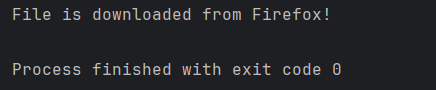
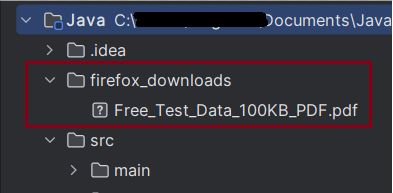
The output of the above program is
We can see that a firefox_downloads folder is created, and it has the downloaded pdf file – Free_Test_Data_100KB_PDF.pdf.
Summary:
Setup: Configures Firefox to automatically download PDFs and sets the download directory.
Automatically save files of specified MIME types (in this case, PDFs) without prompting the user with a dialog.
Download and Verify: Navigates to a specific URL, clicks the download link, waits for the download to complete, and verifies if the file exists in the specified directory.
Cleanup: Closes the browser session.
That’s it! Congratulations on making it through this tutorial and hope you found it useful! Happy Learning!!
In this article we will see how we can see how we will merge 2 PDF files in a single PDF file using selenium Java.
Merging PDF documents in Selenium using Java requires some additional libraries because Selenium itself does not provide direct support for reading PDFs. The most commonly used library for reading PDFs in Java is Apache PDFBox.
We are using the Apache PDFBox to download PDF files.
We are using WebDriverWait to wait until the pdfs are downloaded.
// Download first PDF
WebElement downloadLink1 = driver.findElement(By.xpath("//*[@class='elementor-button-text']"));
downloadLink1.click();
//Wait for first PDF download to complete
File downloadedFile1 = new File(downloadFilepath + "/Free_Test_Data_100KB_PDF.pdf");
WebDriverWait wait1 = new WebDriverWait(driver, Duration.ofSeconds(30));
wait1.until((ExpectedCondition<Boolean>) wd -> downloadedFile1.exists());
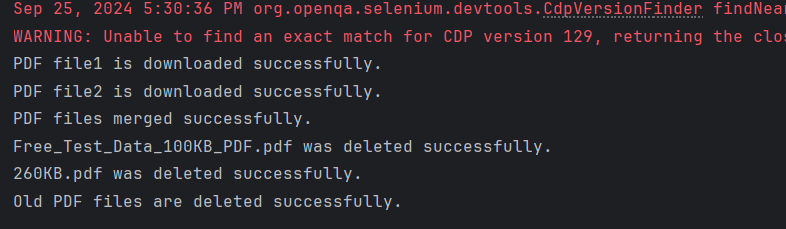
System.out.println("PDF file1 is downloaded successfully.");
// Download second PDF
WebElement downloadLink2 = driver.findElement(By.xpath("//*[@id=\"post-81\"]/div/div/section[3]/div/div[1]/div/section[2]/div/div[2]/div/div/div/div/a/span/span"));
downloadLink2.click();
//Wait for first PDF download to complete
File downloadedFile2 = new File(downloadFilepath + "/260KB.pdf");
WebDriverWait wait2 = new WebDriverWait(driver, Duration.ofSeconds(30));
wait2.until((ExpectedCondition<Boolean>) wd -> downloadedFile2.exists());
System.out.println("PDF file2 is downloaded successfully.");
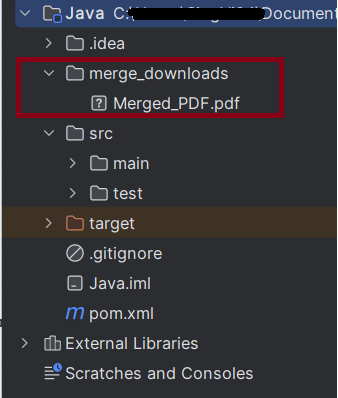
4. Merging the PDFs
We are using PDFMergerUtility from Apache PDFBox to merge the downloaded PDF files into a single PDF.
This is used to pause the execution for a specified amount of time (5 seconds here) to allow the file to download completely. It is not recommended to use Thread.sleep in production.
Thread.sleep(5000);
Step 6 – Verify the File Download
Check if the downloaded file exists in the specified download directory or not.
File downloadedFile = new File(downloadFilepath + "/Free_Test_Data_100KB_PDF.pdf");
if (downloadedFile.exists()) {
System.out.println("File is downloaded!");
} else {
System.out.println("File is not downloaded.");
}
Step 7 – Quit the WebDriver
driver.quit();
The complete program can be seen below:
package com.example;
import org.openqa.selenium.By;
import org.openqa.selenium.WebDriver;
import org.openqa.selenium.WebElement;
import org.openqa.selenium.edge.EdgeDriver;
import org.openqa.selenium.edge.EdgeOptions;
import org.openqa.selenium.firefox.FirefoxDriver;
import org.openqa.selenium.firefox.FirefoxOptions;
import java.io.File;
import java.util.HashMap;
import java.util.Map;
public class EdgeDownload_PDF {
public static void main(String[] args) throws InterruptedException {
String downloadFilepath = System.getProperty("user.dir") + File.separator + "downloads";
EdgeOptions options = new EdgeOptions();
Map<String, Object> prefs = new HashMap<>();
prefs.put("download.default_directory", downloadFilepath);
prefs.put("download.prompt_for_download", false);
WebDriver driver = new EdgeDriver(options);
driver.manage().window().maximize();
driver.get("https://freetestdata.com/document-files/pdf/");
// Locate and click the download link or button if necessary
WebElement downloadLink = driver.findElement(By.xpath("//*[@class=\"elementor-button-text\"]"));
downloadLink.click();
// Wait for the download to complete
try {
Thread.sleep(5000);
} catch (InterruptedException e) {
e.printStackTrace();
}
// Check if the file exists
File downloadedFile = new File(downloadFilepath + "/Free_Test_Data_100KB_PDF.pdf");
if (downloadedFile.exists()) {
System.out.println("File is downloaded from Edge!");
} else {
System.out.println("File is not downloaded.");
}
driver.quit();
}
}
The output of the above program is
We can see that a downloads folder is created, and it has the downloaded pdf file – Free_Test_Data_100KB_PDF.pdf.
Summary:
Setup: Configures Chrome to automatically download PDFs and sets the download directory.
Download and Verify: Navigates to a specific URL, clicks the download link, waits for the download to complete, and verifies if the file exists in the specified directory.
Cleanup: Closes the browser session.
That’s it! Congratulations on making it through this tutorial and hope you found it useful! Happy Learning!!