Playwright is a modern and powerful end-to-end testing framework developed by Microsoft, specifically designed for the automation of web applications. It supports programming languages like Java, Python, C#, and NodeJS. Playwright comes with Apache 2.0 License and is most popular with NodeJS with Javascript/Typescript.
In this tutorial, I will explain the steps to install Playwright on a Window machine. To install Playwright on a Windows machine, you will typically use Node.js and the npm (Node Package Manager).
Open Command Prompt or PowerShell. Make a new directory for your Playwright project and navigate into it:
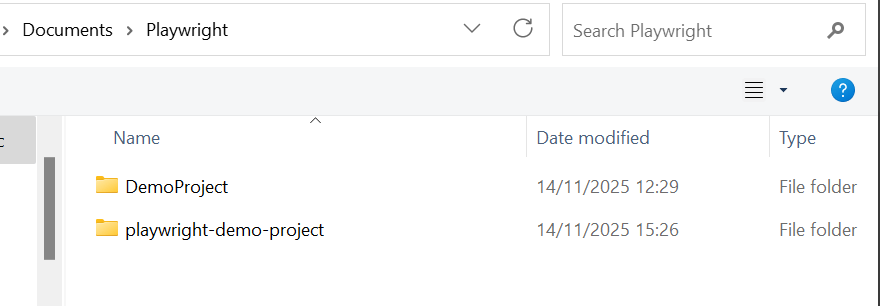
The new empty folder “playwright-demo-project” is created in Documents/Playwright folder.
3. Install Playwright
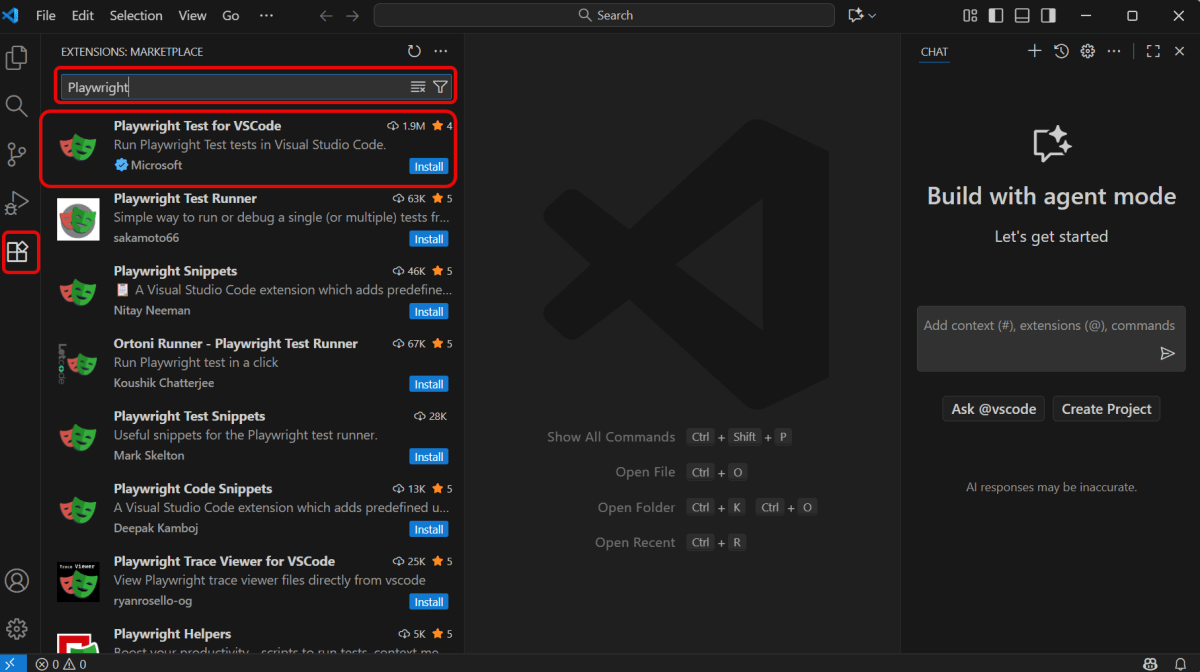
Open Visual Studio for Code. Install “Playwright Test for VSCode” from Microsoft via the Extensions tab.
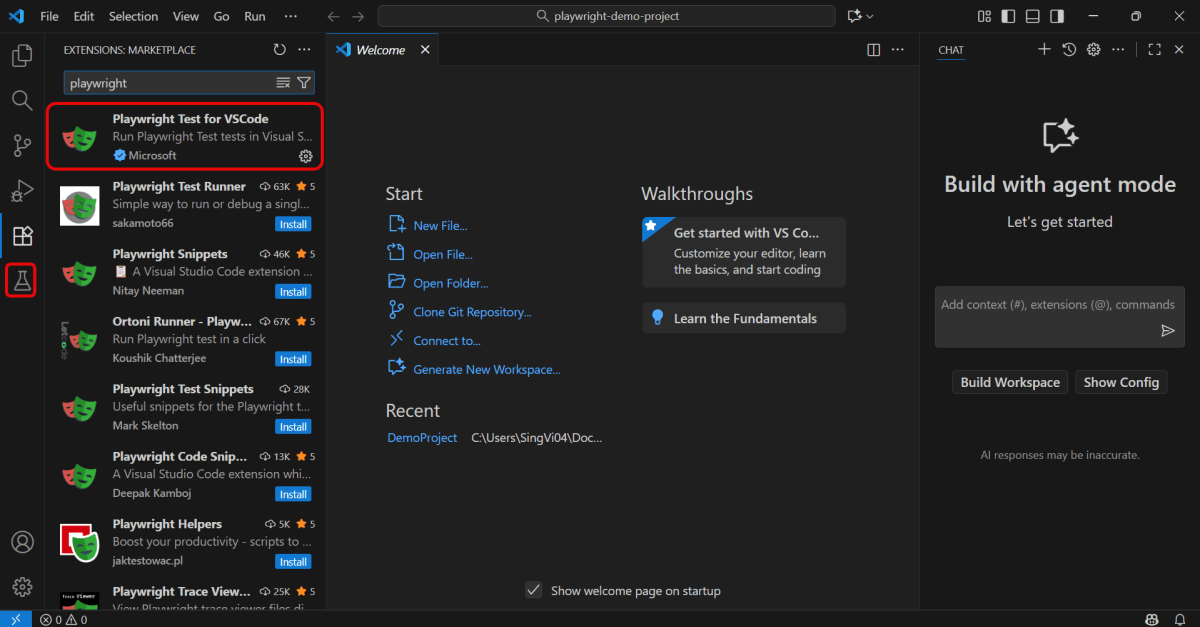
Once the plugin is installed. We can see a new Funnel icon called Testing as shown in the image.
4. Create a new Playwright project
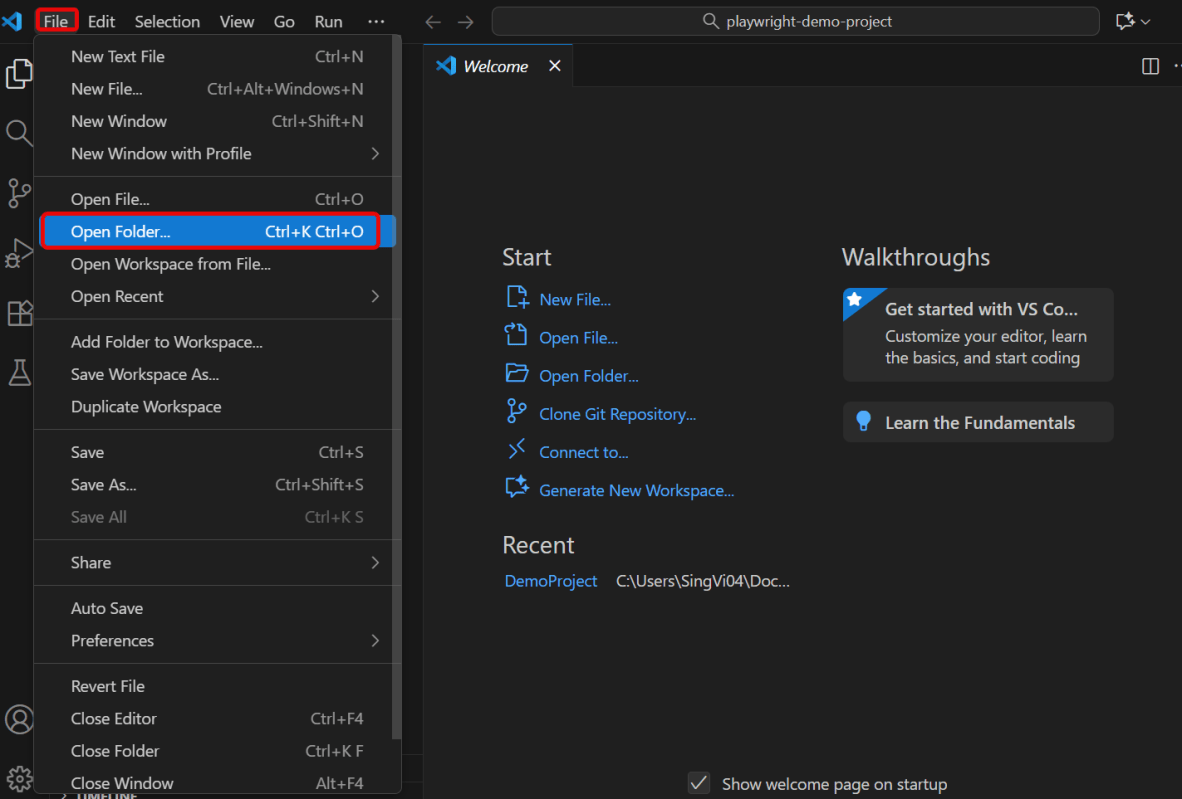
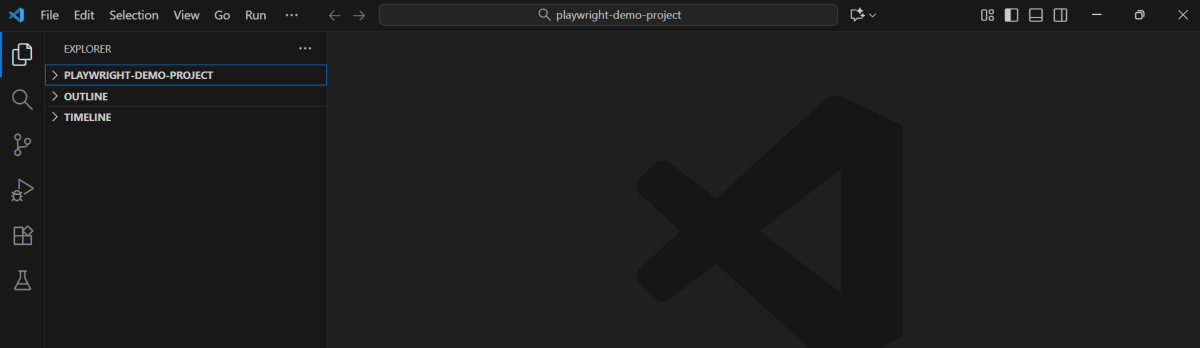
Go to File and select Open Folder we have created earlier – playwright-demo-project.
We can see the project is opened in VS code.
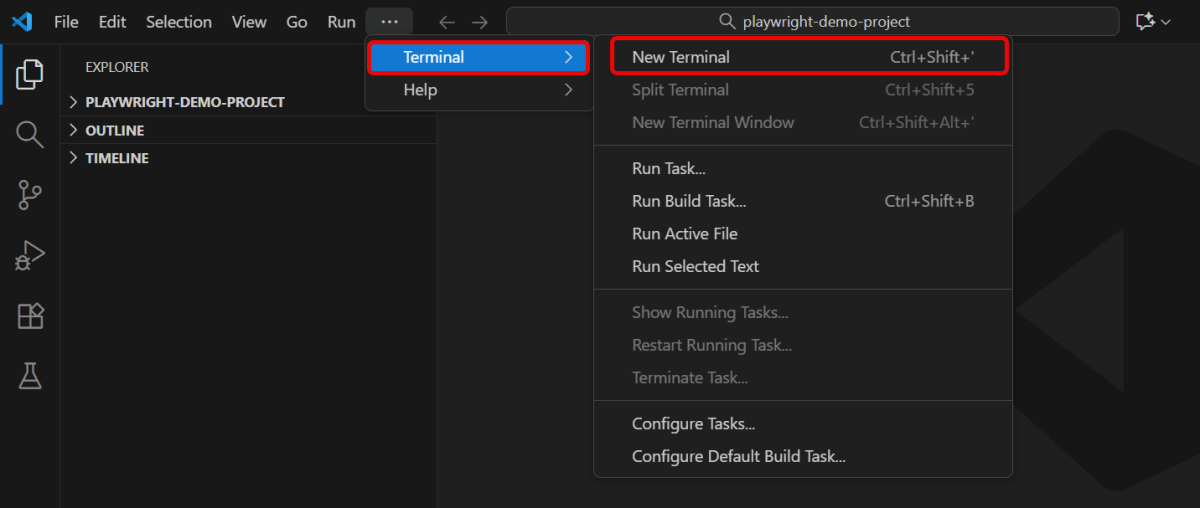
Go to the terminal in this project and open a New Terminal.
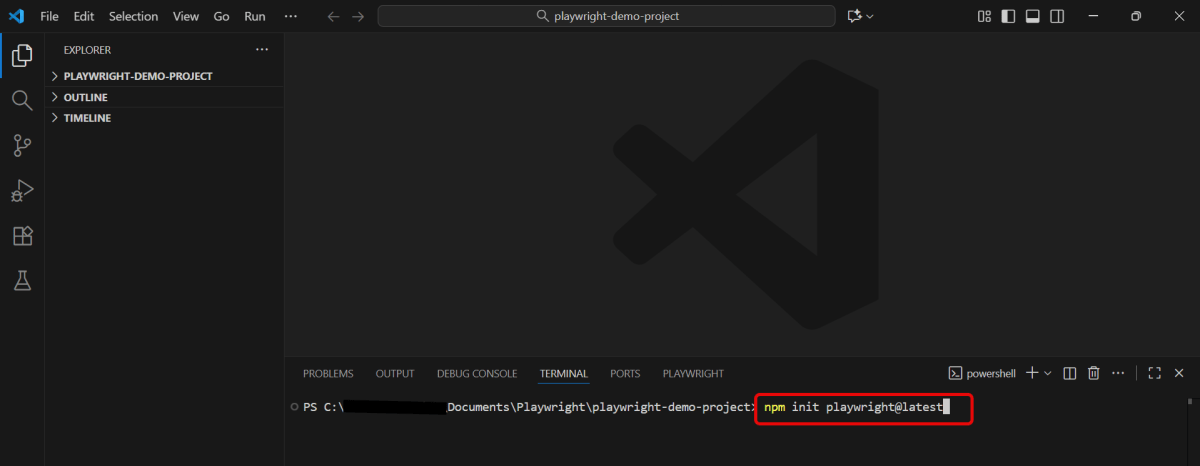
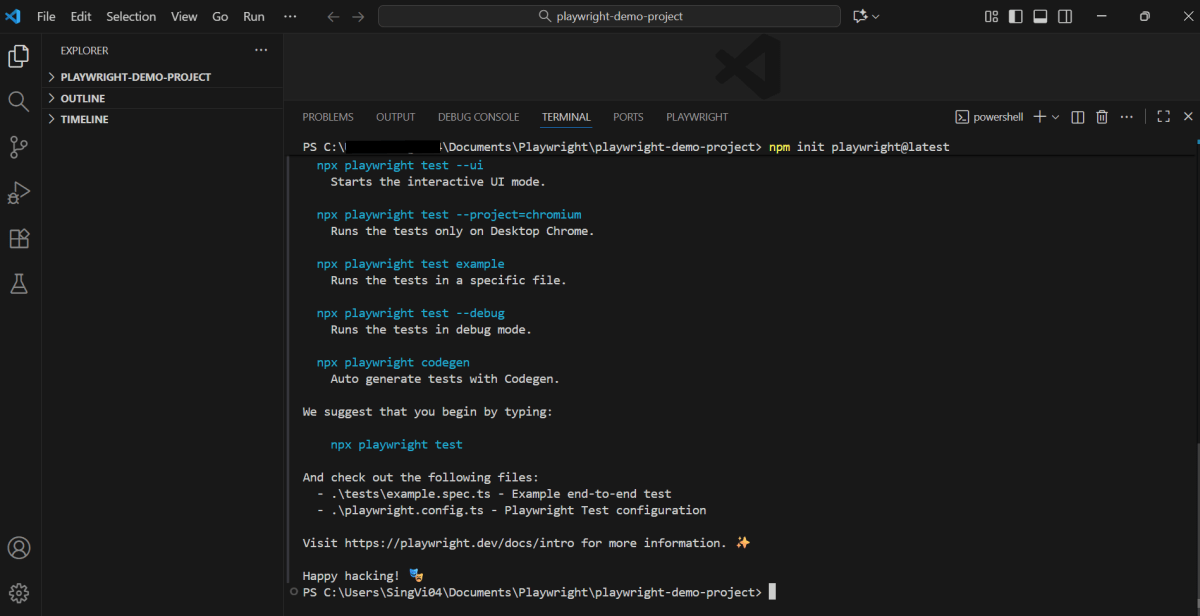
Type the below command in the terminal
npm init playwright@latest
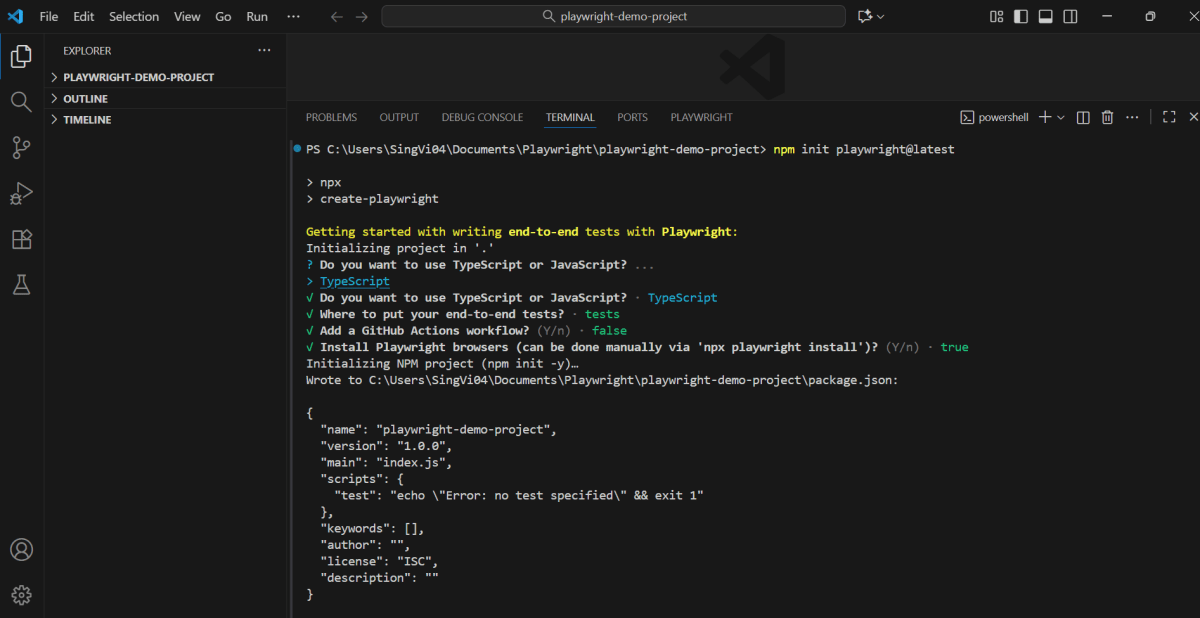
When prompted, choose / confirm:
TypeScript or JavaScript (default: TypeScript)
Tests folder name (default: tests, or e2e if tests already exists)
Add a GitHub Actions workflow (recommended for CI) – Initial project, so mentioned False
Install Playwright browsers (default: yes)
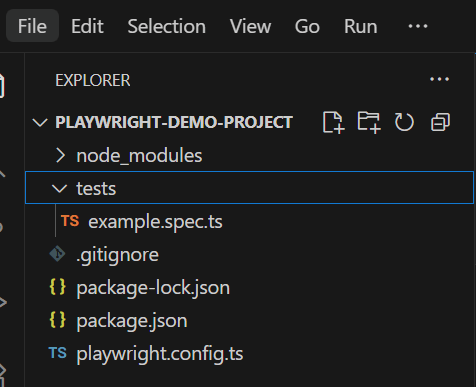
Playwright downloads required browser binaries and creates the scaffold below.
playwright.config.ts         # Test configuration
package.json
package-lock.json            # Or yarn.lock / pnpm-lock.yaml
tests/
  example.spec.ts            # Minimal example test
The playwright.config centralizes configuration: target browsers, timeouts, retries, projects, reporters and more. In existing projects dependencies are added to your current package.json.
tests/ contains a minimal starter test. tests-examples/ provides richer samples (e.g. a todo app) to explore patterns.
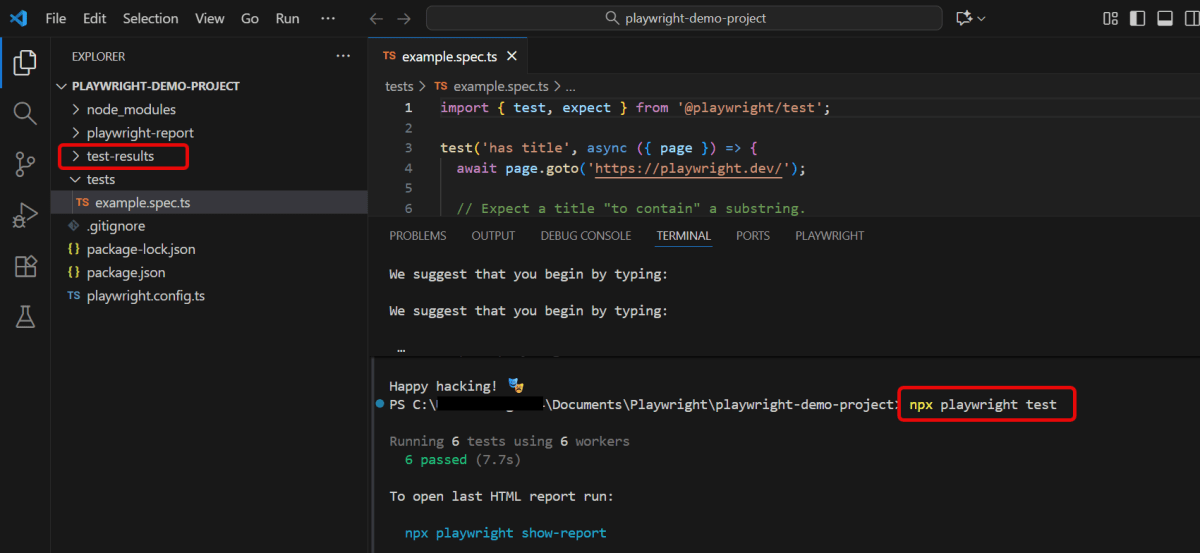
5. Running the Example Test through Terminal
By default tests run headless in parallel across Chromium, Firefox and WebKit (configurable in playwright.config). Output and aggregated results display in the terminal.
npx playwright test
6. HTML Test Reports
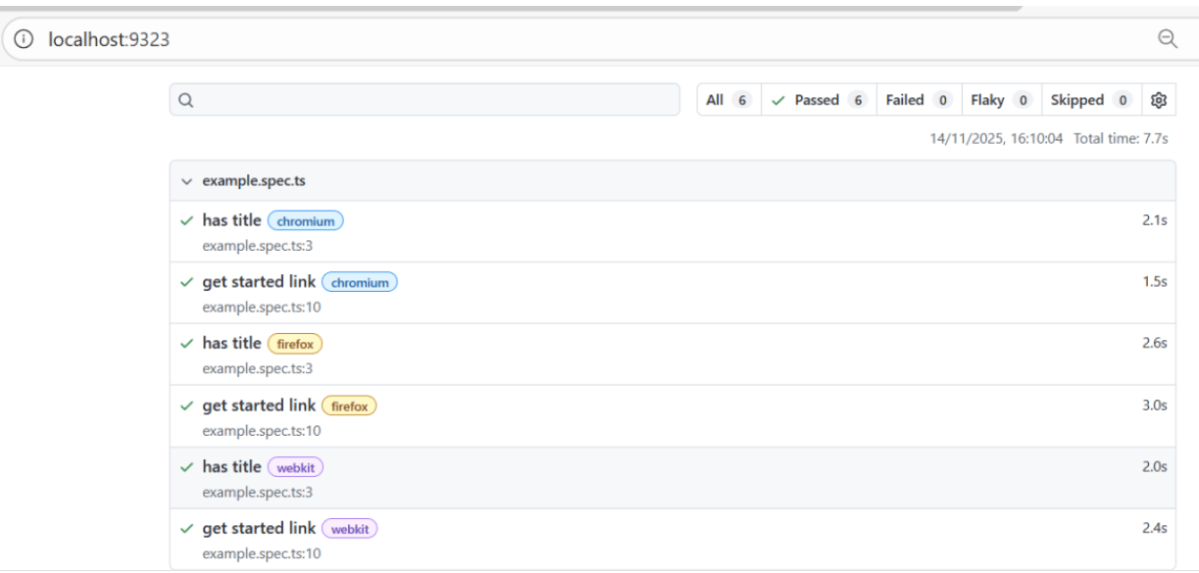
After a test run, the HTML Reporter provides a dashboard filterable by the browser, passed, failed, skipped, flaky and more. Click a test to inspect errors, attachments and steps. It auto-opens only when failures occur; open manually with the command below.
npx playwright show-report
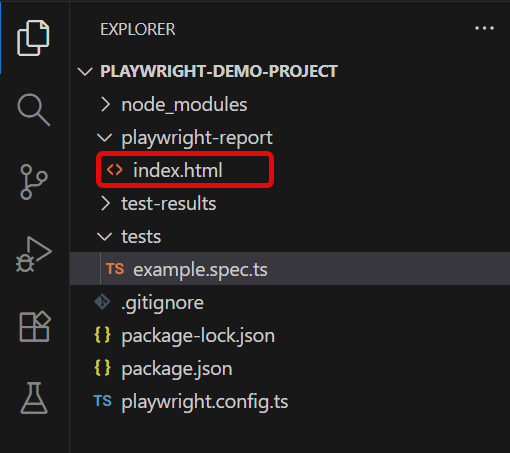
The report is also present in playwright-report folder with the name of “index.html”.
Summary: 1. Install Node.js. 2. Initialize npm project. 3. Install Playwright. 4. Run a test script to verify your setup. 5. View Test report – Index.html report
Playwright is a modern and powerful end-to-end testing framework developed by Microsoft, specifically designed for the automation of web applications. It supports programming languages like Java, Python, C#, and NodeJS. Playwright comes with Apache 2.0 License and is most popular with NodeJS with Javascript/Typescript.


 QA Automation Expert