How to run SpringBoot tests with GitHub Actions

Last Modified Date

HOME

GitHub Actions is a powerful tool that can be used to automate your software development workflows. In this blog post, we will show you how to get started with GitHub Actions for Java Spring Boot.

Why GitHub?

The flexible aspects of GitHub Actions enable users to create powerful, fast, and efficient automated testing workflows in CI/CD environments.

CI/CD pipelines have contributed to the success of the DevOps cycle in all software development projects. This is a holistic process that bridges development and operations. Continuous integration helps development teams deploy code efficiently, and continuous delivery automates code deployment.

Implementation Steps

Step 1 – Create GitHub Actions and Workflows

I have a repository available on GitHub – SpringBoot_Serenity_Cucumber_JUnit4_Demo as shown in the below image. Go to the “Actions” tab.  Click on the “Actions” tab.

Step 2 – Select the type of Actions

You will see that GitHub recommends Actions depending on the project. In our case, it is recommending actions suitable for a Java project. I have selected the “Java with Maven” option as my project is built in Maven.

Step 3 – Generation of Sample pipeline

If you choose an existing option, it will automatically generate a .yaml for the project as shown below.
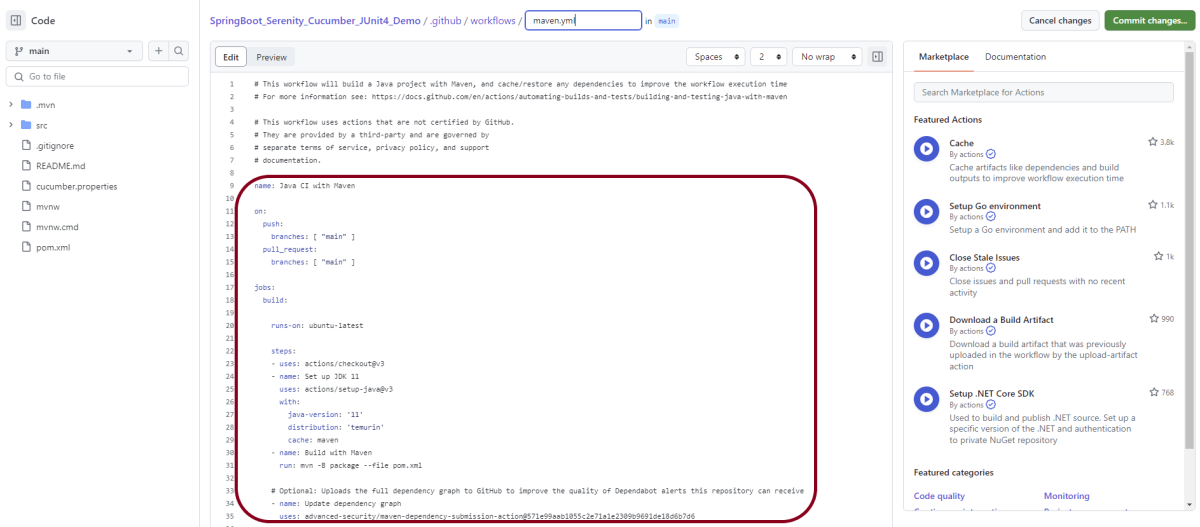
We will replace the current workflow with the following yml file as shown below:

name: Build and Test Java Spring Boot Application 

on:
  push:
    branches: [ "main" ]
  pull_request:
    branches: [ "main" ]

jobs:
  build:

    runs-on: ubuntu-latest

    steps:
    - uses: actions/checkout@v3
    - name: Set up JDK 17
      uses: actions/setup-java@v3
      with:
        java-version: '17'
        distribution: 'temurin'
        cache: maven
   
    - name: Build with Maven
      run: mvn clean verify

    - name: Test Report
      uses: actions/upload-artifact@v3
      if: success() || failure()
      with:
          name: SpringBoot Report               # Name of the folder
          path: target/site/serenity/           # Path to test results

Step 4 – Commit the changes

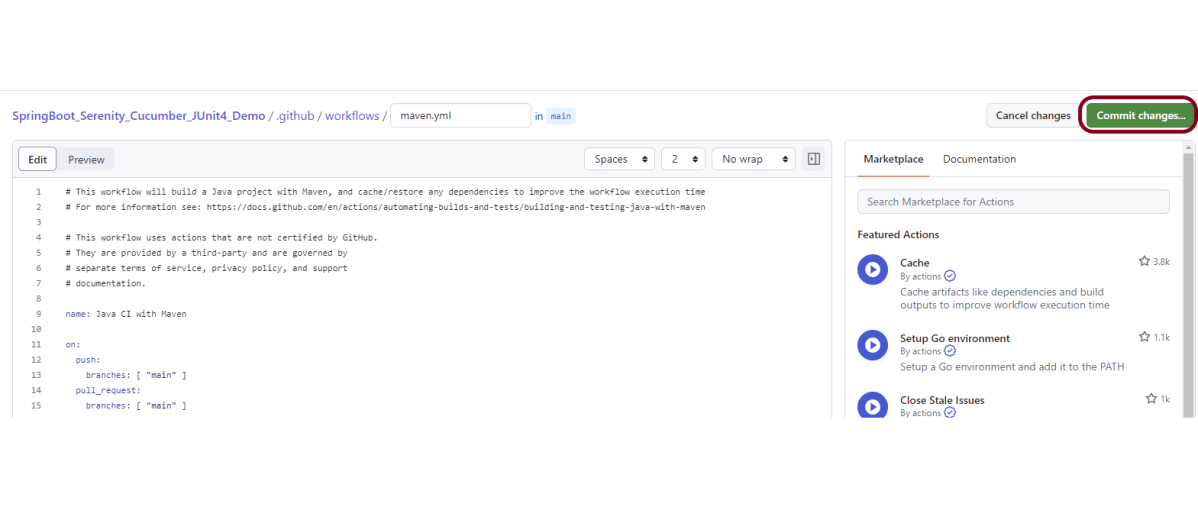
After the changes, hit the “Commit changes” button.
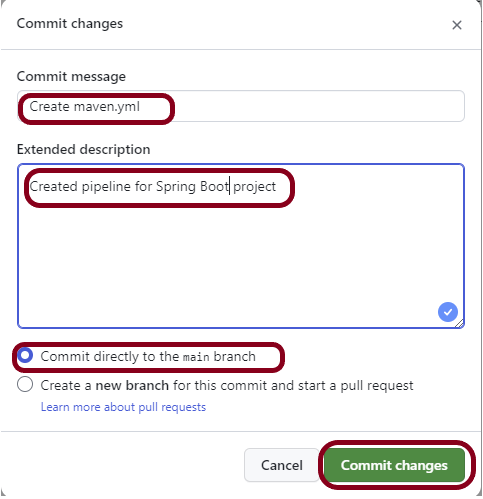
This will give the option to add a description for the commit. It will enable the user to commit either to the main branch. The user can also commit to any other branch that exists in the project. Click on the “Commit changes” button to set up the workflow file.
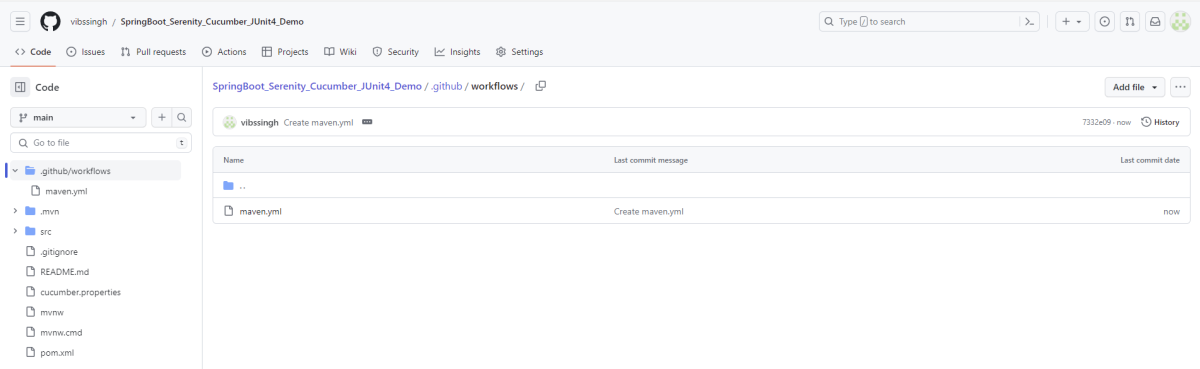
Below is the image of the newly created maven.yml file.
Step 5 – Verify that the workflow is running

Next, head over to the “Actions” tab, and you will see your YAML workflow file present under the tab. The yellow sign represents that the job is in the queue.

In Progress – When the job starts building and running, you will see the status change from “Queued” to “in progress”.

Passed – If the build is successful, you will see a green tick mark. 

Failed – In case the build has failed, then there will be a red cross mark.

Click on the workflow and the below screen is displayed. It shows the status of the run of the workflow. It also shows the total time taken to run the workflow and the name of the .yml file.
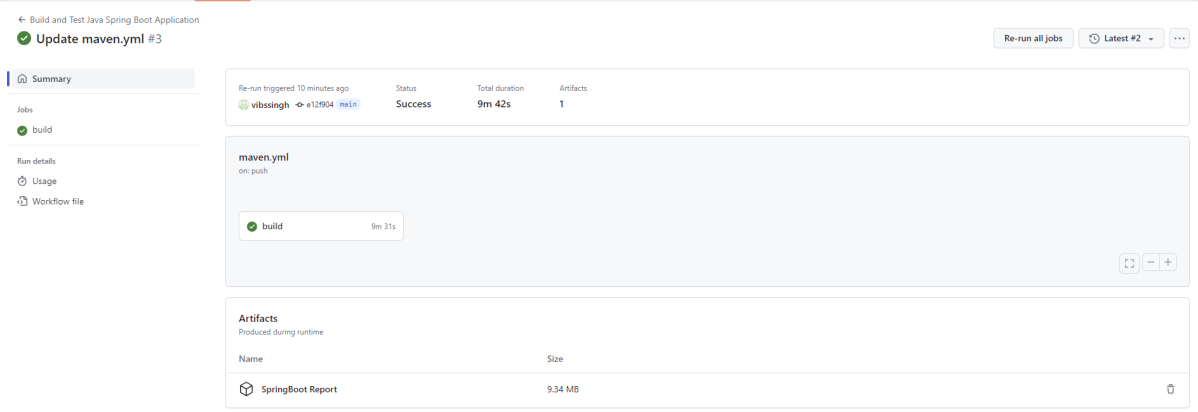
Below shows all the steps of the workflow.

Step 6 – Published artifacts on GitHub

Once the pipeline run, a SpringBoot Report folder will be generated as shown in the below image:

When we click on the folder SpringBoot Report, a zipped file will be downloaded. We can extract it to see all the files contained within it.
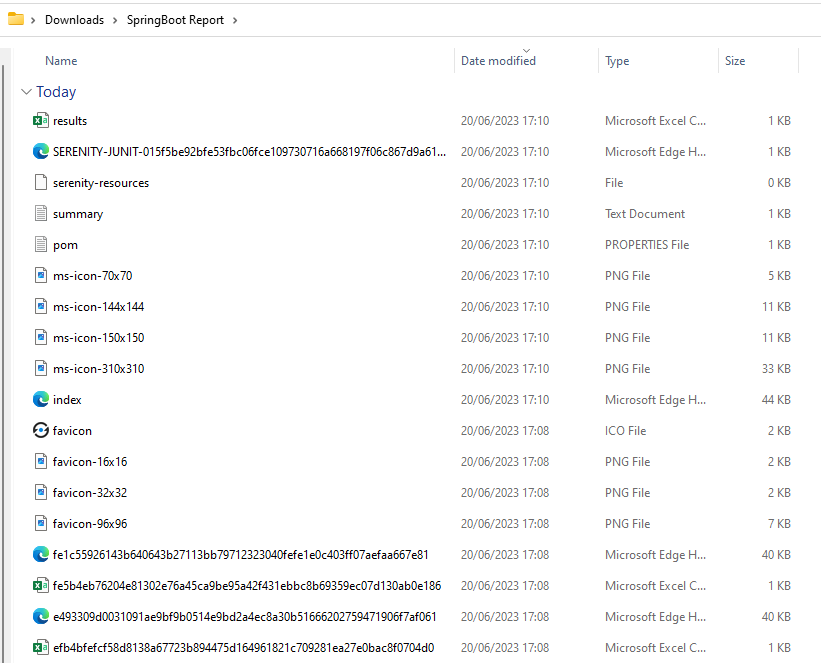
The image of the report is shown below:

The complete code can be found here on GitHub – SpringBoot_Serenity_Cucumber_JUnit4_Demo.

Congratulations! We just created our CI workflow for running our SpringBoot test cases.

How to run Gradle tests in the GitHub pipeline

HOME

The previous tutorial explained the steps to run the Selenium tests in the GitHub pipeline (Maven project). This tutorial explains the steps to run the Gradle project in the GitHub pipeline.

Important points to keep in mind:

1. We don’t need to think about the Chromedriver.exe we are using WebDriver Manager to handle that instead of adding it to our project like the following:

WebDriverManager.chromedriver().setup();

2. The Selenium tests need to run in the headless mode. As we are using Chrome browser, use the below code:

ChromeOptions options = new ChromeOptions();
options.addArguments("--no-sandbox");
options.addArguments("--disable-dev-shm-usage");
options.addArguments("--headless");
driver = new ChromeDriver(options);

3. Install Chrome browser in ubuntu. Use the below code:

- uses: browser-actions/setup-chrome@latest
- run: chrome --version

To know more about Chrome installation, please refer to this tutorial – browser-actions/setup-chrome.

Implementation Steps

Step 1 – Create GitHub Actions and Workflows

I have a repository available on GitHub – Gradle_Selenium_TestNG_Demo as shown in the below image. Go to the Actions tab.  Click on the “Actions” tab.

Step 2 – Select the type of Actions

You will see that GitHub recommends Actions depending on the project. In our case, it is recommending actions suitable for a Java project. I have selected the “Publish Java Package with Gradle” option.

Step 3 – Generation of Sample pipeline

If you choose an existing option, it will automatically generate a .yaml for the project as shown below.

We will replace the current workflow with the following yml file as shown below:

name: Gradle Project - Selenium with TestNG

on:
  push:
    branches: [ "main" ]
  pull_request:
    branches: [ "main" ]

jobs:
  build:

    runs-on: ubuntu-latest
    permissions:
      contents: read
      packages: write

    steps:
    - uses: actions/checkout@v3
    - name: Set up JDK 11
      uses: actions/setup-java@v3
      with:
        java-version: '11'
        distribution: 'temurin'
        
    - uses: browser-actions/setup-chrome@latest
    - run: chrome --version     

    - name: Build with Gradle
      run: gradle clean test
      
    - name: Archive Rest Results
      uses: actions/upload-artifact@v3
      if: success() || failure()
      with:
        name: test-results
        path: GradleReports/emailable-report.html

Step 4 – Commit the changes

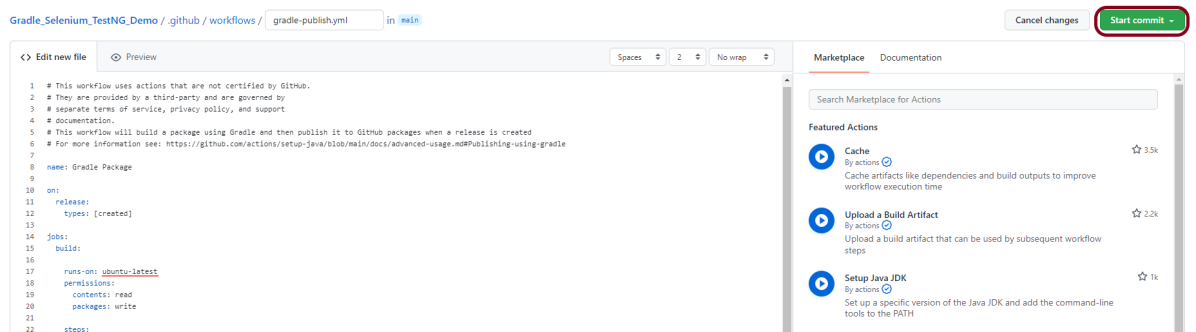
After the changes, hit the “Start Commit” button.

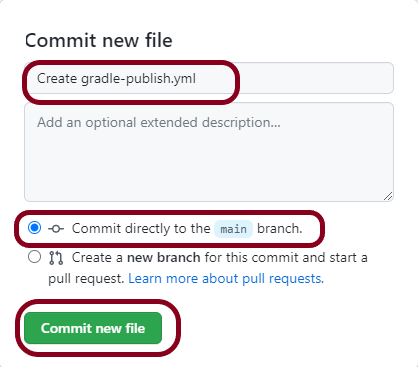
This will give the option to add a description for the commit. It will also enable the user to commit either to the main branch or commit to any other branch that exists in the project. Click on the “Commit new file” button to set up the workflow file.

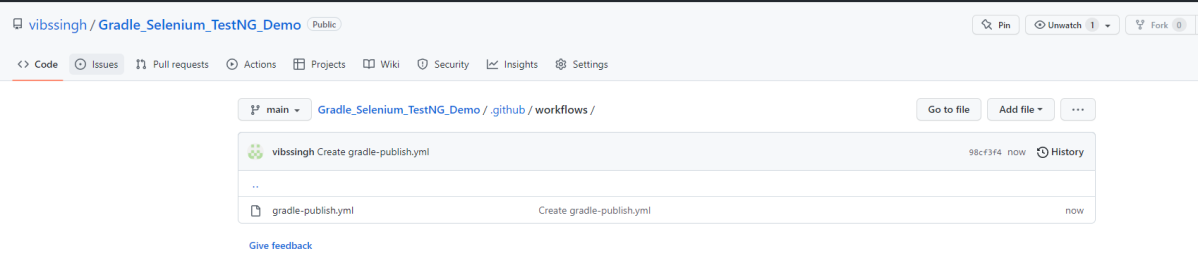
A folder with the name .github/workflows will be created that will contain a gradle-publish.yml file as shown below:

Step 5 – Verify that the workflow is running

Next, head over to the “Actions” tab, and you will see your YAML workflow file present under the tab. The yellow sign represents that the job is in the queue.

In Progress – When the job starts building and running, you will see the status change from “Queued” to “in progress”.

Passed –If the build is successful, you will see a green tick mark. 

Click on the workflow and the below screen is displayed. It shows the status of the run of the workflow, the total time taken to run the workflow, and the name of the .yml file.

Failed – In case the build has failed which in this case any of the tests is failed, then there will be a red cross mark.

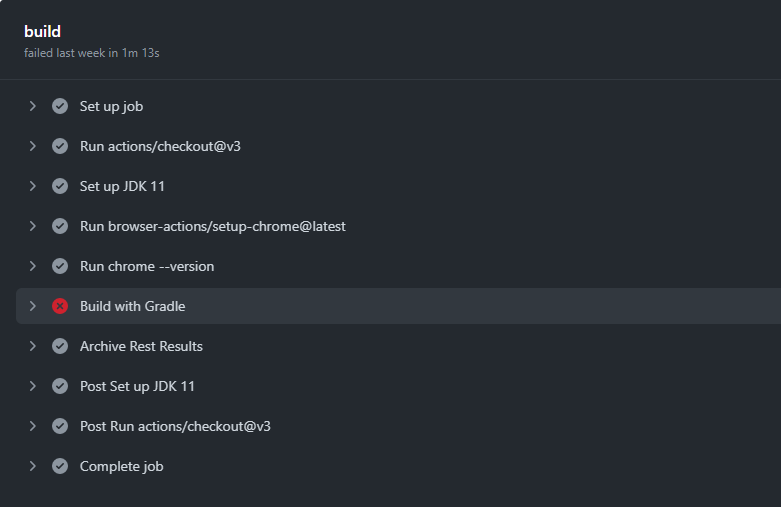
Below shows all the steps of the workflow.

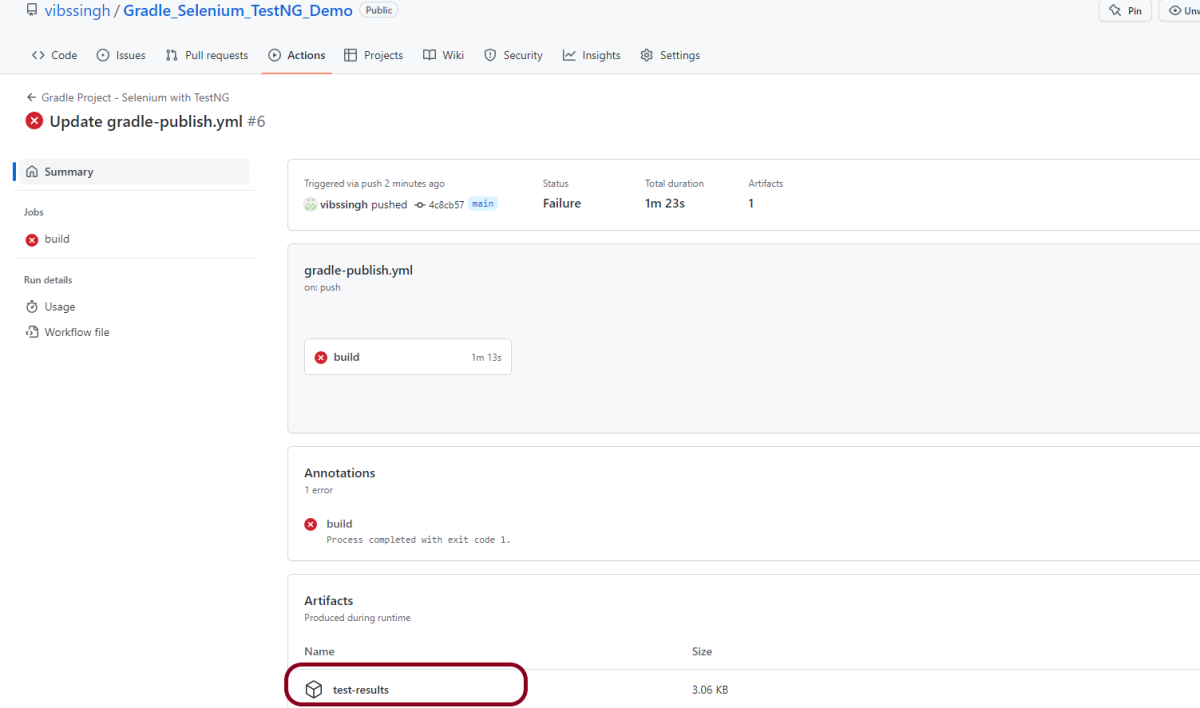
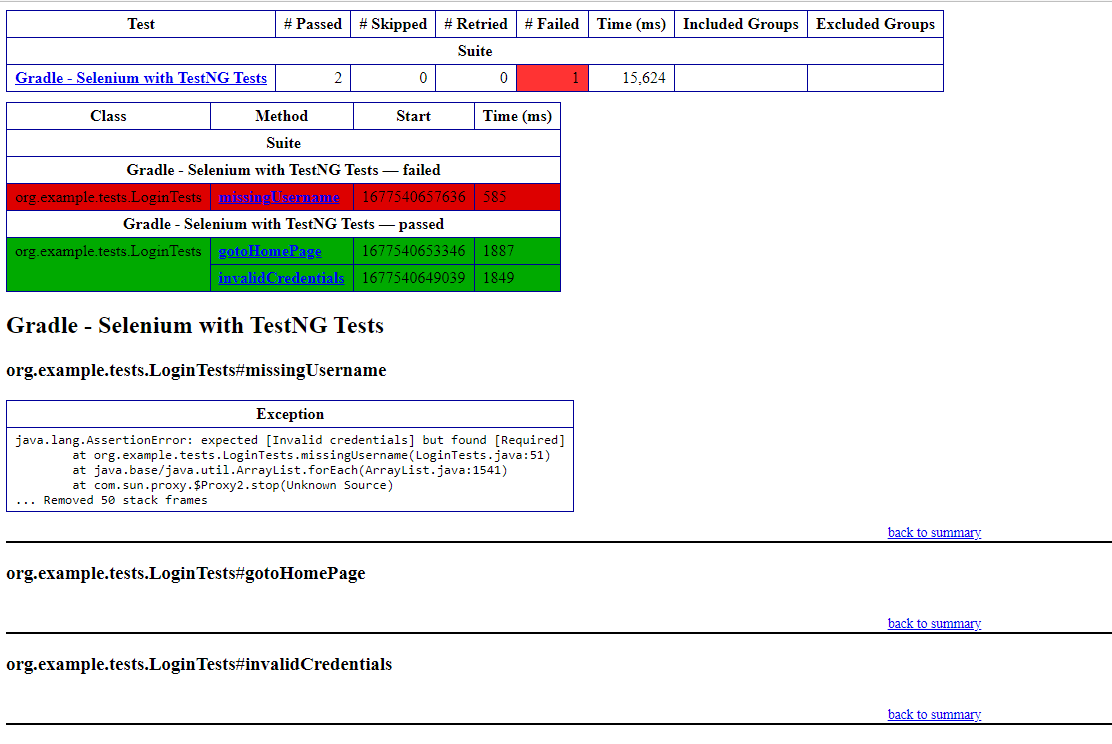
Build with Gradle steps failed because out of 2 tests, one of the tests failed. So, it appears in red colour. I personally love this feature because it gives an idea about the test execution status immediately if all the tests are passed or anything is failed.

Published artifacts on GitHub

Once the pipeline run, a test-results folder will be generated as shown in the below image:

When we click on the folder test-results, a zipped file will be downloaded, and we can extract it to see all the files contained within it.

The image of the report is shown below:

The complete code can be found here in GitHub.

How to run Selenium tests with GitHub Actions

Last Updated On

HOME

This tutorial explains the steps to create a GitHub Action for the Selenium tests and execute the tests in that workflow.

Table of Contents

  1. Why GitHub?
  2. Important points
  3. Implementation Steps
    1. Create GitHub Actions and Workflows
    2. Select the type of Actions
    3. Generation of Sample pipeline
    4. Commit the changes
    5. Verify that the workflow is running

Why GitHub?

The flexible aspects of Selenium WebDrivers and GitHub Actions enable users to create powerful, fast, and efficient automated testing workflows in CI/CD environments.

CI/CD pipelines have contributed to the success of the DevOps cycle in all software development projects. This is a holistic process that bridges development and operations. Continuous integration helps development teams deploy code efficiently, and continuous delivery automates code deployment.

Important points

1. We don’t need to think about the Chromedriver.exe we are using WebDriver Manager to handle that instead of adding it to our project like the example:

 WebDriverManager.chromedriver().setup();

2. The Selenium tests need to run in the headless mode. As we are using Chrome browser, use the below code:

          ChromeOptions options = new ChromeOptions();
          options.addArguments("--no-sandbox");
          options.addArguments("--disable-dev-shm-usage");
          options.addArguments("--headless");
	      driver = new ChromeDriver(options);

3. Install Chrome browser in ubuntu. Use the below code:

    - uses: browser-actions/setup-chrome@latest
    - run: chrome --version

Implementation Steps

Step 1 – Create GitHub Actions and Workflows

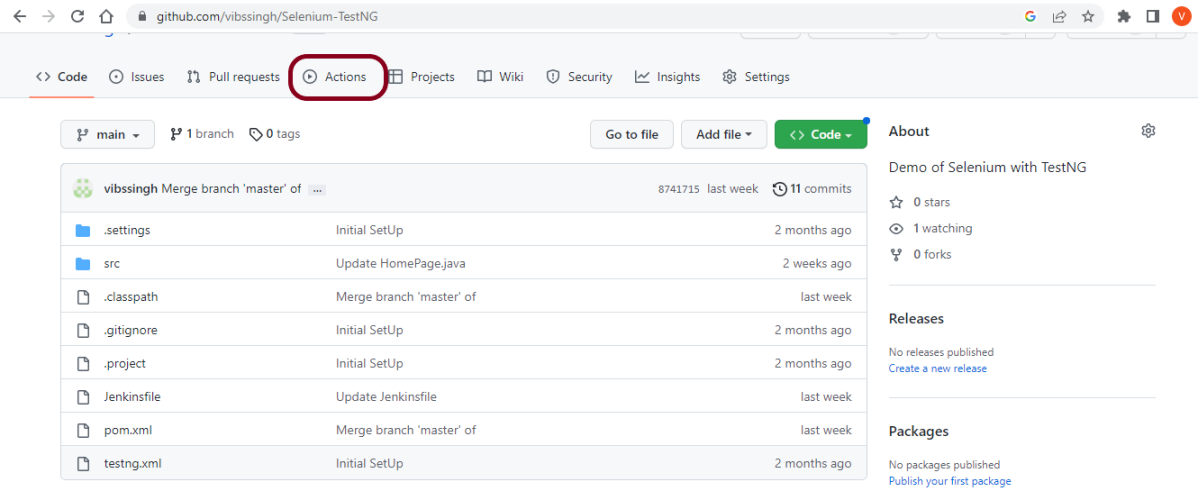
I have a repository available in GitHub – Selenium-TestNG as shown in the below image. Go to the “Actions” tab.  Click on the “Actions” tab.

Step 2 – Select the type of Actions

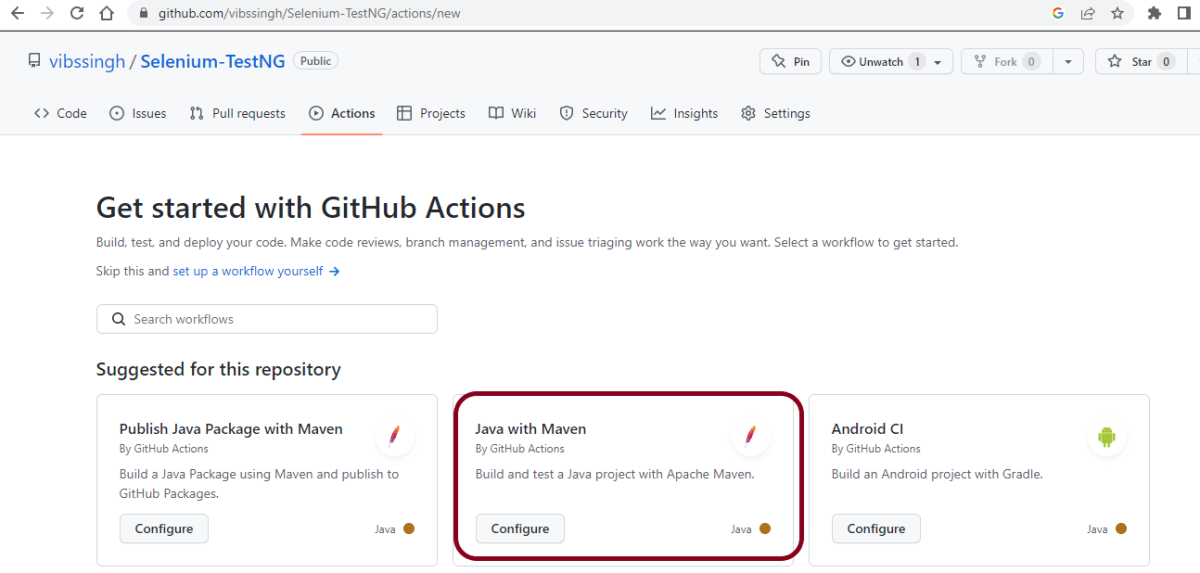
You will see that GitHub recommends Actions depending on the project. In our case, it is recommending actions suitable for a Java project. I have selected the “Java with Maven” option as my project is built in Maven.

Step 3 – Generation of Sample pipeline

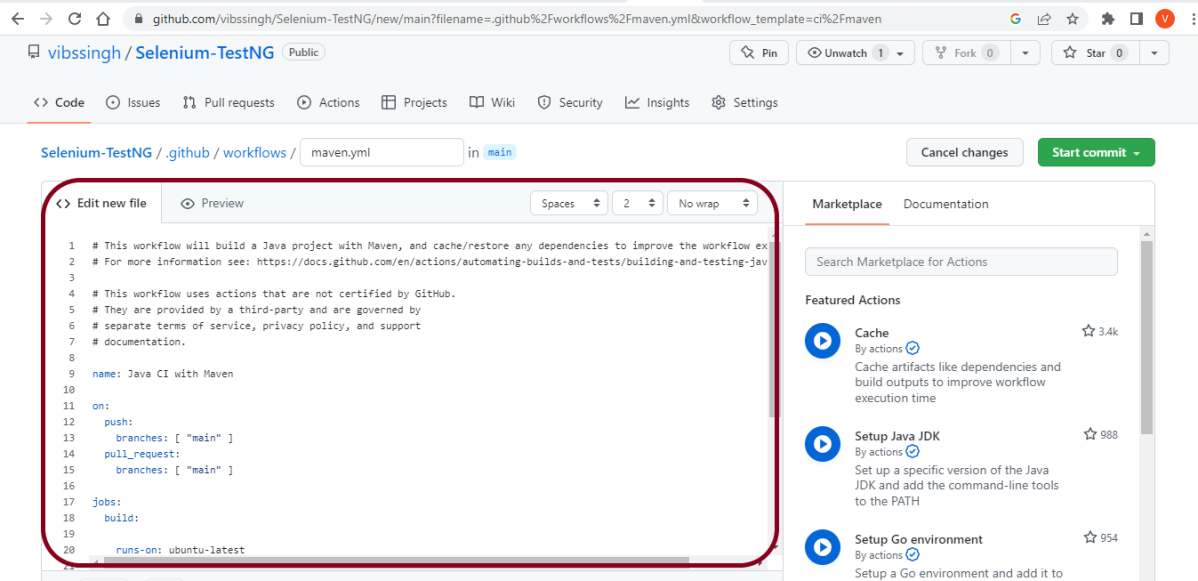
If you choose an existing option, it will automatically generate a .yaml for the project as shown below.

We will replace the current workflow with the next yml file as shown below:

name: Selenium with TestNG - CI

on:
  push:
    branches: [ "main" ]
  pull_request:
    branches: [ "main" ]

jobs:
  build:

    runs-on: ubuntu-latest

    steps:
    - uses: actions/checkout@v3
    - name: Set up JDK 17
      uses: actions/setup-java@v3
      with:
        java-version: '17'
        distribution: 'temurin'
        cache: maven
    
    - uses: browser-actions/setup-chrome@latest
    - run: chrome --version
    
    - name: Build with Maven
      run: mvn -B clean test

The workflow file usually consists of the below attributes:

name: Java CI with Maven Name of workflow: This is an optional attribute.The name of the workflow is denoted by the keyword “name”. If you wish to include multiple CI jobs in your project, it is recommended to name each one appropriately.
on: [push] :
On attribute – This attribute is mandatory and specifies the trigger for this workflow. There are several actions you can include such as push, pull request, release, etc. for more information on the events, check the official guide here.
jobs: Under the jobs attribute, groups together all the jobs that run in the workflow.
runs-on: ubuntu-latest Configures the job to run on the latest version of an Ubuntu Linux runner. This means that the job will execute on a fresh virtual machine hosted by GitHub
steps: Under this option, the actions used by the particular workflow, and the multiple jobs that would run under the workflow are mentioned. These jobs run in parallel. If you want to run the jobs in the order in the CI pipelines, you must add the “needs” attribute. It is crucial to ensure that every workflow has at least one job. In our sample workflow, we only have one job as shown in image above.
uses: actions/checkout@v3
The uses keyword specifies that this step will run v3 of the actions/checkout action. This is an action that checks out your repository onto the runner, allowing you to run scripts or other actions against your code (such as build and test tools). You should use the checkout action any time your workflow will run against the repository’s code.
uses: actions/setup-java@v3
with:
java-version: ’17’
This step uses the actions/setup-java@v3 action to install the specified version of the Java (this example uses v17).

Step 4 – Commit the changes

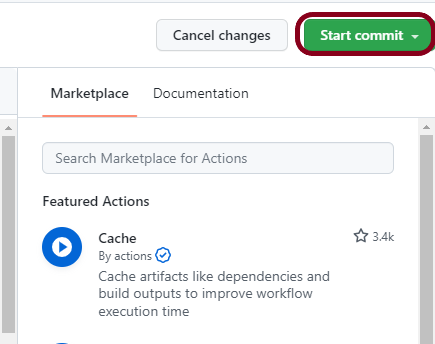
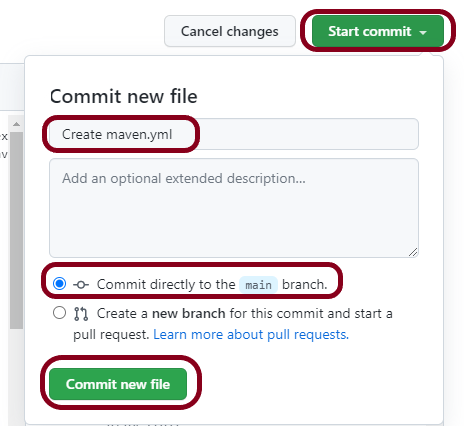
After the changes, hit the “Start Commit” button.

This will give the choice to add a description for the commit. It will also allow the user to commit either to the main branch or commit to any other branch that exists in the project. Click on the “Commit new file” button to set up the workflow file.

Step 5 – Verify that the workflow is running

Next, head over to the “Actions” tab, and you will see your YAML workflow file available under the tab. The yellow sign represents that the job is in the queue.

In Progress – When the job starts building and running, you will see the status change from “Queued” to “in progress”.

Passed – If the build is successful, you will see a green tick mark. 

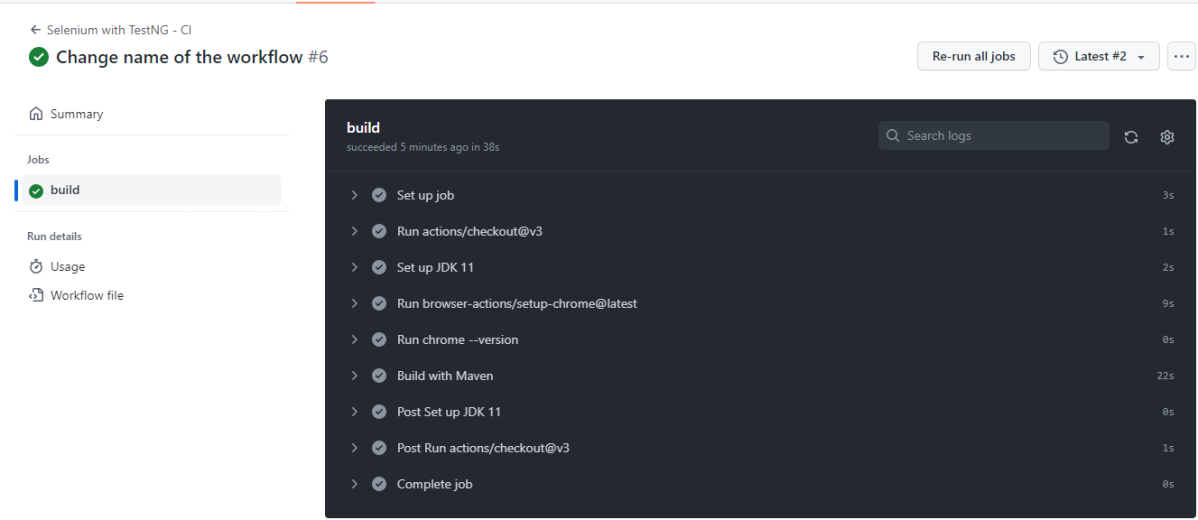
Click on the workflow and the below screen is displayed. It shows the status of the run of the workflow, the total time taken to run the workflow, and the name of the .yml file.

Below are all the steps of the workflow.

Failed – In case the build has failed, then there will be a red cross mark.

To learn more about Chrome installation, please refer to this tutorial – browser-actions/setup-chrome.

The complete code can be found here on GitHub – vibssingh/Selenium-TestNG.

Congratulations! We just created our CI workflow for running our Selenium test cases.