What is Fluent Wait in Selenium WebDriver

HOME

Wait<WebDriver> wait =
        new FluentWait<>(driver)
            .withTimeout(Duration.ofSeconds(2))
            .pollingEvery(Duration.ofMillis(300))
            .ignoring(ElementNotInteractableException.class);

    wait.until(
        d -> {
          revealed.sendKeys("Displayed");
          return true;
        });

import org.openqa.selenium.By;
import org.openqa.selenium.ElementNotInteractableException;
import org.openqa.selenium.WebDriver;
import org.openqa.selenium.WebElement;
import org.openqa.selenium.chrome.ChromeDriver;
import org.openqa.selenium.support.ui.FluentWait;
import org.openqa.selenium.support.ui.Wait;

import java.time.Duration;

public class fluentwaitDemo {

    public static void main(String args[]) {

        WebDriver driver = new ChromeDriver();
        driver.manage().window().maximize();
        driver.manage().timeouts().implicitlyWait(Duration.ofSeconds(5));
        driver.get("https://www.selenium.dev/selenium/web/dynamic.html");
        driver.findElement(By.id("reveal")).click();

        WebElement revealTextBox = driver.findElement(By.id("revealed"));
        Wait<WebDriver> wait = new FluentWait<>(driver)
                        .withTimeout(Duration.ofSeconds(2))
                        .pollingEvery(Duration.ofMillis(300))
                        .ignoring(ElementNotInteractableException.class);

        wait.until(d -> {
                    revealTextBox.sendKeys("Selenium");
                    return true;
                });

        System.out.println("Input Text :" + revealTextBox.getDomProperty("value"));

        driver.quit();
    }
}

Wait wait = new FluentWait(driver)

  .withTimeout(Duration.ofSeconds(30))
  .pollingEvery(Duration.ofSeconds(5))
  .ignoring(NoSuchElementException.class);

WebElement foo = wait.until(new Function() {
  public WebElement apply(WebDriver driver) {
    return driver.findElement(By.id("foo"));
  } 
});

Below is an example which shows the use of Fluent Wait in real world
1) Launch new Browser and open https://www.rediff.com/
2) Click on Money Link present at the top center of the page
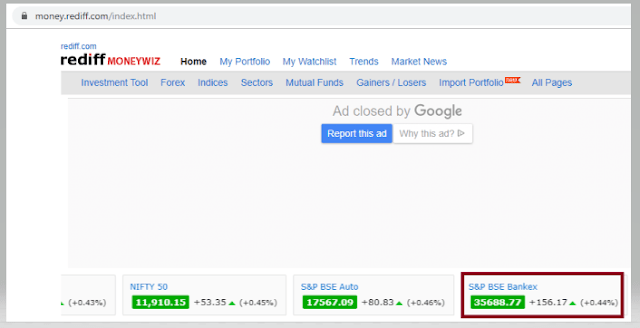
3) Sensex of different companies like S&P BSE Sensex, Nift 50, etc. appears at the center of the page
4) Don’t use Fluent Wait to find value of element S& BSE Sensex
5) Close the browser

package SeleniumTutorial;
import org.openqa.selenium.By;
import org.openqa.selenium.WebDriver;
import org.openqa.selenium.chrome.ChromeDriver;

public class FluentWaitDemo {
      public static void main(String[] args) {

System.setProperty("webdriver.chrome.driver","C:\\Users\\SingVi04\\Desktop\\Drivers\\chromedriver_win32\\chromedriver.exe");
           WebDriver driver= new ChromeDriver();
           driver.manage().window().maximize();
           driver.get("https://www.rediff.com/");    
           driver.findElement(By.xpath("//a[@href ='https://money.rediff.com']")).click();
            
           String Message= driver.findElement(By.xpath("//*[@id='indmarquee']/div[1]/span[2]")).getText();
           System.out.println("Value of S&P BSE Bankex :"+Message);
      driver.quit();
     }
}

Output
Exception in thread "main" org.openqa.selenium.NoSuchElementException: no such element: Unable to locate element
{"method":"xpath","selector":"//*[@id='indmarquee']/div[1]/span[2]"}
(Session info: chrome=78.0.3904.108)

Here, we can see that NoSuchElementException found, as the Web Element is dynamic. We need to wait for some time to find the Web Element.
In the below example, will use Fluent Wait to overcome the above stated issue.

import java.time.Duration;
import org.openqa.selenium.By;
import org.openqa.selenium.NoSuchElementException;
import org.openqa.selenium.WebDriver;
import org.openqa.selenium.WebElement;
import org.openqa.selenium.chrome.ChromeDriver;
import org.openqa.selenium.support.ui.FluentWait;
import org.openqa.selenium.support.ui.Wait;

import com.google.common.base.Function;
    public classFluentWaitDemo {
          public static void main(String[] args) {
 
System.setProperty("webdriver.chrome.driver","C:\\Users\\SingVi04\\Desktop\\Drivers\\chromedriver_win32\\chromedriver.exe");
         WebDriver driver = newChromeDriver();
          driver.manage().window().maximize();
          driver.get("https://www.rediff.com/");
 
          driver.findElement(By.xpath("//a[@href ='https://money.rediff.com']")).click();
           
          //Fluent Wait
          Wait wait = new FluentWait(driver)
                     .withTimeout(Duration.ofSeconds(15))  
                     .pollingEvery(Duration.ofSeconds(1))                           
                     .ignoring(NoSuchElementException.class);
 
                WebElement BSE_Sensex = wait.until(newFunction(){
                  public WebElement apply(WebDriver driver ) 
                  {
                      WebElement BSE_Bankex = driver.findElement(By.xpath("//*[@id='indmarquee']/div[1]/span[2]"));
           return BSE_Bankex;
                 }
          });
 
       String Message = BSE_Sensex.getText();
       System.out.println("Value of S&P BSE Bankex :"+Message);      
      }
}

Output 
Value of S&P BSE Bankex :42,597.43

Here,
Fluent Wait uses two parameters mainly – timeout value and polling frequency. In the above syntax we took time out value as 15 seconds and polling frequency as 2 seconds. The maximum amount of time (15 seconds) to wait for a condition and the frequency (2 seconds) to check the success or failure of a specified condition. 

If the element is located with in this time frame it will perform the operations else it will throw an “ElementNotVisibleException”

Few important points:-

1) NoSuchElementException. class – This class should be imported from org.openqa.selenium. By default Selenium shows 2 packages as shown in the image below.

If NoSuchElementException.class imported from java.util package, then we will see NoSuchElementException as shown below.

Wait wait = new FluentWait(WebDriver reference)
.withTimeout(timeout, SECONDS)
.pollingEvery(timeout, SECONDS)
.ignoring(Exception.class);

This is deprecate. So, do not use this syntax. Refer the below image for error

Implicit and Explicit Wait in Selenium WebDriver

HOME

 driver.manage().timeouts().implicitlyWait(Duration.ofSeconds(2));

import org.openqa.selenium.By;
import org.openqa.selenium.WebDriver;
import org.openqa.selenium.WebElement;
import org.openqa.selenium.chrome.ChromeDriver;
import java.time.Duration;

public class implicitDemo {

    public static void main(String args[]) {

        WebDriver driver = new ChromeDriver();
        driver.manage().window().maximize();
        driver.manage().timeouts().implicitlyWait(Duration.ofSeconds(5));
        driver.get("https://www.selenium.dev/selenium/web/dynamic.html");
        driver.findElement(By.id("adder")).click();
        WebElement added = driver.findElement(By.id("box0"));
        System.out.println("Color :" + added.getDomAttribute("class"));
        driver.quit();
    }

}

driver.manage().timeouts().implicitlyWait(TimeOut, TimeUnit.SECONDS);

Implicit wait will accept 2 parameters, the first parameter will accept the time as an integer value and the second parameter will accept the time measurement in terms of SECONDS, MINUTES, MILISECOND, MICROSECONDS, NANOSECONDS, DAYS, HOURS, etc.

Let me show how to use implicit wait in our program

import java.util.concurrent.TimeUnit;
import org.openqa.selenium.By;
import org.openqa.selenium.WebDriver;
import org.openqa.selenium.firefox.FirefoxDriver;
 
public class ImplicitWait_Example {
      public static void main(String[] args) {
                      
     System.setProperty("webdriver.gecko.driver","C:\\Users\\vibha\\Downloads\\geckodriver.exe");
      WebDriver driver = new FirefoxDriver();
                    
      //Implicit Wait
      driver.manage().timeouts().implicitlyWait(30, TimeUnit.SECONDS);
      driver.get("https://www.facebook.com");
      driver.findElement(By.name("email")).sendKeys("vibhasingh.verma");
          }
}

In the above example, we have waited for 30 sec, before redirecting the web page to the URL explicitly mentioned in the code.


Explicit Wait


An explicit wait is code you define to wait for a certain condition to occur before proceeding further in the code. The worst case of this is Thread.sleep(), which sets the condition to an exact time period to wait. There are convenience methods available to help write code that will only wait as long as required. 

WebDriverWait in combination with ExpectedCondition is one way to do this.

The explicit wait will tell the web driver to wait for certain conditions like visibilityOfElementLocated and maximum amount of time before throwing NoSuchElementException exception.

Wait<WebDriver> wait = new WebDriverWait(driver, Duration.ofSeconds(2));
 wait.until(d -> revealed.isDisplayed());

package org.example;

import org.openqa.selenium.By;
import org.openqa.selenium.WebDriver;
import org.openqa.selenium.WebElement;
import org.openqa.selenium.chrome.ChromeDriver;
import org.openqa.selenium.support.ui.Wait;
import org.openqa.selenium.support.ui.WebDriverWait;

import java.time.Duration;

public class explicitDemo {

    public static void main(String args[])  {

        WebDriver driver = new ChromeDriver();
        driver.manage().window().maximize();
        driver.manage().timeouts().implicitlyWait(Duration.ofSeconds(5));
        driver.get("https://www.selenium.dev/selenium/web/dynamic.html");
        driver.findElement(By.id("reveal")).click();

        WebElement revealTextBox = driver.findElement(By.id("revealed"));
        Wait<WebDriver> wait = new WebDriverWait(driver, Duration.ofSeconds(3));
        wait.until(d -> revealTextBox.isDisplayed());

        revealTextBox.sendKeys("Happy");
        System.out.println("Input Text :" + revealTextBox.getDomProperty("value"));

        driver.quit();
    }
}

WebDriverWait wait = new WebDriverWait(WebDriverRefrence,TimeOut);
wait.until(ExpectedConditions.visibilityOfElementLocated(By.id("Stats1_totalCount")));

Let me explain this with an example

import java.util.concurrent.TimeUnit;
 
import org.openqa.selenium.By;
import org.openqa.selenium.WebDriver;
import org.openqa.selenium.chrome.ChromeDriver;
import org.openqa.selenium.support.ui.ExpectedConditions;
import org.openqa.selenium.support.ui.WebDriverWait;
 
public class ExplicitWaitExample {

            public static void main(String[] args) {
                        System.setProperty("webdriver.chrome.driver",
                                           "C:\\Users\\Vibha\\Desktop\\SeleniumKT\\chromedriver.exe");
                        // Create a new instance of the Firefox driver
                        WebDriver driver = new ChromeDriver();
                        driver.manage().window().maximize();
                        driver.manage().timeouts().implicitlyWait(30, TimeUnit.SECONDS);
                        driver.get("https://configureselenium.blogspot.com/");
 
                        // Click on READ MORE link. New Page is opened
                        driver.findElement(By.linkText("READ MORE")).click();
 
                        // Explicit Wait
                        WebDriverWait wait = new WebDriverWait(driver, 60);
                    wait.until(ExpectedConditions.visibilityOfElementLocated(By.id("Stats1_totalCount")));
                        String Count = driver.findElement(By.id("Stats1_totalCount")).getText();
                        System.out.println("Count is :" + Count);
                  driver.close();
            }
}

In the above example, we have used Explicit Wait. We are waiting for the web element – Stats1_totalCount for 60 seconds before performing the next operation.

The following are the Expected Conditions that can used in Explicit Wait

  1. alertIsPresent()
  2. elementSelectionStateToBe()
  3. elementToBeClickable()
  4. elementToBeSelected()
  5. frameToBeAvaliableAndSwitchToIt()
  6. invisibilityOfTheElementLocated()
  7. invisibilityOfElementWithText()
  8. presenceOfAllElementsLocatedBy()
  9. presenceOfElementLocated()
  10. textToBePresentInElement()
  11. textToBePresentInElementLocated()
  12. textToBePresentInElementValue()
  13. titleIs()
  14. titleContains()
  15. visibilityOf()
  16. visibilityOfAllElements()
  17. visibilityOfAllElementsLocatedBy()
  18. visibilityOfElementLocated()

Note:-  Do not mix implicit and explicit waits! Doing so can cause unpredictable wait times. For example, setting an implicit wait of 20 seconds and an explicit wait of 35 seconds could cause a timeout to occur after 25 seconds.

Fluent Wait

The Fluent wait will tell the web driver to wait for certain conditions like visibilityOfElementLocated as well as the frequency with which we want to check before throwing NoSuchElementException exception.

To know more about Fluent Wait, please click here

Explicit Wait in Serenity

HOME

In the previous tutorial, I explained the Implicit Wait in Serenity. This tutorial will explain the Explicit Wait in Serenity.

What is Explicit Wait?

The explicit wait is used to wait for a specific web element on the web page for a specified amount of time. You can configure wait time element by element basis.

By default, the explicit wait is for 5 sec, with an interval of 10 ms.

Below is the example where I have created two classes – ExplicitWaitDemo and SynchronizationTests.

ExplicitWaitDemo

@DefaultUrl("http://the-internet.herokuapp.com/dynamic_loading/1")
public class ExplicitWaitDemo extends PageObject {

    //Incorrect XPath
	@FindBy(xpath = "//*[@id='start']/buttons")
	WebElementFacade startButton;

	@FindBy(xpath = "//*[@id='finish']/h4")
	WebElementFacade pageText;

	public void explicitWaitDemo1() throws InterruptedException {

		open();

		startButton.waitUntilClickable().click();

	}
}

SynchronizationTests

@RunWith(SerenityRunner.class)
public class SynchronizationTests {

	ExplicitWaitDemo ewaitDemo;

	@Managed
	WebDriver driver;

	@Test
	public void waitTest1() throws InterruptedException {

		ewaitDemo.explicitWaitDemo1();

	}

}

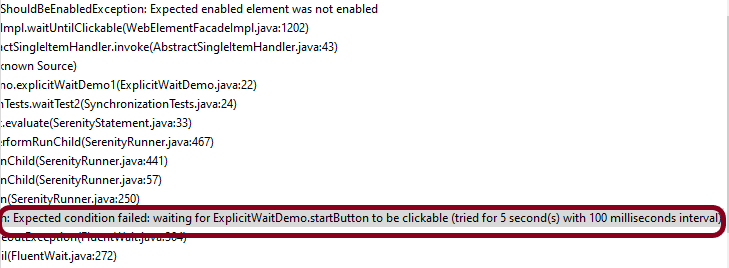
You can see that Serenity waited for 5 sec, with an interval of 100 ms.

When we need to wait for a web element for a specific amount of time, then the below-mentioned command can be added to serenity.conf.

webdriver {
      wait {
         for {
            timeout = 6000
          
        }  
   } 
}

The same can be added to serenity.properties as shown below.

webdriver.wait.for.timeout = 6000

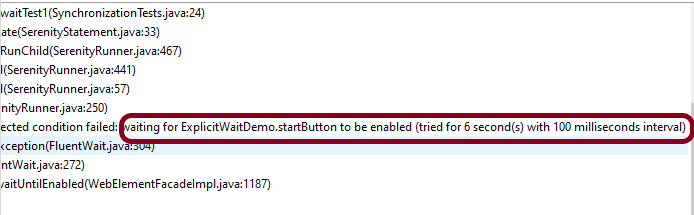
Now, let us run the same above test. I have used the incorrect XPath for the button. So the test should fail after trying to locate the button for 6 secs.

You can print the explicit wait time by using the method – getWaitForTimeout().

In the below example, I have used the explicit wait as 6 sec and which is also returned by the method – getWaitForTimeout().

@DefaultUrl("http://the-internet.herokuapp.com/dynamic_loading/2")
public class ExplicitWaitDemo extends PageObject {

	@FindBy(xpath = "//*[@id='start']/button")
	WebElementFacade startButton;

	@FindBy(xpath = "//*[@id='finish']/h4")
	WebElementFacade pageText;

	public void explicitWaitDemo1() throws InterruptedException {

		open();

		startButton.click();

		System.out.println("Explicit Time defined for the test (in seconds):" + getWaitForTimeout().toSeconds());

	}
}

The output of the above program is

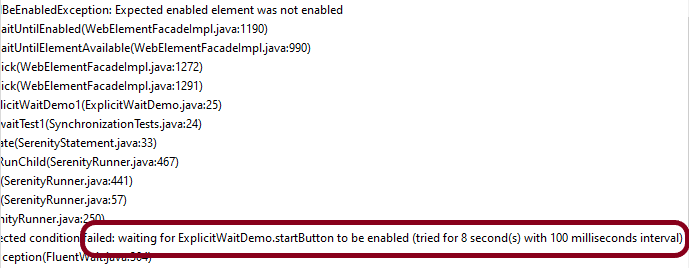
You can override the value of explicit wait mentioned in the serenity.properties or serenity.conf files. This can be done by using the method – withTimeoutOf(Duration duration).

@DefaultUrl("http://the-internet.herokuapp.com/dynamic_loading/1")
public class ExplicitWaitDemo extends PageObject {

    //Incorrect XPath
	@FindBy(xpath = "//*[@id='start']/buttons")
	WebElementFacade startButton;

	@FindBy(xpath = "//*[@id='finish']/h4")
	WebElementFacade pageText;

	public void explicitWaitDemo1() throws InterruptedException {

		open();

       //Override the value mentioned in serenity.conf for timeout from 6 sec to 8 sec
		startButton.withTimeoutOf(Duration.ofSeconds(8)).click();

	}
}

The output of the above program is

You can also wait for more arbitrary conditions, e.g.

@DefaultUrl("http://the-internet.herokuapp.com/dynamic_loading/2")
public class ExplicitWaitDemo extends PageObject {

	@FindBy(xpath = "//*[@id='start']/button")
	WebElementFacade startButton;

	@FindBy(xpath = "//*[@id='finish']/h4")
	WebElementFacade pageText;

	public void explicitWaitDemo1() throws InterruptedException {

		open();
        startButton.click();
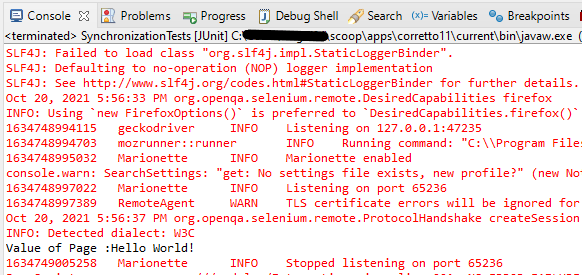
		String expected = waitFor(pageText).getText();
		System.out.println("Value of Page :" + expected);
		Assert.assertEquals("Hello World!", expected);

	}
}

The output of the above program is

You can also specify the timeout for a field. For example, if you wanted to wait for up to 8 seconds for a button to become clickable before clicking on it, you could do the following:

startButton.withTimeoutOf(Duration.ofSeconds(8)).waitUntilClickable().click();

Finally, if a specific element of a PageObject needs to have a bit more time to load, you can use the timeoutInSeconds attribute in the Serenity @FindBy annotation, e.g.

import net.serenitybdd.core.annotations.findby.FindBy;
...
@FindBy(xpath = ("//*[@id='start']/button"), timeoutInSeconds="10"))
public WebElementFacade startButton;

To wait for a specific text on the web page, you can use waitForTextToAppear attribute

waitForTextToAppear("Example 1").waitFor(startButton).click();

There are many other methods that can be used with Explicit Wait.

We are done! Congratulations on making it through this tutorial and hope you found it useful! Happy Learning!!