In this tutorial, I will explain the process to clone a repository using git.
Prerequisite
Git and Git Bash are installed on the machine.
If Git is not installed, please refer to this tutorial – How to install Git on Windows 10.
Use the following command to clone the repository.
git clone <repository_url>
Replace <repository_url> with the URL of the repository you want to clone. You can typically find this URL on the repository’s page (e.g., on GitHub or GitLab) by clicking the “Clone” or “Download” button.
Cloning a repository from GitHub
Step 1 – On GitHub, navigate to the main page of the repository.
Step 2 – Click the Code button and we will see options HTTPS, GitHub CLI.
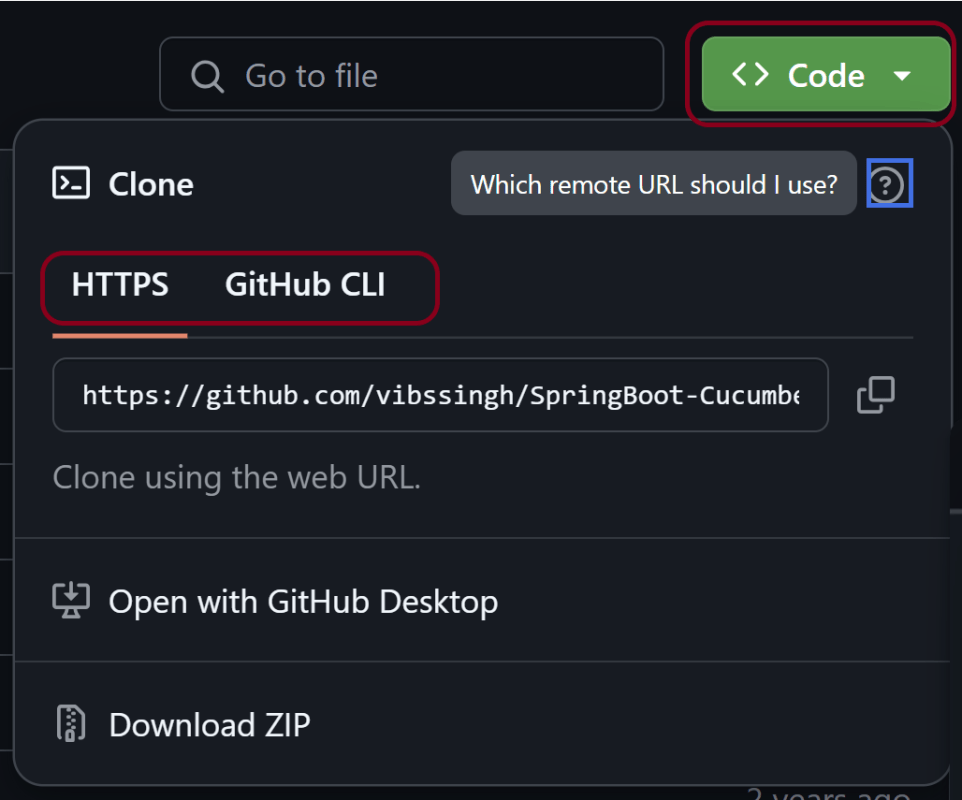
Step 3 – Copy the URL for the repository.
- To clone a repository using GitHub CLI, click GitHub CLI, then click .
- To clone the repository using HTTPS, under “HTTPS”, click .
- To clone the repository using an SSH key, including a certificate issued by your organization’s SSH certificate authority, click SSH, then click . Here, this is my personal account, so no SSH is setup.
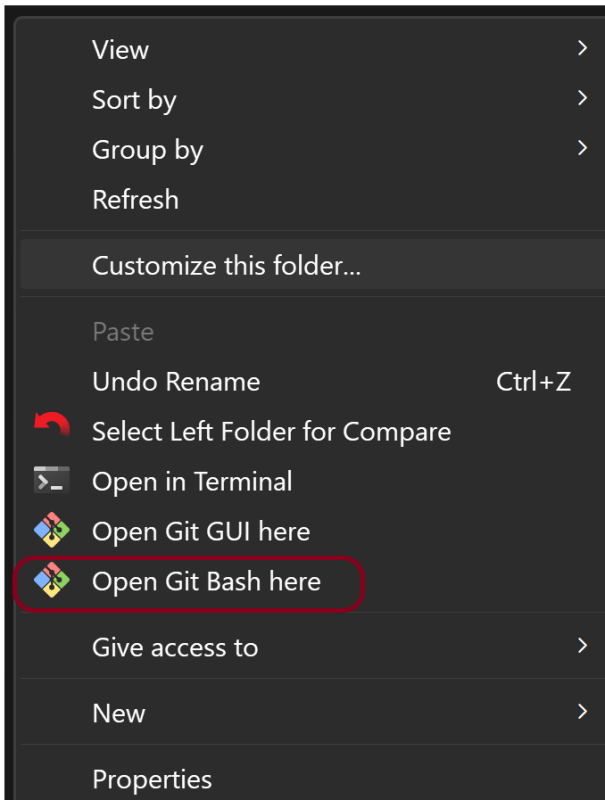
Step 4 – Open Git Bash at the location where we want to clone the repository. Right click and select More Options and then select “Open Git Bash here”.
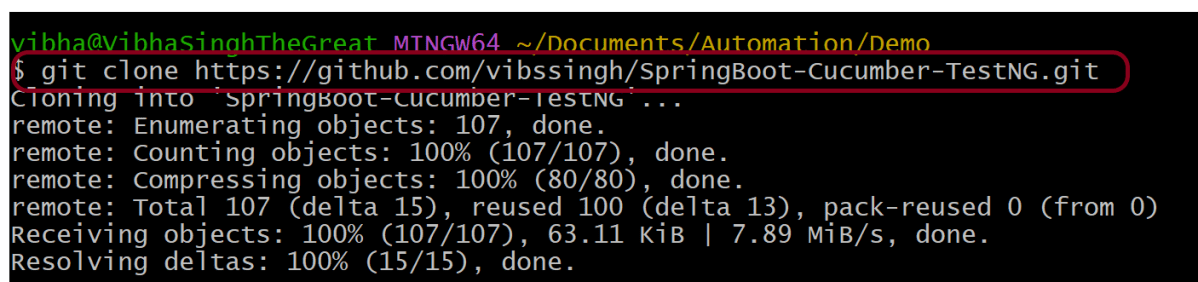
Step 5 – Type git clone, and then paste the URL we have copied earlier.
git clone https://github.com/vibssingh/SpringBoot-Cucumber-TestNG.git
How to clone a specific branch?
git clone -b <branch-name> <repository-url>
The -b option specifies the branch name to be cloned. This method directly clones the specified branch, potentially skipping the checkout step.
That’s it! We have a copy of the repository on our local machine.
 QA Automation Expert