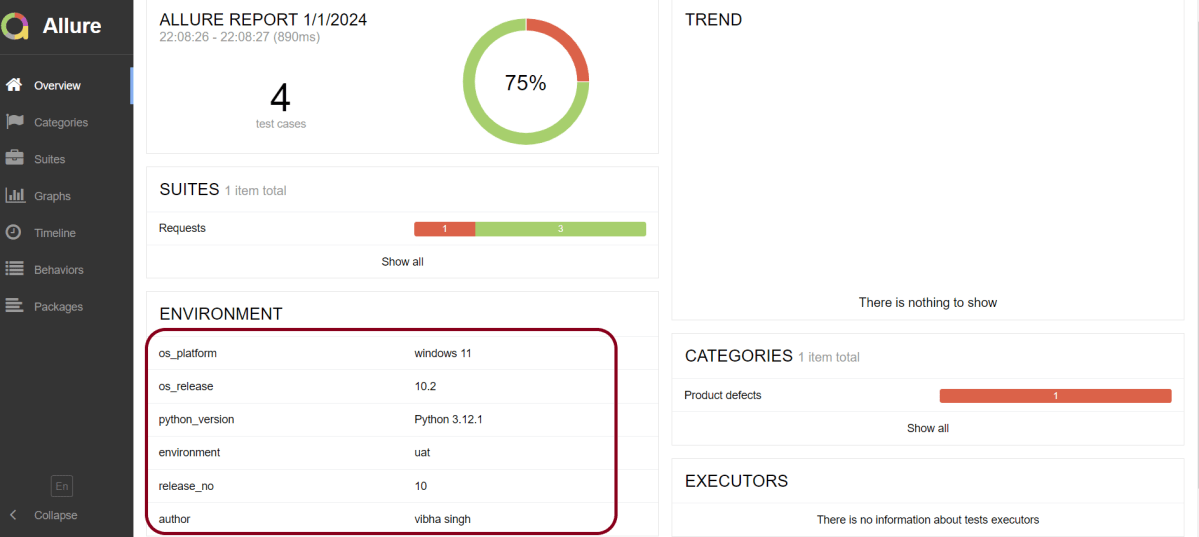
For the main page of the report, you can collect various information about the environment in which the tests were executed.
For example, it is a good idea to use this to remember the OS version and Python version. This may help the future reader investigate bugs that are reproducible only in some environments.
Step 1 – We are using PyCharm IDE, so we need to install the Request library. Use the below command using pip.
pip install -U requests
Step 2 – Install Pytest
pip install -U pytest
Step 3 – Install Allure Report for Python
pip install allure-pytest
Step 4 – Create a new project folder and open it in PyCharm.
Step 5 – Go to the project folder and Create a new directory – tests.
Step 6 – Add allure-pytest package to the PyCharms
Go to File->Settings ->Project: AllureReport_Python->Python Interpreter.
Click on the “+” sign and enter allure-r in the search bar. It will show a list of packages. Select the “allure-pytest” package and click on the “Install Package”.
Once the package is installed, we will see the message that the package is installed successfully.
Step 7 – Create the test.
Create a file – Requests.py and create the tests in that file.
import allure
import requests

ENDPOINT = 'https://reqres.in/api/users'


@allure.description("This tests validates that the response returns status code 201")
@allure.severity(allure.severity_level.BLOCKER)
@allure.label("Owner", "Vibha Singh")
def test_create_user():
    request_body = {
        "name": "Vibha",
        "Job": "CEO"
    }

    response = requests.post(ENDPOINT, request_body)
    response_body = response.json()
    print("Request :", request_body)
    print("Response :", response_body)
    assert response.status_code == 201


@allure.description("This tests validates that the id in the response")
@allure.severity(allure.severity_level.NORMAL)
@allure.label("Owner", "Vibha Singh")
def test_response():
    request_body = {
        "name": "Vibha",
        "Job": "CEO"
    }

    response = requests.post(ENDPOINT, request_body)
    assert response.status_code == 201
    response_body = response.json()
    print("Request :", request_body)
    print("Response :", response_body)

    id = response_body["id"]
    if "id" in response_body:
        print("Value of id :", id)
    else:
        print("id not found")


@allure.description("This tests validates that the header in the response")
@allure.severity(allure.severity_level.NORMAL)
@allure.label("Owner", "Vibha Singh")
def test_header_in_request():
    request_body = {
        "name": "Vibha",
        "Job": "CEO"
    }

    headers = {'Content-Type': 'application/json; charset=utf-8'}
    response = requests.post(ENDPOINT, request_body, headers)
    print("Request :", request_body)
    print("Response :", response.json())
    print("Headers :", response.headers)
    assert response.headers["Content-Type"] == "application/json; charset=utf-8"


@allure.description("This tests validates that the name in the response - FAIL")
@allure.severity(allure.severity_level.NORMAL)
@allure.label("Owner", "Vibha Singh")
def test_verify_name():
    request_body = {
        "name": "Vibha",
        "Job": "CEO"
    }

    header = {"Content-Type":  "application/json; charset=utf-8"}
    response = requests.post(ENDPOINT, request_body, header)
    response_body = response.json()
    print("Response :", response_body)
    print("Request Header :", response.request.headers)
    assert response_body["name"] == "Test"
Step 8 – To run this test, use the below command:
pytest --alluredir=<path to report directory> test.py
In my case, I want the allure files to be generated in AllureReport folder as shown below:
Below is the command we use to run the tests. This will generate a directory to the specified path with some files in JSON format.
It will start a jetty server within a few seconds and the report will be visible inside your browser.
The overview page hosts several default widgets representing the basic characteristics of your project and test environment.
Statistics – overall report statistics.
Launches – if this report represents several test launches, statistics per launch will be shown here.
Behaviours – information on results aggregated according to stories and features.
Executors – information on test executors that were used to run the tests.
History Trend – if tests accumulated some historical data, it’s trend will be calculated and shown on the graph.
Environment – information on the test environment.
Categories in Allure Report
The categories tab gives you a way to create custom defect classifications to apply for test results. There are two categories of defects – Product Defects (failed tests) and Test Defects (broken tests).
Suites in Allure Report
On the Suites tab a standard structural representation of executed tests, grouped by suites and classes can be found.
Graphs in Allure Report
Graphs allow you to see different statistics collected from the test data: statuses breakdown or severity and duration diagrams.
Timeline in Allure Report
The timeline tab visualizes retrospective of tests execution, allure adaptors collect precise timings of tests, and here on this tab, they are arranged accordingly to their sequential or parallel timing structure.
Behaviours of Allure Report
This tab groups test results according to Epic, Feature, and Story tags.
Packages in Allure Report
The packages tab represents a tree-like layout of test results, grouped by different packages.
That’s it! Congratulations on making it through this tutorial and hope you found it useful! Happy Learning!!



 QA Automation Expert