In the previous tutorial, we have seen executing testng.xml tests from command line. Now here we will look into executing testng.xml using batch file (.bat) file.
A batch file (.bat) is used in DOS and Windows, which is an unformatted text file that consists of a series of commands to be executed by the command line interpreter.
Prerequisite:
- Selenium
- TestNG
- Maven
- Java 11
- Maven Complier Plugin
- Maven Surefire Plugin
- Notepad
Let us first create some tests in a class.
import static org.testng.Assert.assertTrue;

import static org.hamcrest.Matchers.containsString;
import static org.hamcrest.MatcherAssert.assertThat;

import org.openqa.selenium.By;
import org.openqa.selenium.WebDriver;
import org.openqa.selenium.firefox.FirefoxDriver;
import org.testng.annotations.AfterTest;
import org.testng.annotations.BeforeTest;
import org.testng.annotations.Test;

public class TestNGRunFromCommandLine {

	 WebDriver driver;

	    @BeforeTest
	    public void setUp() {
	        System.setProperty("webdriver.gecko.driver",
	                "C:\\Users\\Vibha\\Software\\geckodriver\\geckodriver.exe");

	        driver = new FirefoxDriver();
	        driver.get("https://opensource-demo.orangehrmlive.com/");
	        driver.manage().window().maximize();
	    }

	    @Test(description = "This test validates title of login functionality", priority = 0)
	    public void verifyLoginPage() {

	        String expectedTitle = driver.findElement(By.xpath("//*[@id='logInPanelHeading']")).getText();
	        System.out.println("Title :" + expectedTitle);
	        assertTrue(expectedTitle.equalsIgnoreCase("LOGIN Panel12"));
	    }

	    @Test(description = "This test validates  successful login to Home page", priority = 1)
	    public void verifyHomePage() throws InterruptedException {

	        System.out.println("Username Entered");
	        driver.findElement(By.name("txtUsername")).sendKeys("Admin");

	        System.out.println("Password Entered");
	        driver.findElement(By.name("txtPassword")).sendKeys("admin123");
	        driver.findElement(By.id("btnLogin")).submit();

	        Thread.sleep(2000);

	        String newPageText = driver.findElement(By.xpath("//*[@id='content']/div/div[1]/h1")).getText();
	        System.out.println("newPageText :" + newPageText);
	        assertThat(newPageText, containsString("Dashboard"));
	    }

	    @AfterTest
	    public void teardown() {

	        driver.quit();
	    }

	}
The below is the testng.xml file which has a class that we have created above and we will be invoking this xml file using batch file (.bat).
<?xml version="1.0" encoding="UTF-8"?>
<!DOCTYPE suite SYSTEM "https://testng.org/testng-1.0.dtd">
<suite name="Suite">
  <test name="Test">
    <classes>
      <class name="TestNG_Demo.TestNGRunFromCommandLine"/>
    </classes>
  </test>
</suite>
How to create a batch file?
Step 1: Open notepad
Step 2: Paste the below lines of code – You may need to add your project location. In the example, project location is set as C:\Users\Vibha\Projects\Vibha_Personal\ParallelTestsTestNG
Step 3: Save the file as ‘TestNGProject.bat’ in location that you want to save.
cd C:\Users\Vibha\Projects\Vibha_Personal\ParallelTestsTestNG
mvn compile test

Now, to run the tests, double-click on the TestNGProject.bat file and all the commands mentioned in the file will be executed one by one.
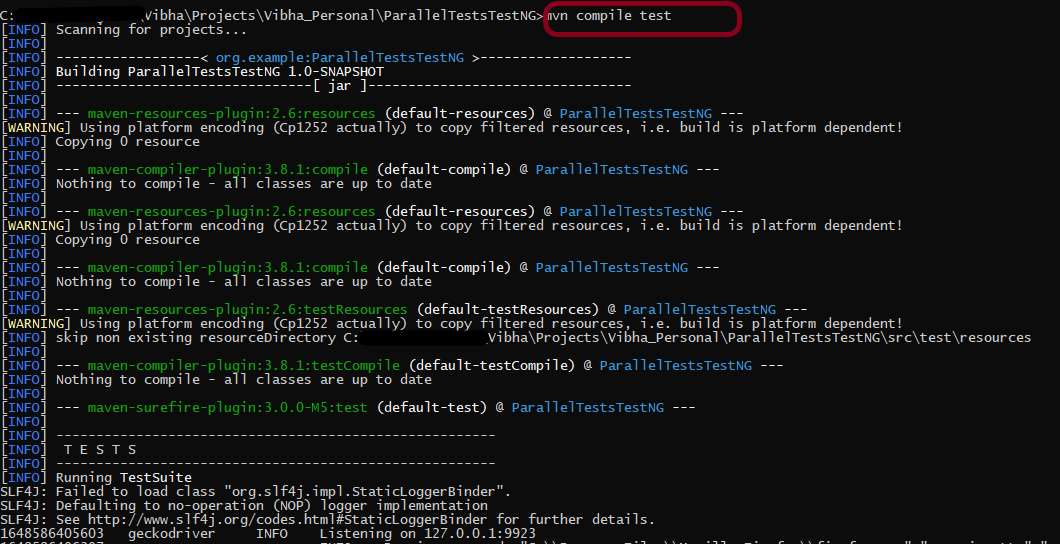
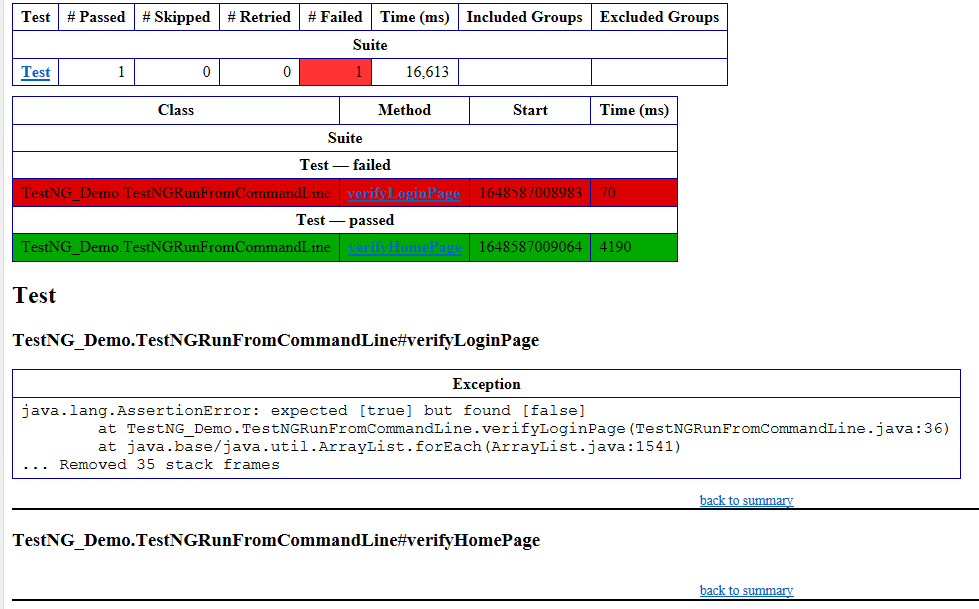
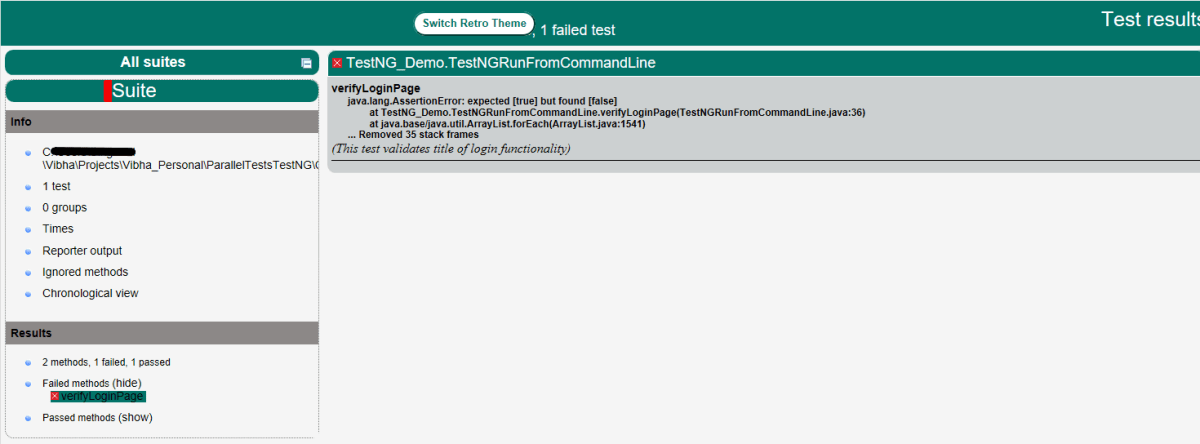
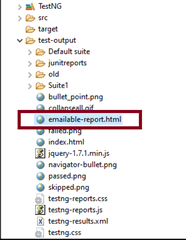
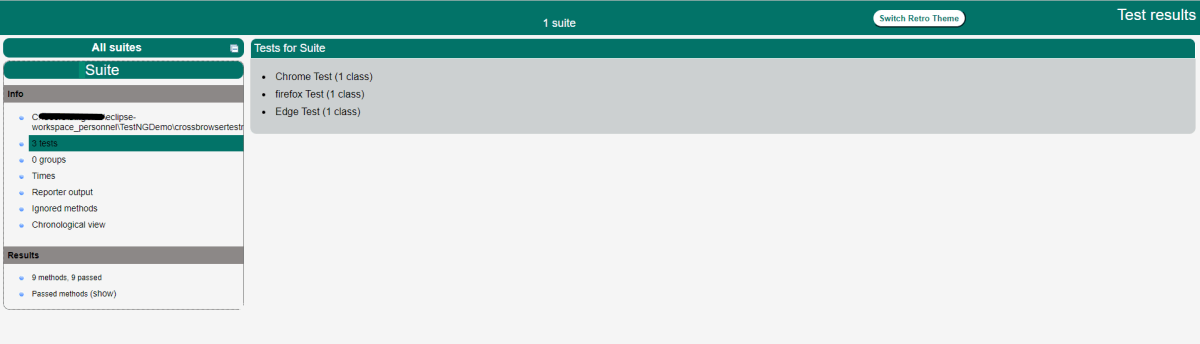
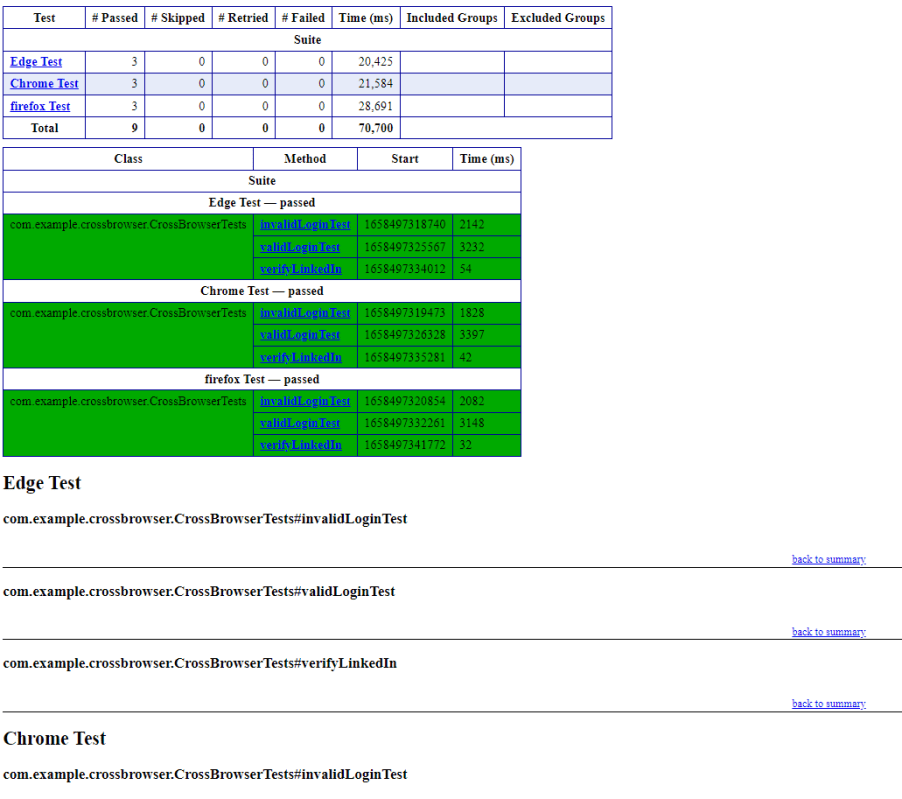
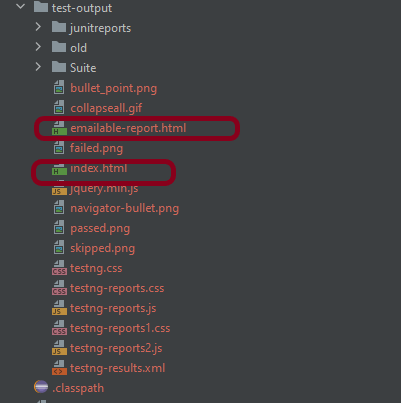
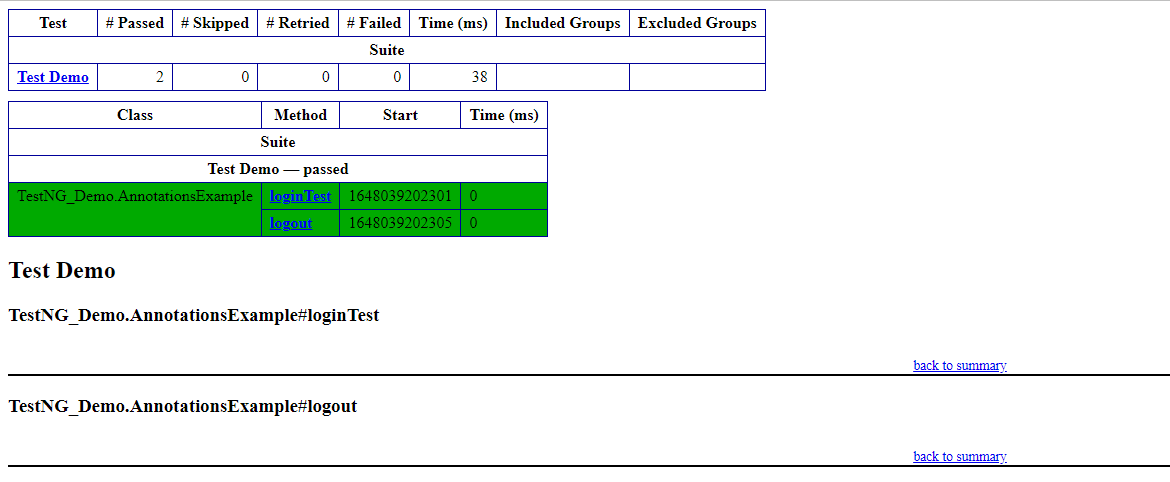
As we know, TestNG generates a lot of Reports automatically. We are going to look into 2 reports – emailable-report.html and index.html. The reports are generated under surefire-reports folder within the target directory.
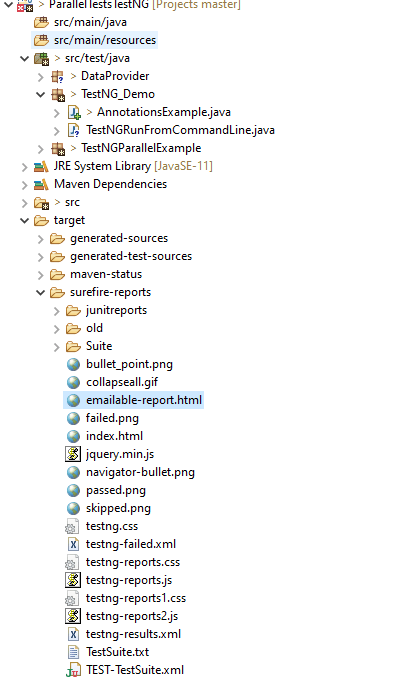
Emailable-Report.html
Index.html

Hope this article helps you to invoke your tests using .bat file.










 QA Automation Expert