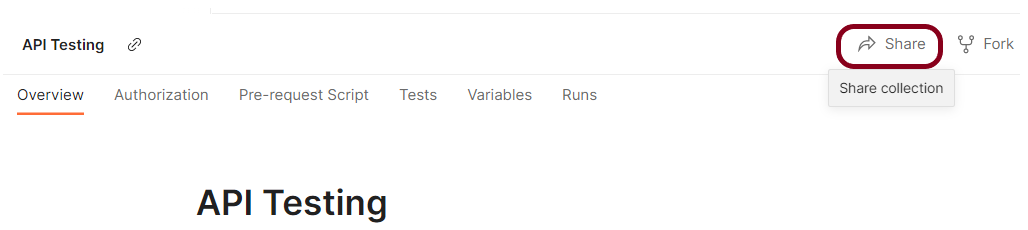
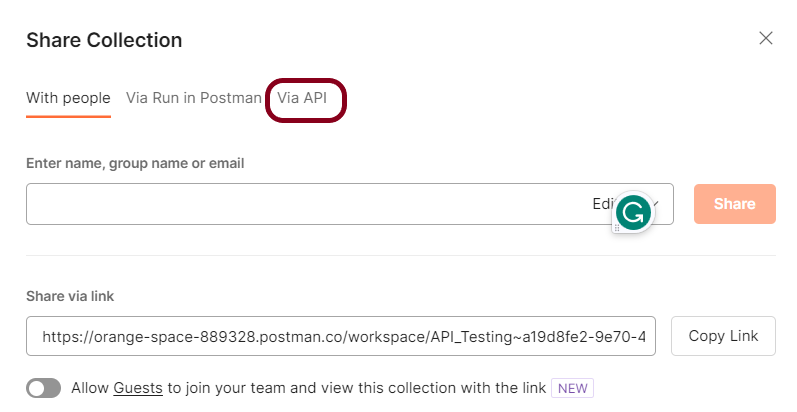
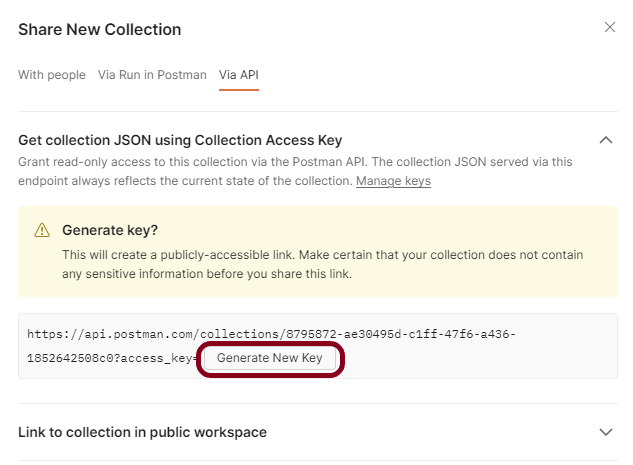
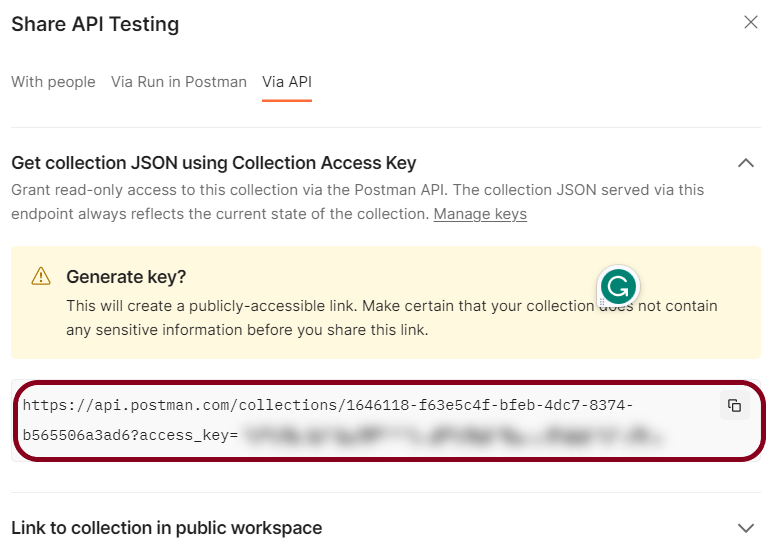
How to run Collections remotely in Postman?

HOME

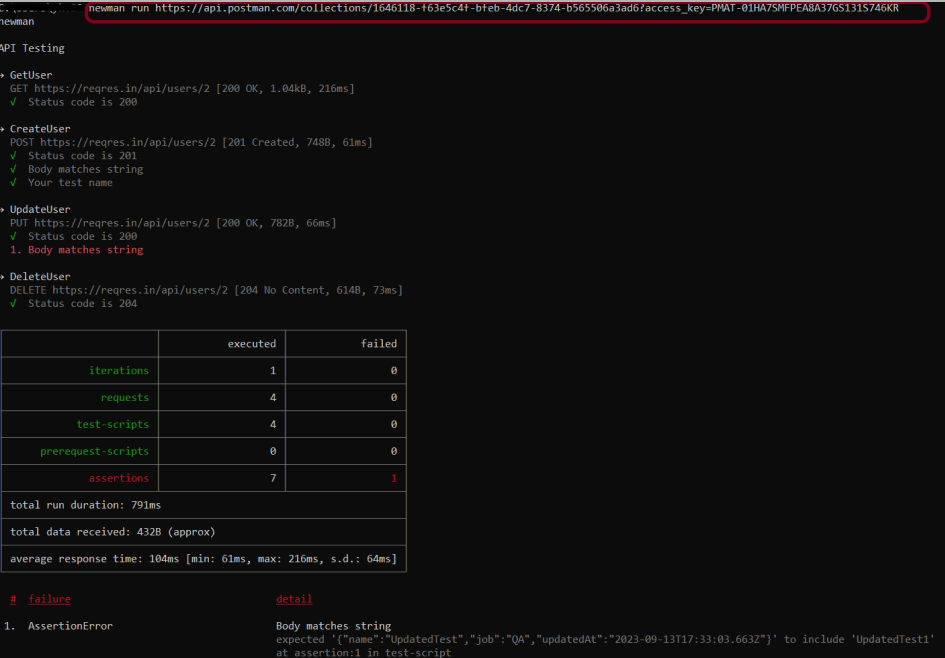
newman run <copied URL>

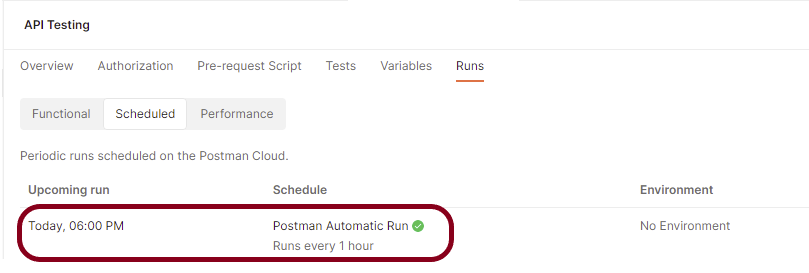
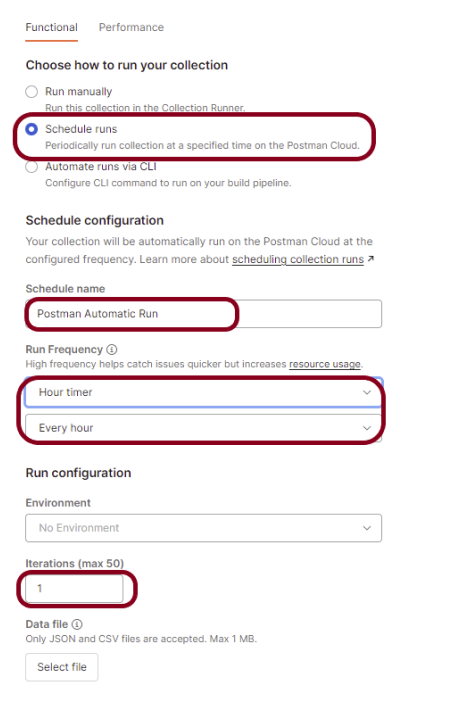
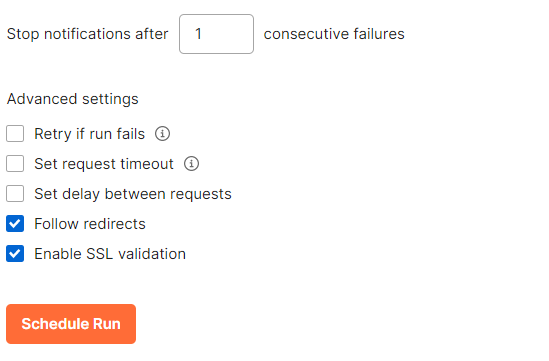
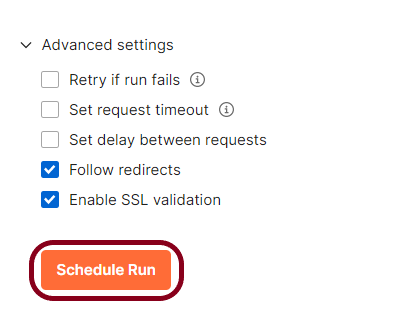
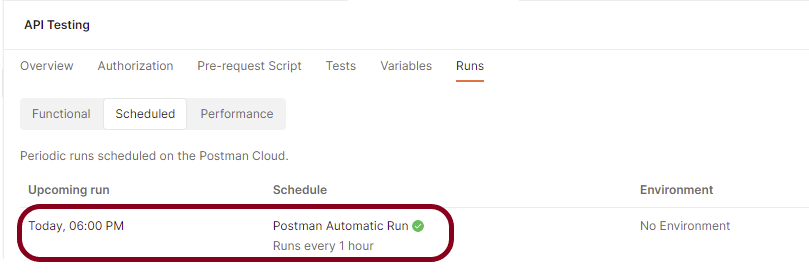
How to schedule Collection run in Postman?

HOME

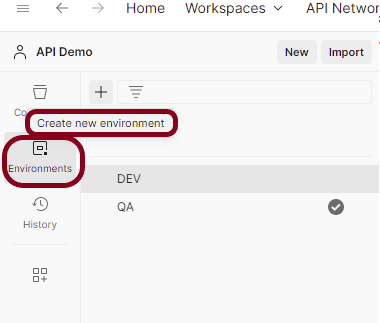
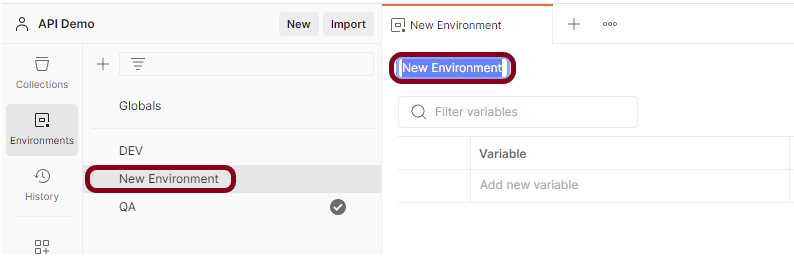
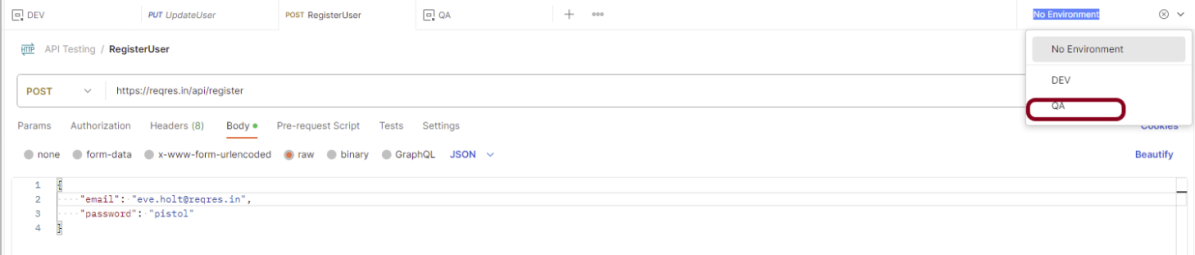
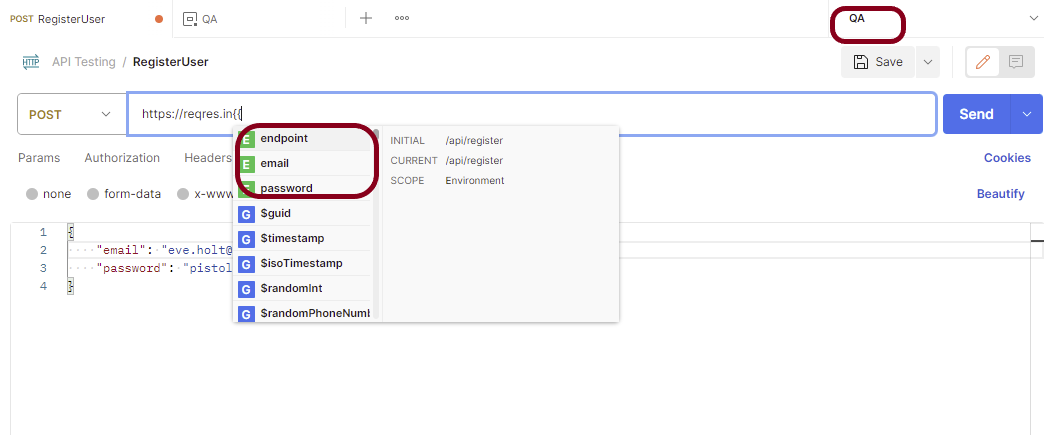
How to Create an Environment in Postman?

HOME

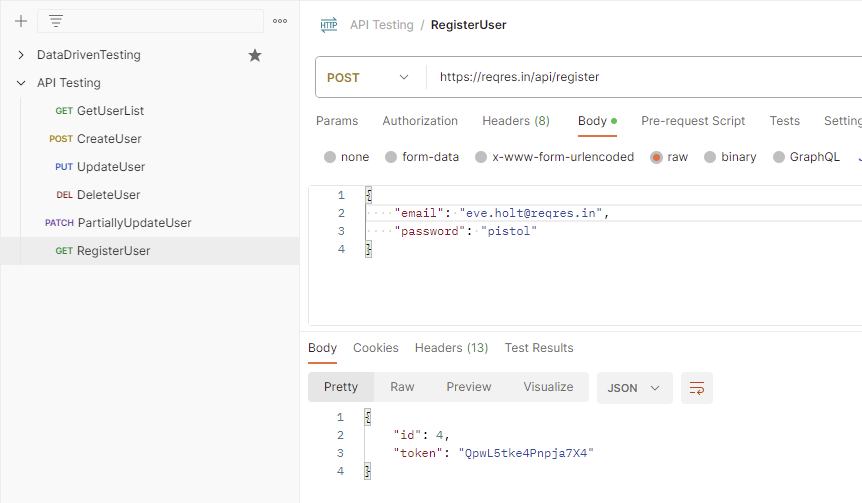
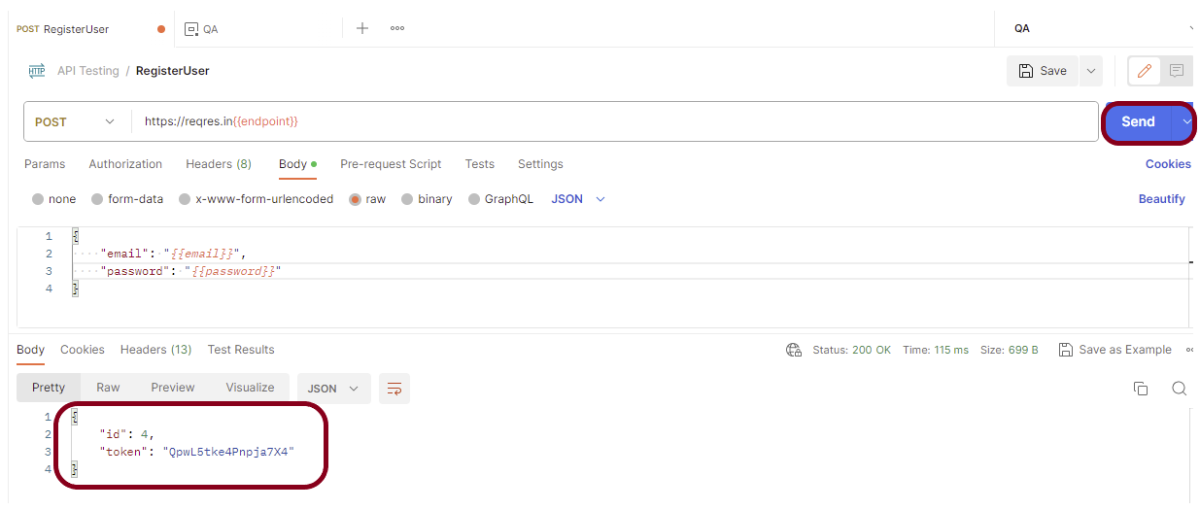
{
    "email": "eve.holt@reqres.in",
    "password": "pistol"
}

How to use Constant Timer in JMeter

Last Updated On

HOME

In this tutorial, we will discuss the Constant Timer in JMeter and its use in Load Testing.

Table of Contents

The sample request and response used in this tutorial is shown below:

Sample Request

{
    "name": "JMeter",
    "job": "Testing"
}

Sample Response

{
  "name":"JMeter",
  "job":"Testing",
  "id":"809",
  "createdAt":"2023-07-27T18:46:18.038Z"
}

Create a Test Plan in JMeter


Step 1 –  Add Thread Group

  • Select Test Plan on the tree
  • Add Thread Group                                                                                                                               To add Thread Group: Right-click on the “Test Plan” and add a new thread group: Add -> Threads (Users) -> Thread Group

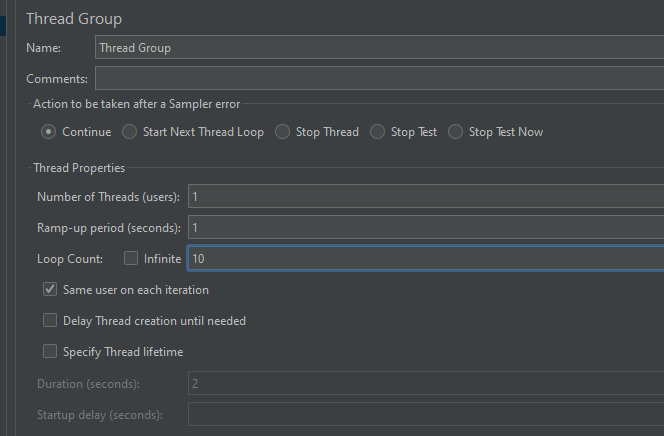
In the Thread Group control panel, enter Thread Properties as follows: We will take an example of row no 5

Number of Threads: 1 – Number of users connects to the target website
Loop Count: 10  – Number of times to execute testing
Ramp-Up Period: 1 – It tells JMeter how long to delay before starting the next user. For example, if we have 5 users and a 5 -second Ramp-Up period, then the delay between starting users would be 1 second (5 seconds /5 users).

Step 2 –  Add HTTP Request Sampler 

The JMeter element used here is HTTP Request Sampler. In HTTP Request Control Panel, the Path field indicates which URL request you want to send


Add HTTP Request Sampler
To add: Right-click on Thread Group and select: Add -> Sampler -> HTTP Request

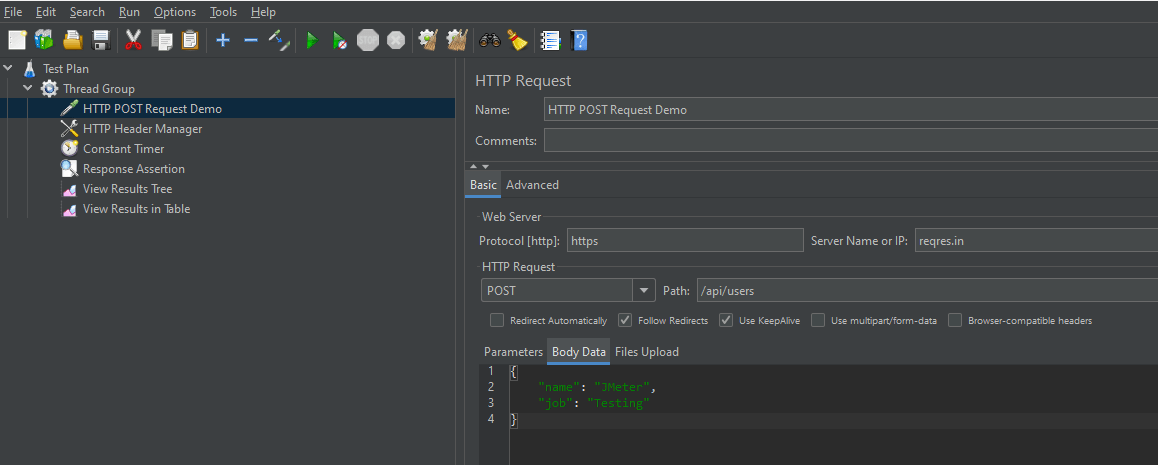
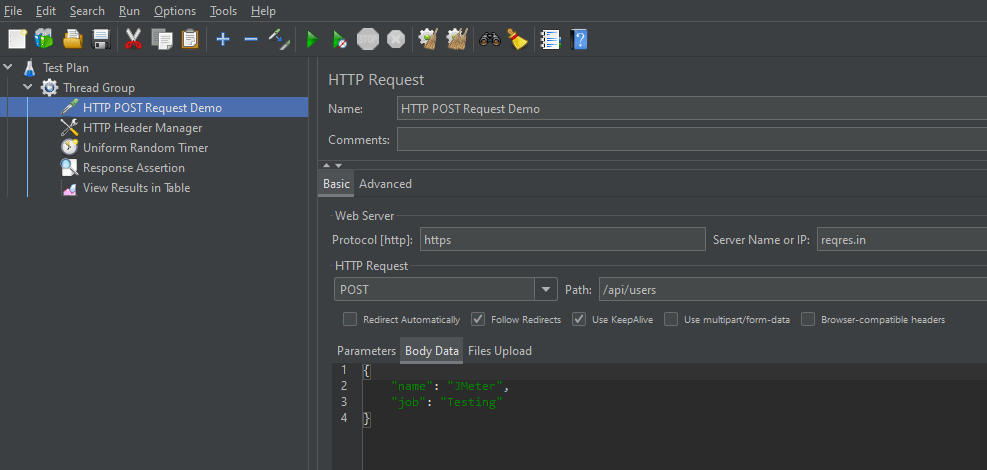
The below-mentioned are the values used in HTTP Request to perform the test

  • Name – HTTP POST Request Demo
  • Server Name or IP – reqres.in
  • Protocol – https
  • Method – POST
  • Path – /api/users

Step 3 – Add HTTP Head Manager

The Header Manager lets you add or override HTTP request headers like can add Accept-Encoding, Accept, Cache-Control

To add: Right-click on Thread Group and select: Add -> Config Element -> HTTP Read Manager

The below-mentioned are the values used in Http Request to perform the test
Content-type = application/json

Below is the image once HTTP Header Manager is added to the Test Plan.

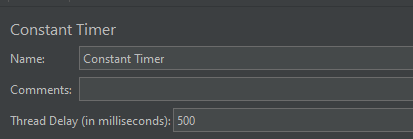
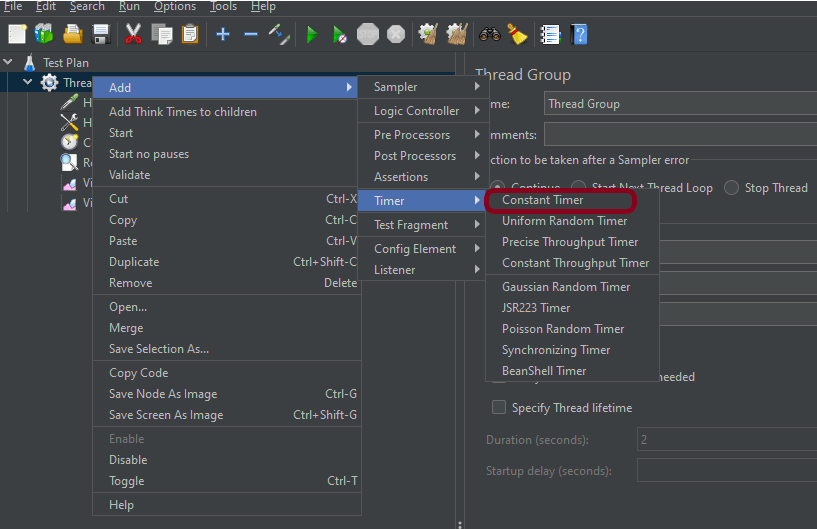
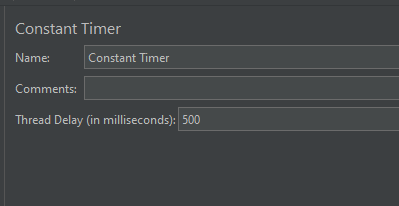
Step 4 – Add a Constant Timer

Step 6 – Adding Listeners to Test Plan

Listeners – They show the results of the test execution. They can show results in a different format such as a tree, table, graph, or log file
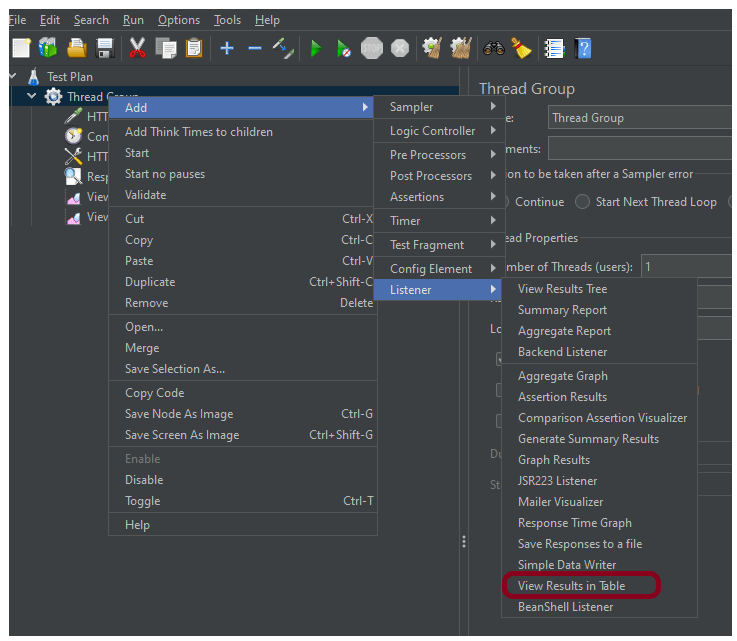
We are adding the View Result in Table

View Result in Table – The View Result in Table listener displays information about each sample in the form of a table. 
To add: Right-click on Test Plan, Add -> Listener -> View Result in Table

Note – Don’t use “View Results Tree” or “View Results in Table” listeners during the load test, use them only during the scripting phase to debug your scripts.

Step 7 – Save the Test Plan

To Save: Click File Select -> Save Test Plan as ->Give the name of the Test Plan. It will be saved in .jmx format.

Step 8  – Run the Test Plan

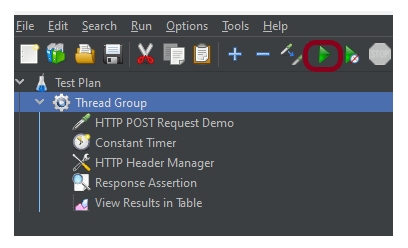
Click on the Green Triangle as shown at the top to run the test.

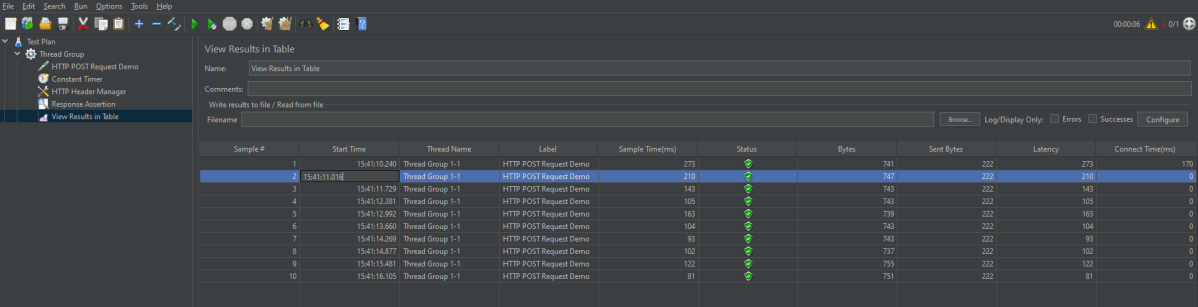
Step 9 – View the Execution Status

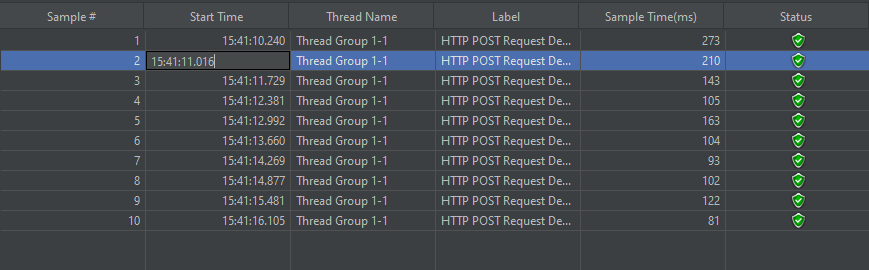
Click on View Result in Table to see the status of Run. A successful request will be of a Green colour in the Text Section.

Additional Tutorials

How to send POST requests in JMeter
JMeter Authorization with access token
How to generate JMeter HTML Report? 
Constant Throughput Timer in JMeter
How to generate JMeter HTML Report?

How to use Uniform Random Timer in JMeter

Last Updated On

HOME

In this tutorial, we will discuss the Uniform Random Timer in JMeter and its use in Load Testing.

Table of Contents

The sample request and response used in this tutorial is shown below:

Sample Request

{
    "name": "JMeter",
    "job": "Testing"
}

Sample Response

{
  "name":"Test",
  "job":"JMeter",
  "id":"955",
  "createdAt":"2023-07-27T15:46:18.038Z"
}

Create a Test Plan in JMeter


Step 1 –  Add Thread Group

  • Select Test Plan on the tree
  • Add Thread Group                                                                                                                               To add Thread Group: Right-click on the “Test Plan” and add a new thread group: Add -> Threads (Users) -> Thread Group

In the Thread Group control panel, enter Thread Properties as follows: We will take an example of row no 5

Number of Threads: 1 – Number of users connects to the target website
Loop Count: 10  – Number of times to execute testing
Ramp-Up Period: 1 – It tells JMeter how long to delay before starting the next user. For example, if we have 5 users and a 5 second Ramp-Up period, then the delay between starting users would be 1 second (5 seconds /5 users).

Step 2 –  Add HTTP Request Sampler 

The JMeter element used here is the HTTP Request Sampler. In the HTTP Request Control Panel, the Path field indicates which URL request you want to send


Add HTTP Request Sampler
To add: Right-click on Thread Group and select: Add -> Sampler -> HTTP Request

The below-mentioned are the values used in HTTP Request to perform the test

  • Name – Parameterized HTTP Request
  • Server Name or IP – reqres.in
  • Protocol – https
  • Method – POST
  • Path – /api/users

Step 3 – Add HTTP Head Manager

The Header Manager lets you add or override HTTP request headers like can add Accept-Encoding, Accept, Cache-Control

To add: Right-click on Thread Group and select: Add -> Config Element -> HTTP Read Manager

The below-mentioned are the values used in HTTP Request to perform the test
Content-type = application/json

Below is the image once HTTP Header Manager is added to the Test Plan.

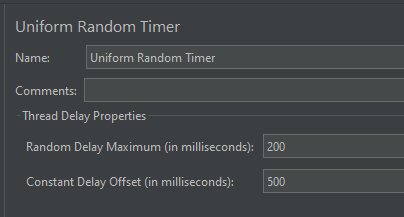
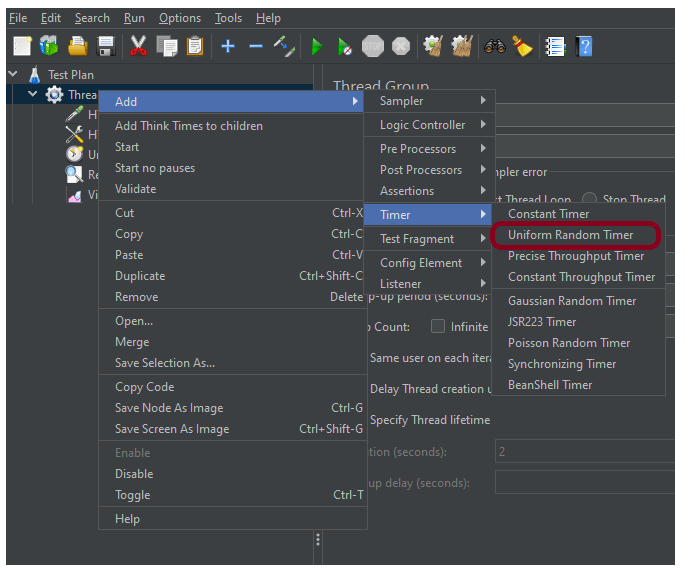
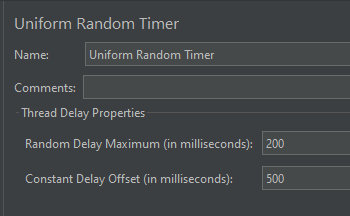
Step 4 – Add a Uniform Random Timer

Step 6 – Adding Listeners to the Test Plan

Listeners – They show the results of the test execution. They can show results in a different format such as a tree, table, graph, or log file
We are adding the View Result in Table

View Result in Table – The View Result in Table listener displays information about each sample in the form of a table. 
To add: Right-click on Test Plan, Add -> Listener -> View Result in Table

Note – Don’t use “View Results Tree” or “View Results in Table” listeners during the load test, use them only during the scripting phase to debug your scripts.

Step 7 – Save the Test Plan

To Save: Click File Select -> Save Test Plan as ->Give the name of the Test Plan. It will be saved in .jmx format.

Step 8  – Run the Test Plan

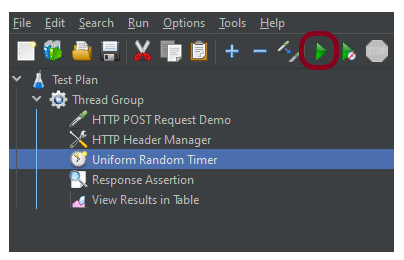
Click on the Green Triangle as shown at the top to run the test.

Step 9 – View the Execution Status

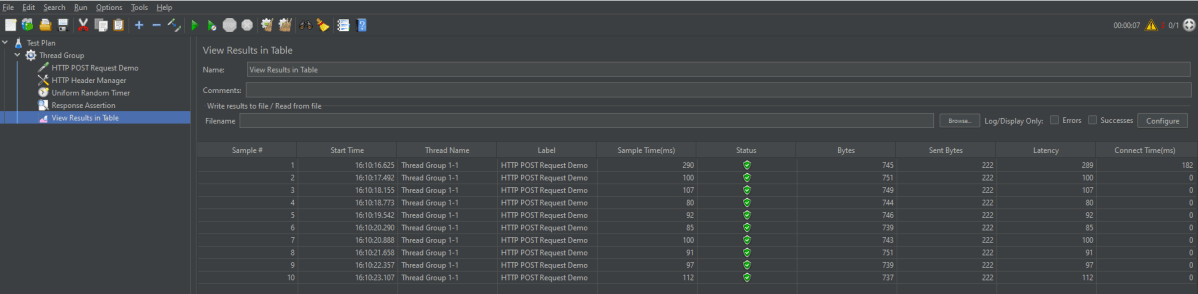
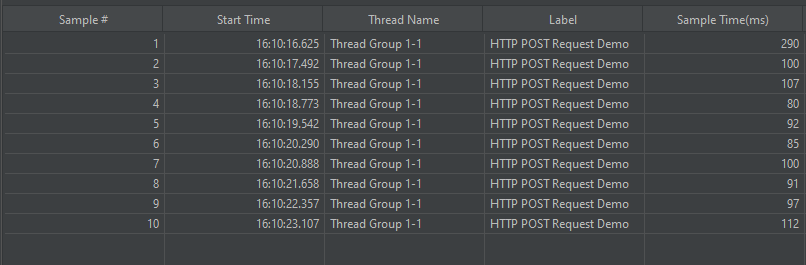
Click on View Result in Table to see the status of Run. A successful request will be of a Green colour in the Text Section.

We are done! Congratulations on making it through this tutorial and hope you found it useful! Happy Learning!!

Additional Tutorials

How to send POST requests in JMeter
JMeter Authorization with access token
How to generate JMeter HTML Report? 
Constant Throughput Timer in JMeter
How to generate JMeter HTML Report?

Integration of Postman with Jenkins

Last Updated On

HOME

Postman contains a full-featured testing sandbox that enables you to write and execute JavaScript-based tests for your API. You can then integrate Postman with your CI/CD build system using Newman, the command-line collection runner for Postman. In this tutorial, we are going to learn how we can integrate Postman with Jenkins.

Table of Contents

Prerequisite:

  • Jenkins installed on the machine
  • NodeJS installed on the machine

Implementation Steps

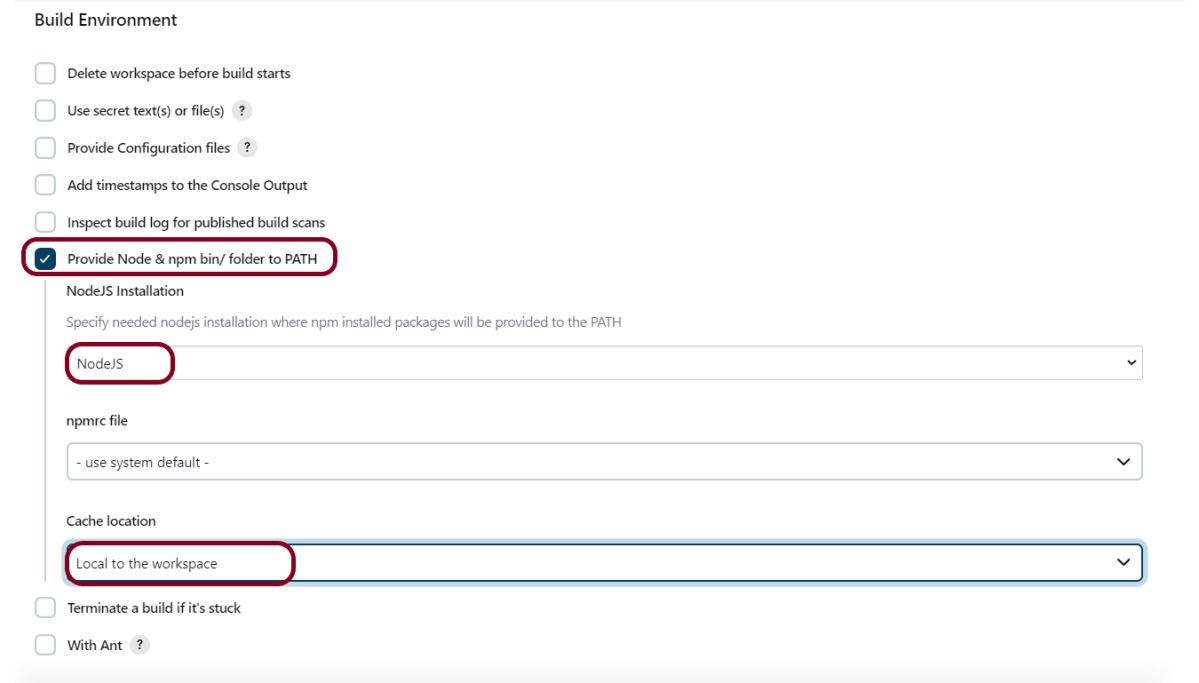
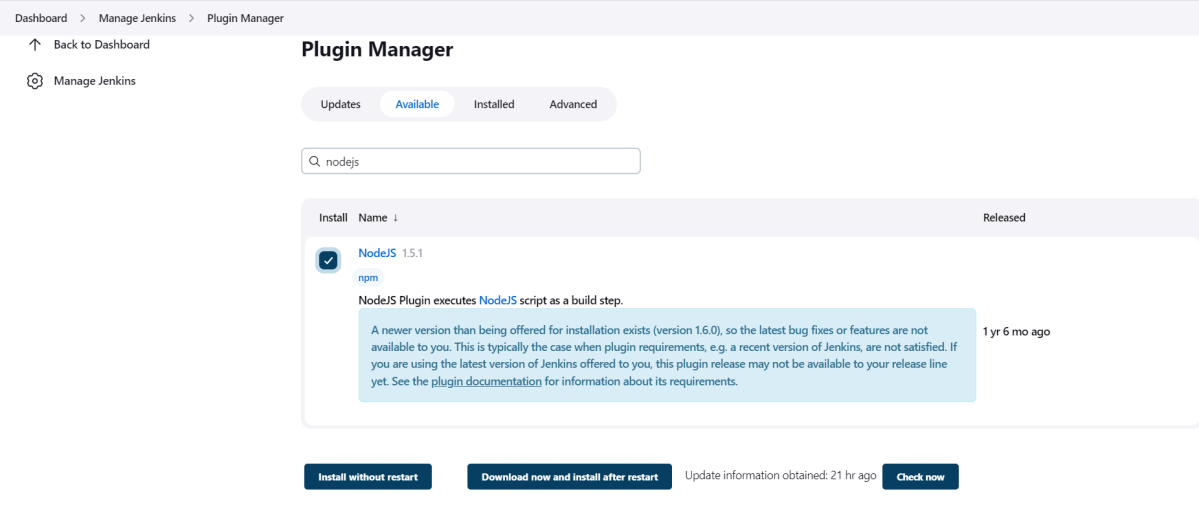
Step 1: Download the NodeJS Plugin

To generate a Performance Report in Jenkins, we need to download NodeJS Plugin. Please refer to this tutorial to install the plugin – How to install Plugins in Jenkins.

Go to Manage Jenkins > Manage Plugins and install the NodeJS plugin.
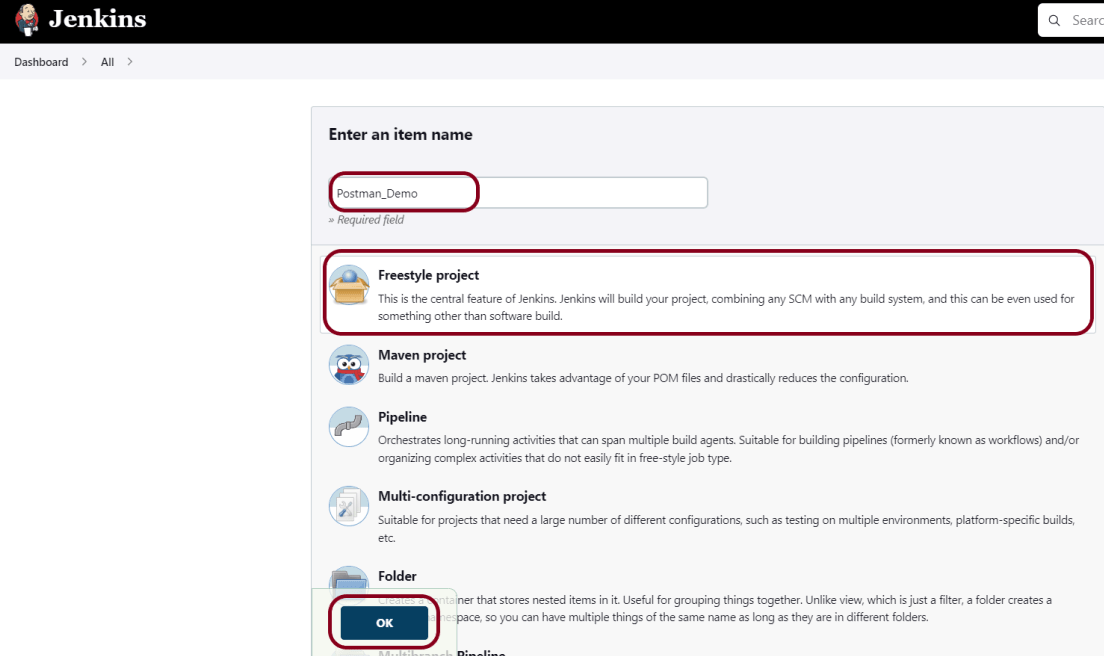
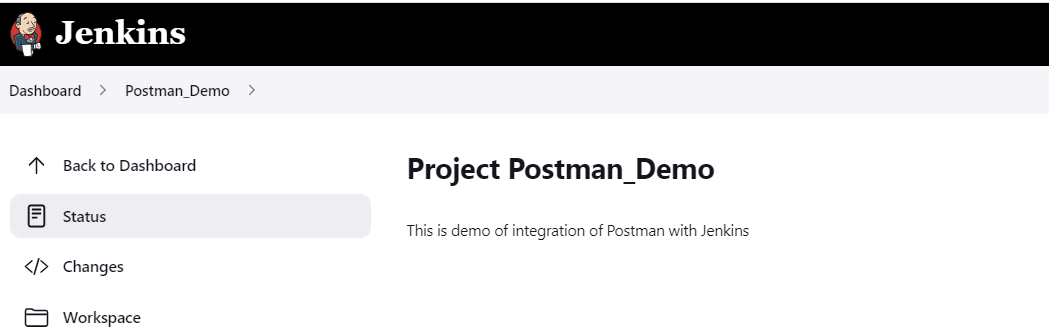
Step 3: Create a new FreeStyle project

  1. Give the Name of the projectPostman_Demo
  2. Click on the FreeStyle project. 
  3. Click on the OK button.

In the General section, enter the project description in the Description box.
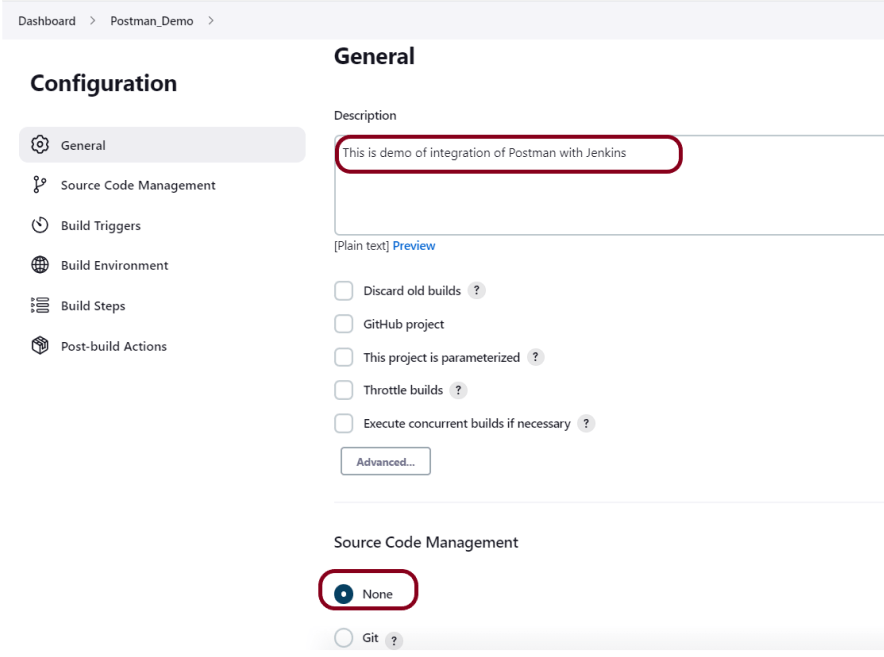
Step 4: Source Code Management

Select Source Code Management as None if the project is locally present on the machine.

Step 6: Select Execute Windows batch command

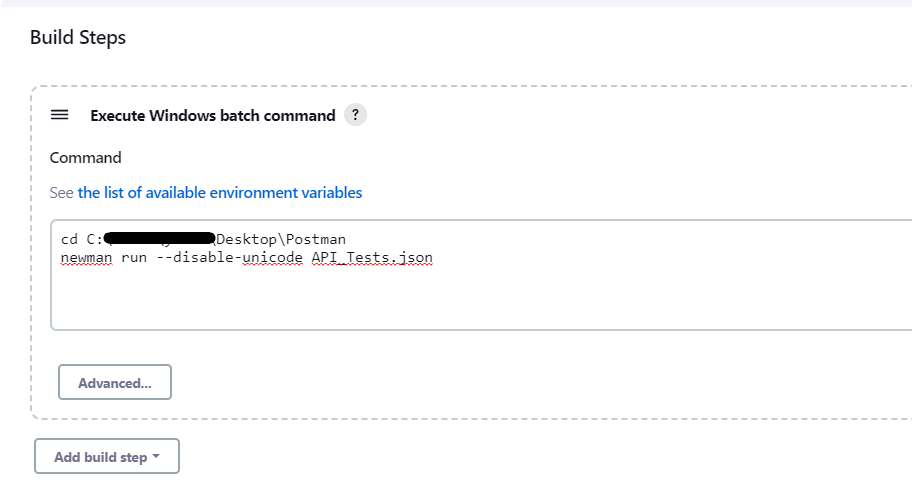
In the Build Steps section, select Execute Windows batch command.

Use the below command to go to the path where the JMeter is placed in your system.

cd C:\Users\Vibha\Desktop\Postman
newman run --disable-unicode API_Tests.json

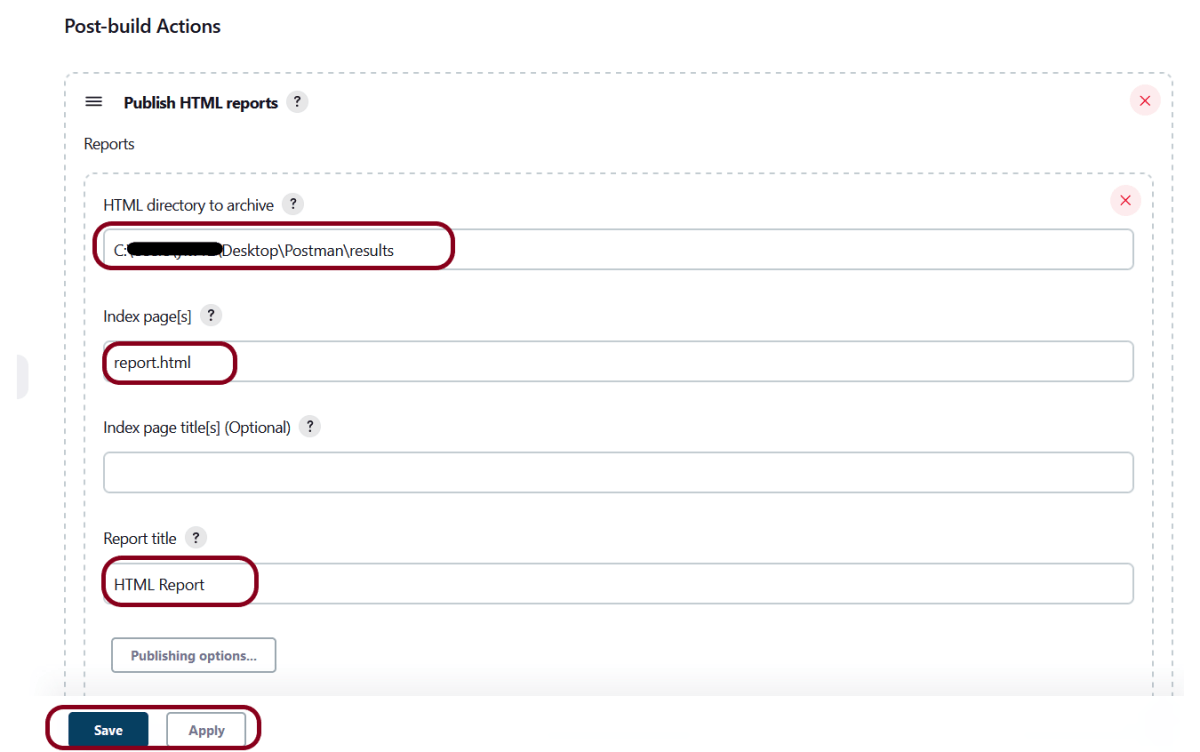
We have created a new project Postman_Demo” with the configuration to run the Postman scripts.

Step 7: Execute the tests

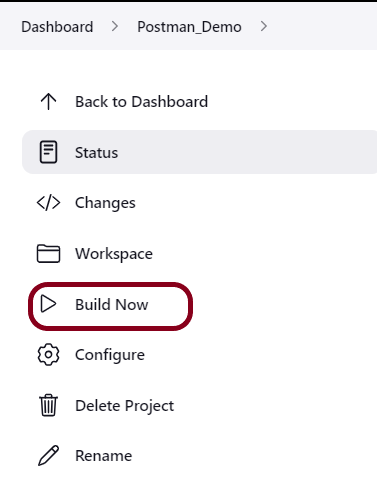
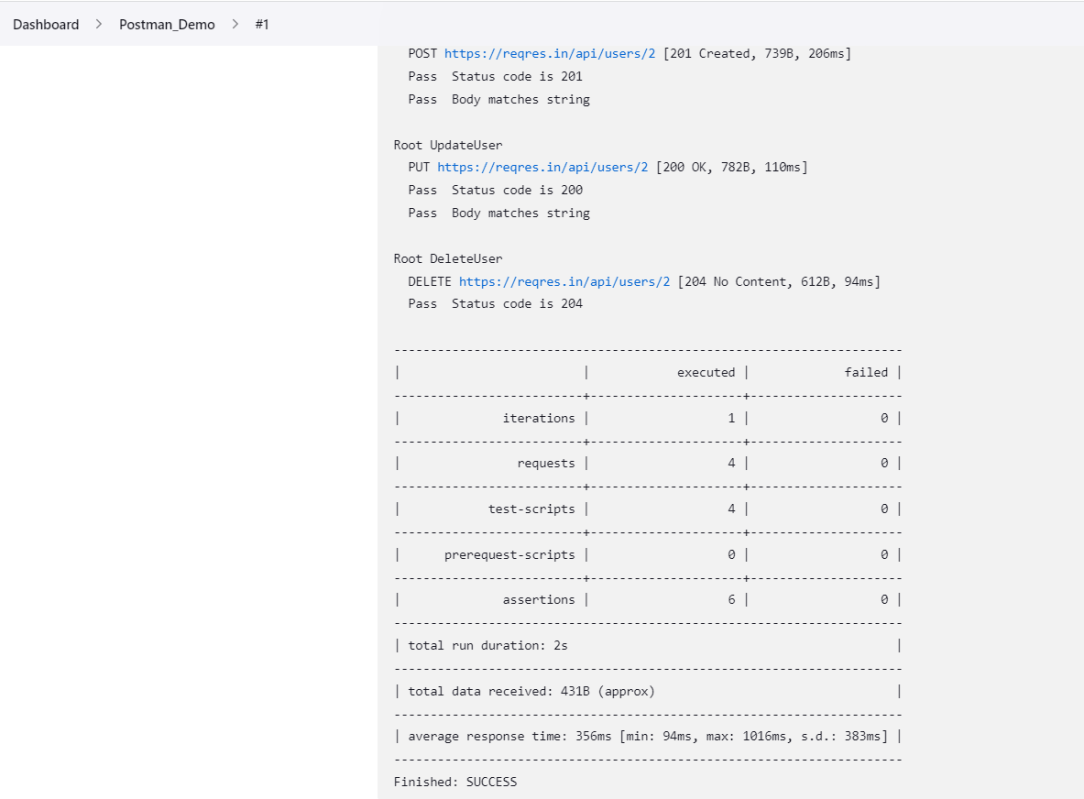
Let’s execute it now by clicking on the “Build Now” button. 

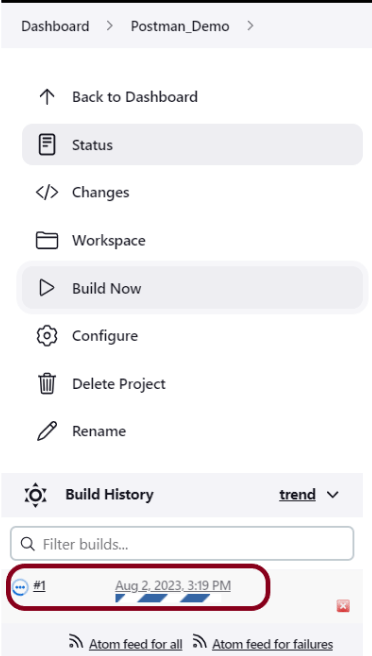
Right-click on Build Number (here in my case it is #1).

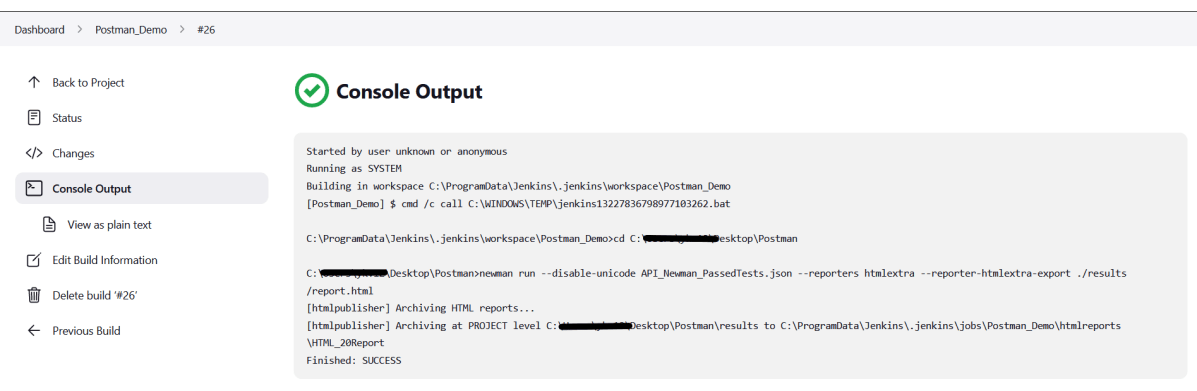
Click on Console Output to see the result.

Congratulations on making it through this tutorial and hope you found it useful! Happy Learning!! Cheers!!

Additional Tutorials

What is Collection in Postman?
Data Driven Testing in Postman
 How to import Collection into Postman?
 How to run Postman requests from the command line
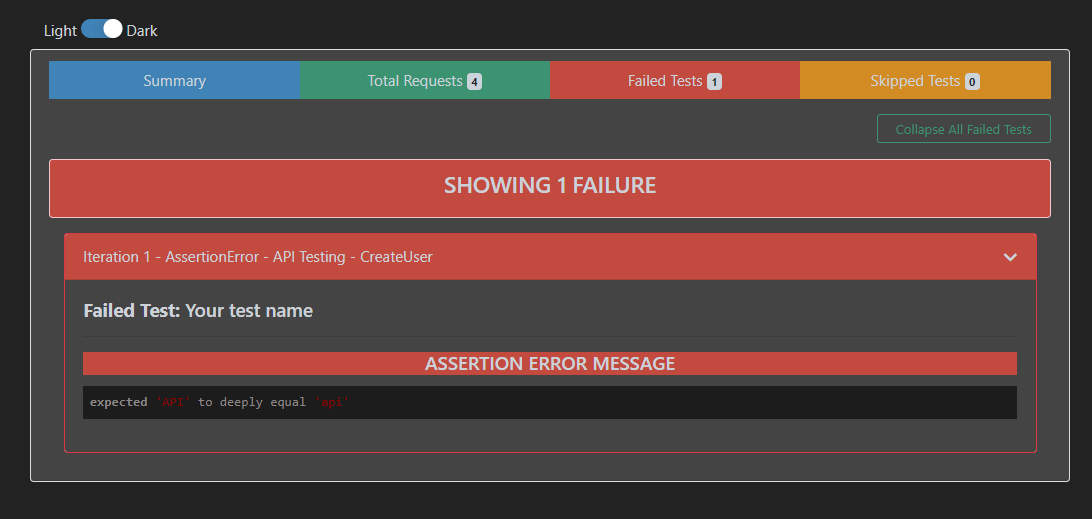
 How to generate Newman HTML Report?

How to generate Newman HTML Report?

HOME

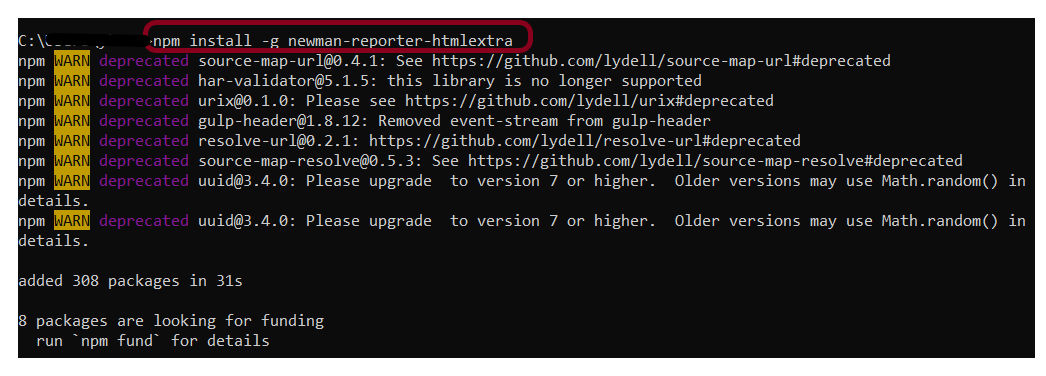
npm install -g newman-reporter-htmlextra

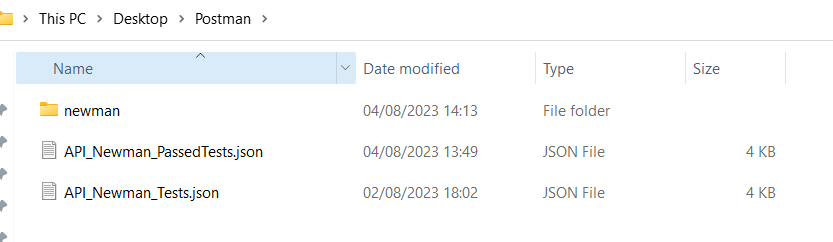
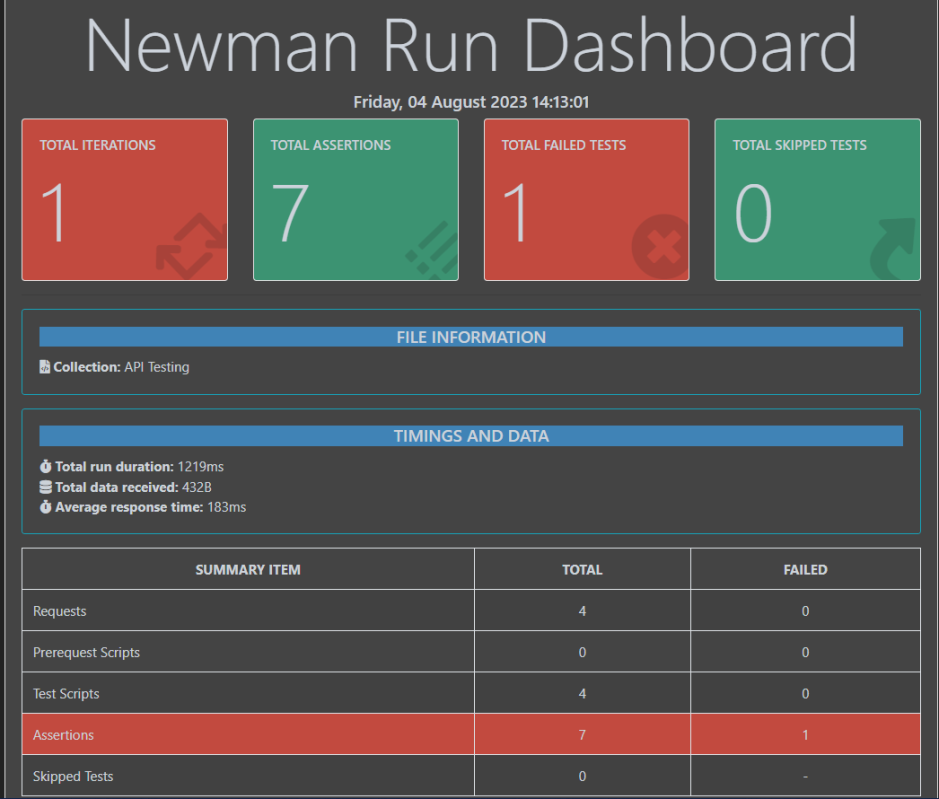
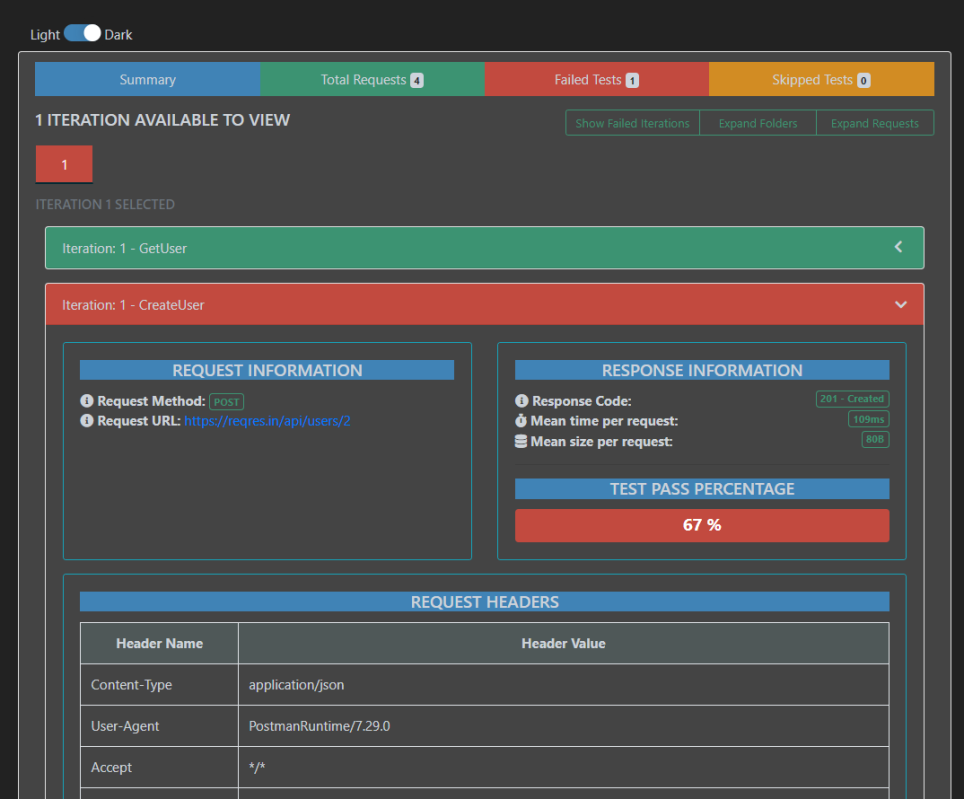
newman run API_Newman_Tests.json -r htmlextra

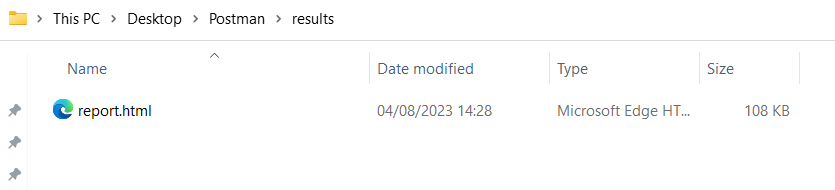
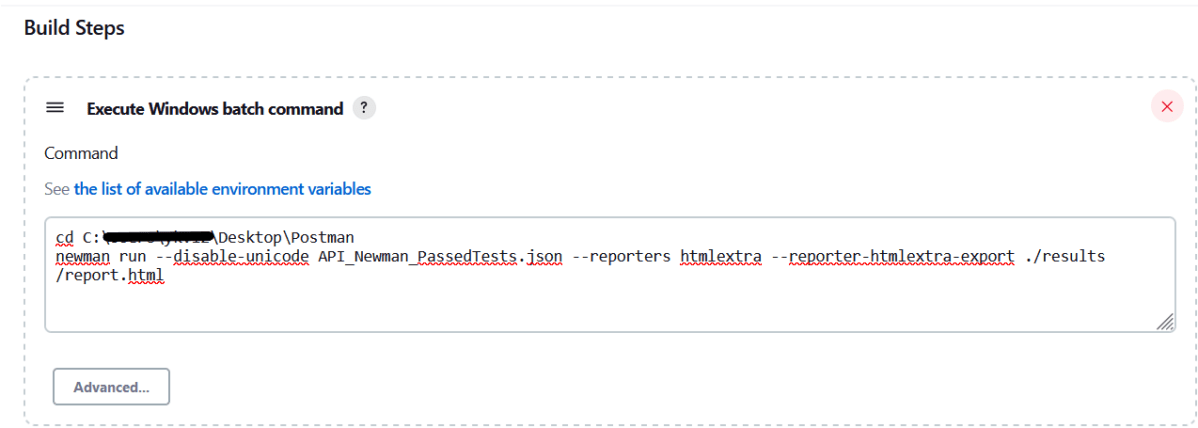
newman run API_Newman_Tests.json -r htmlextra --reporter-htmlextra-export ./results/report.html
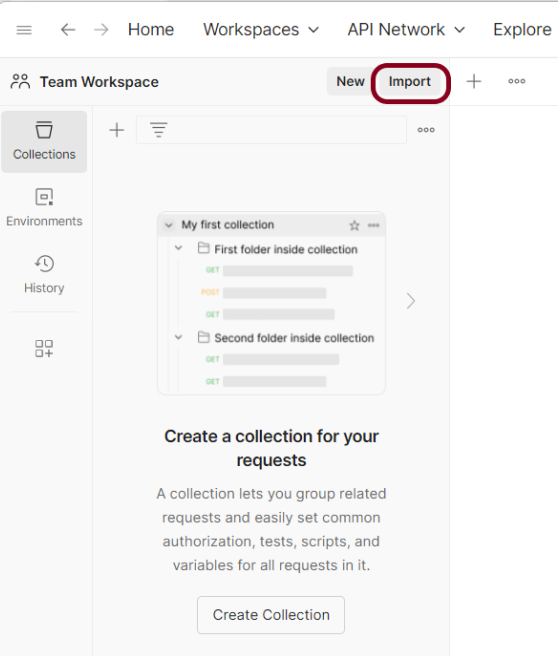
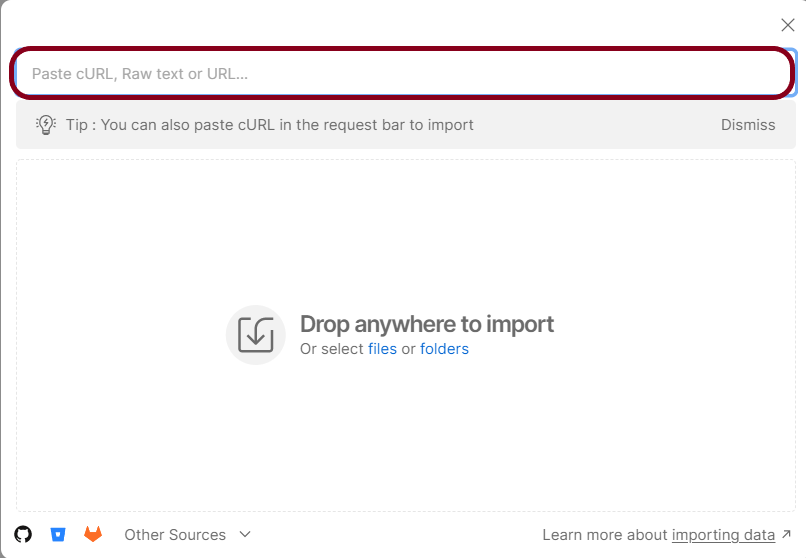
How to import Collection into Postman?

HOME

How to run Postman requests from the command line

HOME

In this tutorial, we will run the Postman requests from the command line. Newman is a command line collection runner for Postman.

node -v

npm -v

npm install -g newman

On cmd go to that location of collection json file

cd C:\Users\Vibha\Desktop\Automation\Postman

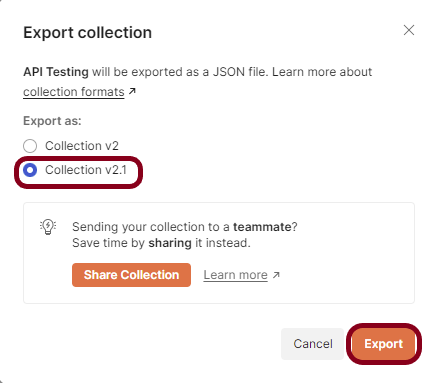
newman run API_Testing.json

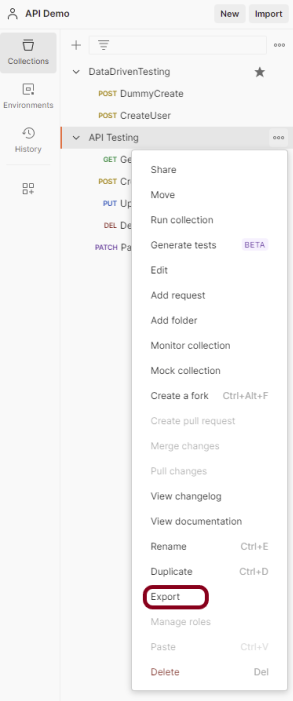
How to Export Postman Collections?

HOME