How to Locate Elements in Chrome, Firefox and IE Browsers for creating Selenium Scripts

HOME

In my previous tutorials, we have discussed about various types of locators available in Selenium WebDriver, which are used to identify various web elements on a web page. Some of the locators widely used are Id, ClassName, Name, LinkText, PartialLinkText, XPath, CSS Selector and so on. In this blog, will study the mechanism to locate web elements on Google Chrome, Firefox and Internet Explorer.

Google Chrome

  1. First step is to launch the Chrome Browser with desired URL. Here, we have launched Chrome browser and accessed Facebook page. I want to find the locator of Email or Phone textbox, so I will click on that textbox, right click, and click on “Inspect”.

2. Take a note that “Element” tab highlighted in the screenshot. Thus, element tab is the one, which displays all the HTML properties belonging to the current web page. Navigate to the “Element” tab if it is not open by default on the launch.
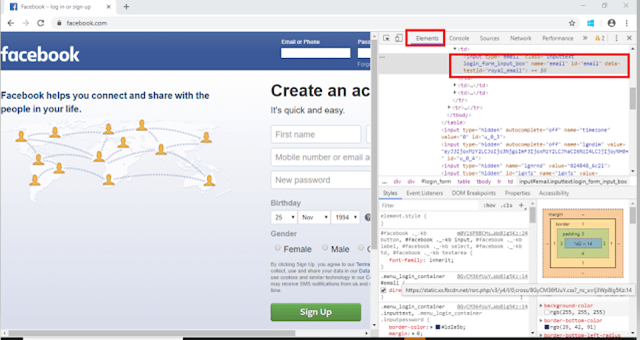
3.  In the screenshot, we can see the HTML code of Email or Phone Textbox. Right click on this text and then again click on Copy where will see options like – Copy Selector, Copy XPath, Copy full XPath
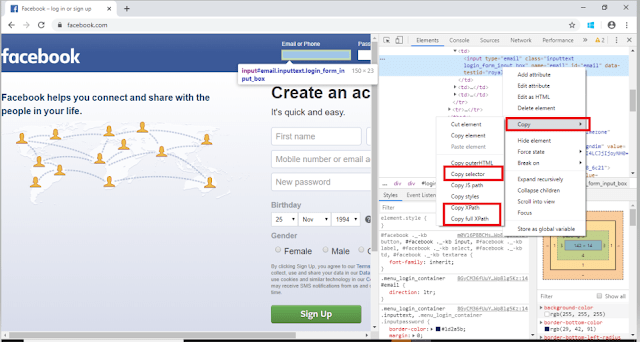
Copy Selector will tell the CSS Selector path of the WebElement

#email

Copy XPath will tell the Xpath of the WebElement

//*[@id="email"]

Copy full XPath will tell the absolute path of the WebElement

/html/body/div[1]/div[2]/div/div/div/div/div[2]/form/table/tbody/tr[2]/td[1]/input

Firstly, we should instantiate a Chrome/Chromium session by doing the following:

import org.openqa.selenium.WebDriver;
import org.openqa.selenium.chrome.ChromeDriver;
         
WebDriver driver = new ChromeDriver();

Set the path to the chromedriver

executableSystem.setProperty("webdriver.chrome.driver","C:\\Users\\Vibha\\Desktop\\Automation\\Drivers\\chromedriver_win32\\chromedriver.exe");

The chromedriver is implement as a WebDriver remote server that instructs the browser what to do by exposing Chrome’s internal automation proxy interface.

Firefox

1.   First step is to launch the Firefox Browser with desired URL, ie Facebook. I want to find the locator of Email or Phone textbox, so I will click on that textbox and right click and click on “Inspect Element (Q)”.
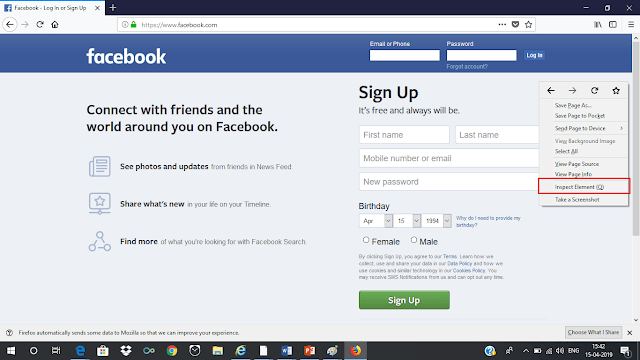
2.  Take a note that “Inspector” tab is highlight in the screenshot. Thus, element tab is the one, which displays all the HTML properties belonging to the current web page. Navigate to the “Inspector” tab if it is not open by default on the launch.  

3. In the screenshot, we can see the HTML code of Email or Phone Textbox. Right click on this text and then again click on Copy where will see options like – Copy CSS Selector, Copy XPath, Copy CSS Path

Copy CSS Path will tell the CSS path of the WebElement

html#facebook body.fbIndex.UIPage_LoggedOut._-kb._605a.b_c3pyn-ahh.gecko.win.x1.Locale_en_GB.cores-gte4._19_u.hasAXNavMenubar div#u_0_e._li div#pagelet_bluebar div#blueBarDOMInspector div._53jh div.loggedout_menubar_container div.clearfix.loggedout_menubar div.menu_login_container.rfloat._ohf form#login_form table tbody tr td input#email.inputtext.login_form_input_box

Copy Selector will tell the CSS Selector path of the WebElement

#email

Copy XPath will tell the Xpath of the WebElement

//*[@id="email"]
System.setProperty("webdriver.gecko.driver","C:\\Users\\Vibha\\Desktop\\Drivers\\geckodriver-v0.26.0-win64\\geckodriver.exe");
WebDriver driver = new FirefoxDriver();

Internet Explorer

      1.   First step is to launch the Firefox Browser with desired URL. Here, we have launched Firefox browser and accessed Facebook page. I want to find the locator of Email or Phone textbox, so I will click on that textbox, right click, and click on “Inspect Element”.

      2.   Take a note that “DOM Explorer” tab is highlight in the screenshot. Thus, element tab is the one, which displays all the HTML properties belonging to the current web page. Navigate to the “DOM Explorer” tab if it is not open by default on the launch.

System.setProperty("webdriver.ie.driver","C:\\Users\\SingVi04\\Desktop\\Automation\\Drivers\\IEDriverServer_x64_3.150.1\\IEDriverServer.exe"); 
WebDriver driver = new InternetExplorerDriver();

How to create first Selenium WebDriver Script using Java

We assume here that Selenium WebDriver is download and installed with Eclipse. If not, please refer this link

In this tutorial, we will see how to create a simple Selenium WebDriver script using JAVA. The most important thing is that JAVA, Eclipse and Selenium WebDriver are already install in the machine. If not, then please refer the link – How to Download & Install Selenium WebDriver.

To create our first Selenium WebDriver Script, we have to create a Java Project, Package and Class in Eclipse.

1. Create a Java Project “AutomationSuite” – Click File ->New ->Other ->Project ->Java Project. Click Next.

  • Provide Package Name – here I have provided AutomationSuite 
  • JRE – Use an execution environment JRE: JavaSE-1.8 (This is the version of Java on your machine)
  • Project Layout – Create separate folders for source and class files

ii. Create a package “SeleniumTutorial” – Right click Java Project (AutomationSuite) ->Click File ->New ->Package

iii. Create a Java Class “FirstProgram” – Right click Java Package (SeleniumTutorial) ->Click File ->New ->Class

  • Name: Name of the class (FirstProgram)
  • Modifiers – Public
  • Which method stubs would you like to create – public static void main(String[] args) and click Finish

Above displayed image explains the structure of Project in Eclipse.

Add Selenium Jar files to the Java Project


1.  Right click on AutomationSuite and click on Properties.

2.  Click on Java Build Path. Select Libraries. Click on – Add External JARs

3.  Go to the path where Selenium WebDriver JAR folder was downloaded and select 2 JAR files – client-combined-3.141.59 and client-combined-3.141.59-sources and click on Open button.

4. Similarly, go to Lib folder of Selenium file and select the entire JAR present there

5. To verify that the JAR’s are added or not, click on Referenced Libraries and will see all these JARs are present here. For more details, refer the link

Scenario:


To open appropriate URL and verify the title of the home page
Steps:
i. Open Chrome browser
ii. Go to the specified URL – http://www.google.com
iii. Verify the title and print the output of the title
iv. Close the Chrome browser

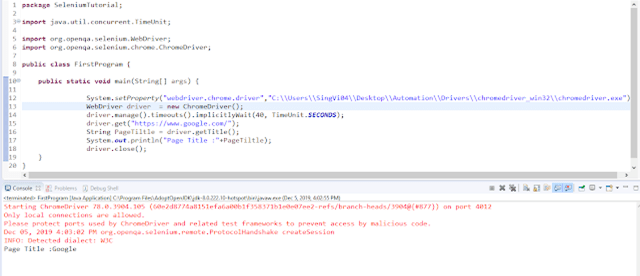
import java.util.concurrent.TimeUnit;
import org.openqa.selenium.chrome.ChromeDriver;
 
public class FirstProgram {
       
     public static void main(String[] args) {
               
 System.setProperty("webdriver.chrome.driver","C:\\Users\\vibha\\Downloads\\Drivers\\chromedriver_win32\\chromedriver.exe"");

         WebDriver driver = new ChromeDriver();
         driver.manage().timeouts().implicitlyWait(40, TimeUnit.SECONDS);
         driver.get("https://www.google.com/");
         String PageTiltle = driver.getTitle();
         System.out.println("Page Title :"+PageTiltle);
         driver.close();
     }
}

To run this program, go to Run->Run or Green Icon shown below

How to get all options in a DropDown list in Selenium WebDriver


In this tutorial, we will get to know how we can get the option values of a dropdown using Webdriver. This can be done by using getOptions().

getOptions( ) : List – It shows all options belonging to the Select tag. It takes no parameter and returns List.

oSelect.getOptions();

Below is an example on how to use getOptions. We want to print all the options of Drop Down Month.

import java.util.List;
import java.util.concurrent.TimeUnit;
import org.openqa.selenium.By;
import org.openqa.selenium.WebElement;
import org.openqa.selenium.firefox.FirefoxDriver;
import org.openqa.selenium.support.ui.Select;

public class DropDown_Options {
      public static void main(String[] args) {
         System.setProperty(“webdriver.gecko.driver”,“C:\\Users\\vibha\\Downloads\\geckodriver-v0.24.0-win64\\geckodriver.exe”);
            FirefoxDriver driver = new FirefoxDriver();
                  
            driver.manage().timeouts().implicitlyWait(60, TimeUnit.SECONDS);
            driver.get("https://www.facebook.com/";);          
            
Select mselect = new Select(driver.findElement(By.id(“month”)));       
            
            // Print all the options for the selected drop down and select one option of your choice
            // Get the size of the Select element
            List mSize = mselect.getOptions();
            int OptionSize = mSize.size();                                   
           
            // Setting up the loop to print all the options
            for(int i =0; i < OptionSize ; i++)
          {
           
          // Storing the value of the option
           String Options = mselect.getOptions().get(i).getText();
           
          // Printing the stored value
           System.out.println(Options);
        }
   }
}

Output
Month
Jan
Feb
Mar
Apr
May
Jun
Jul
Aug
Sep
Oct
Nov
Dec