In the previous tutorial, we discussed what is TestNG and why it is important. This tutorial will discuss how can we download and install TestNG in Eclipse and how to use it.
Pre-Requisite
1) Eclipse should be installed and configured. Please refer to Install and Configure to set up Eclipse on your system.
Install/Setup TestNG
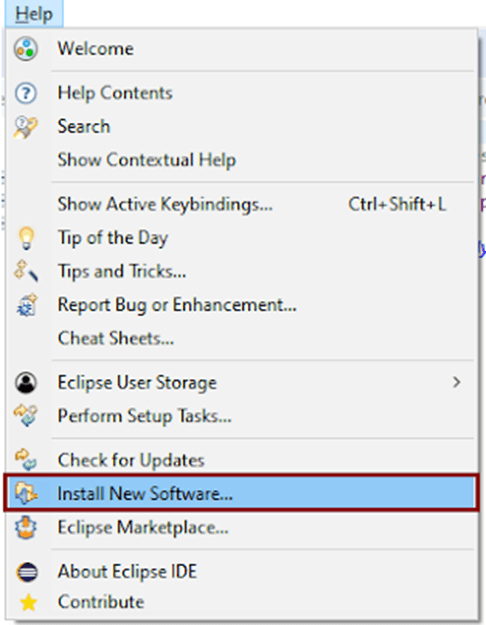
1) Launch Eclipse and go to the “Help” option present at the top and select –“Install New Software”.
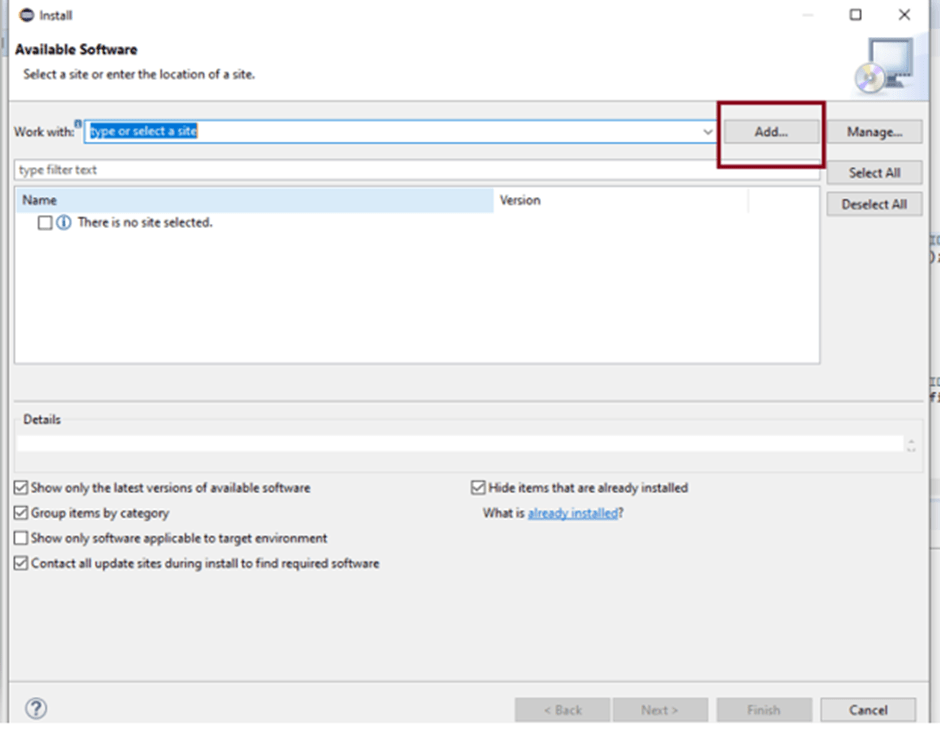
2) A dialog box will appear, click the “Add“ button.
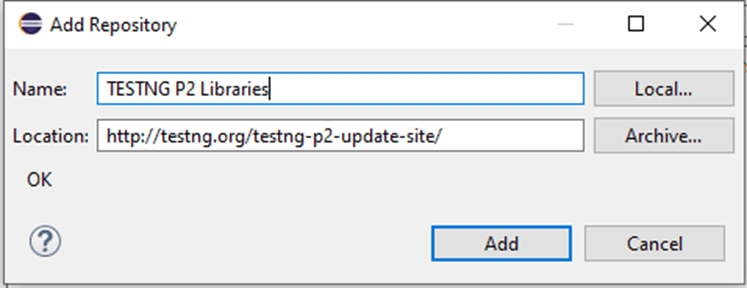
3) A new dialog box will appear. Mention the Name as TestNG and the location as “TestNG P2 – https://testng.org/testng-p2-update-site” and click the Add button.
4) This time we will see TestNG is added to Install dialog box.

5) Accept the terms and conditions and then click the “Finish“ button.

6) Once the installation is completed, you will get a message to Restart the Eclipse. Select Restart the Eclipse
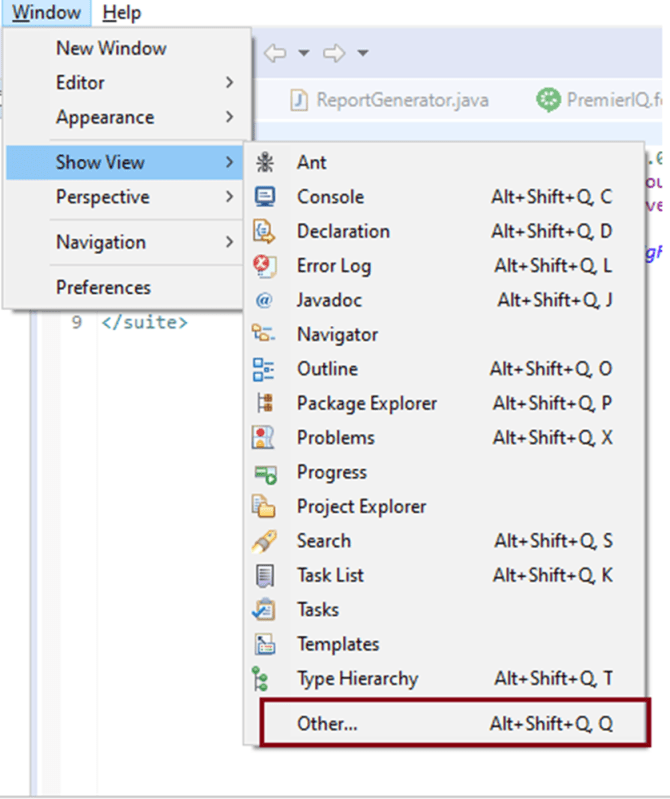
7) To verify if TestNG is installed successfully or not, go to Window, select Show View, and then Other.
8) Select Java and see, within the Java folder, you will see TestNG. This shows that TestNG is successfully installed on the machine.

Steps to follow to create a TestNG class
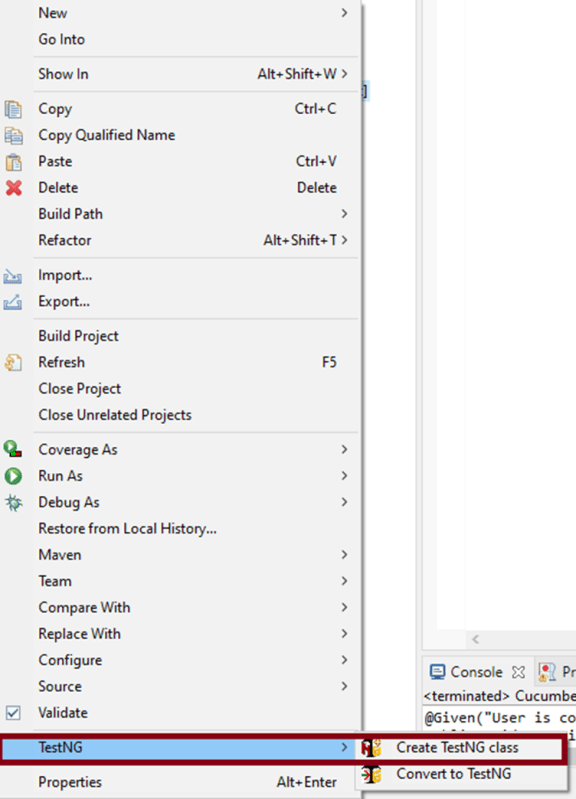
1) Create a new TestNG class. Right-click on the Folder where you want to create the TestNG class. Select TestNG and then Create the TestNG class as shown in the below image.
2) In the below image, we can see that the Source folder is the name of the folder we want to create the class, and we can mention the name of the class in the Class name. Under annotations, I have checked @BeforeTest and @AfterTest and click the Finish button.

3) We can see that the structure of the new TestNG class looks like as shown below.

4) In the below example, we want to navigate to an Amazon page and search for Hard Drive.
@BeforeTest : Launch Firefox and direct it to the Base URL
@Test : Search for HardDrive
@AfterTest : Close Firefox browser
import org.testng.annotations.Test;
import org.testng.annotations.BeforeTest;
import java.util.concurrent.TimeUnit;
import org.openqa.selenium.By;
import org.openqa.selenium.WebDriver;
import org.openqa.selenium.firefox.FirefoxDriver;
import org.testng.annotations.AfterTest;

public class TestNG_Demo {

   public WebDriver driver;

   @BeforeTest
    public void beforeTest() {

     System.setProperty("webdriver.gecko.driver","C:\\Users\\vibha\\Downloads\\geckodriver-v0.26.0-win64\\geckodriver.exe");
    driver = new FirefoxDriver();
    driver.manage().timeouts().implicitlyWait(60, TimeUnit.SECONDS);
    driver.manage().window().maximize();
    driver.get("https://www.amazon.com//");
 }

@Test
public void Validation() {
    driver.findElement(By.xpath("//*[@id='twotabsearchtextbox']")).sendKeys("hard drive");
    //XPath for search button
      driver.findElement(By.xpath("//*[@class='nav-input']")).click();
   }

@AfterTest
public void afterTest() {
    driver.quit();
  }
}
5) To execute this program, we need to Right-click and select Run as – TestNG Test.

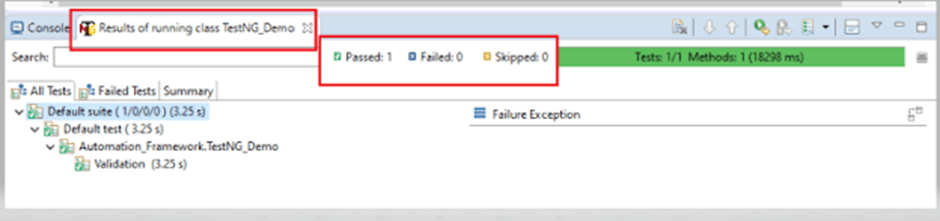
6) The result will look like something shown below. Here, we can see that Test Case Passed is 1, Failed 0, and Skipped 0.
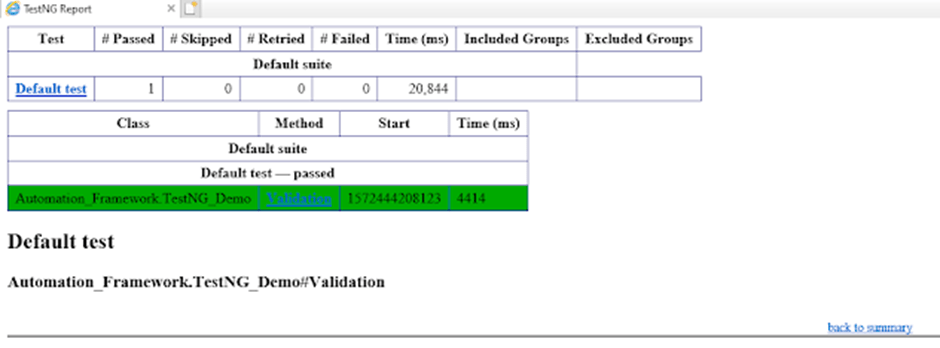
7) As we know that TestNG also produce HTML Reports. To access the report, go to the Eclipse folder, and you can see a folder with name test-output inside the Project where we have created TestNG class. Here, it is C:\Users\vibha\Downloads\eclipse-workspace\Demo
We are done! Congratulations on making it through this tutorial and hope you found it useful! Happy Learning!!
 QA Automation Expert
Great! Very detailed. I enjoy reading this blog. Screenshots make it very easy to understand
LikeLike
Thank You. There are other blogs on TestNG and interview questions asked on TestNG. Have a look and provide your suggestion
LikeLike
Great article on the installation of TestNg. Appreciate the details provided with screenshots
LikeLike