One of the major testing workflows involves switching between multiple windows. Selenium WebDriver has specific switch commands to serve this purpose. Selenium WebDriver assigns an alphanumeric id to each window as soon as the WebDriver object is instantiated. This unique alphanumeric id is called a window handle. Selenium uses this unique id to switch control among several windows. In simple terms, each unique window has a unique ID, so that Selenium can differentiate when it is switching controls from one window to the other.
1) GetWindowHandle
To get the window handle of the current window. It returns a string of alphanumeric window handles.
String parentHandle= driver.getWindowHandle();
2) GetWindowHandles
To get the window handle of all the windows. It returns a set of window handle.
Set handle= driver.getWindowHandles();
3) SwitchTo Window
WebDriver supports moving between named windows using the “switchTo” method.
driver.switchTo().window("windowName");
Let us explain window switch with an example:-
1) Launch new Browser and open https://demoqa.com/browser-windows 2) Check the count of windows which is 1 3) Locate “New Window” button using Id – “windowButton” and click to open a new window 4) Get the count of both windows which is now 2. 5) Get the parent window handle and print it to console 6) Get the window handles of both the open windows and print them 7) Switch to the new window (child window) 8) Get the text of Child Window and print it 9) Close the new window (child window)
The program for the above scenario is shown below:
package com.example.definitions;

import org.openqa.selenium.By;
import org.openqa.selenium.WebDriver;
import org.openqa.selenium.WebElement;
import org.openqa.selenium.chrome.ChromeDriver;
import org.openqa.selenium.chrome.ChromeOptions;
import java.util.Iterator;
import java.util.Set;
import java.util.concurrent.TimeUnit;

public class WindowSwitchDemo {

    public static void main(String[] args) {

        ChromeOptions options = new ChromeOptions();
        options.addArguments("--start-maximized");
        WebDriver driver = new ChromeDriver(options);
        driver.manage().timeouts().implicitlyWait(10, TimeUnit.SECONDS);

        // Pass application url
        driver.get("https://demoqa.com/browser-windows");

        //Count of window - 1
        Set<String> allWindowHandles = driver.getWindowHandles();
        System.out.println("Count of Window :" + allWindowHandles.size());

        //Open a child window
        driver.findElement(By.id("windowButton")).click();

        //Count of windows , changed from 1 to 2
        Set<String> newAllWindowHandles = driver.getWindowHandles();
        System.out.println("New Count of Window :" + newAllWindowHandles.size());

        // Get the detail of the parent window
        String ParentHandle = driver.getWindowHandle();
        System.out.println("Parent Window :" + ParentHandle);

        //Get details of parent and child windows
        Iterator<String> iterator = newAllWindowHandles.iterator();
        String mainWindow = iterator.next();
        String childWindow = iterator.next();
        System.out.println("Parent Window :" + mainWindow);
        System.out.println("Child Window :" + childWindow);

        //Switch control to child window
        driver.switchTo().window(childWindow);

        //Verify the text present on child window
        WebElement text = driver.findElement(By.id("sampleHeading"));
        System.out.println("Child_Title :" + text.getText());

        // Close Child window
        driver.close();

        // Switch back to parent window
        driver.switchTo().window(ParentHandle);
        System.out.println("Parent Title :" + driver.getTitle());

        // Close Parent window
        driver.quit();
    }

}
The output of the above program is
What is the difference between driver.close() and driver.quit()?
When we are working on multiple windows and a selective window needs to be closed, then transfer the control to that window and use driver.close() to close the selective window. This will not stop the execution of the rest of the program. But, in case it is needed to close all the open windows, then use driver.quit() which will close all the windows opened in a particular session. It basically stops the driver instance, and any further actions to WebDriver may result in an exception. It is generally the last statement of any code.
Congratulations. We have learnt about window switching in Selenium. I hope you find this tutorial helpful. Happy Learning!!
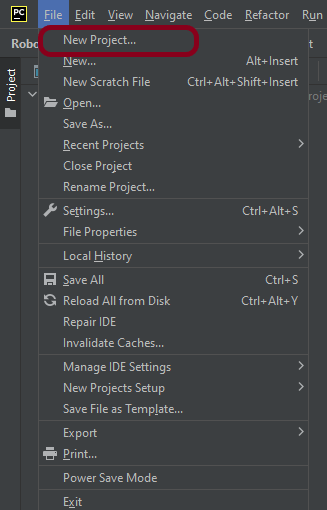
Step 1.1 – Open PyCharm and create a new project. Go to File and select New Project from the main menu.
Step 1.2 – Choose the project location. Click the “Browse” button next to the Location field and specify the directory for your project.
Deselect the Create a main.py welcome script checkbox because you will create a new Python file for this tutorial.
Click on the “Create” Button.
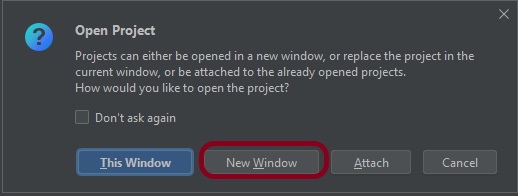
Step 1.3 – A new dialog appears asking to open the project using any one of the given options. I have selected New Window as I like to have separate windows for each project.
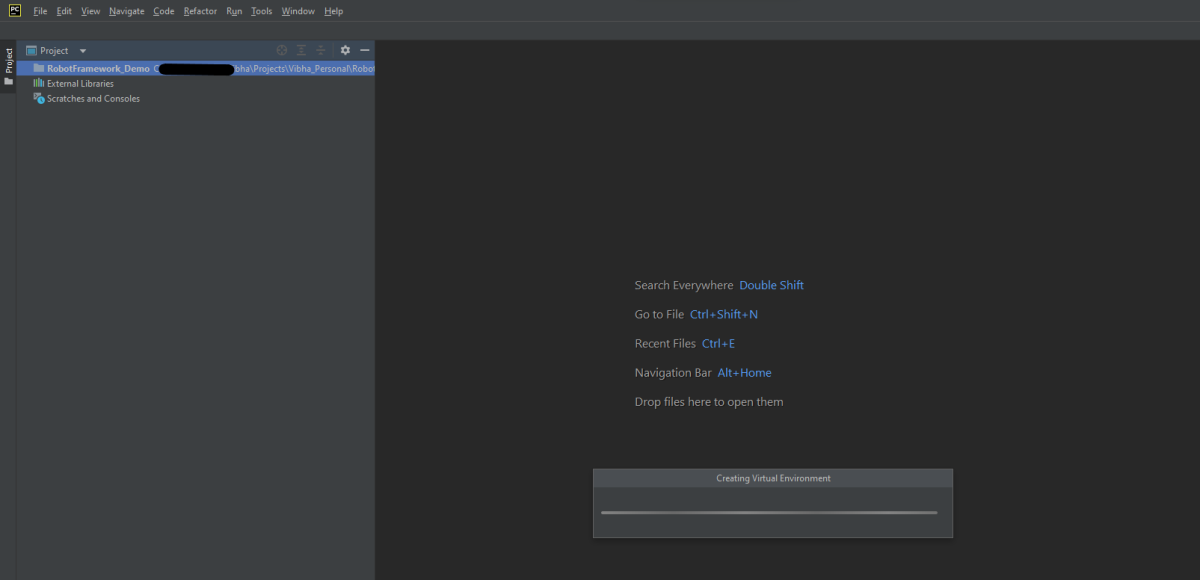
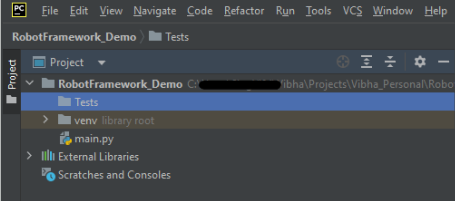
Below is the image of the new project created in PyCharms.
How to create a test to automate the switching of the windows in Robot Framework?
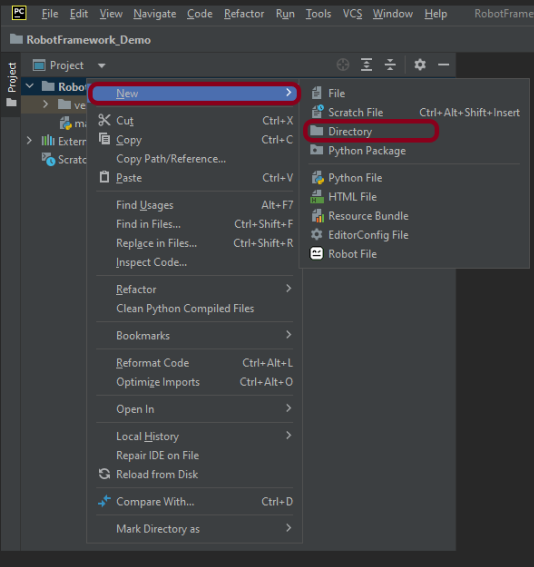
Step 2 – Create a new directory in the new project
Right-Click on the project, select New->Directory and provide name as Tests
Below is the image of the new directory.
Right-click on the new directory and select New File and provide the name as SwitchWindow_Demo.robot as shown below:
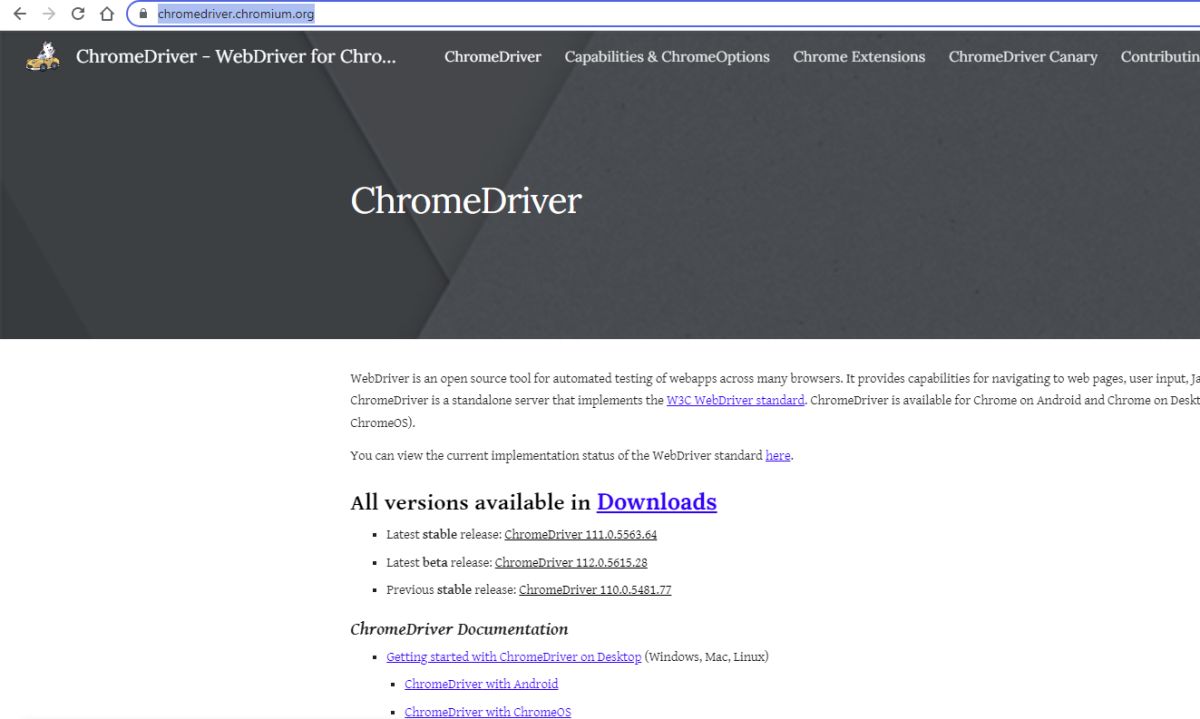
Step 3 – Download ChromeBinaries from the below location
The tests are going to use the Chrome browser, so we need to download the ChromeBinaries to open a blank browser in Chrome. Similarly, you can use Firefox, edge, safari, and many more browsers.
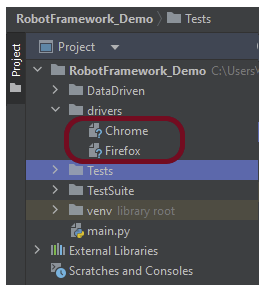
The chromedriver and geckodriver are placed in a folder name drivers in the RobotFramework_Demo project. I have renamed chromedriver to Chrome and geckodriver to Firefox.
Step 4 – Automate the switching of windows
We are now going to write test cases. The test case details will be as follows −
The below page shows that when we click on “Open New Separate Windows”, then click on the “click” button, a new child window opens – Selenium.dev.
Let us inspect the locator of the NEW Window.
Below is an example of switching windows in Robot Framework.
*** Settings ***
Documentation    To validate the switching of windows
Library     SeleniumLibrary
Test Teardown    Close Browser

*** Variables ***
${mainPageText}    xpath://div[@class='col-sm-8 col-xs-8 col-md-8']/h1

*** Test Cases ***
Switch windows
    Open the Browser with URL
    Select the button to switch to child window
    Verify the child window is opened
    Verify the user is switched back to parent window

*** Keywords ***
Open the Browser with URL
    Create Webdriver    Chrome  executable_path=/Vibha_Personal/RobotFramework/drivers/chromedriver_linux64
    Go To    https://demo.automationtesting.in/Windows.html
    Maximize Browser Window
    Set Selenium Implicit Wait    2

Select the button to switch to child window
    Click Element    xpath://div[@class='tabpane pullleft']/ul/li[2]/a
    Click Button    css:.btn-primary


Verify the child window is opened
    Switch Window    NEW
    Page Should Contain    Selenium automates browsers


Verify the user is switched back to parent window
     Switch Window    MAIN
     Element Text Should Be     ${mainPageText}    Automation Demo Site
All the below-mentioned keywords are derived from SeleniumLibrary. The functionality of keywords mentioned above:
1. Create Webdriver − The keyword creates an instance of Selenium WebDriver.
3. Maximize Browser Window – This keyword maximizes the current browser window.
4. Set Selenium Implicit Wait – This keyword sets the implicit wait value used by Selenium.
5. Click Element − This keyword is used to click the element identified by the locator. In this case, it is “Open new seperate windows” link.
6. Click Button – This keyword is used to click the button identified by the locator. In this case, it is “Click” button.
7. Switch Window NEW – This keyword is used to switch to the latest opened window.
8. Page Should Contain – This keyword is used to verify that the current page contains the text specified. Here, we are checking if the newly opened windows contain the text “Selenium automates browsers”.
9. Switch Window MAIN – This keyword is used to switch to the main window.
10. Element Text Should Be – This keyword is used to verify that the current page contains the exact text identified by the locator. Here, we are checking if we switched back to the main window and the main window contains the exact text “Automation Demo Site”.
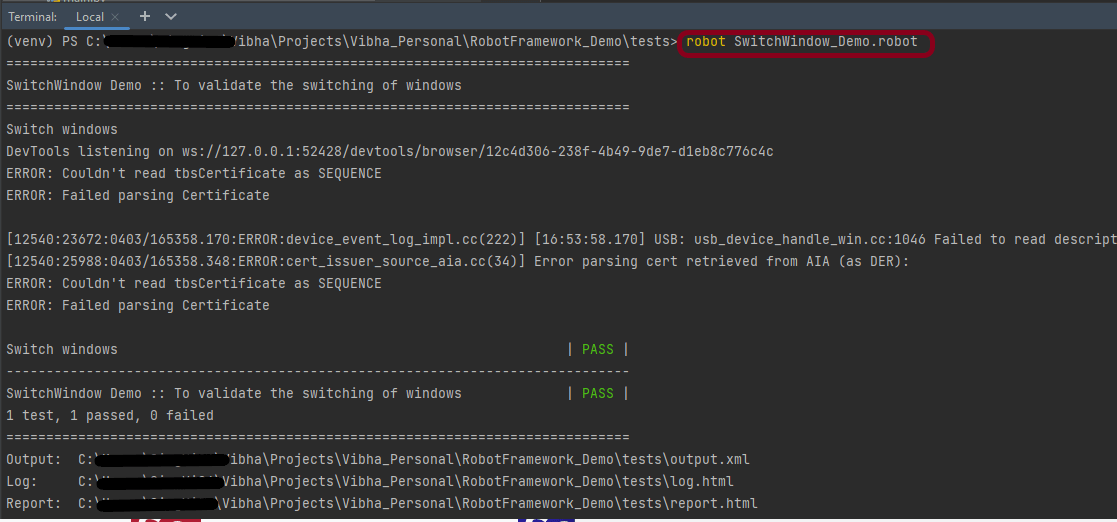
To run this script, go to the command line and go to directory tests. We need the below command to run the Robot Framework script.
robot SwitchWindow_Demo.robot
The output of the above program is
Step 5 – View Report and Log
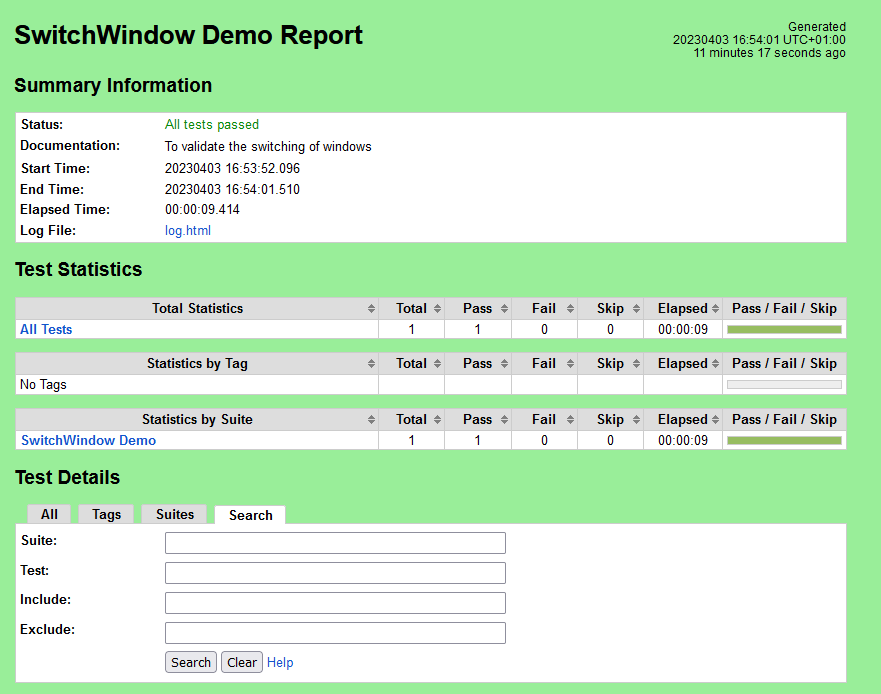
We have the test case passed. The Robot Framework generates log.html, output.xml, and report.html by default.
Let us now see the report and log details.
Report
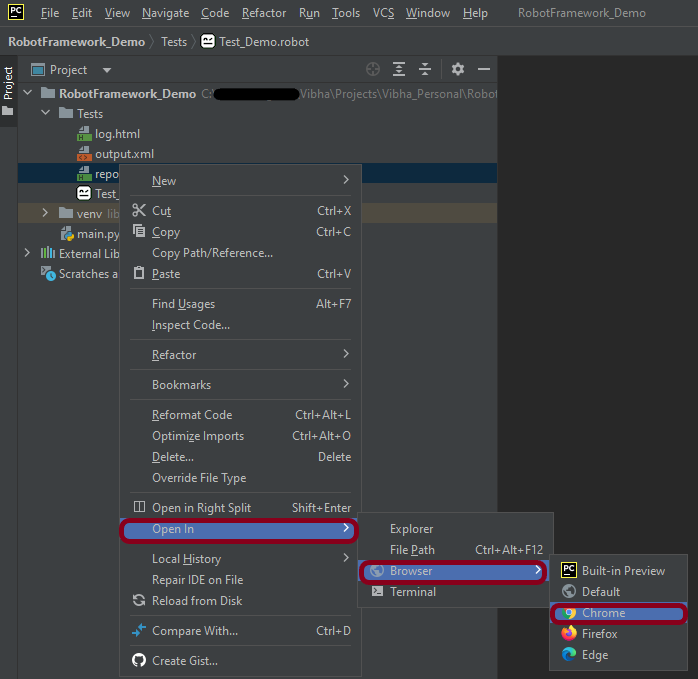
Right-click on report.html. Select Open In->Browser->Chrome(any browser of your wish).
The Report generated by the framework is shown below:
Log
Robot Framework has multiple log levels that control what is shown in the automatically generated log file. The default Robot Framework log level is INFO.
Right-click on log.html. Select Open In->Browser->Chrome(any browser of your wish).
Multiple Window Switch
Selenium WebDriver assigns an alphanumeric id to each window as soon as the WebDriver object is instantiated. This unique alphanumeric id is called a window handle. Selenium uses this unique id to switch control among several windows. In simple terms, each unique window has a unique ID, so that Selenium can differentiate when it is switching controls from one window to the other.
The below page shows that when we click on “Open Separate Multiple Windows”, then click on the “click” button, 2 new child windows open – Selenium.dev and Demo page.
Below is an example of switching between multiple windows.
*** Settings ***
Documentation    To validate the switching between multiple windows
Library     SeleniumLibrary
Test Teardown    Close Browser

*** Variables ***
${mainPageText}    xpath://div[@class='col-sm-8 col-xs-8 col-md-8']/h1

*** Test Cases ***
Multiple Windows switch
    Open the Browser with URL
    Select the button to switch to child window
    Verify child windows are opened
    Verify user switched back to parent window

*** Keywords ***
Open the Browser with URL
    Create Webdriver    Chrome  executable_path=/Vibha_Personal/RobotFramework/drivers/chromedriver_linux64
    Go To    https://demo.automationtesting.in/Windows.html
    Maximize Browser Window
    Set Selenium Implicit Wait    5

Select the button to switch to child window
    Click Element    xpath://div[@class='tabpane pullleft']/ul/li[3]/a
    Click Button    xpath:.//*[@id='Multiple']/button


Verify child windows are opened
    @{windowHandle}=    Get Window Handles

    Switch Window   title:Selenium
    Page Should Contain     Selenium automates browsers. That's it!

    Switch Window   title:Index
    Page Should Contain Textfield      id:email


Verify user switched back to parent window
     Switch Window    MAIN
     Element Text Should Be     ${mainPageText}    Automation Demo Site
All the below-mentioned keywords are derived from SeleniumLibrary. The functionality of keywords mentioned above:
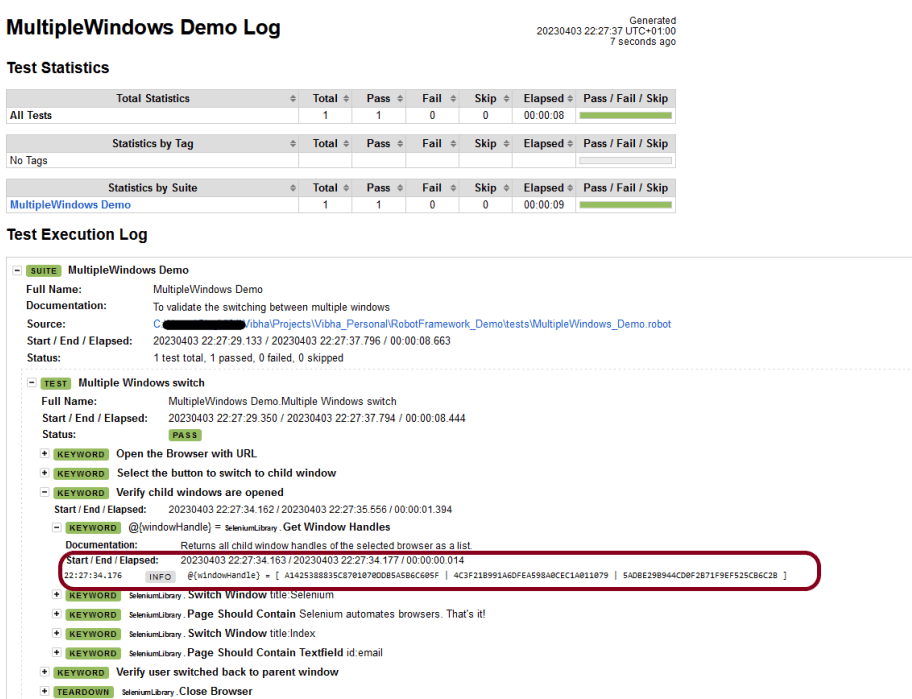
1. Get Window Handles − The keyword returns all child window handles of the selected browser as a list. Here, it will return 3 window handles.
2. Switch Window title:Selenium – This keyword is used to switch to the window whose title is identified by the locator “Selenium”.
3. Page Should Contain Textfield – This keyword verifies the text field identified by the locator found from the current page.
Step 1 – Execute the tests
We need the below command to run the Robot Framework script.
robot MultipleWindows_Demo.robot
The output of the above program is
Step 2 – View Report and Log
Report
Log
In the log, we can see that Get Window Handles has 3 alphanumeric id.
That’s it! Congratulations on making it through this tutorial and hope you found it useful! Happy Learning!!







 QA Automation Expert