Playwright’s snapshot assertions are an incredibly powerful tool. They ensure your app’s UI remains consistent across code changes. This applies to different browsers and devices. This allows developers to ensure that the UI remains consistent across changes and helps detect unintended changes.
Table of Content
- What is the use of Snapshot Testing?
- Advantages of Snapshot Testing
- How Snapshot Testing works
- When should I use page snapshots?
- When should I use element snapshots?
- Challenges
System Requirement
- Node.js version 18 or higher and npm (comes with Node.js)
- Windows 10+, macOS 12+, or Ubuntu 20.04+
- Visual Studio for Code is already installed.
- Playwright is already installed
What is the use of Snapshot Testing?
The primary goal of snapshot testing is to automatically detect any visual discrepancies introduced by code modifications. This is particularly useful for components or pages where the visual layout is important and needs to be maintained accurately.
Advantages of Snapshot Testing
- Regression Detection: Quickly detects unintended UI changes or regressions.
- Efficiency: Offers efficient way to check UI consistency across various browsers and devices.
- Reduces Manual UI Testing: Automates a part of the visual testing process. It often involves manual inspection. This automation saves time and reduces human error.
How Snapshot Testing works:
- Capture: Playwright captures the current state of a web page or a specific element. It does this by taking a screenshot during the test execution.
- Compare: The captured screenshot is compared against a previously stored “baseline” or “expected” snapshot.
- Detect Changes: If any differences are found between the current and baseline screenshots, it’s flagged as a failed test. This indicates a visual change.
Project Structure
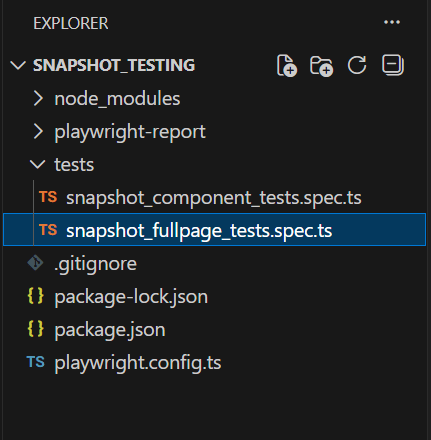
When should I use page snapshots?
Page snapshots are excellent for verifying the entire page works as expected. Use page snapshots to test layout, responsiveness, and accessibility. Page snapshots can be flaky. After all, if anything within the viewport changes, the entire snapshot will fail.
Below is an example of Snapshot testing of full page.
import { test, expect } from '@playwright/test';

test('snapshot test example', async ({ page }) => {

    // Navigate to the page you want to test
     await page.goto('https://playwright.dev/');

     // Capture a snapshot of the whole page
     const screenshot = await page.screenshot();

     // Compare the screenshot to a stored baseline snapshot
     expect(screenshot).toMatchSnapshot('login_page.png');

    });
Go to the command line and use the below command to run the test:
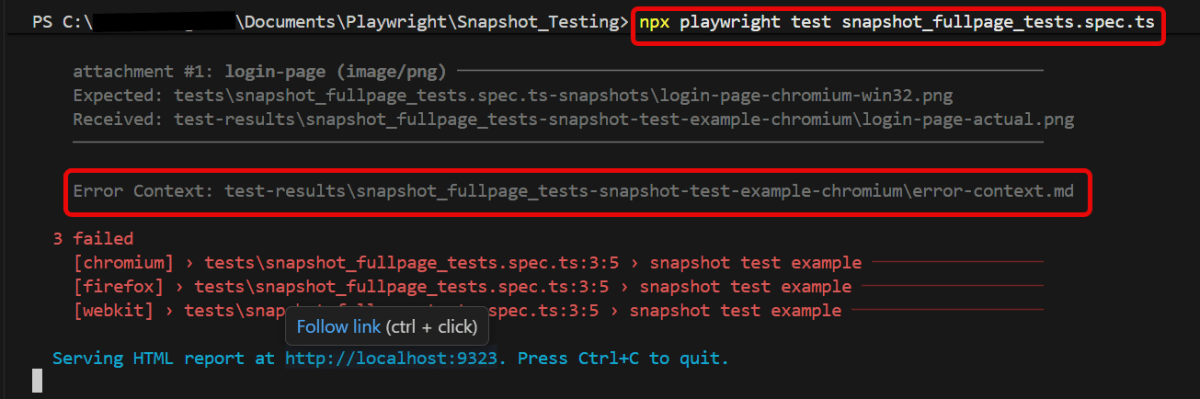
npx playwright test snapshot_fullpage_tests.spec.ts
When we run the tests, all the tests will fail. The screenshot is then generated. This screenshot is used as a baseline for the future tests.
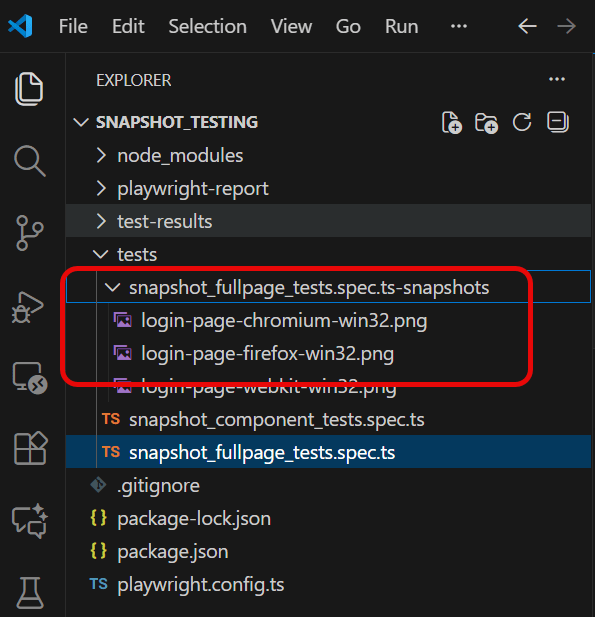
Go to the project. You will see a new folder in the tests directory. It contains the screenshots of the tests. Here, we are running 1 test on 3 different browsers, so 3 screenshots are generated.
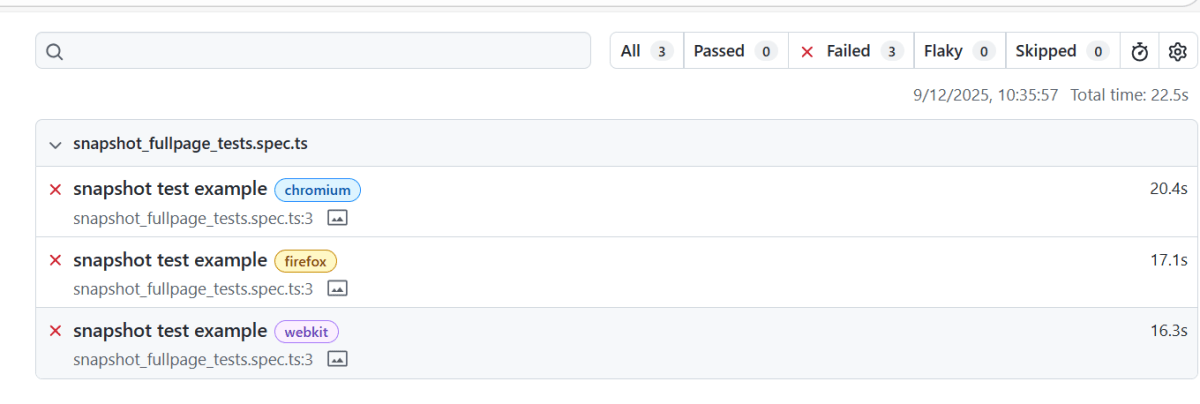
Playwright also generates Test Report – index.html.
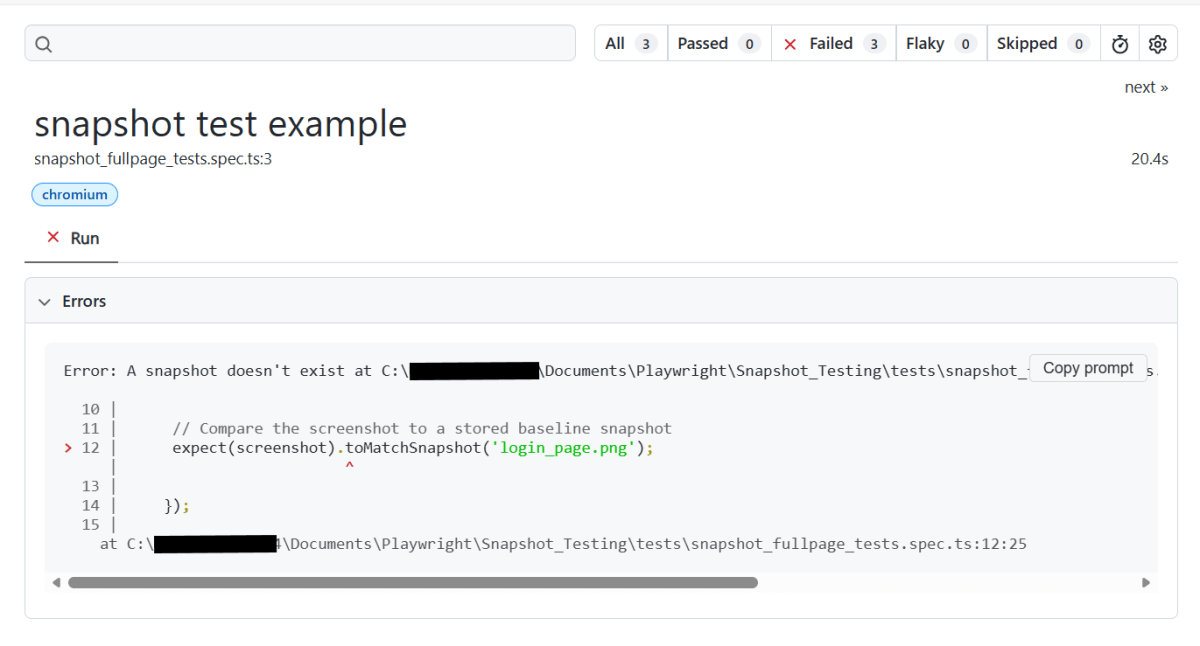
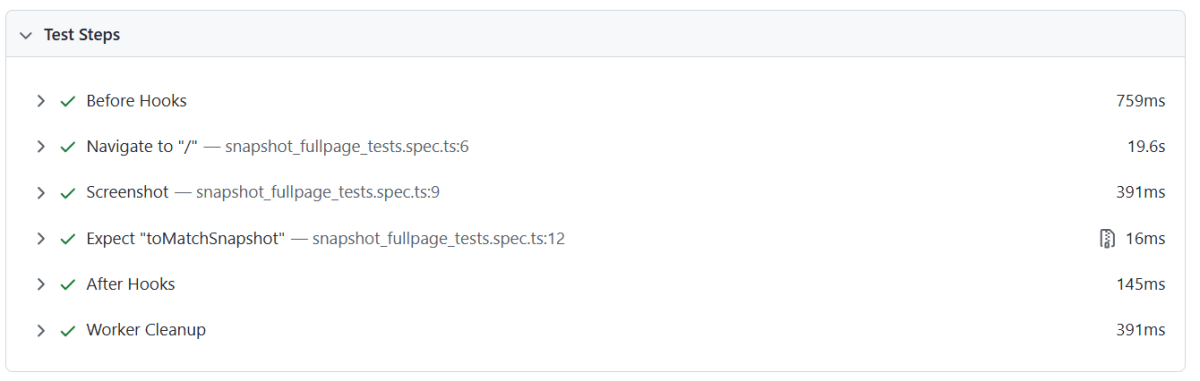
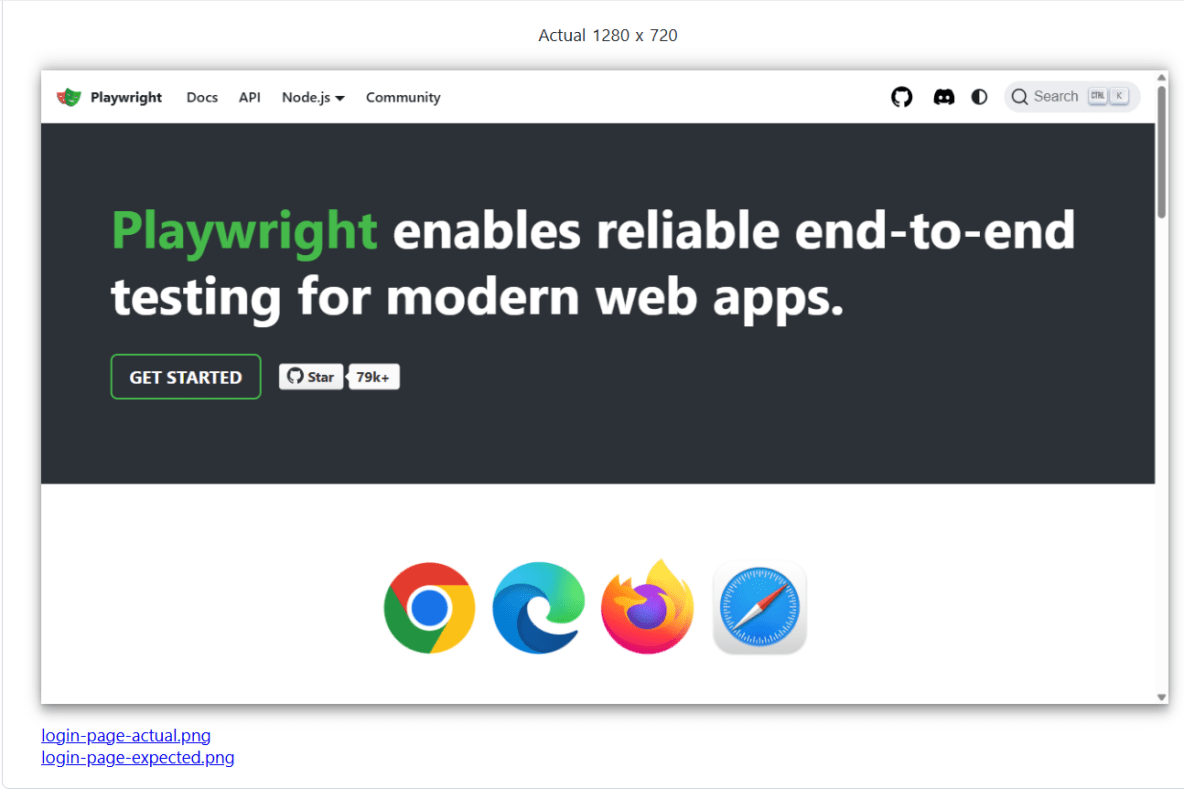
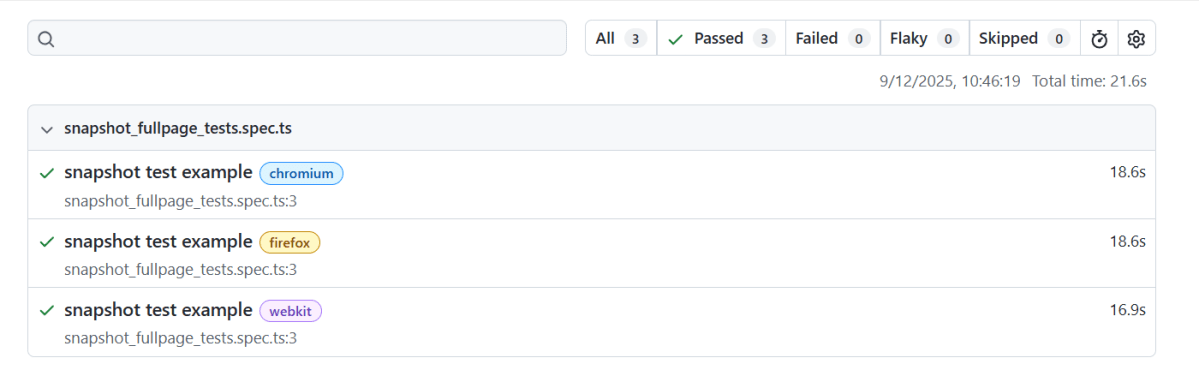
Now, let us rerun the test. This time, the tests will pass, because we have a baseline to compare with the new screenshot.

The test report generated is shown below:
When should I use element snapshots?
Element snapshots, as you expect, focus exclusively on a single page element. This makes them an excellent choice for testing components in isolation, or for verifying an element behaves as expected within a certain context.
Element snapshots are substantially less brittle than page snapshots, but they require a bit more overhead to set up.
Here’s an example of an element snapshot:
import { test, expect } from '@playwright/test';

test('snapshot test example', async ({ page }) => {

    // Navigate to the page you want to test
    await page.goto('https://playwright.dev/');

    // Select the specific UI component using a locator method
    const component = await page.locator('//*[@id="__docusaurus_skipToContent_fallback"]/header/div/h1/span');

    // Capture a snapshot of a component in the page
    const screenshot = await component.screenshot();

    // Compare the screenshot to a stored baseline snapshot
    expect(screenshot).toMatchSnapshot('Title.png');

});
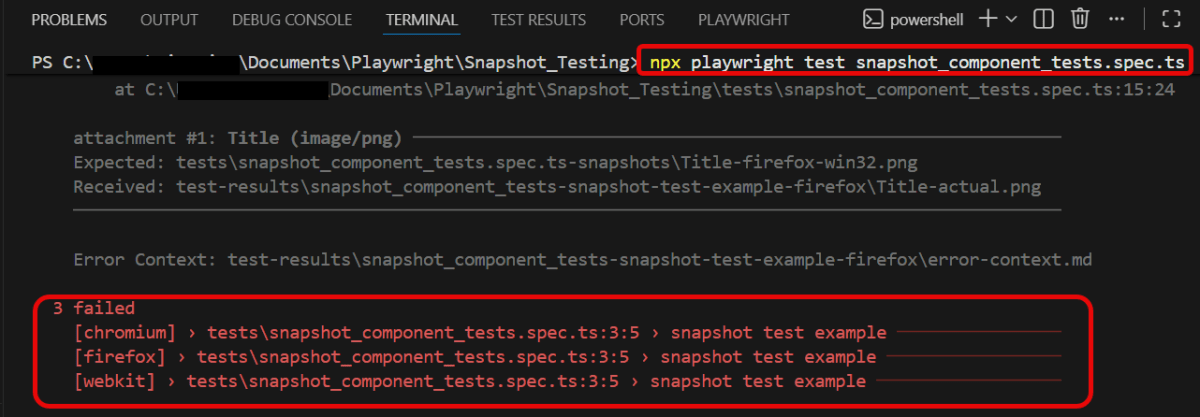
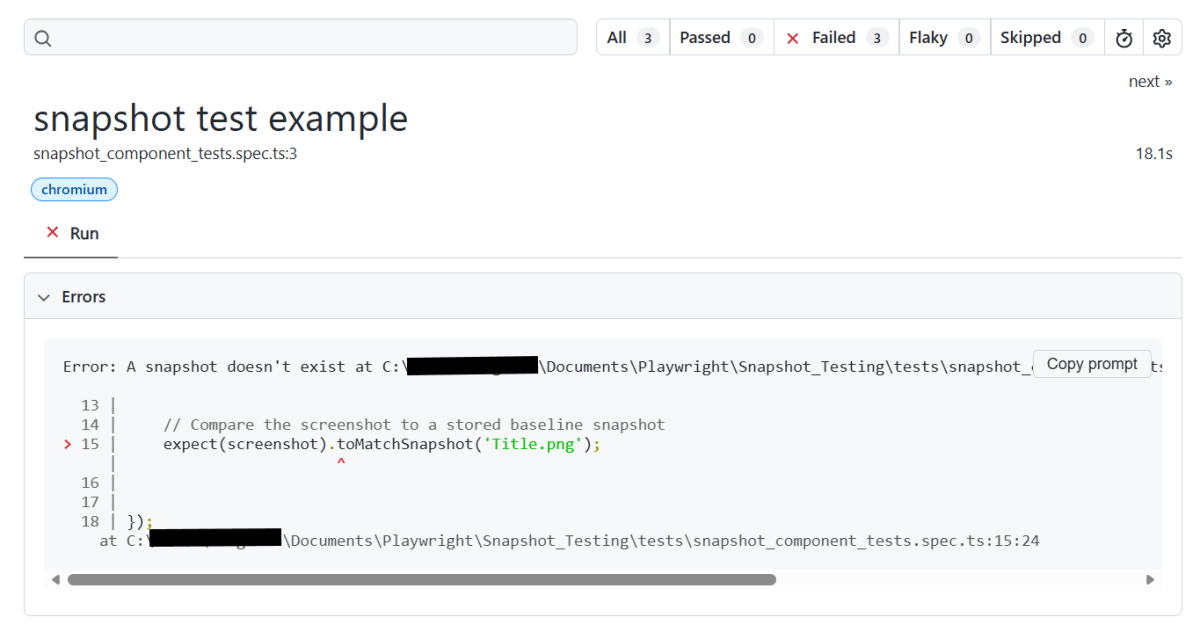
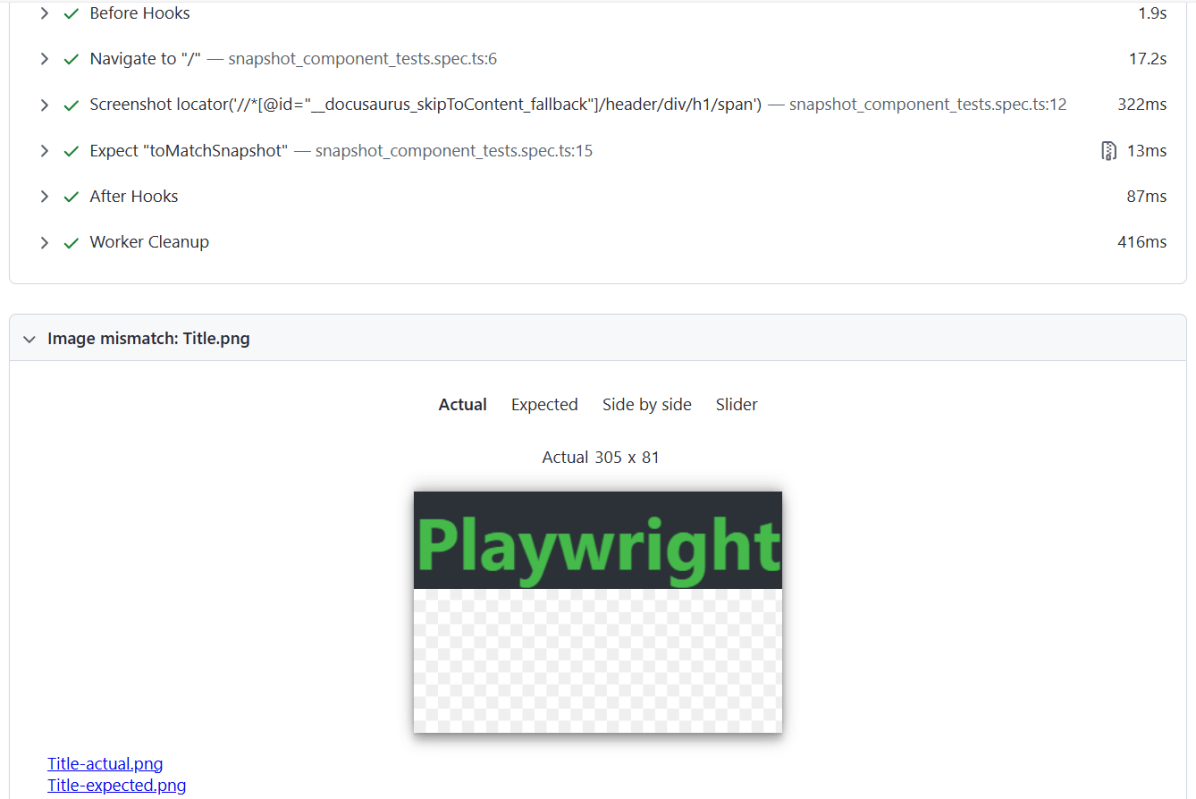
The output of the above program
Challenges
1. Dynamic Content: Handling pages with unpredictable dynamic content can result in false positives due to differences in dynamic data.
2. Storage: More snapshots mean increased storage requirements.
3. Maintenance: Baselines need to be updated when deliberate visual changes are made.
 QA Automation Expert