Last Updated On
We know that Playwright runs the tests in non-headed mode. This means we can’t see the test opening the web page and performing various actions on it. But, we can run the tests in headed mode. This is useful for debugging or observing the actions taken by the test.
System requirements
The following prerequisites are required to be installed on the machine to begin with a smooth setup and installation.
- Java 8 or higher
- IntelliJ IDE or any other IDE to create a project
- Maven
- Browsers on which tests need to be run, like Chrome, Firefox, etc.
To run the tests in headed mode, use the below command:-
launch(new BrowserType.LaunchOptions().setHeadless(false));
We will be automating the following test scenario using Playwright Java.
- Open the https://opensource-demo.orangehrmlive.com/web/index.php/auth/login website in UI mode
- Print the heading of the page
- Verify that the Home page title is equal to “OrangeHRM”
Below is an example of running the tests in the headed mode.
import com.microsoft.playwright.Browser;
import com.microsoft.playwright.BrowserType;
import com.microsoft.playwright.Page;
import com.microsoft.playwright.Playwright;

import java.util.regex.Pattern;

import static com.microsoft.playwright.assertions.PlaywrightAssertions.assertThat;

public class PlaywrightDemo {

    public static void main(String[] args) {

        try (Playwright playwright = Playwright.create()) {

            Browser browser = playwright.chromium().launch(new BrowserType.LaunchOptions().setHeadless(false));
            Page page = browser.newPage();
            page.navigate("https://opensource-demo.orangehrmlive.com/web/index.php/auth/login");
            page.waitForTimeout(2000);
            System.out.println("Title :" + page.title());
            assertThat(page).hasTitle(Pattern.compile("OrangeHRM"));
        }
    }
}
Explanation
1. Initialize Playwright
Below method is used to initialize a new Playwright instance. It is placed inside a try-with-resources block. This ensures that resources are closed automatically after use.
(Playwright playwright = Playwright.create())
2. Launch Web Browser in Visible mode
A new Chromium browser instance is launched in visible mode. The BrowserType.LaunchOptions class contains various settings that define how the browser should be started. The setHeadless(false) call is a method on the LaunchOptions object. Setting headless to false causes the browser to launch in visible mode. This allows us to see the browser window as the automation runs.
Browser browser = playwright.chromium().launch(new BrowserType.LaunchOptions().setHeadless(false));
3. Create a new page
Creates a new page/tab in the browser.
Page page = browser.newPage();
4. Navigate to the URL
This statement navigates the newly created page to a specified URL.
page.navigate("https://opensource-demo.orangehrmlive.com/web/index.php/auth/login");
5. Implement wait
The script pauses execution for 2000 milliseconds (or 2 seconds) using `page.waitForTimeout(2000)`, allowing time for the page to fully load. This is often used in testing to manage asynchronous loading of elements.
page.waitForTimeout(2000);
6. Print the title
The title of the page is retrieved and printed to the console using page.title().
System.out.println("Title :" + page.title());
7. Assert the page title
Below line asserts that the page has the title matching the regular expression “OrangeHRM”. The use of Pattern.compile() allows for matching with a regular expression, which can be beneficial for flexible title checking.
assertThat(page).hasTitle(Pattern.compile("OrangeHRM"));
8. Close Resources
The try-with-resources structure ensures the browser and Playwright instance close automatically after the test completes.
The test execution in Playwright is very fast. Therefore, I have used the waitForTimeout() method to slow down the execution for 2 seconds. This allows for taking a print screen of the page. It opens the website as shown below.
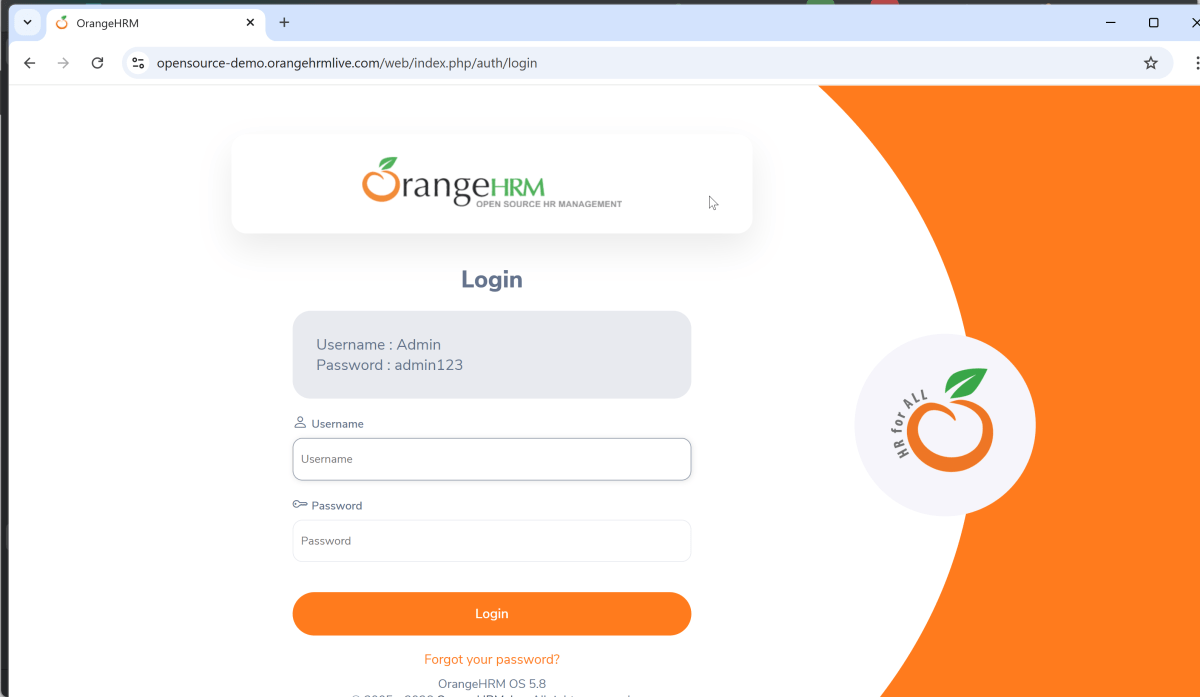
The output of the above program is

To know more about Playwright, please refer to the official website of Playwright – https://playwright.dev/java/docs/running-tests.
 QA Automation Expert