CSS Selectors in Selenium Webdriver

HOME

(By.cssSelector("input#email"))
(By.cssSelector("#email"))
  • HTML tag – HTML tag of the element being accessed
  • # – The hash sign is use to symbolize ID attribute. It is mandatory to use hash sign if ID attribute is use to create CSS Selector.
  • Value of ID attribute – It is the value of an ID attribute that access. A hash sign always precedes the value of ID.

If two or more web elements have the same HTML tag and attribute value, the first element marked in the page source will identify.

2) Located by Class

Syntax

(By.cssSelector("input.inputtext"))
  • HTML tag = HTML tag of the element being accessed
  • . = the dot sign should always be present when using CSS with class
  • class = class of the element being accessed

3) Located by Attribute

(By.cssSelector("input[type='email']"))
  • HTML tag = HTML tag of the element being accessed
  • [ and ] = square brackets within which a specific attribute and its corresponding value will be placed
  • attribute = attribute to be used, preferable unique to the element
  • value = corresponding value of the chosen attribute.

4) Located by  ID/Class and attribute

(By.cssSelector("input.inputtext[name='email']")
  • HTML tag = HTML tag of the element being accessed
  • . = the dot sign should always be present when using a CSS with class
  • class = class of the element being accessed
  • [ and ] = square brackets within which a specific attribute and its corresponding value will be placed
  • attribute = attribute to be used, preferable unique to the element
  • value = corresponding value of the chosen attribute.

5) Located by Sub String Matches

CSS in Selenium has an interesting feature of allowing partial string matches using ^$, and *.

a) Starts with (^): To select the element, we would use ^ which means ‘starts with’.

(By.cssSelector("input[name^='em']"))
  • ^– Symbolic notation to match a string using prefix.

Prefix – It is the string based on which match operation is performed. The likely string is expected to start with the specified string

b) Ends with ($): To select the element, we would use $ which means ‘ends with’.

Syntax

(By.cssSelector("input[name$='il']"))
  • $ – Symbolic notation to match a string using suffix.
  • The suffix – It is the string based on which match operation is perform. The likely string is expect to ends with the specified string.

c) Contains (*): To select the element, we would use * which means ‘sub-string’.

Syntax

(By.cssSelector("input[name*='rst']"))
 
(By.cssSelector("input:contains('rst')")

– This is used to match the sub-string

6) Locating child element

Here, id =”content” is the parent locator. It will go to first div as child or sub child, then again div as child or sub child, and third div as child or sub child. Then it will go to div class _4bl7 _m-_ which further go to div class _ihd _3ma mbs _6n _6s _6v.

Syntax

(By.cssSelector("#content>div>div>div>div._4bl7._m-_>div._ihd._3ma.mbs._6n._6s._6v"))

Locating nth Child:

To locate the element with text ‘Female’, we use nth type css.

Syntax

(By.cssSelector("#u_0_13 > span:nth-child(1) > label"))

To select the last child element, i.e. ‘Male’, we can use.

Syntax

(By.cssSelector("#u_0_13 > span:last-child> label"))

Now, let’s write a small program to show the use of CSS Selectors. This program is it we have done for XPath , the only difference is the use of CSS Selectors to identify the web elements.

import org.openqa.selenium.By;
import org.openqa.selenium.WebDriver;
import org.openqa.selenium.chrome.ChromeDriver;
import org.openqa.selenium.chrome.ChromeOptions;
import java.time.Duration;

public class Selenium_Demo {

    protected static WebDriver driver;

    public static void main(String[] args) {

        ChromeOptions options = new ChromeOptions();
        options.addArguments("--start-maximized");
        driver = new ChromeDriver(options);
        driver.manage().timeouts().implicitlyWait(Duration.ofSeconds(2));
        driver.get("https://opensource-demo.orangehrmlive.com/");
        driver.manage().window().maximize();

        //CSS Selectors for TextBox
        driver.findElement(By.cssSelector("input.oxd-input[name='username'")).sendKeys("Admin");

        driver.findElement(By.cssSelector("input.oxd-input[name='password'")).sendKeys("admin123");

        driver.findElement(By.cssSelector("button[type='submit'")).click();
        
        driver.close();
    }
}

Locators in Selenium – Locate by ID, ClassName, Name, TagName, LinkText, PartialLinkText

HOME

In this tutorial, we will use http://www.facebook.com for showing the use of different locators

How to find web elements?

1)  Locating by ID

Find the input element with ID.

Syntax

driver.findElement(By.id(“email”))


2)  Locating by ClassName

 Find the input element with name of class

Syntax 

driver.findElement(By.ClassName("inputtext"))

3)  Locating by TagName

Find the input element with TagName

Syntax 

driver.findElement(By.tagName("select"))

4)  Locating by Name

Find the input element with matching name attribute.

Syntax 

driver.findElement(By.name("email"))

5)  Locating by Linktext

Find the link element with matching visible text

Syntax

driver.findElement(By.linkText("Forgot account?"))

Find the link element with partial matching visible text

Syntax

driver.findElement(By.partialLinkText("Forgot "))

7)  XPath

Full form of XPath is XML Path. It is used to locate a web element on a web page using HTML DOM structure 

Syntax

By.xpath("//tagname[@Attribute = ‘value’]")

//: select the current node.
tagname: name of the tag of a particular node.
@: to select attribute.
Attribute: name of the attribute of the node.
Value: value of the attribute

There are 2 types of Xpath:-

1) Absolute Path
2) Relative Path

Absolute Path – It is the direct way to find any element. But as name suggest, it needs to be absolute. Any change made in the path will fail the xpath, result tool will not be able to locate the we element on the page.

Syntax

driver.findElement(By.xpath("//*[@id='yDmH0d']/div/div/div[2]/div[2]/div/div/div/div/div/div/ form/content/section/div/content/div/div/div/div/div/input"))

Relative Path –Relative XPath begins from the current location and is prefixed with a “//”. It starts from the middle of the DOM structure. To know more about XPath, click here

Syntax

By.xpath("//input[@name='identifier']")

8)  CSS Selectors 

CSS Selectors are string patterns used to identify an element based on a combination of HTML tag, id, class, and attributes. Locating by CSS Selector is more complicated than the previous methods, but it is the most common locating strategy of advanced Selenium users because it can access even those elements that have no ID or name. To know more about CSS, click here

Below is an example that shows how to use different locators. In this example, we have used Id, name, className, tagName, partialLinkText and LinkText locators.

package org.example;

import org.openqa.selenium.By;
import org.openqa.selenium.WebDriver;
import org.openqa.selenium.WebElement;
import org.openqa.selenium.chrome.ChromeDriver;
import org.openqa.selenium.chrome.ChromeOptions;

import java.time.Duration;
import java.util.List;

public class Automation_Practice_Form {

    protected static WebDriver driver;
    public static void main(String[] args) {

        ChromeOptions options = new ChromeOptions();
        options.addArguments("--start-maximized");
        driver = new ChromeDriver(options);
        driver.manage().timeouts().implicitlyWait(Duration.ofSeconds(2));
        driver.get("https://opensource-demo.orangehrmlive.com/");
        driver.manage().window().maximize();

        // Locate link by partialLinkText
        String PartialLinkText_Text = driver.findElement(By.partialLinkText("Orange")).getText();
        System.out.println("Text of PartialLinkText Locator is ->" + PartialLinkText_Text);

        // Locate FirstName by name
        driver.findElement(By.name("username")).sendKeys("Admin");

        // Locate LastName by id
        driver.findElement(By.name("password")).sendKeys("admin123");

        // Locate options of DropDown by tagName
        List<WebElement> linkName = driver.findElements(By.tagName("a"));
        System.out.println("List of Links:");
        for (WebElement link : linkName) {
            System.out.println(link.getText() + " - " +link.getAttribute("href"));
        }
        driver.close();
    }
}

How to get all the values from a Dynamic Table in Selenium WebDriver


import org.openqa.selenium.By;
import org.openqa.selenium.WebDriver;
import org.openqa.selenium.chrome.ChromeDriver;

import java.util.List;
import java.util.concurrent.TimeUnit;

public class TableDemo {

    public static void main(String[] args) {

        System.setProperty("webdriver.chrome.driver","C:\\Users\\Vibha\\Automation\\Chrome\\chromedriver\\chromedriver.exe");

        WebDriver driver = new ChromeDriver();
        driver.get("https://www.techlistic.com/p/demo-selenium-practice.html");

        driver.manage().window().maximize();
         driver.manage().timeouts().implicitlyWait(15, TimeUnit.SECONDS);

        // To find no of columns
        List ColumnList = driver.findElements(By.xpath("//*[@id='customers']/tbody/tr/th"));
        System.out.println("No of Columns are :"+ColumnList.size());

        //To find no of Rows, first row is heading
        List RowList = driver.findElements(By.xpath("//*[@id='customers']/tbody/tr"));
        System.out.println("No of Rows are :"+RowList.size());
        driver.close();
    }

}


1. findElements command returns a list of ALL the elements matching the specified locator.
2. The count of columns is found using XPath – (“//*[@id=’customers’]/tbody/tr/th”)
3. The count of rows is found using XPath – (“//*[@id=’customers’]/tbody/tr”)

How to get all the values from a Dynamic Table

In the above table, there are 3 columns and 7 rows, and we want to get the data from each cell. First row is heading, so we want to find the data of 6 rows only.

    import org.openqa.selenium.By;
    import org.openqa.selenium.WebDriver;
    import org.openqa.selenium.chrome.ChromeDriver;
    import java.util.concurrent.TimeUnit;
    
    public class DynamicTable_DataExtract {
    
        public static void main(String[] args) {
    
            System.setProperty("webdriver.chrome.driver","C:\\Users\\Vibha\\Automation\\Chrome\\chromedriver\\chromedriver.exe");
    
            WebDriver driver = new ChromeDriver();
            driver.get("https://www.techlistic.com/p/demo-selenium-practice.html");
    
            driver.manage().window().maximize();
            driver.manage().timeouts().implicitlyWait(15, TimeUnit.SECONDS);
    
            //Get number of rows In table.
            int Row_Count = driver.findElements(By.xpath("//*[@id='customers']/tbody/tr")).size();
            System.out.println("No of Rows are :"+Row_Count);
    
            //Get number of columns In table.
            int Column_Count = driver.findElements(By.xpath("//*[@id='customers']/tbody/tr/th")).size();
            System.out.println("No of Columns are :"+Column_Count);
    
            //divided xpath In three parts to pass Row_count and Col_count values.
            String first_part = "//*[@id='customers']/tbody/tr[";
            String second_part = "]/td[";
            String third_part = "]";
    
    
            //Used for loop for number of rows.
            for (int i=2; i<=Row_Count; i++){
    
                //Used for loop for number of columns.
                for(int j=1; j<=Column_Count; j++){
    
                    //Prepared final xpath of specific cell as per values of i and j.
                    String final_xpath = first_part+i+second_part+j+third_part;
    
                    //Will retrieve value from located cell and print It.
                    String Table_data = driver.findElement(By.xpath(final_xpath)).getText();
                    System.out.print(Table_data +" ");
                }
    
                System.out.println("");
                System.out.println("---------------------------------");
            }
    
           driver.close();
        }
    }
    

    How to Locate Elements in Chrome, Firefox and IE Browsers for creating Selenium Scripts

    HOME

    In my previous tutorials, we have discussed about various types of locators available in Selenium WebDriver, which are used to identify various web elements on a web page. Some of the locators widely used are Id, ClassName, Name, LinkText, PartialLinkText, XPath, CSS Selector and so on. In this blog, will study the mechanism to locate web elements on Google Chrome, Firefox and Internet Explorer.

    Google Chrome

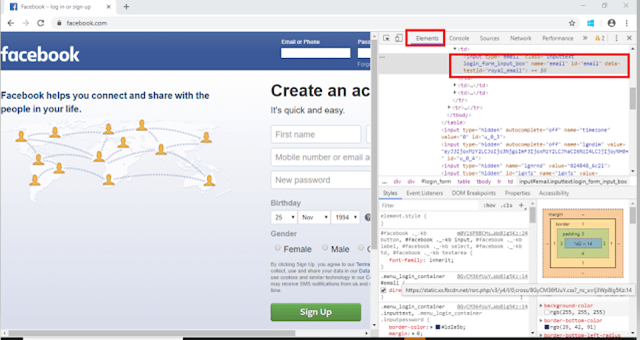
    1. First step is to launch the Chrome Browser with desired URL. Here, we have launched Chrome browser and accessed Facebook page. I want to find the locator of Email or Phone textbox, so I will click on that textbox, right click, and click on “Inspect”.

    2. Take a note that “Element” tab highlighted in the screenshot. Thus, element tab is the one, which displays all the HTML properties belonging to the current web page. Navigate to the “Element” tab if it is not open by default on the launch.

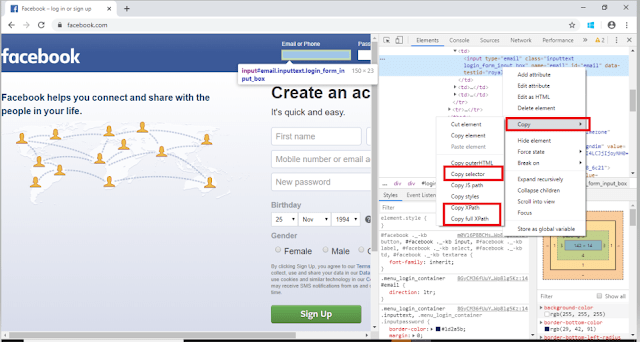
    3.  In the screenshot, we can see the HTML code of Email or Phone Textbox. Right click on this text and then again click on Copy where will see options like – Copy Selector, Copy XPath, Copy full XPath

    Copy Selector will tell the CSS Selector path of the WebElement

    #email
    

    Copy XPath will tell the Xpath of the WebElement

    //*[@id="email"]
    

    Copy full XPath will tell the absolute path of the WebElement

    /html/body/div[1]/div[2]/div/div/div/div/div[2]/form/table/tbody/tr[2]/td[1]/input
    

    Firstly, we should instantiate a Chrome/Chromium session by doing the following:

    import org.openqa.selenium.WebDriver;
    import org.openqa.selenium.chrome.ChromeDriver;
             
    WebDriver driver = new ChromeDriver();
    

    Set the path to the chromedriver

    executableSystem.setProperty("webdriver.chrome.driver","C:\\Users\\Vibha\\Desktop\\Automation\\Drivers\\chromedriver_win32\\chromedriver.exe");
    

    The chromedriver is implement as a WebDriver remote server that instructs the browser what to do by exposing Chrome’s internal automation proxy interface.

    Firefox

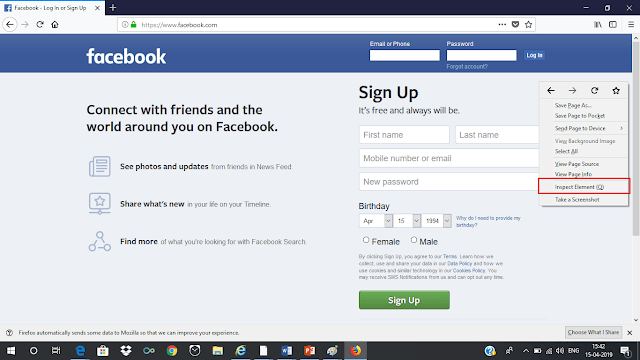
    1.   First step is to launch the Firefox Browser with desired URL, ie Facebook. I want to find the locator of Email or Phone textbox, so I will click on that textbox and right click and click on “Inspect Element (Q)”.

    2.  Take a note that “Inspector” tab is highlight in the screenshot. Thus, element tab is the one, which displays all the HTML properties belonging to the current web page. Navigate to the “Inspector” tab if it is not open by default on the launch.  

    3. In the screenshot, we can see the HTML code of Email or Phone Textbox. Right click on this text and then again click on Copy where will see options like – Copy CSS Selector, Copy XPath, Copy CSS Path

    Copy CSS Path will tell the CSS path of the WebElement

    html#facebook body.fbIndex.UIPage_LoggedOut._-kb._605a.b_c3pyn-ahh.gecko.win.x1.Locale_en_GB.cores-gte4._19_u.hasAXNavMenubar div#u_0_e._li div#pagelet_bluebar div#blueBarDOMInspector div._53jh div.loggedout_menubar_container div.clearfix.loggedout_menubar div.menu_login_container.rfloat._ohf form#login_form table tbody tr td input#email.inputtext.login_form_input_box
    

    Copy Selector will tell the CSS Selector path of the WebElement

    #email
    

    Copy XPath will tell the Xpath of the WebElement

    //*[@id="email"]
    
    System.setProperty("webdriver.gecko.driver","C:\\Users\\Vibha\\Desktop\\Drivers\\geckodriver-v0.26.0-win64\\geckodriver.exe");
    WebDriver driver = new FirefoxDriver();
    

    Internet Explorer

          1.   First step is to launch the Firefox Browser with desired URL. Here, we have launched Firefox browser and accessed Facebook page. I want to find the locator of Email or Phone textbox, so I will click on that textbox, right click, and click on “Inspect Element”.

          2.   Take a note that “DOM Explorer” tab is highlight in the screenshot. Thus, element tab is the one, which displays all the HTML properties belonging to the current web page. Navigate to the “DOM Explorer” tab if it is not open by default on the launch.

    System.setProperty("webdriver.ie.driver","C:\\Users\\SingVi04\\Desktop\\Automation\\Drivers\\IEDriverServer_x64_3.150.1\\IEDriverServer.exe"); 
    WebDriver driver = new InternetExplorerDriver();


    Dynamic XPath in Selenium WebDriver

    HOME

    //: select the current node.
    tagname: name of the tag of a particular node.
    @: to select attribute.
    Attribute: name of the attribute of the node.
    Value: value of the attribute

    1) Basic XPath

    XPath’s expression selects nodes based on ID, class, etc. from an XML web page.

    Go to http://www.facebook.com and inspect the Email or Phone textbox. How to inspect a web element on the web page is explained in the previous blog. Some of the basic examples of XPath is displayed below:

    By.xpath("//input[@name='email']")
    By.xpath("//input[@id=’email’]")
    By.xpath("//input[@type='email']")
    By.xpath("//input[@class=’inputtext’]")
    By.xpath("//*[@class=’inputtext’]")
    By.xpath("//input[@class=’inputtext’][@type='email']")
    

    In the last example, we have created XPath using multiple attributes for the single HTML tag.

    Syntax

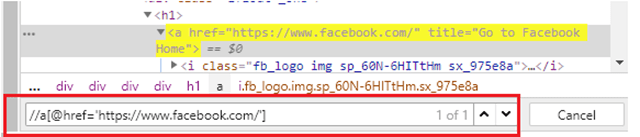
    By.xpath("//a[@href='https://www.facebook.com/']")
    

    2) Contains

    It is used if the value of any web element changes dynamically. Using this expression, you can find the element with partial text.

    Syntax

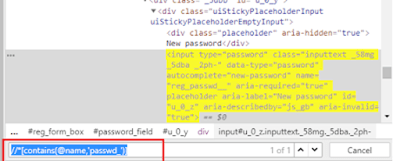
    By.xpath("//*[contains(@name,'passwd_')]")
    

    3) OR & AND

    OR & AND expression uses 2 conditions to identify a web element.

    In the case of OR, if any of the conditions is true, then the element will be located. Whereas in the case of AND, both the conditions should be true to locate the element.

    Syntax

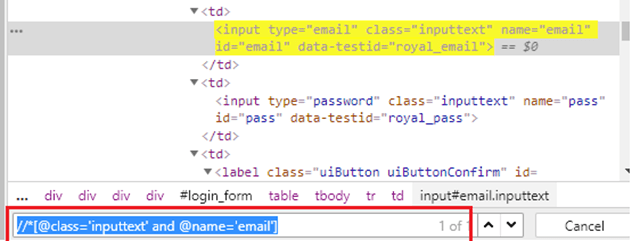
    By.xpath("//*[@class='inputtext' or @name='email']")
    

    Here, if you observe, class – ‘inputtext’ is same for 2 web elements, so with OR condition it will locate 2 web elements.

    Syntax

    By.xpath("//*[@class='inputtext' and @name='email']")
    

    4) Start-with function 

    This function finds the web elements whose value changes dynamically. In the expression, we will use that value of the web element which doesn’t change. Let’s see a small example of using the start-with() function.

    Syntax

    By.xpath("//*[starts-with(@id,'yui_3_18_0_3_1555510217471_')]")
    

    5) Text() 

    This expression is used with the text function to locate an element with exact text. Let me show you how to use the Text() method. 

    Syntax

    By.xpath("//*[text(),"Create an account"]")
    

    6) Last()

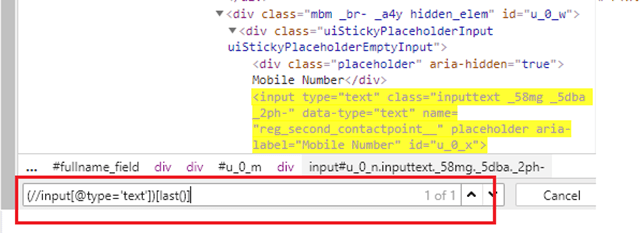
    Select the last element (of the mentioned type) out of all input elements present.

    Syntax

    By.xpath("//input[@type='text'])[last()]")
    

    There are 5 web elements with input type -text. But with this expression, it has selected the last one.

    7) Position()

    Selects the element out of all input elements present depending on the position number provided

    Syntax

    By.xpath("//input[@type='text'])[2]")
    

    8) Following

    By using this, we could select everything on the web page after the closing tag of the current node.

    The xpath of firstname is as follows:-

    By.xpath("//*[@name='firstname']")
    

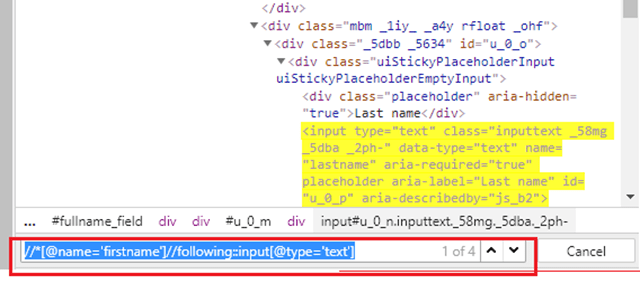
    To identify the input field of type text after the FirstName field, we need to use the below XPath.

    By.xpath("//*[@name='firstname']//following::input[@type='text']")
    

    To identify just the input field after the FirstName field, we need to use the below XPath.

    By.xpath("//*[@name=’firstname’]//following::input[1]")
    

    9) Preceding

    Selects all nodes that appear before the current node in the document, except ancestors, attribute nodes, and namespace nodes.

    The XPath of the LastName field is as follows

    By.xpath("//*[@name='lastname']")
    

    To identify the web element before lastname field is as follows

    By.xpath("//*[@name='lastname']//preceding::input[1]")
    

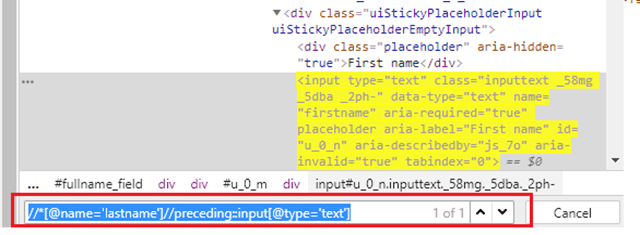
    To identify the input field of type text before the LastName field, we need to use below XPath

    By.xpath("[@name='lastname']//preceding::input[@type='text']")
    

    Now, let’s write a small program to show the use of XPath. In this program, 

    • Firefox is used as the browser. 
    • The path of the Mozilla Firefox driver is set by using System.SetProperty. Mozilla Firefox driver is called gecko, so do not get confused. 
    • driver.get is used to navigate to amazon site. The search box of the webpage is located using XPath – (“//*[@id=’twotabsearchtextbox’]”))
    • sendkeys() is used to search for value hard drive. 
    • Search Button is clicked by using XPath – (“//*[@class=’nav-input’]”))
    import java.util.concurrent.TimeUnit; 
    import org.openqa.selenium.By;
    import org.openqa.selenium.WebDriver;
    import org.openqa.selenium.firefox.FirefoxDriver;
     
    public class Selenium_Site { 
          public static void main(String[] args) {
                  System.setProperty("webdriver.gecko.driver","C:\\Users\\vibha\\Downloads\\geckodriver-v0.24.0-win64\\geckodriver.exe");
                WebDriver driver = new FirefoxDriver();
                driver.manage().timeouts().implicitlyWait(60, TimeUnit.SECONDS);
                driver.get("https://www.amazon.com//");
                driver.manage().window().maximize();
    
                //XPath for Search box
                driver.findElement(By.xpath("//*[@id='twotabsearchtextbox']")).sendKeys("hard drive");
    
                //XPath for search button
                driver.findElement(By.xpath("//*[@class='nav-input']")).click();
         }
    }
    

    Selenium Introduction

    HOME

      WebDriver talks to a browser through a driver. Communication is two-way: WebDriver passes commands to the browser through the driver and receives information back via the same route. The driver is specific to the browser, such as ChromeDriver for Google’s Chrome/Chromium, GeckoDriver for Mozilla’s Firefox, etc. The driver runs on the same system as the browser.