Highlighting Elements in Selenium Java

HOME

package Web;

import org.openqa.selenium.By;
import org.openqa.selenium.JavascriptExecutor;
import org.openqa.selenium.WebDriver;
import org.openqa.selenium.WebElement;
import org.openqa.selenium.chrome.ChromeDriver;
import org.openqa.selenium.chrome.ChromeOptions;

import java.time.Duration;

public class HighlightText_Example {

    public static void main(String args[]) {

        ChromeOptions chromeOptions = new ChromeOptions();
        WebDriver driver = new ChromeDriver(chromeOptions);
        driver.manage().timeouts().implicitlyWait(Duration.ofSeconds(10));
        driver.manage().window().maximize();

        try {
            driver.get("https://www.selenium.dev/");

            // identify the element
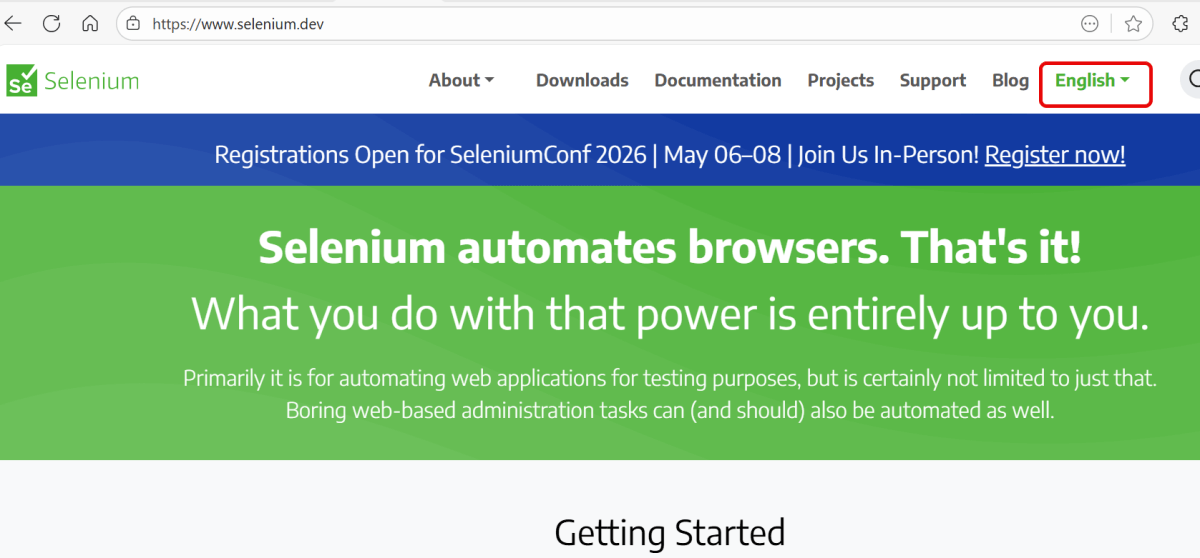
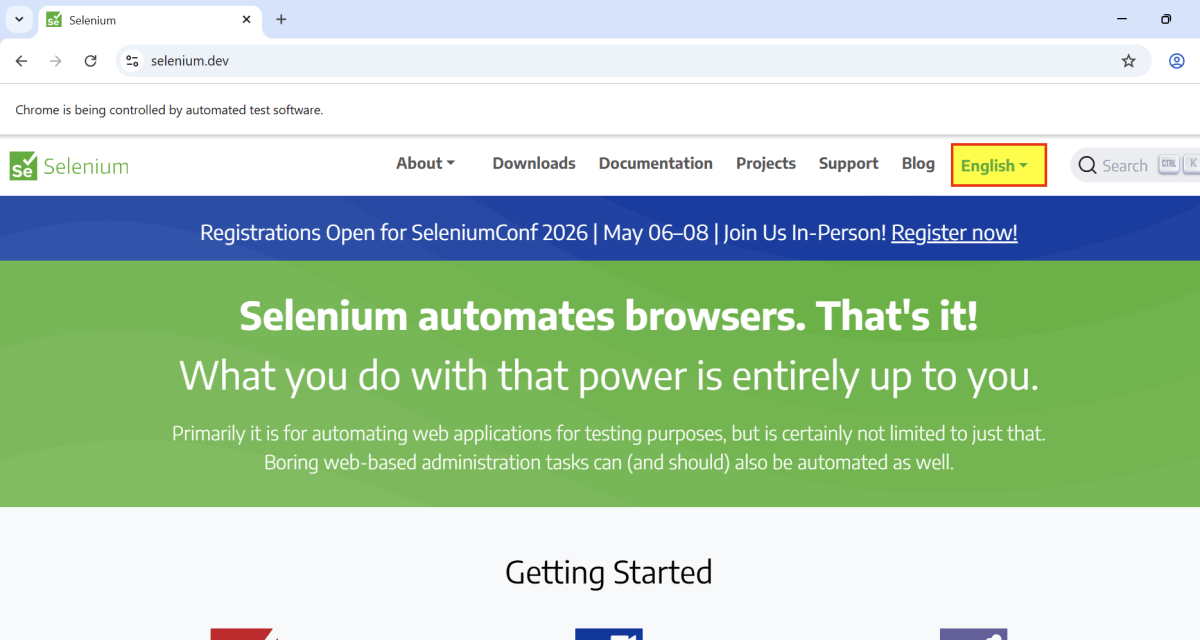
            WebElement element = driver.findElement(By.xpath("//*[@id='main_navbar']/ul/li[7]/div/a"));

            // Optionally, we wait to observe the element before changing the color
            Thread.sleep(1000);

            // Set the background color to yellow and the border to red
            JavascriptExecutor js = (JavascriptExecutor) driver;
            js.executeScript("arguments[0].style.backgroundColor = 'yellow'; arguments[0].style.border = '3px solid red';", element);

            // Optionally, we can wait to observe the highlight effect
            Thread.sleep(2000);
            System.out.println("Text is highlighted");

        } catch (InterruptedException e) {
            e.printStackTrace();
        } finally{
            // Closing browser
            driver.quit();
        }
    }
}

ChromeOptions chromeOptions = new ChromeOptions();
WebDriver driver = new ChromeDriver(chromeOptions);
driver.manage().timeouts().implicitlyWait(Duration.ofSeconds(10));
driver.manage().window().maximize();
driver.get("https://www.selenium.dev/");
WebElement element = driver.findElement(By.xpath("//*[@id='main_navbar']/ul/li[7]/div/a"));
  // Set the background color to yellow and the border to red
 JavascriptExecutor js = (JavascriptExecutor) driver;
js.executeScript("arguments[0].style.backgroundColor = 'yellow'; arguments[0].style.border = '3px solid red';", element);
 Thread.sleep(2000);
// Close the browser
driver.quit();

Execute JavaScript with executeAsyncScript() Method in Selenium

HOME

In the previous blog, we have discussed about executeScript() method in JavaScript. JavascriptExecutor interface comprises of executeAsyncScript() method that is called an additional final argument “arguments[arguments.lenght-1];”which is a callback function to signal that async execution has finished. We have to call from JavaScript, to tell Webdriver, that our Asynchronous execution has finished. If we do not do that, then executeAsyncScpriptwill timeout and throw a timeout exception.

Before executing AsyncScript method, we have to make sure to set the script timeout. Its default is 0. If we do not set a script timeout, our executeAsyncScript will immediately timeout and it won’t work.

Below is the program which shows how to use executeAsyncScript() method

  1. First  will get the start time before waiting 5 seconds by using executeAsyncScript() method.
  2. Then, will use executeAsyncScript() to wait 5 seconds.
  3. Then, will get the current time
  4. Will subtract (current time – start time) = passed time and print the value
import org.openqa.selenium.JavascriptExecutor;
import org.openqa.selenium.WebDriver;
import org.openqa.selenium.chrome.ChromeDriver;
 
public classExecuteAsycSleepBrowserDemo {
        public static void main(String[] args) { 
    

System.setProperty("webdriver.chrome.driver","C:\\Users\\Vibha\\Desktop\\Drivers\\chromedriver_win32\\chromedriver.exe");
        WebDriver driver = newChromeDriver();
                                        
        //Create the JavascriptExecutor interface object by Type casting              
        JavascriptExecutor js = (JavascriptExecutor)driver;              
        driver.get("https://www.google.com/");                              
        driver.manage().window().maximize();
                        
        //Declare and set start time
        long startTime = System.currentTimeMillis();
                 
        //Call executeAsyncScript() method                       js.executeAsyncScript("window.setTimeout(arguments[arguments.length - 1], 5000);"); 
                 
        //Get the difference (currentTime - startTime) it should be greater than 5000
        System.out.println("Passed time: " + (System.currentTimeMillis() - startTime));
                        
          if ( (System.currentTimeMillis() - startTime) > 5000)
             {
                 System.out.println("Time difference must be greater than 5000 milliseconds");
             }
          driver.quit();      
      }

Output
Passed time: 5040
Time difference must be greater than 5000 milliseconds

Execute JavaScript with executeScript() Method in Selenium

HOME

In the previous tutorial, we have discussed about JavaScript. There are some conditions where we cannot handle some problems with WebDriver only, web controls don’t react well against selenium commands. In this kind of situations, we use Javascript. JavaScriptExecutor comes separately and also comes under the WebDriver but both do the same thing. Within the WebDriver, it is named as ExecuteScript.

JavaScriptExecutor is an interface that provides a mechanism to execute Javascript through selenium driver. It provides “executescript” & “executeAsyncScript” methods, to run JavaScript in the context of the currently selected frame or window.

ExecuteScript Method – This method executes JavaScript in the context of the currently selected frame or window in Selenium. The script used in this method runs in the body of an anonymous function (a function without a name). We can also pass complicated arguments to it. 

Execute the below selenium script. In this example,

  • Launch the site
  • Fetch the domain name of the site.
  • Fetch the URL of the site
  • Fetch the title name of the sit
  • Then navigate to a different page – google.com
  • Display Alert popup                                                                        
package SeleniumTutorial;
import org.openqa.selenium.JavascriptExecutor;
 
import org.openqa.selenium.WebDriver;
 
import org.openqa.selenium.chrome.ChromeDriver;
 
public classJavaScript_Demo {
        public static voidmain(String[] args) {
                        System.setProperty("webdriver.chrome.driver","C:\\Users\\SingVi04\\Desktop\\Drivers\\chromedriver_win32\\chromedriver.exe");
 
        WebDriver driver= new ChromeDriver();
                                        
        //Create the JavascriptExecutor interface object by Type casting                
        JavascriptExecutor js = (JavascriptExecutor)driver;             
 
        driver.get("https://configureselenium.blogspot.com/");
 
        driver.manage().window().maximize();
  
 
       //Fetching the Domain Name of the site. Tostring() change object to name.                
        String DomainName = js.executeScript("return document.domain;").toString();                 
        System.out.println("Domain name of the site = "+DomainName);                                        
                        
        //Fetching the URL of the site. Tostring() change object to name          
        String url = js.executeScript("return document.URL;").toString();                
        System.out.println("URL of the site = "+url);                                      
                        
        //Method document.title fetch the Title name of the site. Tostring() change object to name          
       String TitleName = js.executeScript("return document.title;").toString();                        
       System.out.println("Title of the page = "+TitleName);                                  
                
        //Navigate to new Page i.e to generate access page. (launch new url)             
        js.executeScript("window.location = 'https://www.google.com/'");
        String NewTitleName = js.executeScript("return document.title;").toString();                      
        System.out.println("Title of the new page = "+NewTitleName);    
 
        //Alert
        js.executeScript("alert('Hello Everyone!');");
        driver.switchTo().alert().accept();
      
        driver.quit();
    }           
 }

JavaScript and JavaScriptExecutor in Selenium


What is JavaScript?
 

JavaScript is the preferred language inside the browser to interact with HTML dom. This means that a Browser has JavaScript implementation in it and understands the JavaScript commands.
WebDriver gives you a method called Driver.executeScript which executes the JavaScript in context of the loaded browser page. There are some conditions where we cannot handle some problems with WebDriver only, web controls do not react well against selenium commands. In this kind of situations, we use Javascript. It is useful for custom synchronizations, hide or show the web elements, change values, test flash/HTML5 and so on. In order to do these, we can use Selenium’s JavascriptExecutor interface that executes JavaScript through Selenium driver.

What is JavaScriptExecutor?

JavaScriptExecutor comes separately and comes under the WebDriver but both do the same thing. Within the WebDriver, it is name as ExecuteScript. JavaScriptExecutor is an interface that provides a mechanism to execute Javascript through selenium driver. It provides “executescript” & “executeAsyncScript” methods, to run JavaScript in the context of the currently selected frame or window.

ExecuteScript Method

This method executes JavaScript in the context of the currently selected frame or window in Selenium. The script used in this method runs in the body of an anonymous function (a function without a name). We can also pass complicated arguments to it.

The script can return values. Data types returned are 

  • Boolean 
  • Long 
  • String 
  • List 
  • WebElement 
JavascriptExecutor js = (JavascriptExecutor) driver;  
js.executeScript(Script,Arguments);

Script – This JavaScript needs to execute.

Arguments – It is the arguments to the script. It is optional

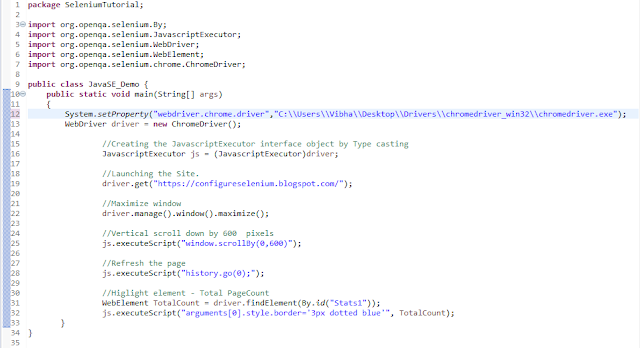
Below is an example, which shows how executeScript method can be use. In this example, 

  1. Launch the site
  2. Scroll down by 600 pixel
  3. Refresh the page
  4. Highlight a particular element
import org.openqa.selenium.By;
import org.openqa.selenium.JavascriptExecutor;
import org.openqa.selenium.WebDriver;
import org.openqa.selenium.WebElement;
import org.openqa.selenium.chrome.ChromeDriver;
 
public class JavaSE_Demo {
        public static void main(String[] args){        

System.setProperty("webdriver.chrome.driver","C:\\Users\\Vibha\\Desktop\\Drivers\\chromedriver_win32\\chromedriver.exe");
        WebDriver driver= new ChromeDriver();                         
 
        //Create the JavascriptExecutor interface object by Type casting              
         JavascriptExecutor js = (JavascriptExecutor)driver;                   
         driver.get("https://configureselenium.blogspot.com/");     
         driver.manage().window().maximize();               

         //Vertical scroll down by 600  pixels             
          js.executeScript("window.scrollBy(0,600)");                           
 
         //Refresh the page
          js.executeScript("history.go(0);");
                       
          //Higlight element - Total PageCount
          WebElement TotalCount= driver.findElement(By.id("Stats1"));
          js.executeScript("arguments[0].style.border='3px dotted blue'", TotalCount);                     
      }                          
}

How to enter text-using JavaScriptexecutor (Without Sendkeys)

import org.openqa.selenium.JavascriptExecutor;
import org.openqa.selenium.WebDriver;
import org.openqa.selenium.chrome.ChromeDriver;
 
public class JavaScript_EnterText {
        public static void main(String[] args) {
        System.setProperty("webdriver.chrome.driver","C:\\Users\\Vibha\\Desktop\\Drivers\\chromedriver_win32\\chromedriver.exe");
        WebDriver driver = newChromeDriver();
                                        
         //Creating the JavascriptExecutor interface object by Type casting              
          JavascriptExecutor js = (JavascriptExecutor)driver;              
                                        
          //Launching the Site.         
          driver.get("https://www.google.com/");                      
                     
          //Maximize window            
          driver.manage().window().maximize();       
                        
          js.executeScript("document.getElementsByName('q')[0].value = 'Selenium Introduction';");
   } 
}