Send JSON File as Payload in Playwright

HOME

npm install playwright

import { defineConfig } from '@playwright/test';

export default defineConfig({
  reporter: 'html',
});

import { test, expect } from '@playwright/test';
const fs = require('fs');

test('Send JSON file as payload', async ({ request }) => {

  try {
    // Read and parse JSON file directly into a JavaScript object
    const jsonPayload = JSON.parse(fs.readFileSync('tests/payloads/jsonpayload.json', 'utf8'));

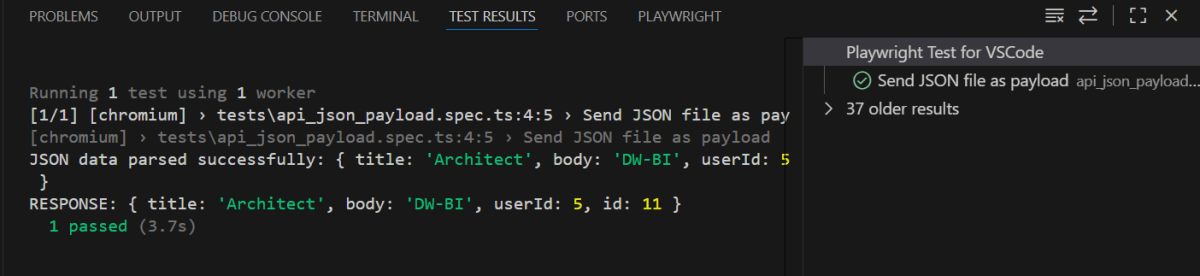
    console.log('JSON data parsed successfully:', jsonPayload);

    // Perform a POST request
    const postResponse = await request.post('https://jsonplaceholder.typicode.com/users', {
      headers: {
        'Content-Type': 'application/json'
      },
      data: JSON.stringify(jsonPayload)
    });

    // Check the response status code - expecting 201 if the resource creation is successful
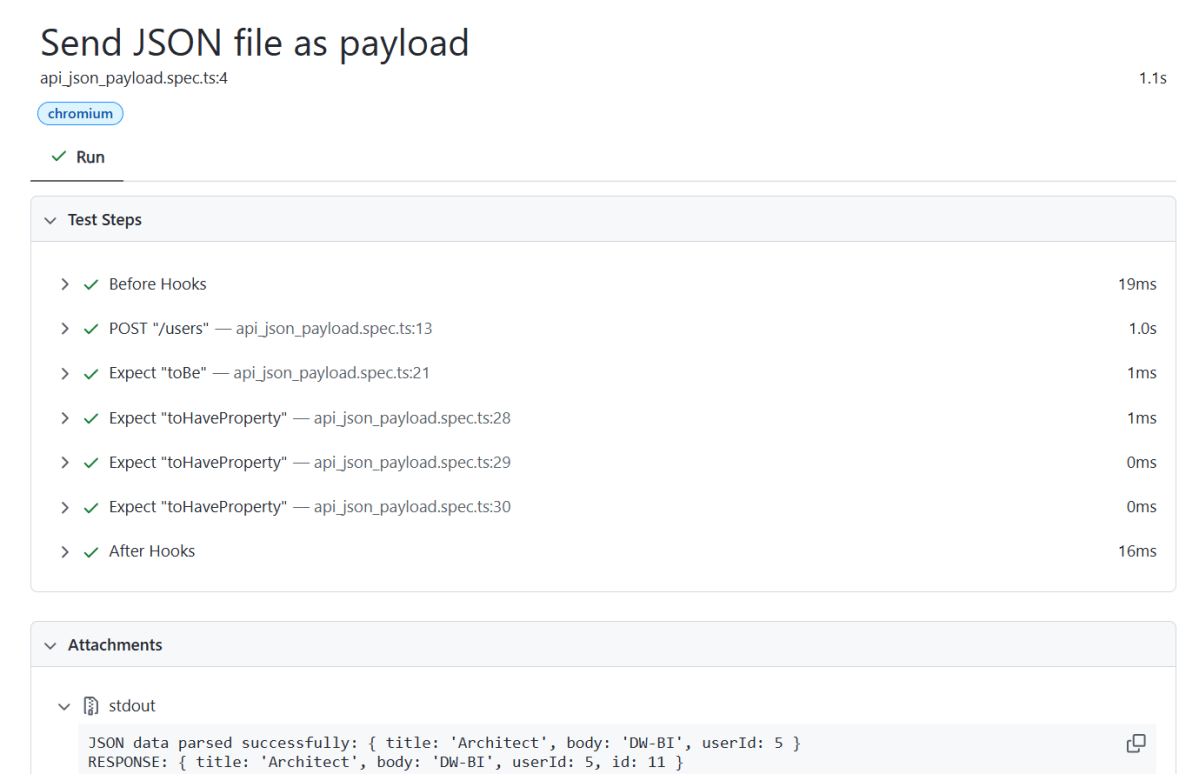
    expect(postResponse.status()).toBe(201);

    // Parse the response data
    const postResponseBody = await postResponse.json();
    console.log('RESPONSE:', postResponseBody);

    // Validate the response properties - adapt as needed
    expect(postResponseBody).toHaveProperty('title', 'Architect');
    expect(postResponseBody).toHaveProperty('body', 'DW-BI');
    expect(postResponseBody).toHaveProperty('userId', 5);

  } catch (error) {
    if (error instanceof Error) {
      console.error('Error message:', error.message);
    } else {
      console.error('An unknown error occurred:', error);
    }
  }
});
import { test, expect } from '@playwright/test';
test('Send JSON file as payload', async ({ request })
const fs = require('fs');
// Read and parse JSON file directly into a JavaScript object
const jsonPayload = JSON.parse(fs.readFileSync('tests/payloads/jsonpayload.json', 'utf8'));

console.log('JSON data parsed successfully:', jsonPayload);
 // Perform a POST request
    const postResponse = await request.post('https://jsonplaceholder.typicode.com/users', {
      headers: {
        'Content-Type': 'application/json'
      },
      data: JSON.stringify(jsonPayload)
    });
expect(postResponse.status()).toBe(201);
// Parse the response data
const postResponseBody = await postResponse.json();
console.log(postResponseBody);
// Validate the response properties - adapt as needed
expect(postResponseBody).toHaveProperty('title', 'Architect');
expect(postResponseBody).toHaveProperty('body', 'DW-BI');
expect(postResponseBody).toHaveProperty('userId', 5);

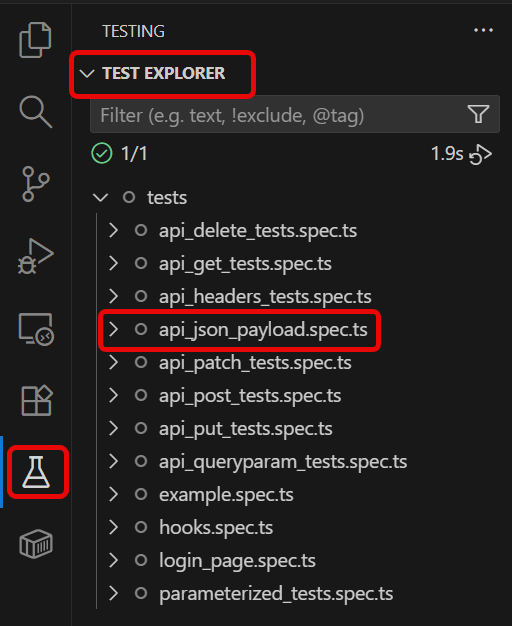
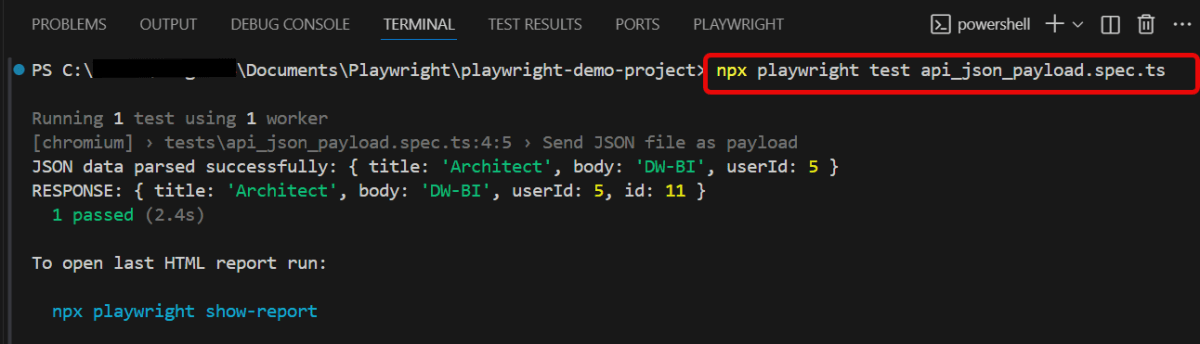
npx playwright test api_json_payload.spec.ts

npx playwright show-report

How to Execute DELETE Requests in Playwright

HOME

npm install playwright

import { defineConfig } from '@playwright/test';

export default defineConfig({
  reporter: 'html',
});

import { test, expect } from '@playwright/test';

 test('API Testing - DELETE with Playwright', async ({ request }) => {

// Perform a DELETE request
const response = await request.delete('https://jsonplaceholder.typicode.com/posts/1');
     
     // Check the response status code
     expect(response.status()).toBe(200);

      // Parse the response data
     const responseBody = await response.json();
     console.log(responseBody);
     
   });
import { test, expect } from '@playwright/test';
test('API Testing - DELETE with Playwright', async ({ request }) => {
const response = await request.delete('https://jsonplaceholder.typicode.com/posts/1');
expect(response.status()).toBe(200);
 const responseBody = await response.json();
console.log(responseBody);

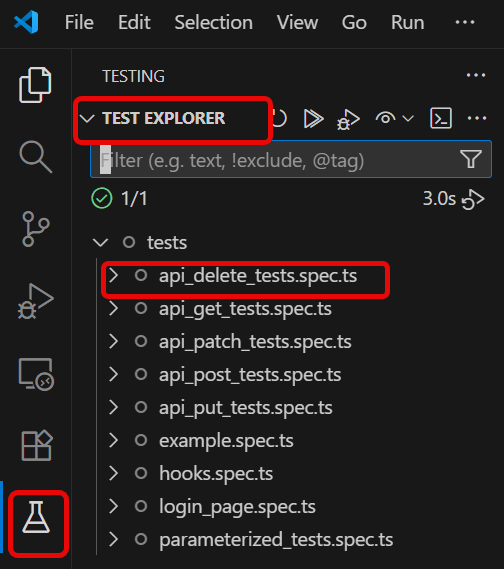
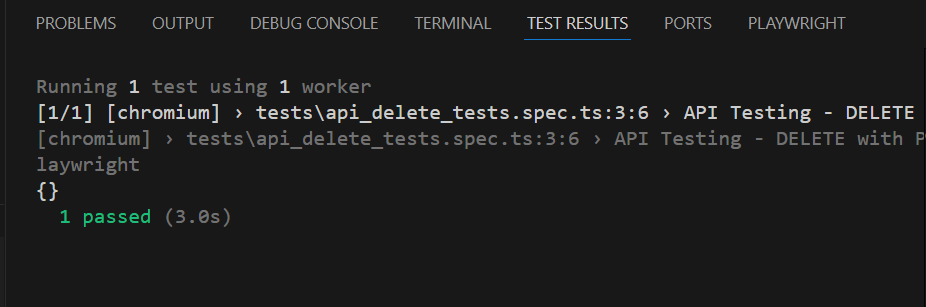
npx playwright test api_delete_tests.spec.ts

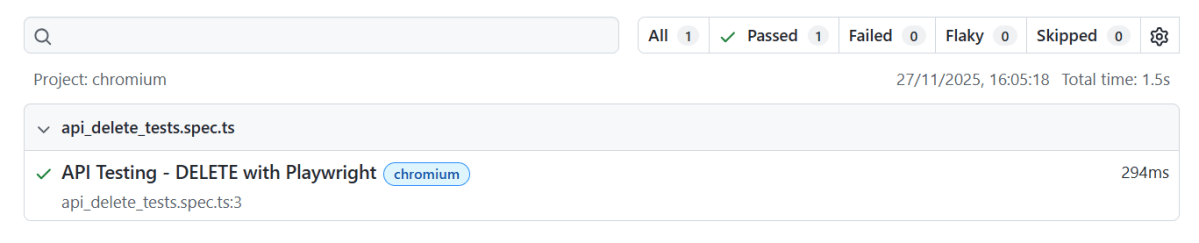
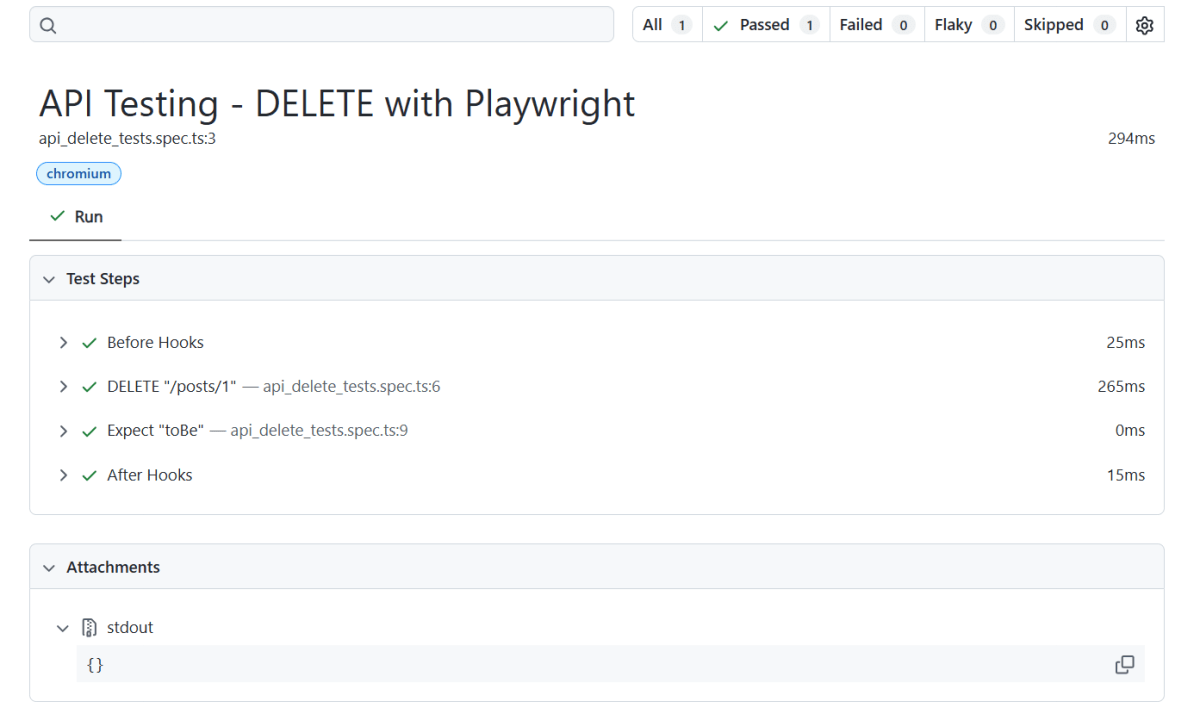
npx playwright show-report

How to install node.js on windows 11

HOME

node -v

npm -v

How to create Tests in Postman

HOME

In this tutorial, we will see how we can create Tests in the Postman.

Consider a sample JSON which has 4 sets of data. This data we will be passing to a POST request.

Create a request in Postman. Below is the URL of the request.

https://reqres.in/api/users

Paste the body of the request in the Body part of the Postman.

Create Tests for the request

Click on the “Tests”. Write the tests as shown below:

pm.test("Status code is 201", function () {
    pm.response.to.have.status(201);
});

pm.test("Successful POST request", function () {
    pm.expect(pm.response.code).to.be.oneOf([201,202]);
});

pm.test("The endpoint does not return unexpected status code", () => {
 
  // change 404 to the response code you do not expect
  pm.response.to.not.have.status(404);
});

pm.test("Status code name has string", function () {
    pm.response.to.have.status("Created");
});

pm.test("Content-Type is present", function () {
    pm.response.to.have.header("Content-Type");
});

pm.test("API response contians the expected header", () => {
  pm.response.to.have.header("Content-Type", "application/json; charset=utf-8");
});

pm.test("Body matches string", function () {
    pm.expect(pm.response.text()).to.include("Postman");
});

The output of the above test is

pm.test("Value of name", function () {
    var jsonData = pm.response.json();
    pm.expect(jsonData.name).to.eql("Postman");
});

pm.test("API response contains the expected fields", () => {
  const response = pm.response.json();

  // the line below checks value of the name field is Postman.
  pm.expect(response).to.have.property("name", "Postman");

  // the line below checks value of the job field is Test (string).
  pm.expect(response).to.have.property("job", "Test");
});

The output of the above test is

pm.test("Response time is less than 200ms", function () {
    pm.expect(pm.response.responseTime).to.be.below(200);
});

The output of the above test is

const responseJson = pm.response.json();
pm.test("Test Data Type of the response", () => {
    
    pm.expect(responseJson.job).to.be.a("string");
    pm.expect(parseInt(responseJson.id)).to.be.a("number");
});

pm.test("The response has all properties", () => {
    //parse the response JSON and test three properties
    const responseJson = pm.response.json();
    pm.expect(responseJson.name).to.eql("Postman");
    pm.expect(responseJson.job).to.be.a('string')
    pm.expect(responseJson.id).to.have.lengthOf(3);
});

Sample Response

pm.test("API response contains the expected fields", () => {
  const response = pm.response.json();

  // the line below checks value of the id field is 2 (number).
  pm.expect(response).to.have.property("id", 2);

  // the line below checks value of the name field is Morty Smith (string).
  pm.expect(response).to.have.property("name", "Morty Smith");

  // the line below checks value of the origin.name field is Earth (C-137) (string).
  pm.expect(response).to.have.nested.property("location.name", "Citadel of Ricks");
});

pm.test("API response contains the expected fields", () => {
  const response = pm.response.json();

  pm.expect(response).to.have.nested.property("episode.3", "https://rickandmortyapi.com/api/episode/4");
});

Data Driven Testing in Postman

HOME

In this tutorial, we will see how we can use data files to feed test data to the Postman requests.

Postman provides two ways to pass sets of values to use in a collection run.

By selecting a JSON or CSV data file in the Collection Runner, you can test your requests with multiple different values as part of a single run.

1. Passing data using JSON File

Consider a sample JSON which has 4 sets of data. This data we will be passing to a POST request.

[
   {
      "name":"Test1",
      "job":"Developer"
   },
   {
      "name":"Test2",
      "job":"Scrum Master"
   },
   {
      "name":"Test3",
      "job":"Quality Analyst"
   },
   {
      "name":"Test4",
      "job":"Business Analyst"
   }
]

Create a request in Postman. Below is the URL of the request.

https://reqres.in/api/users

Paste the body of the request in the Body part of the Postman.

Here, name and job are the variables that we will be passing to the POST request. So, we have parameterized these 2 variables.

Create Tests for the request

Click on the “Tests”. Write the tests as shown below:

If you need help in creating the test, you can refer to the snippets present on the right side of the console.

Here, data.json is the name of the json we are using in this example.

To read the JSON data we need to upload a JSON file from the collection runner.

Select the more actions icon More actions icon next to the collection name. Click on the “Run Collection” option.

This shows all the requests present in this collection. Here, I want to run only CreateUser Request. So, I will uncheck the “Dummy User” option.

On the Functional tab, select Run manually.

Click on the Select File and upload the data file. The Iterations field shows the number of data sets present in the data file. Here, we have 4 sets of data, so used Iterations as 4. The Delay field defines the time in ms between two iterations.

Click on the preview to see the data that is uploaded.

Click on the “RunDataDrivenTesting” button to run the tests available in the Collection.

We can see that our API has run four times. Each time, a different set of data is picked up.

2. Passing data using CSV File

All the steps remain the same here, except instead of a JSON, we will use a .csv file.

Click on the “Preview” button to view the data present in the .csv file.

Below are the sample tests.

pm.test("Status code is 200", function () {
    pm.response.to.have.status(201);
});

var expectedName = pm.variables.get("name");
var expectedRole = pm.variables.get("role");


pm.test("Verify name", function () {
    var jsonData = pm.response.json();
    pm.expect(jsonData.value).to.eql(expectedName);
});

pm.test("Verify role", function () {
    var jsonData = pm.response.json();
    pm.expect(jsonData.value).to.eql(expectedRole);
});


Run the collection again. Below is the image of the test execution in Postman.

Execute JavaScript with executeAsyncScript() Method in Selenium

HOME

In the previous blog, we have discussed about executeScript() method in JavaScript. JavascriptExecutor interface comprises of executeAsyncScript() method that is called an additional final argument “arguments[arguments.lenght-1];”which is a callback function to signal that async execution has finished. We have to call from JavaScript, to tell Webdriver, that our Asynchronous execution has finished. If we do not do that, then executeAsyncScpriptwill timeout and throw a timeout exception.

Before executing AsyncScript method, we have to make sure to set the script timeout. Its default is 0. If we do not set a script timeout, our executeAsyncScript will immediately timeout and it won’t work.

Below is the program which shows how to use executeAsyncScript() method

  1. First  will get the start time before waiting 5 seconds by using executeAsyncScript() method.
  2. Then, will use executeAsyncScript() to wait 5 seconds.
  3. Then, will get the current time
  4. Will subtract (current time – start time) = passed time and print the value
import org.openqa.selenium.JavascriptExecutor;
import org.openqa.selenium.WebDriver;
import org.openqa.selenium.chrome.ChromeDriver;
 
public classExecuteAsycSleepBrowserDemo {
        public static void main(String[] args) { 
    

System.setProperty("webdriver.chrome.driver","C:\\Users\\Vibha\\Desktop\\Drivers\\chromedriver_win32\\chromedriver.exe");
        WebDriver driver = newChromeDriver();
                                        
        //Create the JavascriptExecutor interface object by Type casting              
        JavascriptExecutor js = (JavascriptExecutor)driver;              
        driver.get("https://www.google.com/");                              
        driver.manage().window().maximize();
                        
        //Declare and set start time
        long startTime = System.currentTimeMillis();
                 
        //Call executeAsyncScript() method                       js.executeAsyncScript("window.setTimeout(arguments[arguments.length - 1], 5000);"); 
                 
        //Get the difference (currentTime - startTime) it should be greater than 5000
        System.out.println("Passed time: " + (System.currentTimeMillis() - startTime));
                        
          if ( (System.currentTimeMillis() - startTime) > 5000)
             {
                 System.out.println("Time difference must be greater than 5000 milliseconds");
             }
          driver.quit();      
      }

Output
Passed time: 5040
Time difference must be greater than 5000 milliseconds

Execute JavaScript with executeScript() Method in Selenium

HOME

In the previous tutorial, we have discussed about JavaScript. There are some conditions where we cannot handle some problems with WebDriver only, web controls don’t react well against selenium commands. In this kind of situations, we use Javascript. JavaScriptExecutor comes separately and also comes under the WebDriver but both do the same thing. Within the WebDriver, it is named as ExecuteScript.

JavaScriptExecutor is an interface that provides a mechanism to execute Javascript through selenium driver. It provides “executescript” & “executeAsyncScript” methods, to run JavaScript in the context of the currently selected frame or window.

ExecuteScript Method – This method executes JavaScript in the context of the currently selected frame or window in Selenium. The script used in this method runs in the body of an anonymous function (a function without a name). We can also pass complicated arguments to it. 

Execute the below selenium script. In this example,

  • Launch the site
  • Fetch the domain name of the site.
  • Fetch the URL of the site
  • Fetch the title name of the sit
  • Then navigate to a different page – google.com
  • Display Alert popup                                                                        
package SeleniumTutorial;
import org.openqa.selenium.JavascriptExecutor;
 
import org.openqa.selenium.WebDriver;
 
import org.openqa.selenium.chrome.ChromeDriver;
 
public classJavaScript_Demo {
        public static voidmain(String[] args) {
                        System.setProperty("webdriver.chrome.driver","C:\\Users\\SingVi04\\Desktop\\Drivers\\chromedriver_win32\\chromedriver.exe");
 
        WebDriver driver= new ChromeDriver();
                                        
        //Create the JavascriptExecutor interface object by Type casting                
        JavascriptExecutor js = (JavascriptExecutor)driver;             
 
        driver.get("https://configureselenium.blogspot.com/");
 
        driver.manage().window().maximize();
  
 
       //Fetching the Domain Name of the site. Tostring() change object to name.                
        String DomainName = js.executeScript("return document.domain;").toString();                 
        System.out.println("Domain name of the site = "+DomainName);                                        
                        
        //Fetching the URL of the site. Tostring() change object to name          
        String url = js.executeScript("return document.URL;").toString();                
        System.out.println("URL of the site = "+url);                                      
                        
        //Method document.title fetch the Title name of the site. Tostring() change object to name          
       String TitleName = js.executeScript("return document.title;").toString();                        
       System.out.println("Title of the page = "+TitleName);                                  
                
        //Navigate to new Page i.e to generate access page. (launch new url)             
        js.executeScript("window.location = 'https://www.google.com/'");
        String NewTitleName = js.executeScript("return document.title;").toString();                      
        System.out.println("Title of the new page = "+NewTitleName);    
 
        //Alert
        js.executeScript("alert('Hello Everyone!');");
        driver.switchTo().alert().accept();
      
        driver.quit();
    }           
 }

JavaScript and JavaScriptExecutor in Selenium


What is JavaScript?
 

JavaScript is the preferred language inside the browser to interact with HTML dom. This means that a Browser has JavaScript implementation in it and understands the JavaScript commands.
WebDriver gives you a method called Driver.executeScript which executes the JavaScript in context of the loaded browser page. There are some conditions where we cannot handle some problems with WebDriver only, web controls do not react well against selenium commands. In this kind of situations, we use Javascript. It is useful for custom synchronizations, hide or show the web elements, change values, test flash/HTML5 and so on. In order to do these, we can use Selenium’s JavascriptExecutor interface that executes JavaScript through Selenium driver.

What is JavaScriptExecutor?

JavaScriptExecutor comes separately and comes under the WebDriver but both do the same thing. Within the WebDriver, it is name as ExecuteScript. JavaScriptExecutor is an interface that provides a mechanism to execute Javascript through selenium driver. It provides “executescript” & “executeAsyncScript” methods, to run JavaScript in the context of the currently selected frame or window.

ExecuteScript Method

This method executes JavaScript in the context of the currently selected frame or window in Selenium. The script used in this method runs in the body of an anonymous function (a function without a name). We can also pass complicated arguments to it.

The script can return values. Data types returned are 

  • Boolean 
  • Long 
  • String 
  • List 
  • WebElement 
JavascriptExecutor js = (JavascriptExecutor) driver;  
js.executeScript(Script,Arguments);

Script – This JavaScript needs to execute.

Arguments – It is the arguments to the script. It is optional

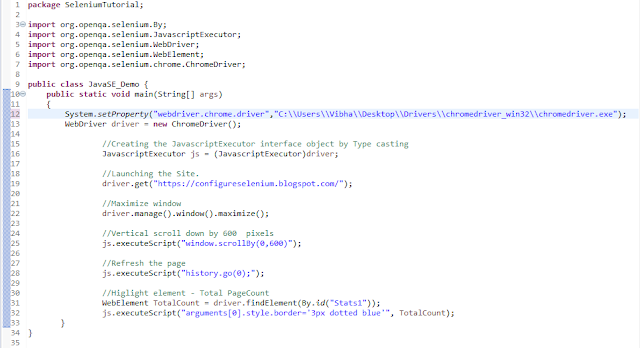
Below is an example, which shows how executeScript method can be use. In this example, 

  1. Launch the site
  2. Scroll down by 600 pixel
  3. Refresh the page
  4. Highlight a particular element
import org.openqa.selenium.By;
import org.openqa.selenium.JavascriptExecutor;
import org.openqa.selenium.WebDriver;
import org.openqa.selenium.WebElement;
import org.openqa.selenium.chrome.ChromeDriver;
 
public class JavaSE_Demo {
        public static void main(String[] args){        

System.setProperty("webdriver.chrome.driver","C:\\Users\\Vibha\\Desktop\\Drivers\\chromedriver_win32\\chromedriver.exe");
        WebDriver driver= new ChromeDriver();                         
 
        //Create the JavascriptExecutor interface object by Type casting              
         JavascriptExecutor js = (JavascriptExecutor)driver;                   
         driver.get("https://configureselenium.blogspot.com/");     
         driver.manage().window().maximize();               

         //Vertical scroll down by 600  pixels             
          js.executeScript("window.scrollBy(0,600)");                           
 
         //Refresh the page
          js.executeScript("history.go(0);");
                       
          //Higlight element - Total PageCount
          WebElement TotalCount= driver.findElement(By.id("Stats1"));
          js.executeScript("arguments[0].style.border='3px dotted blue'", TotalCount);                     
      }                          
}

How to enter text-using JavaScriptexecutor (Without Sendkeys)

import org.openqa.selenium.JavascriptExecutor;
import org.openqa.selenium.WebDriver;
import org.openqa.selenium.chrome.ChromeDriver;
 
public class JavaScript_EnterText {
        public static void main(String[] args) {
        System.setProperty("webdriver.chrome.driver","C:\\Users\\Vibha\\Desktop\\Drivers\\chromedriver_win32\\chromedriver.exe");
        WebDriver driver = newChromeDriver();
                                        
         //Creating the JavascriptExecutor interface object by Type casting              
          JavascriptExecutor js = (JavascriptExecutor)driver;              
                                        
          //Launching the Site.         
          driver.get("https://www.google.com/");                      
                     
          //Maximize window            
          driver.manage().window().maximize();       
                        
          js.executeScript("document.getElementsByName('q')[0].value = 'Selenium Introduction';");
   } 
}