How to Select value from Drop down list or perform Multiple Selection Operations in Selenium WebDriver

HOME


In the previous tutorial, it is explained how to automate Checkbox in Selenium. In this tutorial, we will learn how to handle Drop Down & Multiple Select Operations. DropDownMultiple Select Operations work together and almost the same way. The only difference between these two deselecting statements & multiple selections is not allowed on DropDown.

To identify DropDown or multi-select list on a web page, we can use any one of the options like idnamexpathcss, etc. 

To perform any operation on DropDown, we need to do 2 things:-

1) Selenium WebDrivers provides a class called “Select “class that is used to automate dropdown, and it is imported from the package:

org.openqa.selenium.support.ui.Select

2) Create a new Select object of class Select.

Select oSelect = new Select());

We can access all the methods residing inside the SELECT class by typing oSelect + dot.

Different Select Commands

Before we discuss various select commands, we should know how the HTML code of DropDown actually looks

1) selectByVisibleText 

selectByVisibleText(String arg0): void – Choose the option given under any dropdowns and multiple selection boxes with selectByVisibleText method. It takes a parameter of String that is one of the Value of Select element and it returns nothing.

To select the text One

select.selectByVisibleText("One");

2)  selectByIndex 

selectByIndex(int arg0): void – It is almost the same as selectByVisibleText but the only difference here is that we provide the index number of the option here rather than the option text. It takes a parameter of int which is the index value of the Select element and it returns nothing.

To select the value 3 using index

 select.selectByIndex(3);

3) selectByValue

selectByValue(String arg0): void –  It selects the option of the value. It takes a parameter of String that is of the value of the Select element and it returns nothing.

To select the value of two

 Select mselect = new Select(driver.findElement(By.id("redirect")));
 mselect.selectByValue("two");

Let us explain this with the help of an example.

1) Launch a new Browser and open https://www.selenium.dev/selenium/web/formPage.html
2) Print the list of options in the dropdown.
3) Select option ‘One’ (Use selectByVisibleText)
4) Select option ‘3’ (Use selectByIndex)
5) Select option ‘two’ (Use selectByValue)
6) Close the browser

The complete program looks like as shown below:

package org.example;

import org.openqa.selenium.By;
import org.openqa.selenium.WebDriver;
import org.openqa.selenium.WebElement;
import org.openqa.selenium.firefox.FirefoxDriver;
import org.openqa.selenium.firefox.FirefoxOptions;
import org.openqa.selenium.support.ui.Select;

import java.time.Duration;
import java.util.List;

public class DropDown_Demo {

    public static void main(String[] args)  {

        // Initiate Firefox browser
        FirefoxOptions firefoxOptions = new FirefoxOptions();
        WebDriver driver = new FirefoxDriver(firefoxOptions);

        // Implicit Wait
        driver.manage().window().maximize();
        driver.manage().timeouts().implicitlyWait(Duration.ofSeconds(5));

        // Pass application url
        driver.get("https://www.selenium.dev/selenium/web/formPage.html");

        //Get the list of options from dropdown
        Select select = new Select(driver.findElement(By.name("select-default")));
        List<WebElement> listElements = select.getOptions();
        System.out.println("List of options in dropdown:" );
        for(WebElement options: listElements)
            System.out.println(options.getText());

        // Select option 'Two' (Use selectByVisibleText)
        System.out.println("Select the Option by Text - One");
        select.selectByVisibleText("One");

        // Select option '3' (Use selectByIndex)
        System.out.println("Select the Option by Index 3 - Still learning how to count, apparently");
        select.selectByIndex(3);

        // Select option 'two' (Use selectByValue)
        System.out.println("Select the Option by selectByValue - two");
        Select mselect = new Select(driver.findElement(By.id("redirect")));
        mselect.selectByValue("two");

        // close the browser
        driver.close();
    }

}

The output of the above program is

Different DeSelect Methods

The way we select different values of DropDown and Multi Select, we can deselect the options similarly.

1) deselectAll

deselectAll( ): void – Clear all selected entries. This is only valid when the SELECT supports multiple selections.

Syntax:

oSelect.deselectAll;

2) deselectByIndex

deselectByIndex(int arg0): void –Deselect the option at the given index.

Syntax:

oSelect.deselectByIndex;

3) deselectByValue

deselectByValue(String arg0): void –Deselect all options that have a value matching the argument.

Syntax:

 oSelect.deselectByValue;

4) deselectByVisibleText

deselectByVisibleText(String arg0): void – Deselect all options that display text matching the argument.

Syntax:

oSelect.deselectByVisibleText

Below is an example of how to operate on multi-selection options.

1) Launch a new Browser and open https://www.selenium.dev/selenium/web/formPage.html
2) Print the list of options in the dropdown.
3) Select options ‘eggs’ and ‘sausages’.
4) Print and select all the options for the selected Multiple selection list.
5) Deselect option eggs.
6) Deselect all options
7) Close the browser

package org.example;

import org.openqa.selenium.By;
import org.openqa.selenium.WebDriver;
import org.openqa.selenium.WebElement;
import org.openqa.selenium.firefox.FirefoxDriver;
import org.openqa.selenium.firefox.FirefoxOptions;
import org.openqa.selenium.support.ui.Select;

import java.time.Duration;
import java.util.List;

public class MultiSelect_Demo {
    
    public static void main(String[] args) {

        // Initiate Firefox browser
        FirefoxOptions firefoxOptions = new FirefoxOptions();
        WebDriver driver = new FirefoxDriver(firefoxOptions);

        // Implicit Wait
        driver.manage().window().maximize();
        driver.manage().timeouts().implicitlyWait(Duration.ofSeconds(5));

        // Pass application url
        driver.get("https://www.selenium.dev/selenium/web/formPage.html");

        //Get the list of options from dropdown
        Select select = new Select(driver.findElement(By.name("multi")));
        List<WebElement> listElements = select.getOptions();
        System.out.println("List of options in dropdown:");
        for (WebElement options : listElements)
            System.out.println(options.getText());

        // Select option 'Ham' (Use selectByVisibleText)
        System.out.println("Select the Option by Text - Eggs");
        select.selectByVisibleText("Eggs");

        // Select option '2' (Use selectByIndex)
        System.out.println("Select the Option by Index 2 - Sausages");
        select.selectByIndex(2);

        System.out.println("*************************************");
        //Get the list of selected options
        System.out.println("The selected values in the dropdown options are -");
        List<WebElement> selectedOptions = select.getAllSelectedOptions();

        for(WebElement selectedOption: selectedOptions)
            System.out.println(selectedOption.getText());

        // Deselect the value "eggs" by Value
        System.out.println("*************************************");
        System.out.println("DeSelect option eggs by Value");
        select.deselectByValue("eggs");

        System.out.println("*************************************");
        System.out.println("The latest selected values in the dropdown options are -");
        List<WebElement> reselectedOptions = select.getAllSelectedOptions();

        for(WebElement selectedOption: reselectedOptions)
            System.out.println(selectedOption.getText());

        select.deselectAll();

        driver.quit();
    }
}

The output of the above program is

That’s it! Congratulations on making it through this tutorial and hope you found it useful! Happy Learning!!
How to handle dropdowns in Robot Framework 

HOME

In this tutorial, we will automate the execution of DropDown in Robot Framework.

Prerequisite:

  1. Install Python
  2. Install PIP
  3. Install Robot Framework
  4. Install Robot framework Selenium Library
  5. Install PyCharm IDE

Please refer to this tutorial to install Robot Framework – How to install and setup Robot Framework for Python.

Implementation Steps:

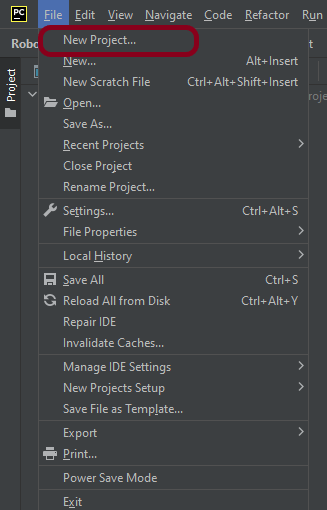
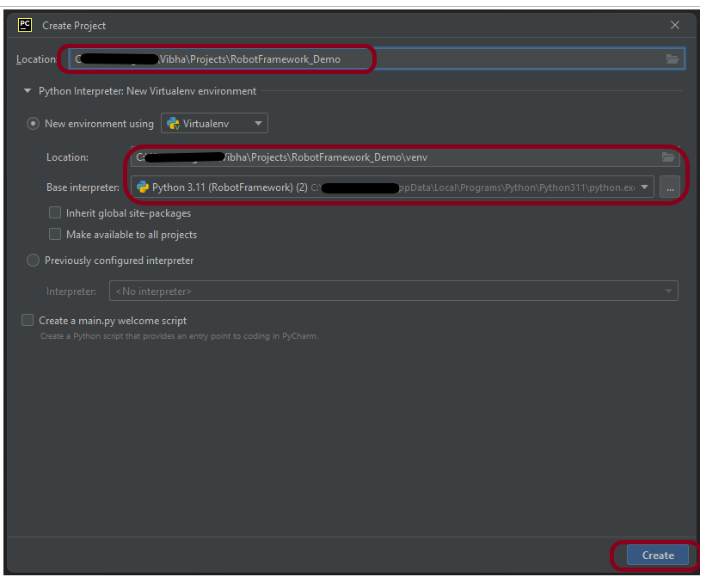
Step 1.1 – Open PyCharm and create a new project. Go to File and select New Project from the main menu.

Step 1.2 – Choose the project location. Click the “Browse” button next to the Location field and specify the directory for your project.

Deselect the Create a main.py welcome script checkbox because you will create a new Python file for this tutorial.

Click on the “Create” Button.

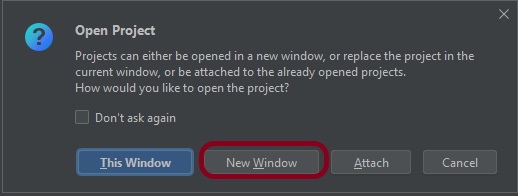
Step 1.3 – A new dialog appears asking to open the project using any one of the given options. I have selected New Window as I like to have separate windows for each project.

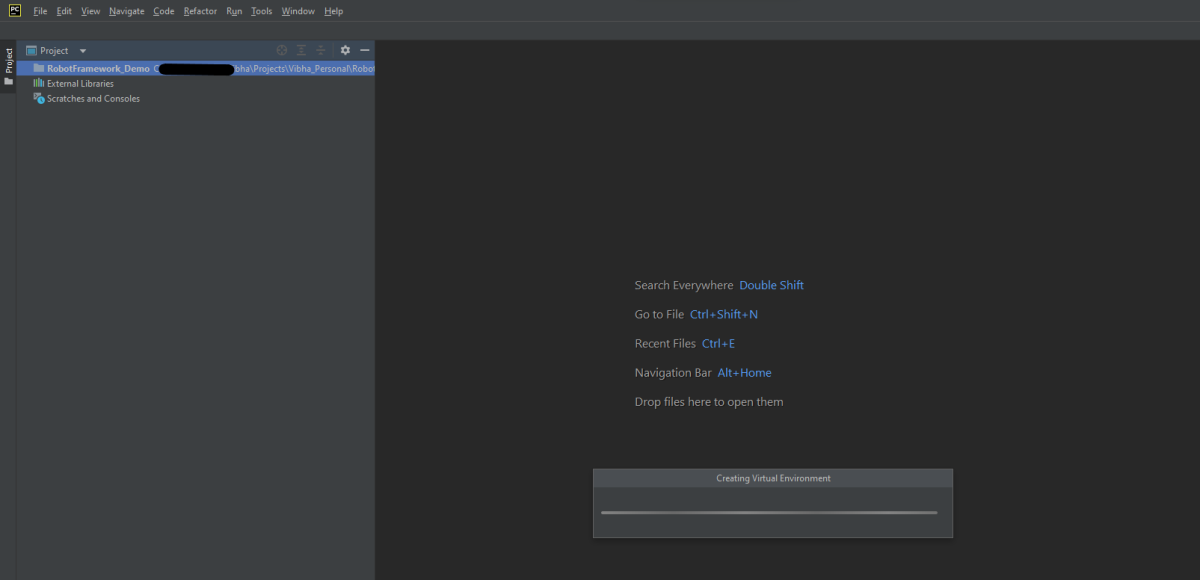
Below is the image of the new project created in PyCharms.

How to create a test to automate the options of dropdown in Robot Framework?

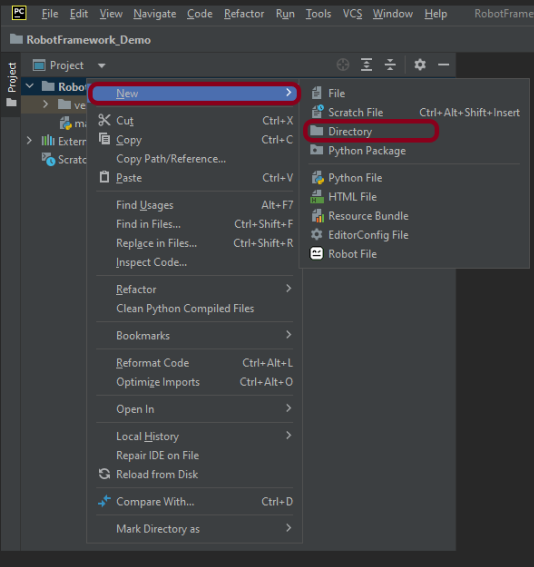
Step 4 – Create a new directory in the new project

Right-Click on the project, select New->Directory and provide name as Tests

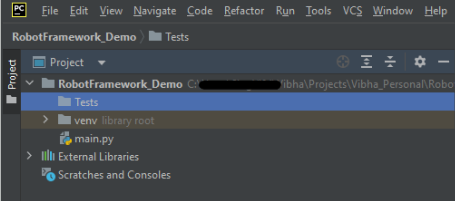
Below is the image of the new directory.

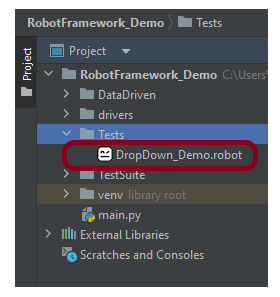
Right-click on the new directory and select New File and provide the name as DropDown_Demo.robot as shown below:

Step 5 – Download ChromeBinaries from the below location

The tests are going to use the Chrome browser, so we need to download the ChromeBinaries to open a blank browser in Chrome.

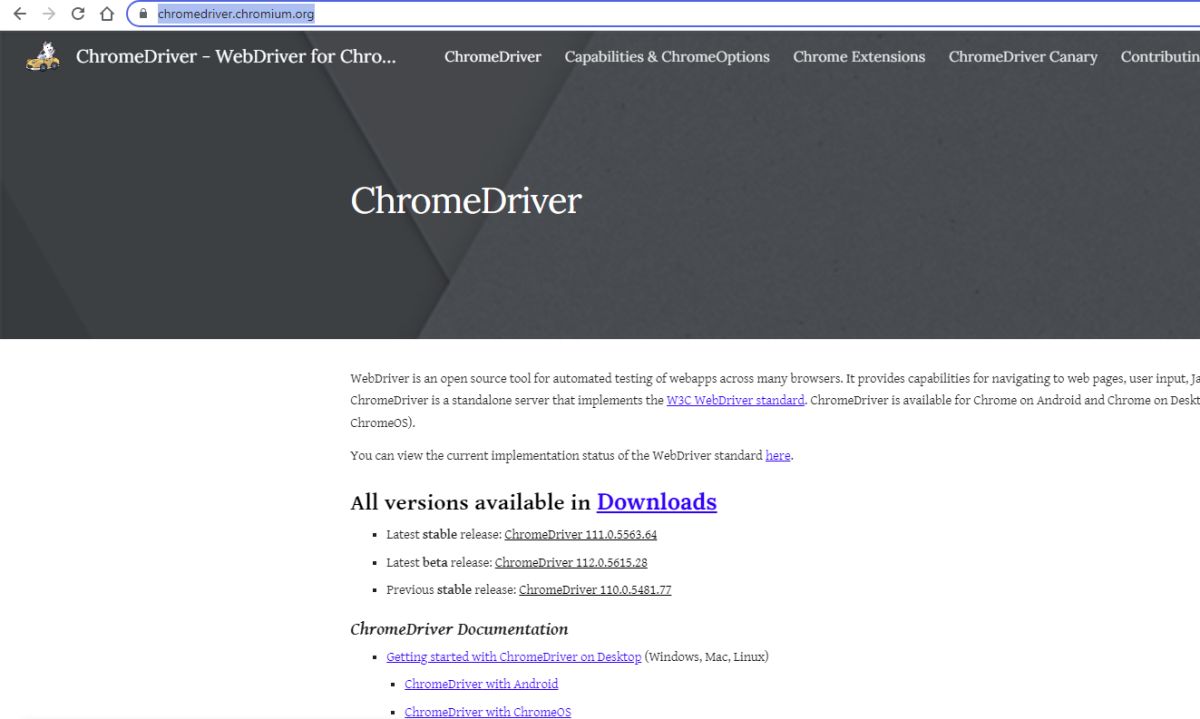
https://chromedriver.chromium.org/

The chromedriver and geckodriver are placed in a folder name drivers in the RobotFramework_Demo project. I have renamed chromedriver to Chrome and geckodriver to Firefox.

Step 6 – Automate the selection of options for DropDown

We are now going to write test cases. The test case details will be as follows −

To work with the Radio Button, we need a locator. A locator is an identifier for the textbox like id, name, class, xpath, css selector, etc.

To know more about locators, refer to these Selenium Tutorials:

 Locators in Selenium – Locate by ID, ClassName,  Name, TagName,  LinkText, PartialLinkText

Dynamic XPath  in Selenium WebDriver

CSS Selector in Selenium WebDriver

The below page shows that we have multiple DropDown options.

Let us inspect the locator of DropDown.

Below is an example of selecting the options in DropDown.

*** Settings ***
Documentation    To validate the selection of DropDown
Library     SeleniumLibrary
Test Teardown    Close Browser

*** Test Cases ***
Select options in DropDown
    Open the Browser with URL
    Select the dropdown options APIs by value
    Select the dropdown options Microsoft Excel by index
    Select the dropdown options CSS by label

*** Keywords ***
Open the Browser with URL
    Create Webdriver    Chrome  executable_path=/Vibha_Personal/RobotFramework/drivers/chromedriver_linux64
    Go To    https://demo.automationtesting.in/Register.html
    Maximize Browser Window
    Set Selenium Implicit Wait    2

Select the dropdown options APIs by value
    Select From List By Value       id:Skills   APIs


Select the dropdown options Microsoft Excel by index
    Select From List By Index        id:Skills   43

Select the dropdown options CSS by label
    Select From List By Label       id:Skills   CSS


All the below-mentioned keywords are derived from SeleniumLibrary except the last one. The functionality of keywords mentioned above:

1. Create Webdriver − The keyword creates an instance of Selenium WebDriver.

2. Go To – This keyword navigates the current browser window to the provided URL – https://demo.automationtesting.in/Register.html.

3. Maximize Browser Window – This keyword maximizes the current browser window.

4. Set Selenium Implicit Wait – This keyword sets the implicit wait value used by Selenium.

5. Select From List By Value − This keyword is used to select APIs option from dropdown on the current page by value.

6. Select From List By Index – This keyword is used to select Microsoft Excel option from dropdown on the current page by index.

7. Select From List By Label – This keyword is used to select CSS option from the dropdown on the current page by label.

These keywords are present in SeleniumLibrary. To know more about these keywords, please refer to this document – https://robotframework.org/SeleniumLibrary/SeleniumLibrary.htm.

To run this script, go to the command line and go to directory tests.

Step 7 – Execute the tests

We need the below command to run the Robot Framework script.

robot DropDown_Demo.robot

The output of the above program is

Step 8 – View Report and Log

We have the test case passed. The Robot Framework generates log.html, output.xml, and report.html by default.

Let us now see the report and log details.

Report

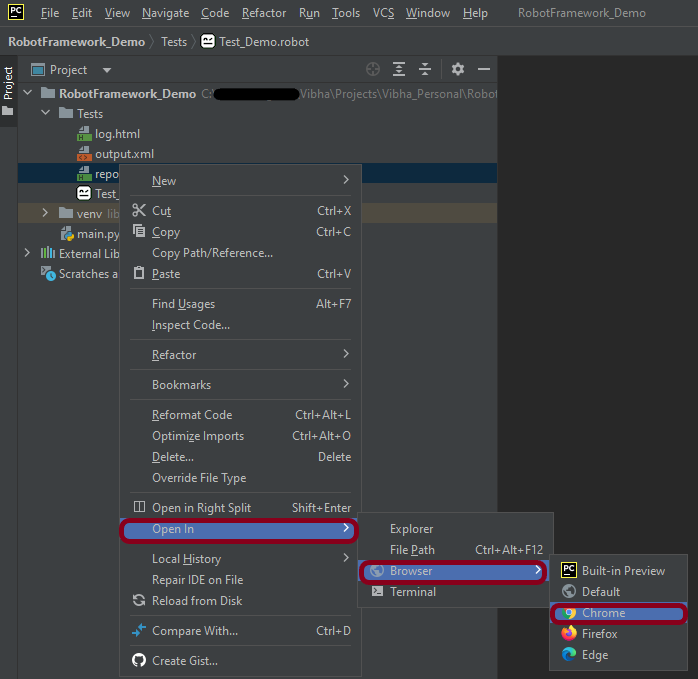
Right-click on report.html. Select Open In->Browser->Chrome(any browser of your wish).

The Report generated by the framework is shown below:

Log

Robot Framework has multiple log levels that control what is shown in the automatically generated log file. The default Robot Framework log level is INFO.

Right-click on log.html. Select Open In->Browser->Chrome(any browser of your wish).

That’s it! Congratulations on making it through this tutorial and hope you found it useful! Happy Learning!!
How to automate BootStrap DropDown using Selenium WebDriver

 
In the previous post, we have already seen How to Handle Dropdowns in Selenium WebDriver . In this post, we will see how to handle Bootstrap Dropdown using Selenium WebDriver.
 
What is Bootstrap?
 
  • Bootstrap is a free front-end framework for faster and easier web development
  • Bootstrap includes HTML and CSS based design templates for typography, forms, buttons, tables, navigation, modals, image carousels and many other, as well as optional JavaScript plugins
  • Bootstrap also gives you the ability to easily create responsive designs
  • Bootstrap is compatible with all modern browsers (Chrome, Firefox, Internet Explorer, Edge, Safari, and Opera)

What is Responsive Web Design?

Responsive web design is about creating web sites, which automatically adjust themselves to look good on all devices, from small phones to large desktops.
Bootstrap dropdowns and interactive dropdowns that are dynamically position and formed using list of ul and li html tags. To know more about Bootstrap, please click here

How to get all the options of a Bootstrap dropdown


Below is an example which will explain how to get all the options of a Bootstrap dropdown.

import java.util.List;
import java.util.concurrent.TimeUnit;
import org.openqa.selenium.By;
import org.openqa.selenium.WebDriver;
import org.openqa.selenium.WebElement;
 
import org.openqa.selenium.chrome.ChromeDriver;
public class BootStrapDemo {
        public static void main(String[] args) {
 System.setProperty("webdriver.chrome.driver","C:\\Users\\Desktop\\Drivers\\chromedriver_win32\\chromedriver.exe");

          WebDriver driver= new ChromeDriver();
          driver.manage().window().maximize();
          driver.get("https://www.seleniumeasy.com/test/");
          driver.manage().timeouts().implicitlyWait(20, TimeUnit.SECONDS);

                // Clicking on Bootstrap Dropdown
               driver.findElement(By.xpath("//*[@id='navbar-brand-centered']/ul[1]/li[1]/a")).click(); 

                // Get the all WebElements inside the dropdown in List  
               List dropdown_list =  driver.findElements(By.xpath("//ul[contains(@class,'dropdown-menu')]//li//a"));

              // Printing the amount of WebElements inside the list
               System.out.println("The Options in the Dropdown are: " + dropdown_list.size());

              // Condition to get the WebElement for list
              for(int i=0; i<dropdown_list.size(); i++)
              {
                   // Printing All the options from the dropdown
                   System.out.println(dropdown_list.get(i).getText());
            }                                                                                       
      }
}

Output
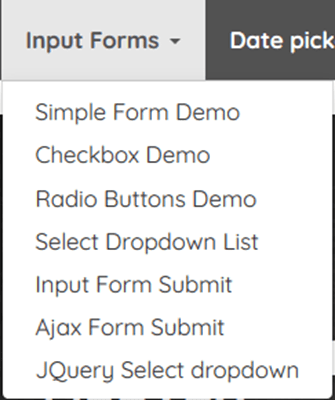
The Options in the Dropdown are: 29
Simple Form Demo
Checkbox Demo
Radio Buttons Demo
Select Dropdown List
Input Form Submit
Ajax Form Submit
JQuery Select dropdown

Here,

1) Open a web page – https://www.seleniumeasy.com/test/
2) Click on BootStrap DropDown – Input Forms by using (“//*[@id=’navbar-brand-centered’]/ul[1]/li[1]/a”
3) Get the all WebElements inside the dropdown in List  by using
(“//ul[contains(@class,’dropdown-menu’)]//li//a”)
4) Print all the options of DropDown using dropdown_list.get(i).getText()

How to select a particular option from Bootstrap dropdown

In the below example, there is a Bootstrap dropdown. I want to
Check if an element – Checkbox Demo is present in the dropdown or not.
If Yes, click on that option.

import java.util.List;
import java.util.concurrent.TimeUnit;
import org.openqa.selenium.By;
import org.openqa.selenium.WebDriver;
import org.openqa.selenium.WebElement;
import org.openqa.selenium.chrome.ChromeDriver;
 
public class BootStrapDemo {
        public static void main(String[] args) {

System.setProperty("webdriver.chrome.driver","C:\\Users\\Desktop\\Drivers\\chromedriver_win32\\chromedriver.exe");

          WebDriver driver= new ChromeDriver();
          driver.manage().window().maximize();
          driver.get("https://www.seleniumeasy.com/test/");
          driver.manage().timeouts().implicitlyWait(20, TimeUnit.SECONDS);
 
                // Clicking on Bootstrap Dropdown
               driver.findElement(By.xpath("//*[@id='navbar-brand-centered']/ul[1]/li[1]/a")).click(); 
 
                // Get the all WebElements inside the dropdown in List  
               List dropdown_list =  driver.findElements(By.xpath("//ul[contains(@class,'dropdown-menu')]//li//a"));
 
              // Printing the amount of WebElements inside the list
               System.out.println("The Options in the Dropdown are: " + dropdown_list.size());
 
              // Condition to get the WebElement for list
              for(int i=0; i<dropdown_list.size(); i++)
              {
                   // Printing All the options from the dropdown
                   System.out.println(dropdown_list.get(i).getText());                 
// Checking the condition whether option in text "Checkbox Demo" is coming
 
          if(dropdown_list.get(i).getText().contains("Checkbox Demo"))
            {
                 // Clicking if text "Checkbox Demo" is there
                 dropdown_list.get(i).click();
              // Breaking the condition if the condition get satisfied
                 break;
          }
       }
   driver.quit();            
  }
}

OutPut
The Options in the Dropdown are: 29
Simple Form Demo
Checkbox Demo

This program can be re-written by using Enhanced for loop instead of For loop.

getText() can be replaced by getAttribute(“innerHTML”)

import java.util.List;
import java.util.concurrent.TimeUnit;
import org.openqa.selenium.By;
import org.openqa.selenium.WebDriver;
import org.openqa.selenium.WebElement;
import org.openqa.selenium.chrome.ChromeDriver;
 
public class BootStrapDemo {
        public static void main(String[] args) {
 System.setProperty("webdriver.chrome.driver","C:\\Users\\Desktop\\Drivers\\chromedriver_win32\\chromedriver.exe");

          WebDriver driver= new ChromeDriver();
          driver.manage().window().maximize();
          driver.get("https://www.seleniumeasy.com/test/");
          driver.manage().timeouts().implicitlyWait(20, TimeUnit.SECONDS);
 
                // Clicking on Bootstrap Dropdown
               driver.findElement(By.xpath("//*[@id='navbar-brand-centered']/ul[1]/li[1]/a")).click(); 
 
                // Get the all WebElements inside the dropdown in List  
               List dropdown_list =  driver.findElements(By.xpath("//ul[contains(@class,'dropdown-menu')]//li//a"));
 
              // Printing the amount of WebElements inside the list
               System.out.println("The Options in the Dropdown are: " + dropdown_list.size());
 
              // Condition to get the WebElement using Enhanced For loop
 
               for(WebElement element:dropdown_list)
 
              {
                   // Printing All the options from the dropdown
                   System.out.println(element.getAttribute("innerHTML"));             
 
                  // Checking the condition whether option in text "Checkbox Demo" is coming
       if(element.getAttribute("innerHTML").contains("Checkbox Demo")) 
            {
                 // Clicking if text "Checkbox Demo" is there
                 element.click();
              // Breaking the condition if the condition get satisfied
                 break;
          }
       }
   driver.quit();            
  }
}

How to get all options in a DropDown list in Selenium WebDriver


In this tutorial, we will get to know how we can get the option values of a dropdown using Webdriver. This can be done by using getOptions().

getOptions( ) : List – It shows all options belonging to the Select tag. It takes no parameter and returns List.

oSelect.getOptions();

Below is an example on how to use getOptions. We want to print all the options of Drop Down Month.

import java.util.List;
import java.util.concurrent.TimeUnit;
import org.openqa.selenium.By;
import org.openqa.selenium.WebElement;
import org.openqa.selenium.firefox.FirefoxDriver;
import org.openqa.selenium.support.ui.Select;

public class DropDown_Options {
      public static void main(String[] args) {
         System.setProperty(“webdriver.gecko.driver”,“C:\\Users\\vibha\\Downloads\\geckodriver-v0.24.0-win64\\geckodriver.exe”);
            FirefoxDriver driver = new FirefoxDriver();
                  
            driver.manage().timeouts().implicitlyWait(60, TimeUnit.SECONDS);
            driver.get("https://www.facebook.com/";);          
            
Select mselect = new Select(driver.findElement(By.id(“month”)));       
            
            // Print all the options for the selected drop down and select one option of your choice
            // Get the size of the Select element
            List mSize = mselect.getOptions();
            int OptionSize = mSize.size();                                   
           
            // Setting up the loop to print all the options
            for(int i =0; i < OptionSize ; i++)
          {
           
          // Storing the value of the option
           String Options = mselect.getOptions().get(i).getText();
           
          // Printing the stored value
           System.out.println(Options);
        }
   }
}

Output
Month
Jan
Feb
Mar
Apr
May
Jun
Jul
Aug
Sep
Oct
Nov
Dec