In this tutorial, we’ll learn how to use Postman to test an endpoint secured with Digest Authentication.
Table of Contents
What is Digest Authentication?
Digest Authentication is an advanced authentication method as compared to Basic Authentication. It is used in HTTP to secure the communication between the client and server. This authentication uses the hash of the password and other details rather than passing the actual password over the network. Using this Authentication method, we can make the communication more secure.
We will use the following URL for this Postman tutorial.
https://postman-echo.com/basic-auth
Implementation Steps
Below are the steps to use Basic Auth in Postman:
1. Create a Collection
Step 1: Create a Collection, click on Collections, and then click on the “+” plus button.
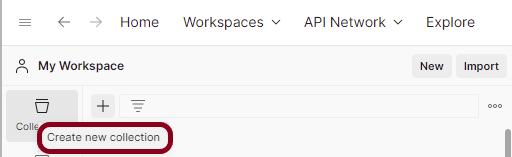
Step 2: Provide a name to the collection – “Authentication”.

2. Add a request to the Collection
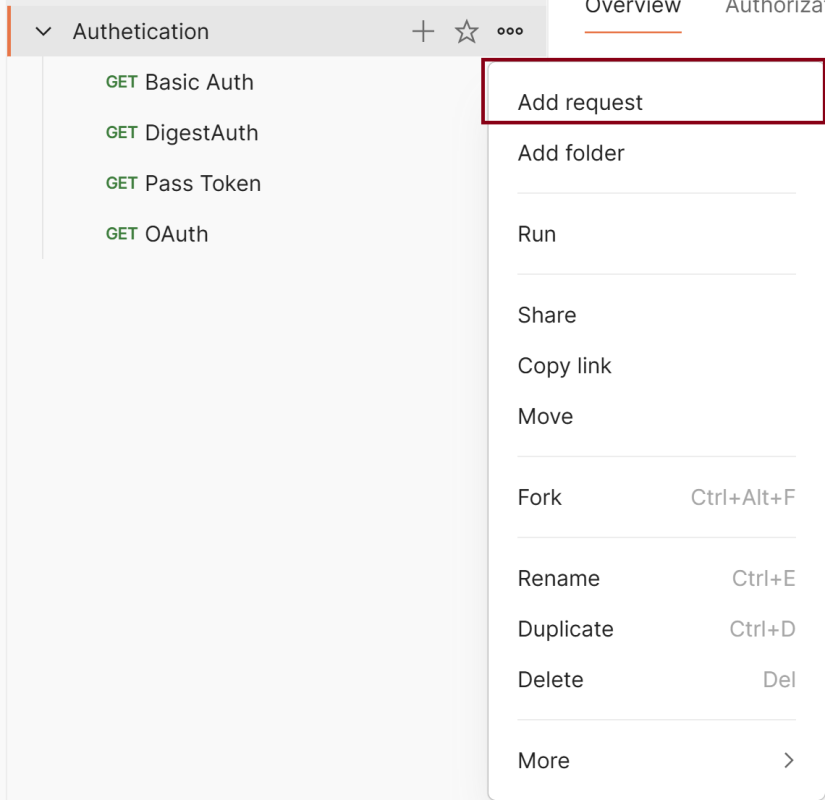
Step 3: To create a new request, click on “Add a request”, if it is a new Collection. Otherwise, click on the 3 dots and select “Add request”.
3. Enter the details – URL, Method, Authorization
Step 4: Enter the “name” in the request. Here, the name is “Digest Auth”.

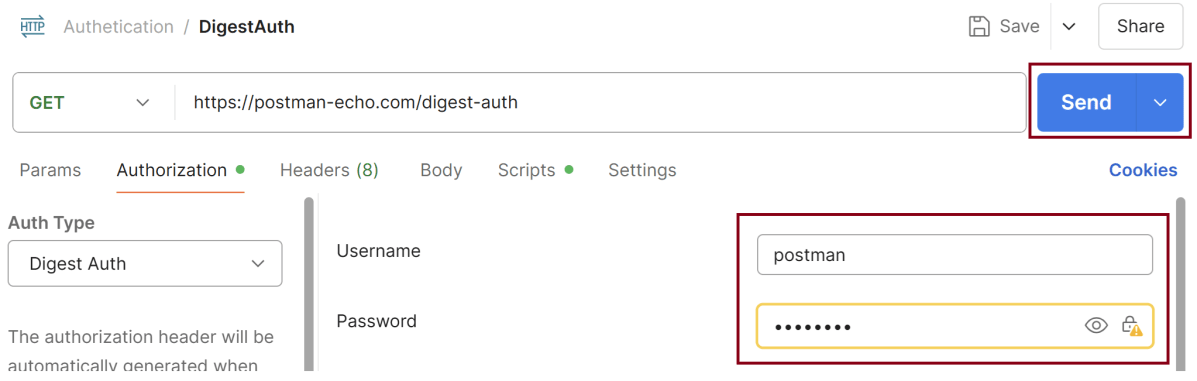
Step 5: Enter the “URL” in the address bar.
https://postman-echo.com/digest-auth
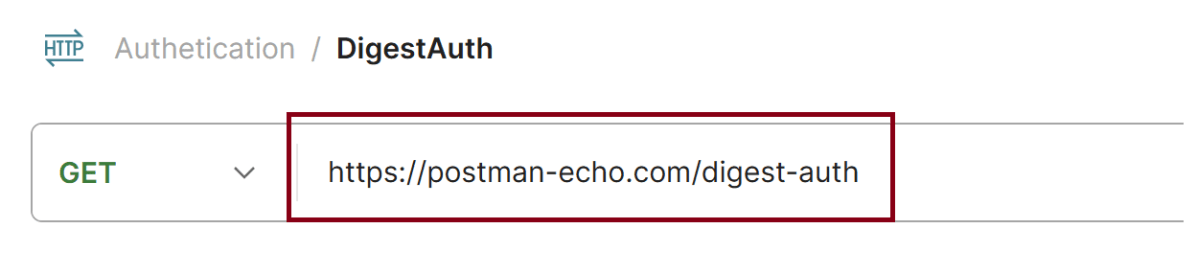
Step 6: Now, select the “GET” request from the list of request methods.

Step 7: Now, go to the “Authorization“ Tab.
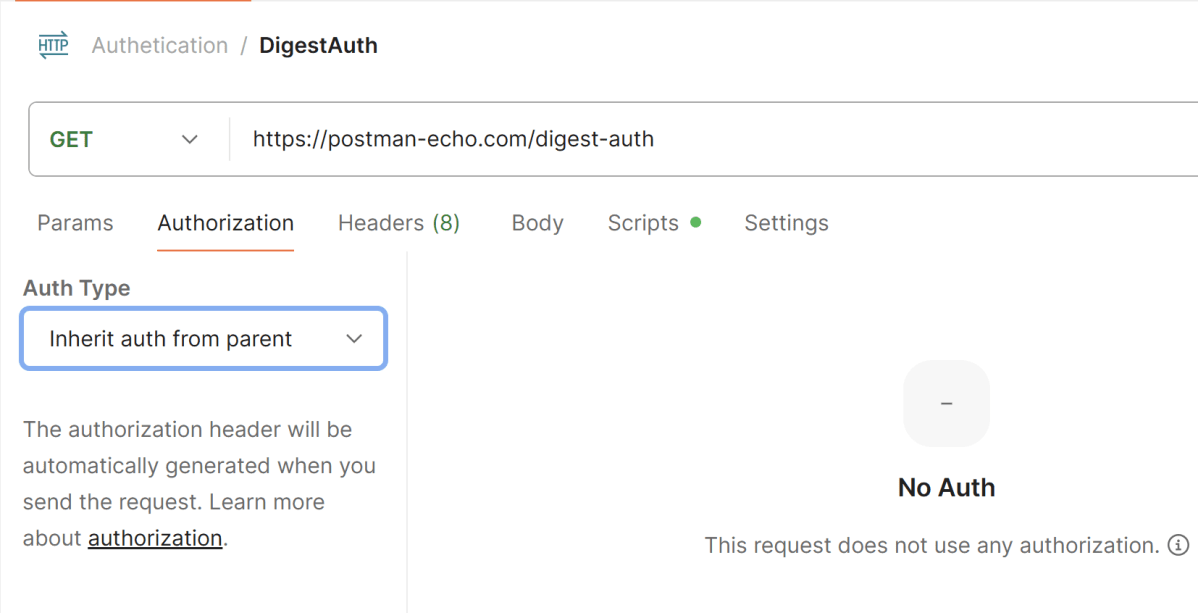
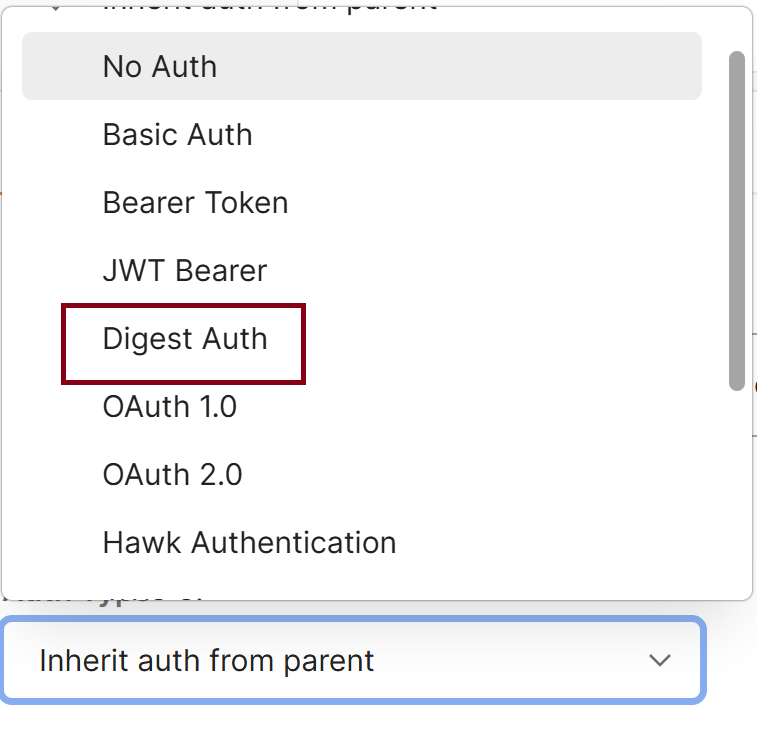
Step 8: We need to select “Digest Auth” from the Dropdown List.
Step 9: We need to enter the username and password. We have set username – postman, password – password. Now, click on the Send button in Postman. The server will respond with the protected resource response message.
4. Verify the Response
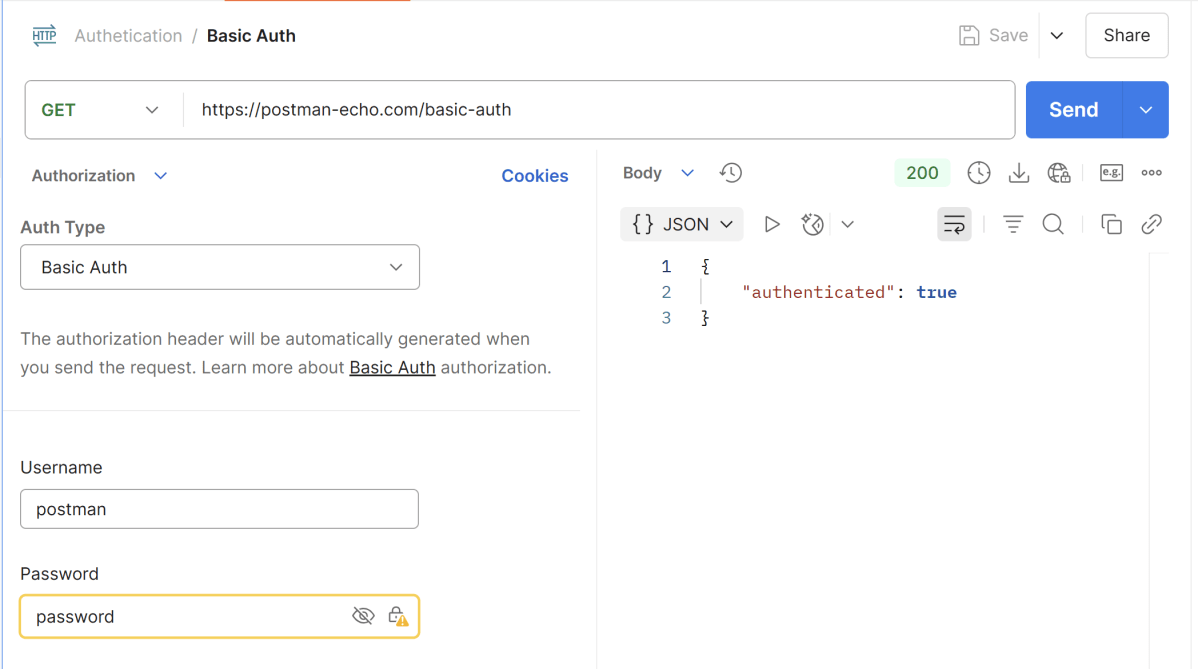
Step 10: Once you press the send button, you will get the response from the server. Make sure you have a proper internet connection; otherwise, you will not get a response.
4.1 Status
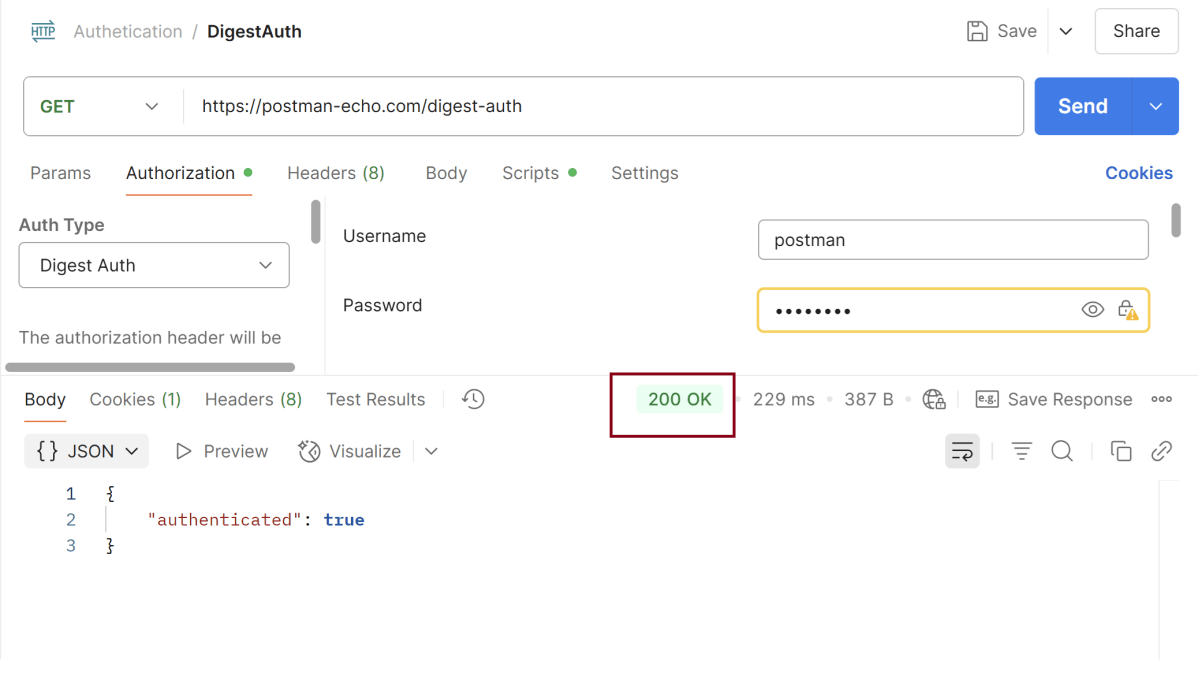
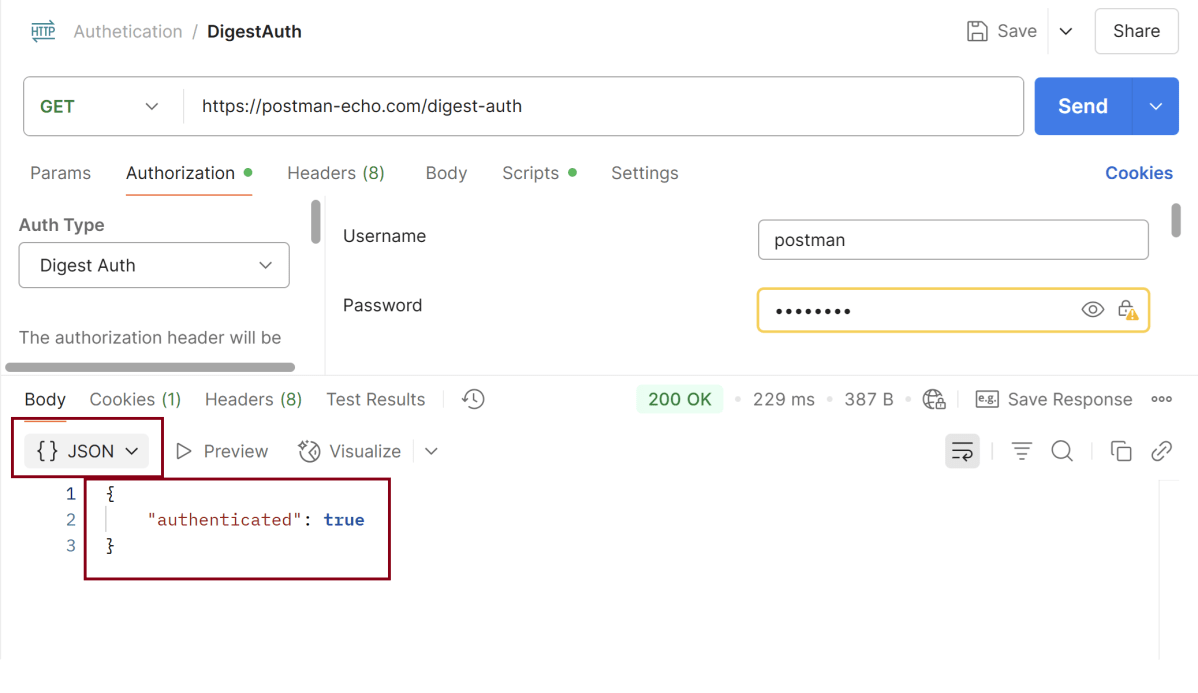
You can check the status code. Here, we got the status code 200, which means we got a successful response to the request.
4.2 Body
In the Body tab of the response box, we have multiple options to see the response in a different format.
4.3 Headers
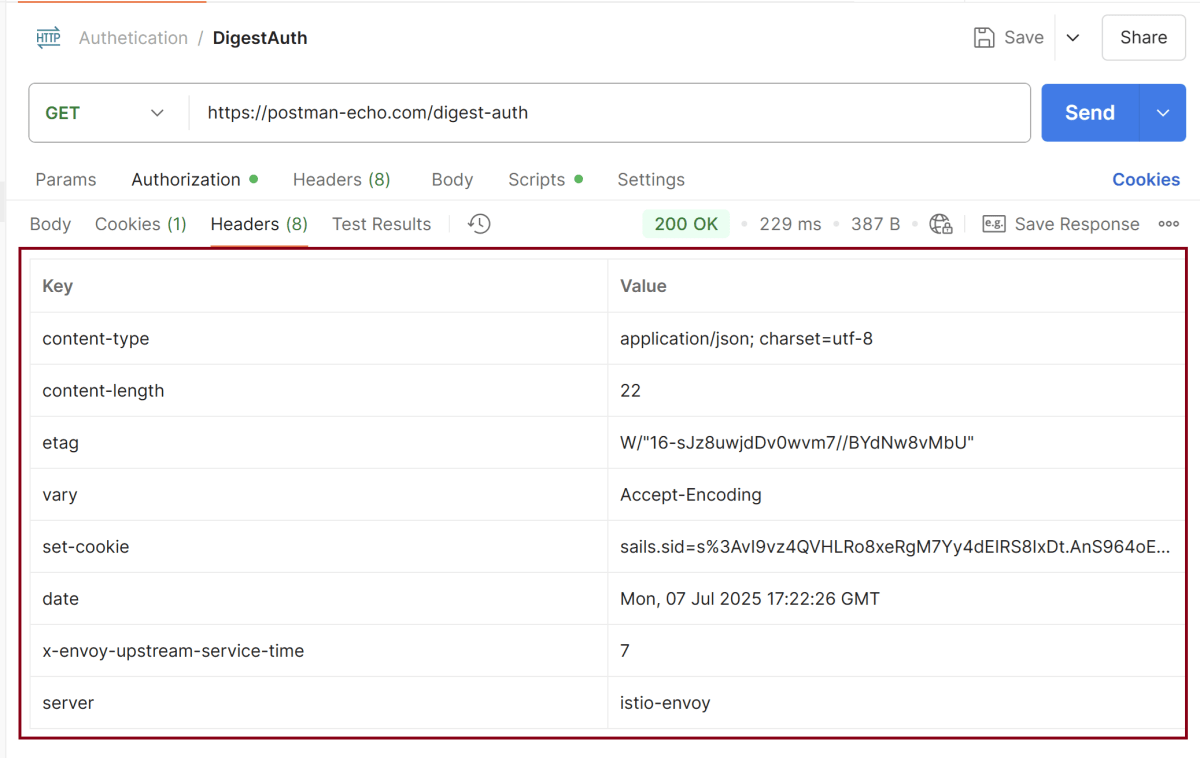
Headers are the extra information that is transferred to the server or the client. In Postman, headers will show like key-value pairs under the headers tab. Click on the Headers link as shown in the below image:
Important Notes
- Digest Auth is less common in modern APIs compared to OAuth2, API keys, or JWT.
- It still requires HTTPS to be fully secure, especially against man-in-the-middle (MITM) attacks.
- If the server does not support Digest, you’ll get a 401 or error even if credentials are correct.
We are done! Congratulations on making it through this tutorial and hope you found it useful! Happy Learning!!
 QA Automation Expert