Jenkins Multiple Choice Questions – MCQ2

HOME

Answer


Answer


Answer


Answer


Answer


Answer


Answer


Answer


Answer


Answer


Answer


Answer


Answer


Answer


Answer


Answer


Answer


Answer


Answer


Answer


Answer


Answer


Answer


Answer


Answer

====================================================================
Jenkins Multiple Choice Answers – MCQ1

HOME

Jenkins Multiple Choice Questions – MCQ1


Jenkins Multiple Choice Questions – MCQ1

HOME

Answer


Answer


Answer


Answer


Answer


Answer


Answer


Answer


Answer


Answer


Answer


Answer


Answer


Answer


Answer


Answer


Answer


Answer


Answer


Answer


Answer


Answer


Answer


Answer

====================================================================

DevOps Multiple Choice Answers – MCQ1

HOME

DevOps Multiple Choice Questions – MCQ1


DevOps Multiple Choice Questions – MCQ1

HOME

Answer


Answer


Answer


Answer


Answer


Answer


Answer


Answer


Answer


Answer


Answer


Answer


Answer


Answer


Answer


Answer


Answer


Answer


Answer


Answer


Answer


Answer


Answer


Answer


Answer

====================================================================

Multiple Choice Questions

HOME

  1. Programming Languages
    1. Java
  2. Test Automation Frameworks
    1. Selenium
    2. Advance Selenium
    3. Robot Framework
    4. JUnit4
    5. TestNG
  3. API Testing
    1. Rest API
    2. Pytest Framework
  4. DevOps & Continuous Integration/Continuous Deployment (CI/CD)
    1. DevOps
    2. Jenkins
  5. Version Control Systems
    1. Git
    2. GitHub
  6. Containerization
    1. Docker
  7. Database
    1. SQL
  8. Types of Testing
    1. Security Testing
    2. Performance Testing
    3. ETL Testing

Jenkins Multiple Choice Questions – MCQ1
Jenkins Multiple Choice Questions – MCQ2

GitHub Multiple Choice Questions – MCQ1

Docker – Basic Level – Multiple Choice Questions and Answers – MCQ1
Docker – Advance Level – Multiple Choice Questions and Answers – MCQ1

How to run PyTest Framework in GitHub Actions

Last Updated On

HOME

This tutorial explains the steps to create a GitHub Action for the PyTest Framework. It also guides you on how to execute the tests in that workflow.

Table of Contents

Why GitHub?

GitHub is a collaborative platform. It supports version control and code collaboration. Automated testing and issue tracking are also supported. These are crucial elements in the software testing process. It promotes transparency, collaboration, and efficiency in the development and testing workflows.

CI/CD pipelines have contributed to the success of the DevOps cycle in all software development projects. This is a holistic process that bridges development and operations. Continuous integration helps development teams deploy code efficiently, and continuous delivery automates code deployment.

Implementation Steps

Step 1 – Create GitHub Actions and Workflows

I have a repository available in GitHub – “PyTest_Framework” as shown in the below image. Go to the “Actions” tab.  Click on the “Actions” tab.

Step 2 – Select the type of Actions

You will see that GitHub recommends Actions depending on the project. In our case, it is recommending actions suitable for a Java project. I have selected the “Python application” option as my project is built in Maven.

Step 3 – Generation of Sample pipeline

If you choose an existing option, it will automatically generate a .yaml for the project as shown below.

We will replace the current workflow with the following yml file as shown below:

name: PyTest Framework - Python
on:
  push:
    branches: [ "main" ]
  pull_request:
    branches: [ "main" ]

permissions:
  contents: read

jobs:
  test:
    runs-on: ubuntu-latest

    steps:
      - uses: actions/checkout@v4
      - name: Set up Python 3.12.1
        uses: actions/setup-python@v4
        with:
          python-version: 3.12.1

      - name: Install dependencies
        run: |
          python -m pip install --upgrade pip
          pip install pytest
          pip install pytest-selenium
   
      - name: Test with PyTest
        run: pytest --html=tests/Reports/Report.html  

      - name: Test Report Generation
        uses: actions/upload-artifact@v4
        if: success() || failure()
        with:
          name: Pytest Report           # Name of the folder
          path: tests/Reports           # Path to test results

python -m pip install --upgrade pip

pip install pytest
pip install pytest-selenium

  - name: Test with PyTest
    run: pytest --html=tests/Reports/Report.html  

Step 4 – Commit the changes

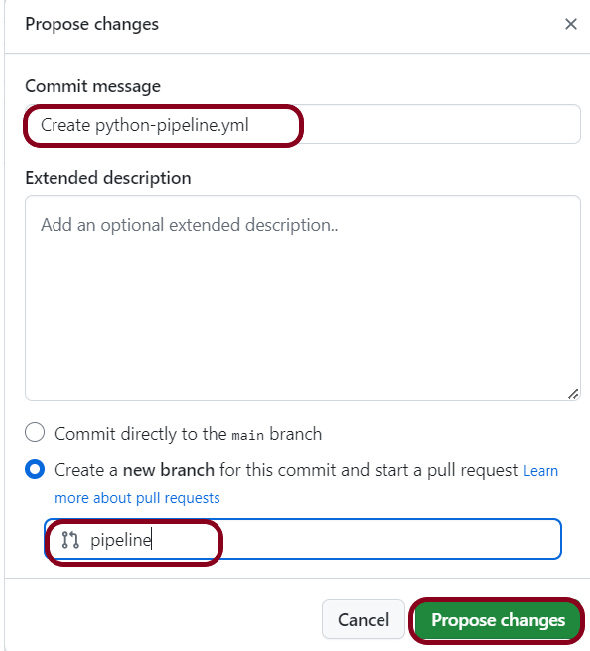
After the changes, hit the “Start Commit” button.

This will give the option to add a description for the commit. It will also enable the user to commit either to the main branch or commit to any other branch that exists in the project. My personal prefernece is to create a new branch like shown below and then commit the changes in that new branch.

Step 5 – Verify that the workflow is running

Next, head over to the “Actions” tab, and you will see your YAML workflow file present under the tab. The yellow sign represents that the job is in the queue.

In Progress – When the job starts building and running, you will see the status change from “Queued” to “In progress”.

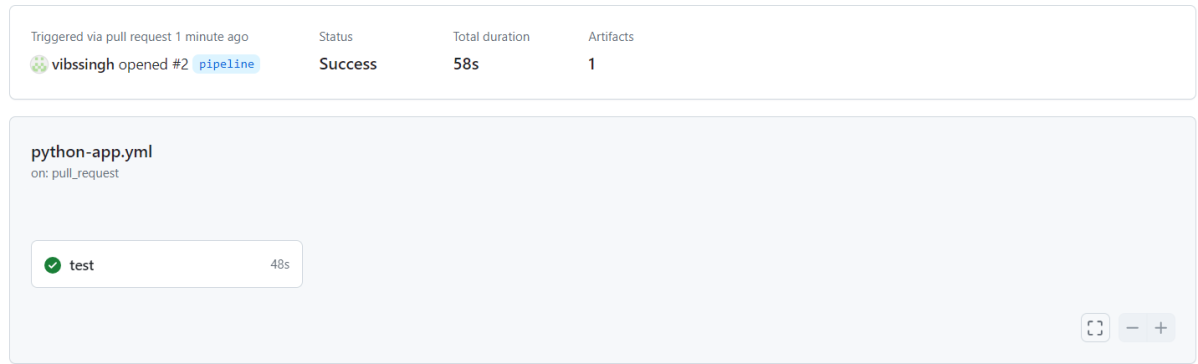
Passed – If the build is successful, you will see a green tick mark. 

Click on the workflow and the below screen is displayed. It shows the status of the run of the workflow, the total time taken to run the workflow, and the name of the .yml file.

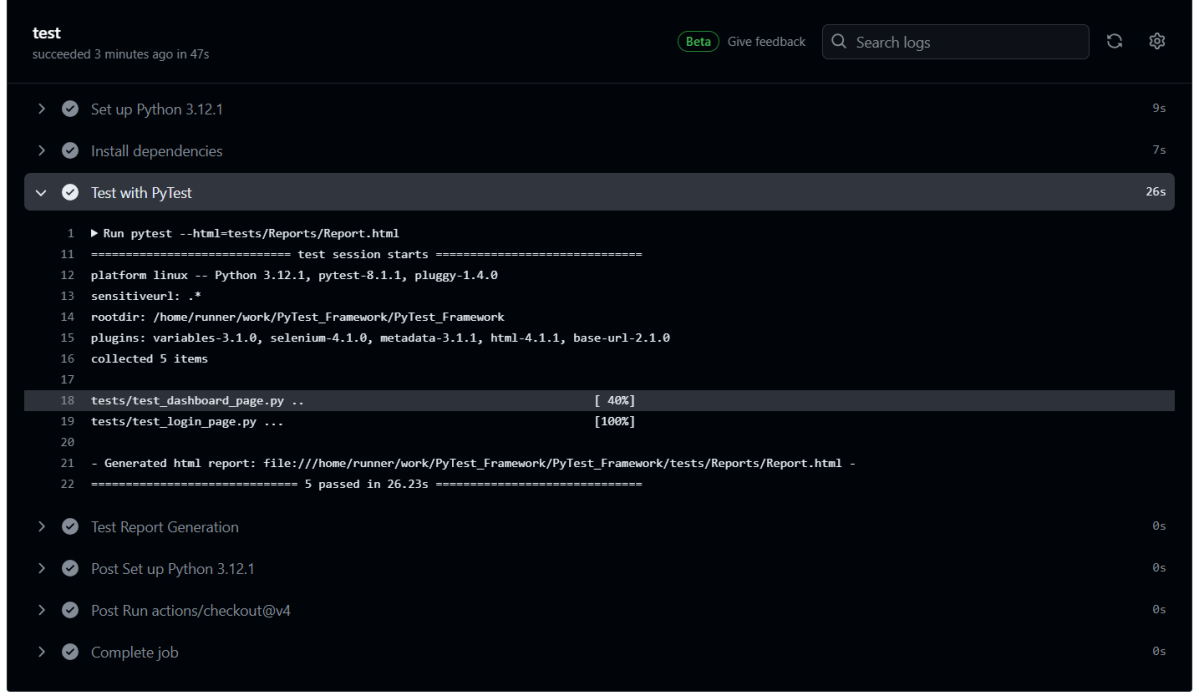
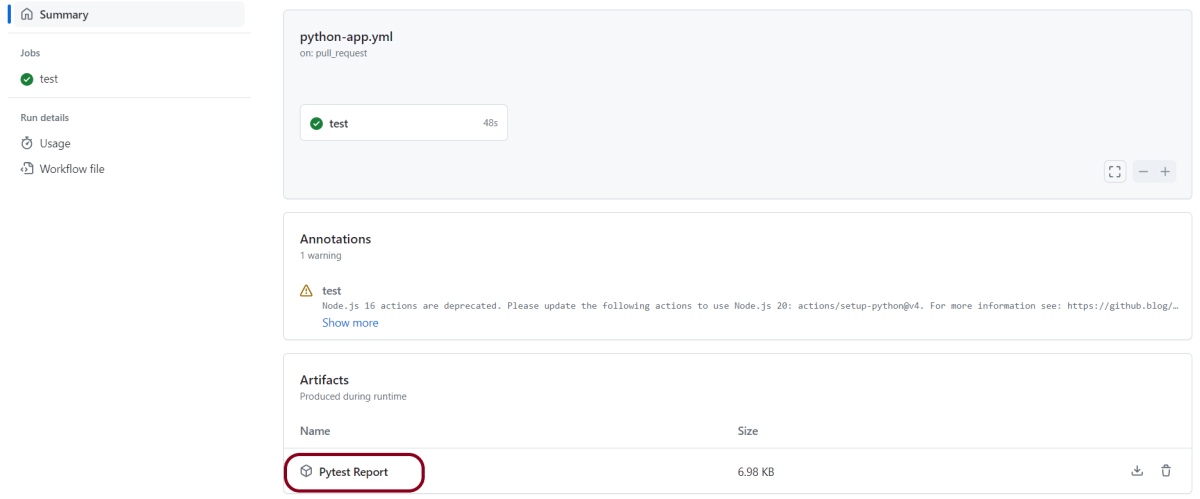
Below shows all the steps of the workflow.

The complete code can be found here on GitHub – vibssingh/PyTest_Framework.

Congratulations! We just created our CI workflow for running our Python Robot Framework.

How to run Python Rest API tests with GitHub Actions

Last Updated On

HOME

This tutorial explains the steps to create a GitHub Action for the Rest API tests built in Python and execute the tests in that workflow.

Table of Contents

Why GitHub?

Implementation Steps

Step 1 – Create GitHub Actions and Workflows

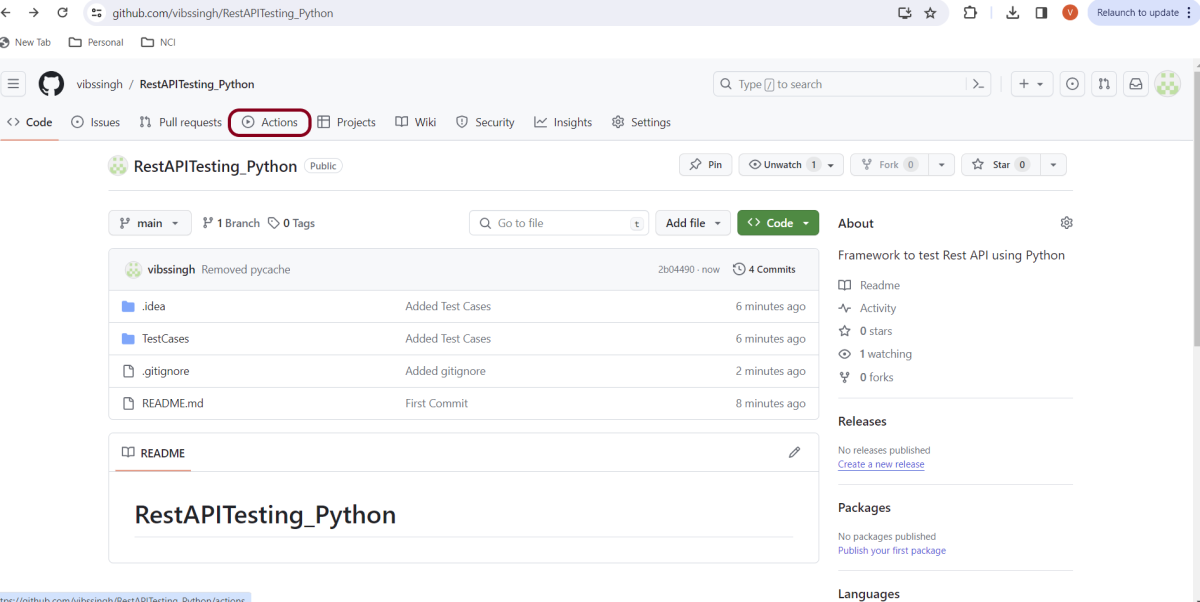
I have a repository available in GitHub – RestAPITesting_Python as shown in the below image. Go to the “Actions” tab.  Click on the “Actions” tab.

Step 2 – Select the type of Actions

You will see that GitHub recommends Actions depending on the project. In our case, it is recommending actions suitable for a Python project. I have selected the “Python application” option.

Step 3 – Generation of Sample pipeline

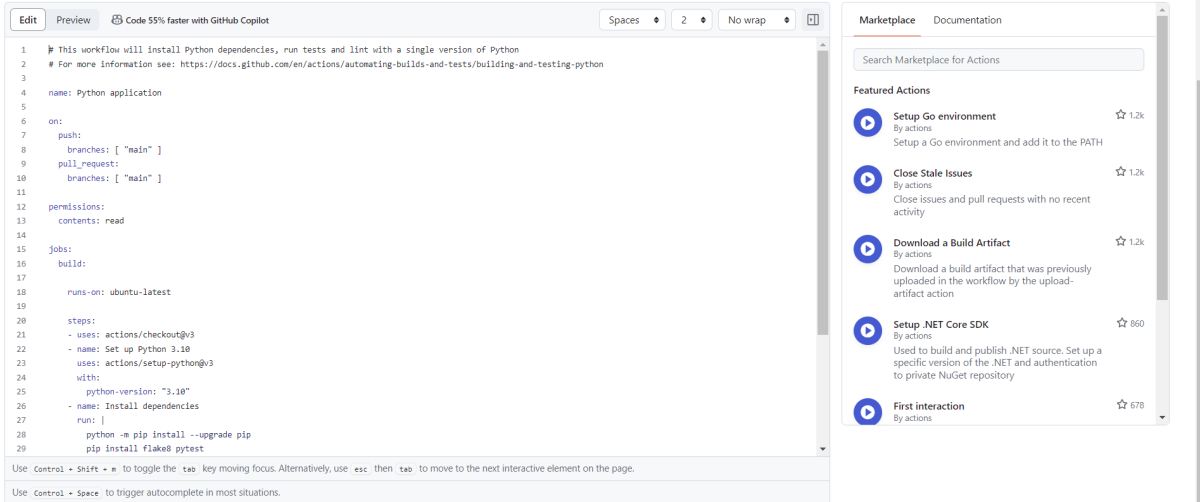
If you choose an existing option, it will automatically generate a .yaml for the project as shown below.

We will replace the current workflow with the following yml file as shown below:

# This workflow will install Python dependencies, run tests and lint with a single version of Python
# For more information see: https://docs.github.com/en/actions/automating-builds-and-tests/building-and-testing-python

name: Python application

on:
  push:
    branches: [ "main" ]
  pull_request:
    branches: [ "main" ]

permissions:
  contents: read

jobs:
  build:

    runs-on: ubuntu-latest

    steps:
    - uses: actions/checkout@v3
    - name: Set up Python 3.12.1
      uses: actions/setup-python@v3
      with:
        python-version: "3.12.1"
   
    - name: Install dependencies
      run: |
        python -m pip install --upgrade pip
        pip install pytest
        pip install requests
       
    - name: Test with pytest
      run: |
        cd TestCases
        pytest  --verbose --capture=no

Step 4 – Commit the changes

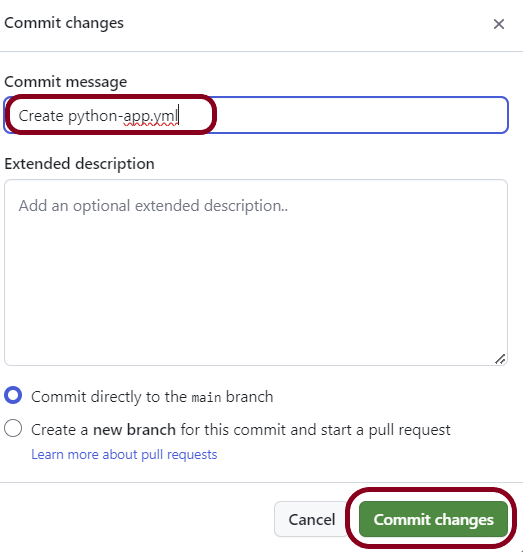
After the changes, hit the “Start Commit” button.

This will give the option to add a description for the commit. It will also enable the user to commit either to the main branch or commit to any other branch that exists in the project. Click on the “Commit new file” button to set up the workflow file.

Step 5 – Verify that the workflow is running

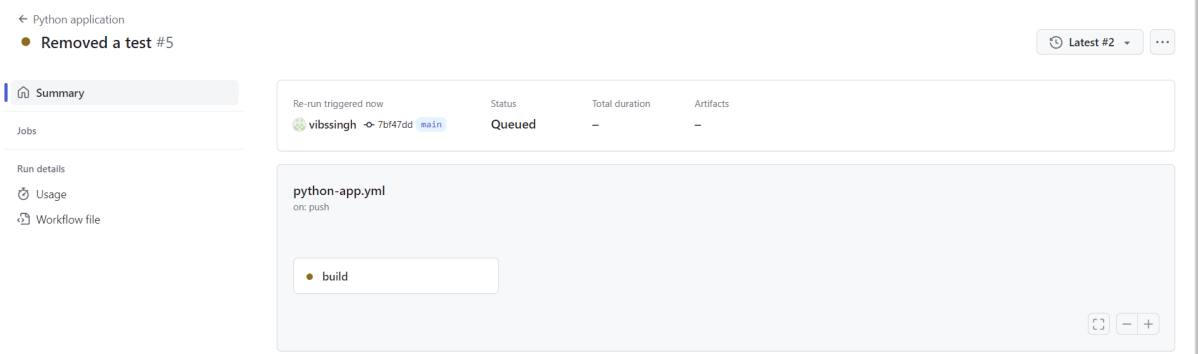
Next, head over to the “Actions” tab, and you will see your YAML workflow file present under the tab. The yellow sign represents that the job is in the queue.

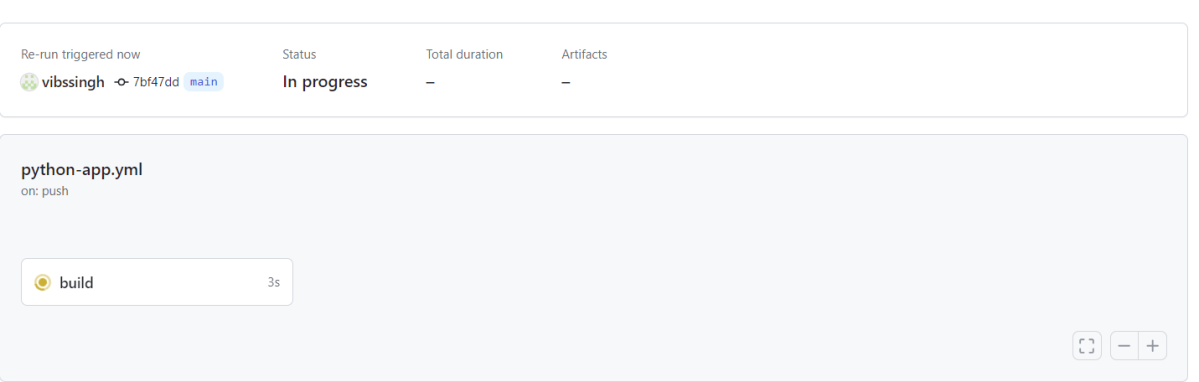
In Progress – When the job starts building and running, you will see the status change from “Queued” to “in progress”.

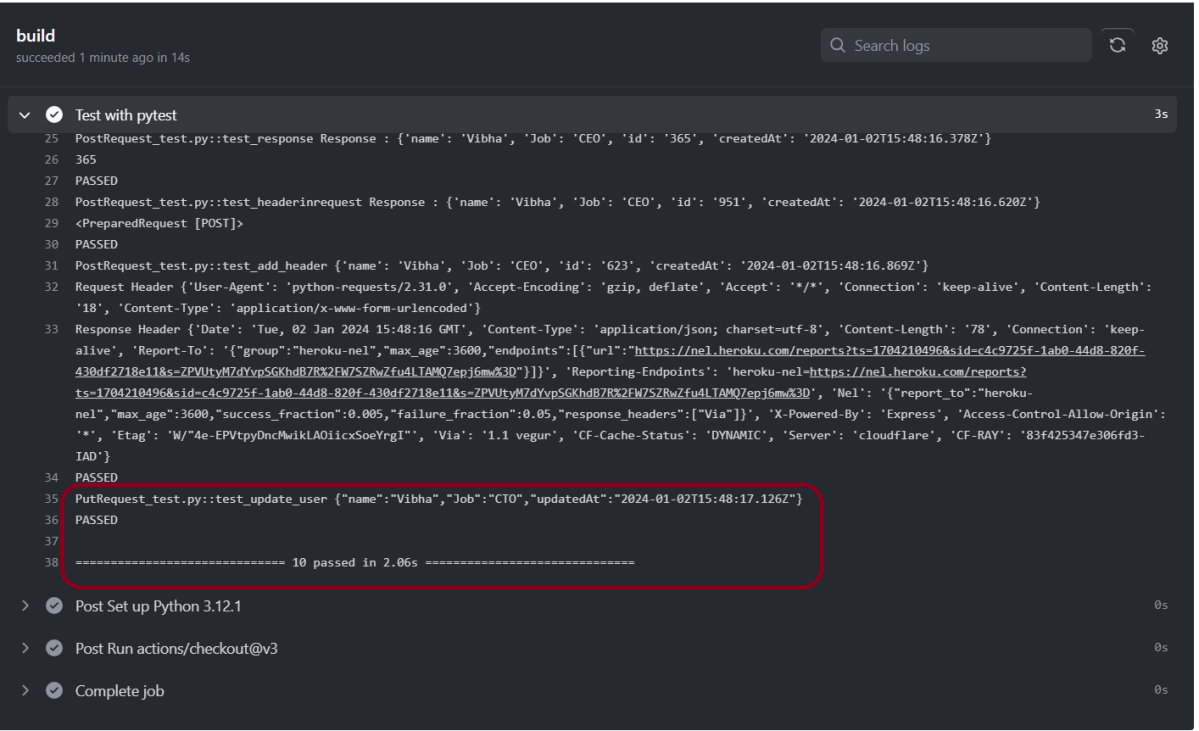
Passed – If the build is successful, you will see a green tick mark. 

Click on the workflow and the below screen is displayed. It shows the status of the run of the workflow, the total time taken to run the workflow, and the name of the .yml file.

Below shows all the steps of the workflow.

The complete code can be found here on GitHub – vibssingh/RestAPITesting_Python.

Congratulations! We just created our CI workflow for running our Rest API test cases for Python.

How to host Extent Report on GitHub Pages with Github Actions

Last Updated On

HOME

This tutorial explains the steps to host Extent Reports on GitHub Pages with GitHub Actions.

Table of Contents

What is GitHub Action?

Important points

1. The Web Application tests need to run in the headless mode in GitHub Workflow.

          ChromeOptions options = new ChromeOptions();
          options.addArguments("--no-sandbox");
          options.addArguments("--disable-dev-shm-usage");
          options.addArguments("--headless");
	      driver = new ChromeDriver(options);

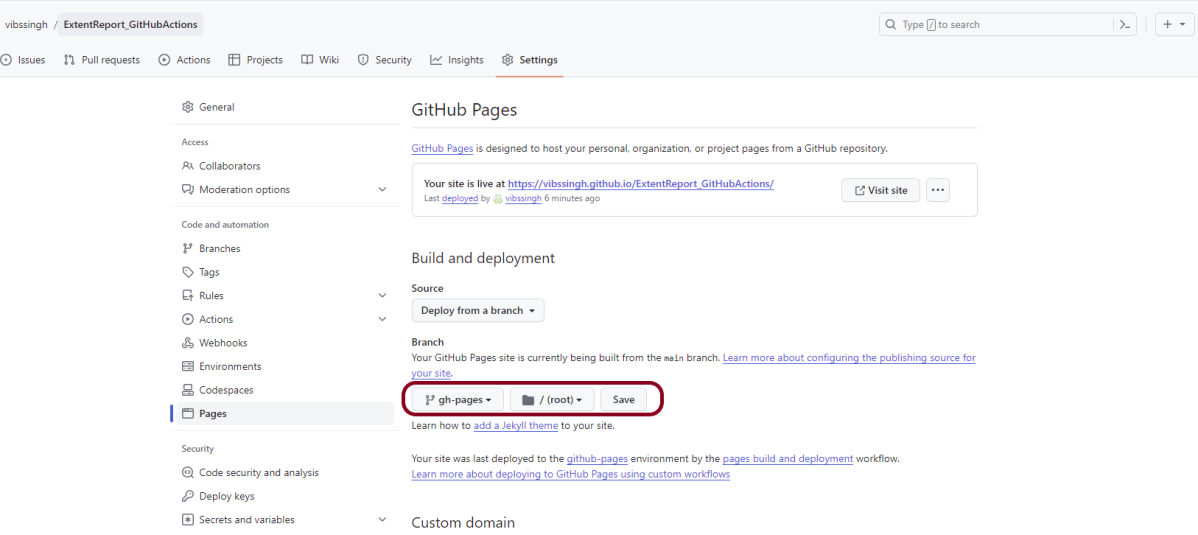
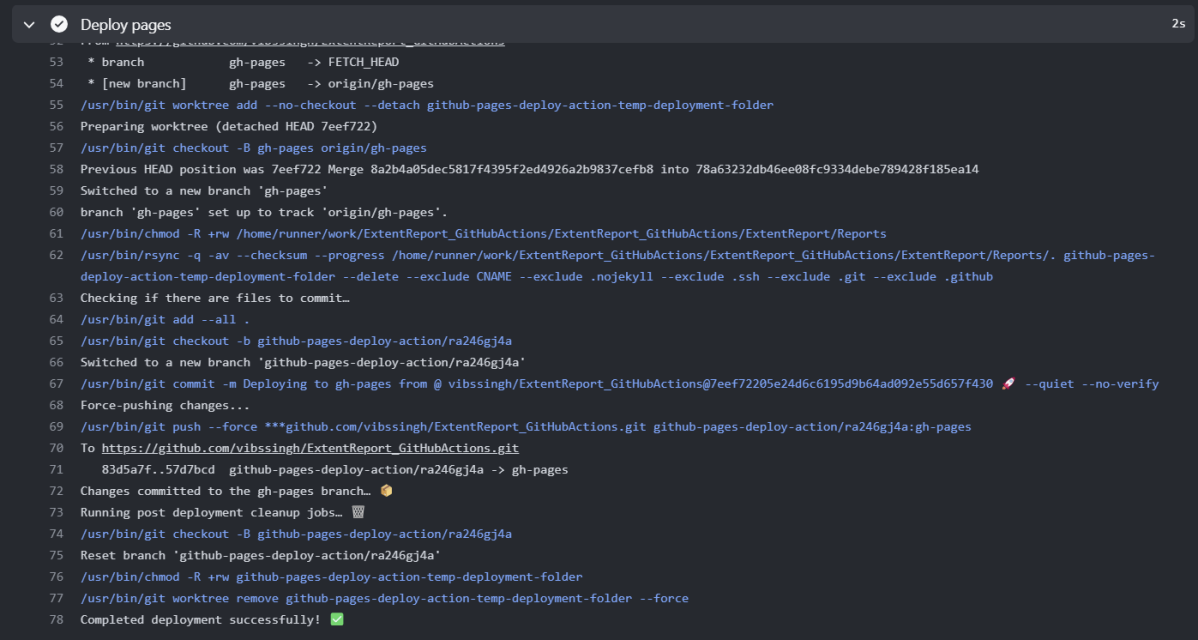
2. Use the below code to use gh-pages branch to host the Extent Report:

    - name: Deploy pages
      uses: JamesIves/github-pages-deploy-action@v4.5.0
      with:
        branch: gh-pages
        folder: ./ExtentReport/Reports

Implementation Steps

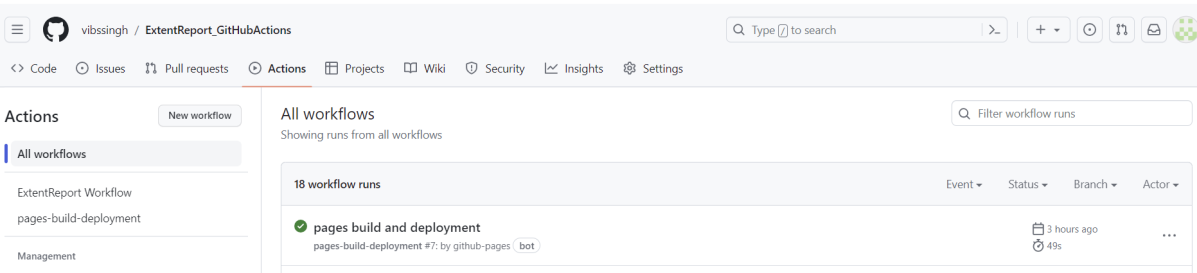
Step 1 – Create GitHub Actions and Workflows

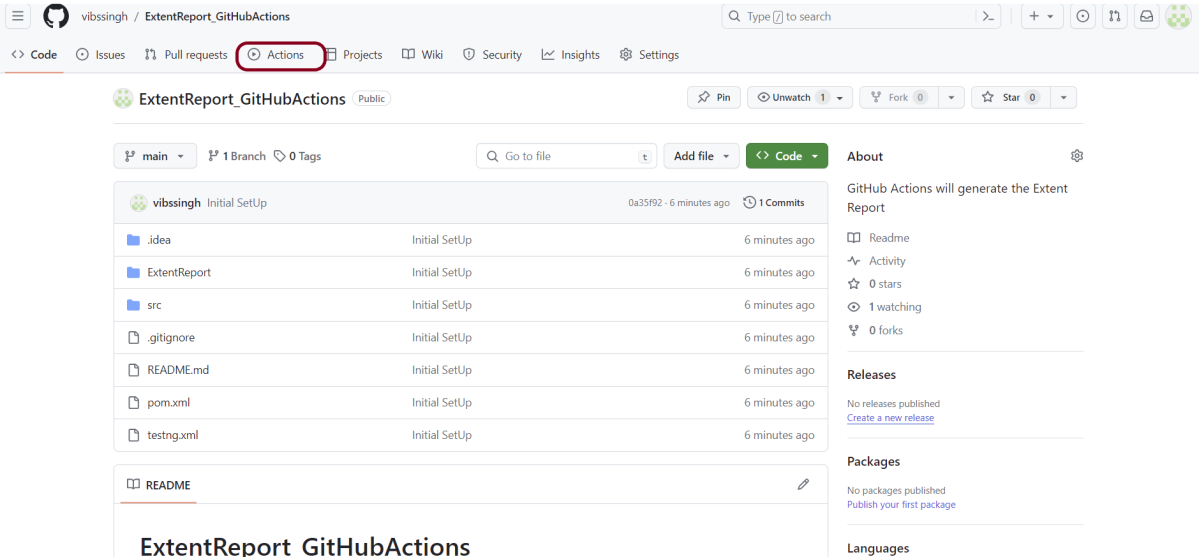
I have a repository available in GitHub – ExtentReport_GitHubActions as shown in the below image. Go to the “Actions” tab.  Click on the “Actions” tab.

Step 2 – Select the type of Actions

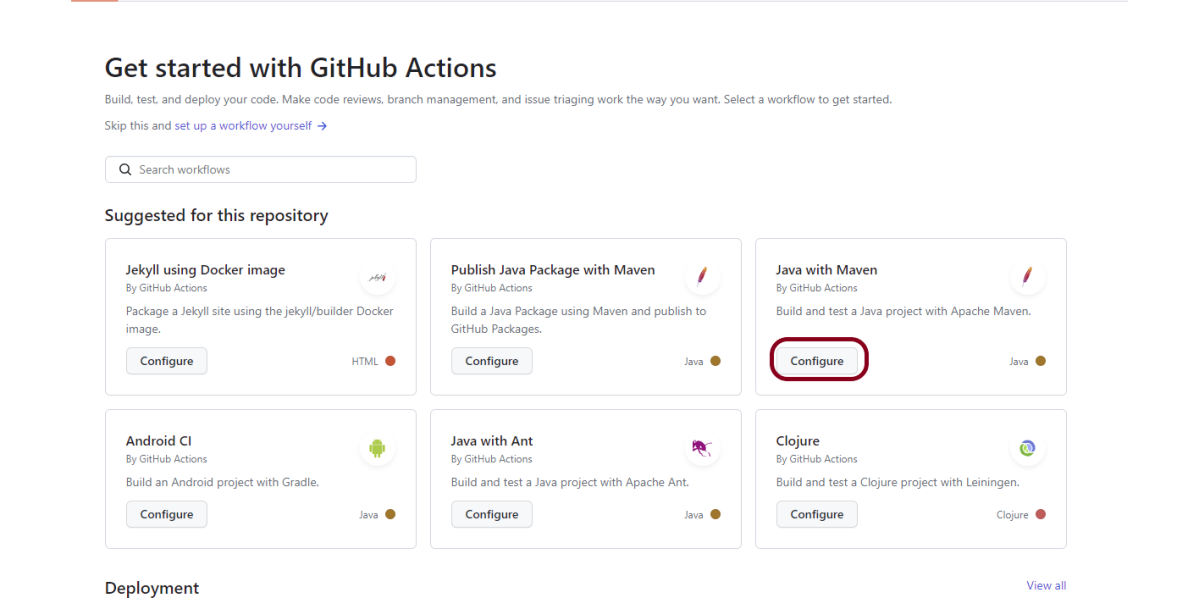
You will see that GitHub recommends Actions depending on the project. In our case, it is recommending actions suitable for a Java project. I have selected the “Java with Maven” option as my project is built in Maven.

Step 3 – Generation of Sample pipeline

If you choose an existing option, it will automatically generate a .yaml for the project as shown below.

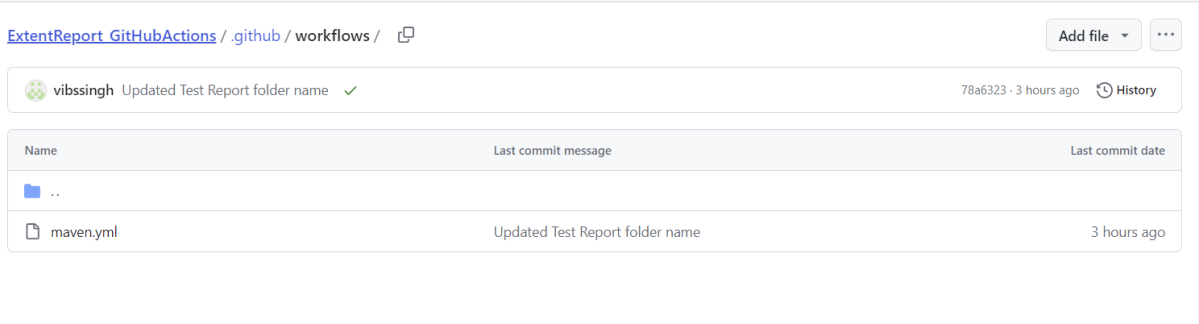
We will replace the current workflow with the following yml file that will generate the ExtentReport in the GitHub as shown below:

name: ExtentReport

on:
  push:
    branches: [ "main" ]
  pull_request:
    branches: [ "main" ]

jobs:
  build:

    runs-on: ubuntu-latest

    steps:
    - uses: actions/checkout@v3
    - name: Set up JDK 17
      uses: actions/setup-java@v3
      with:
        java-version: '17'
        distribution: 'temurin'
        cache: maven
    - name: Build with Maven
      run: mvn clean test

    - name: Deploy pages
      uses: JamesIves/github-pages-deploy-action@v4.5.0
      with:
        branch: gh-pages
        folder: ./ExtentReport/Reports

Step 4 – Commit the changes

After the changes, hit the “Start Commit” button.

This will give the option to add a description for the commit. It will also enable the user to commit either to the main branch or commit to any other branch that exists in the project. Click on the “Commit new file” button to set up the workflow file.

Step 5 – Verify that the workflow is running

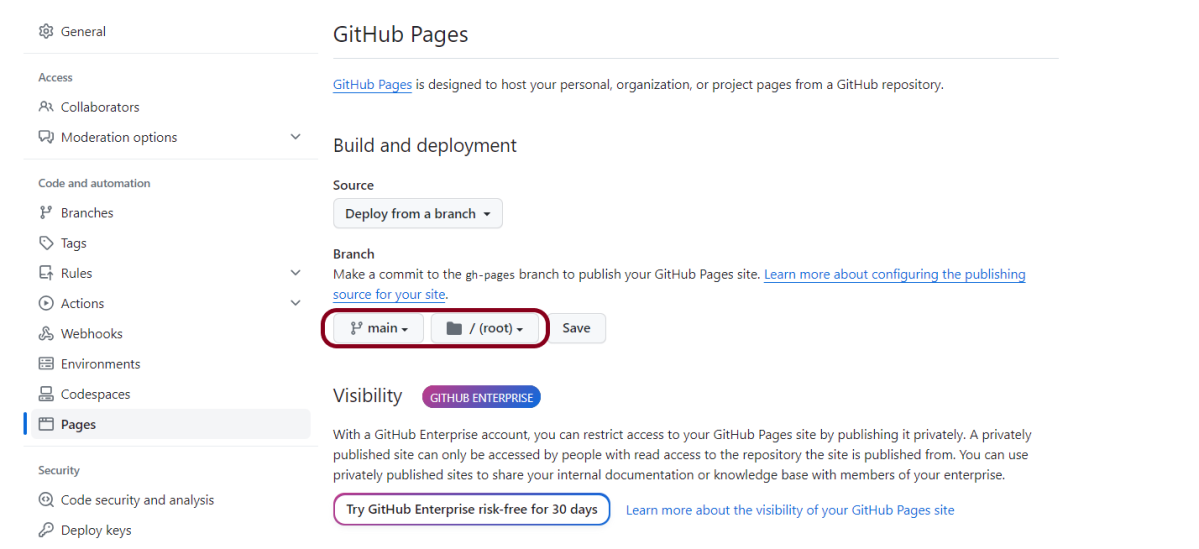
Next, head over to the “Actions” tab, and you will see your YAML workflow file present under the tab. The yellow sign represents that the job is in the queue. The pipeline will fail. It is because gh-pages is not configured yet now.

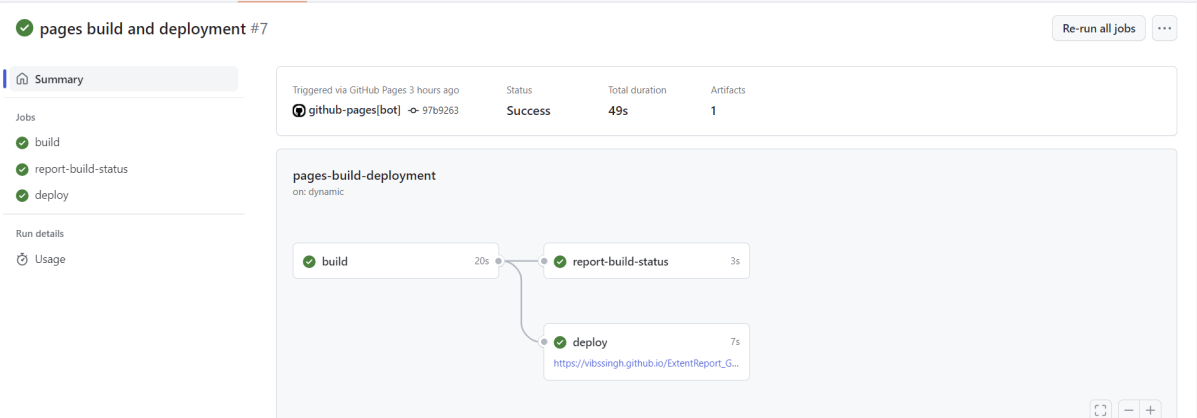
Click on the workflow and the below screen is displayed. It shows the status of the run of the workflow, the total time taken to run the workflow, and the name of the .yml file.

Below are all the steps of the workflow.

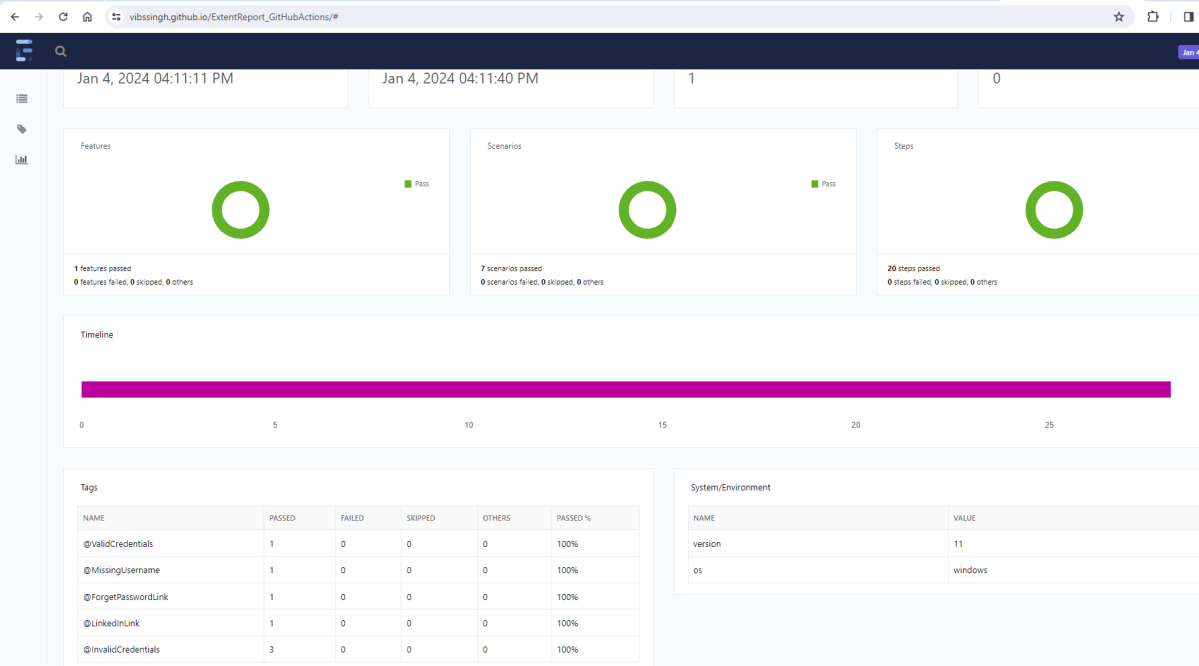
https://vibssingh.github.io/ExtentReport_GitHubActions/

The complete code can be found here on GitHub - vibssingh/ExtentReport_GitHubActions.

Congratulations! We just created our CI workflow for running the ExtentReport in GitHub.

How to run Robot Framework in GitHub Actions

Last Updated On

HOME

This tutorial explains the steps to create a GitHub Action for the Robot Framework in Python and execute the tests in that workflow.

Table of Contents

Why GitHub?

GitHub serves as a collaborative platform that supports version control, code collaboration, automated testing, and issue tracking, all of which are crucial elements in the software testing process. It promotes transparency, collaboration, and efficiency in the development and testing workflows.

CI/CD pipelines have contributed to the success of the DevOps cycle in all software development projects. This is a holistic process that bridges development and operations. Continuous integration helps development teams deploy code efficiently, and continuous delivery automates code deployment.

Implementation Steps

Step 1 – Create GitHub Actions and Workflows

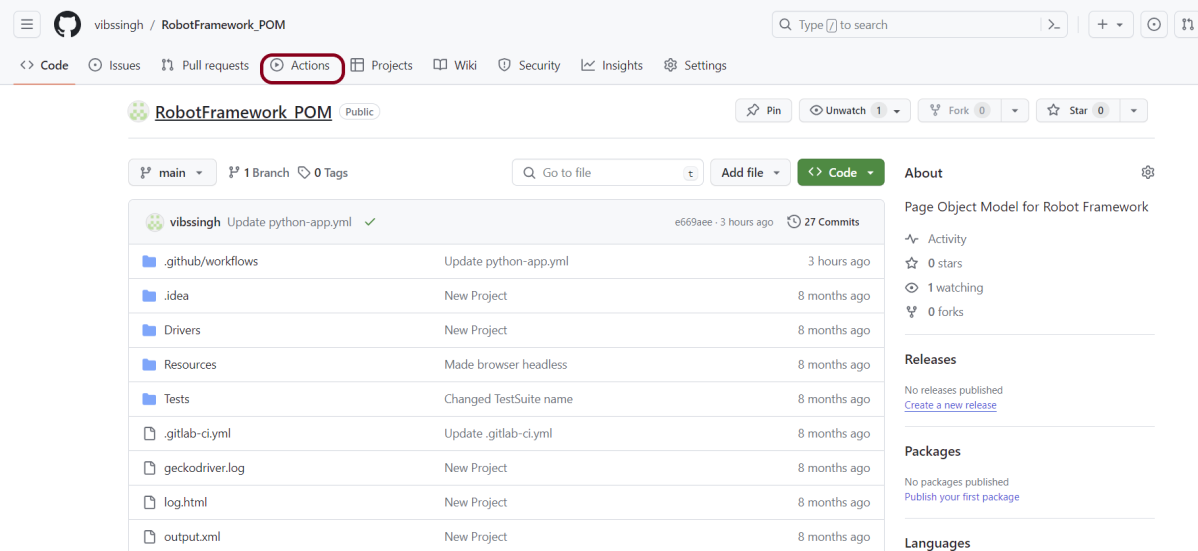
I have a repository available in GitHub – RobotFramework_POM as shown in the below image. Go to the “Actions” tab.  Click on the “Actions” tab.

Step 2 – Select the type of Actions

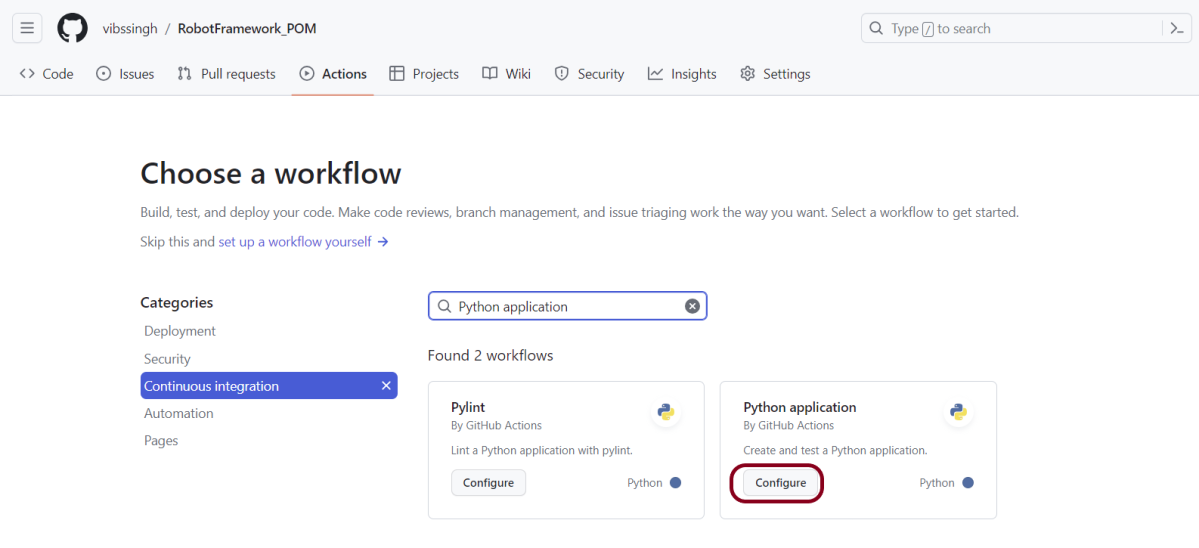
You will see that GitHub recommends Actions depending on the project. In our case, it is recommending actions suitable for a Java project. I have selected the “Python application” option as my project is built in Maven.

Step 3 – Generation of Sample pipeline

If you choose an existing option, it will automatically generate a .yaml for the project as shown below.

We will replace the current workflow with the following yml file as shown below:

name: Robot Framework - Python
on:
  push:
    branches: [ "main" ]
  pull_request:
    branches: [ "main" ]

permissions:
  contents: read

jobs:
  test:
    runs-on: ubuntu-latest
    
    steps:
      - uses: actions/checkout@v3
      - name: Set up Python 3.12.1
        uses: actions/setup-python@v3
        with:
          python-version: 3.12.1
  
      - name: Install dependencies
        run: |
          python -m pip install --upgrade pip
          pip install robotframework
          pip install robotframework-seleniumlibrary
  
      - name: Test with RobotFramework
        run: robot .  
        
      - name: Test Report Generation
        uses: actions/upload-artifact@v4
        if: success() || failure()
        with:
          name: Report                # Name of the folder
          path: report.html           # Path to test results

python -m pip install --upgrade pip

pip install robotframework
pip install robotframework-seleniumlibrary

Step 4 – Commit the changes

After the changes, hit the “Start Commit” button.

This will give the option to add a description for the commit. It will also enable the user to commit either to the main branch or commit to any other branch that exists in the project. Click on the “Commit new file” button to set up the workflow file.

Step 5 – Verify that the workflow is running

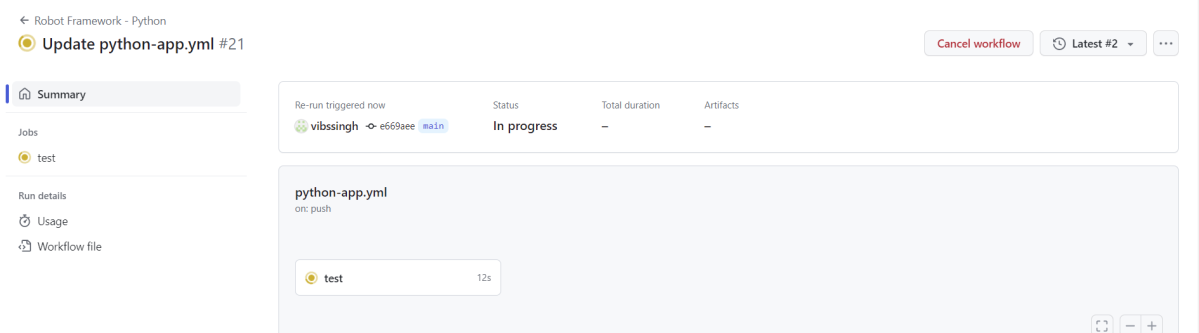
Next, head over to the “Actions” tab, and you will see your YAML workflow file present under the tab. The yellow sign represents that the job is in the queue.

In Progress – When the job starts building and running, you will see the status change from “Queued” to “In progress”.

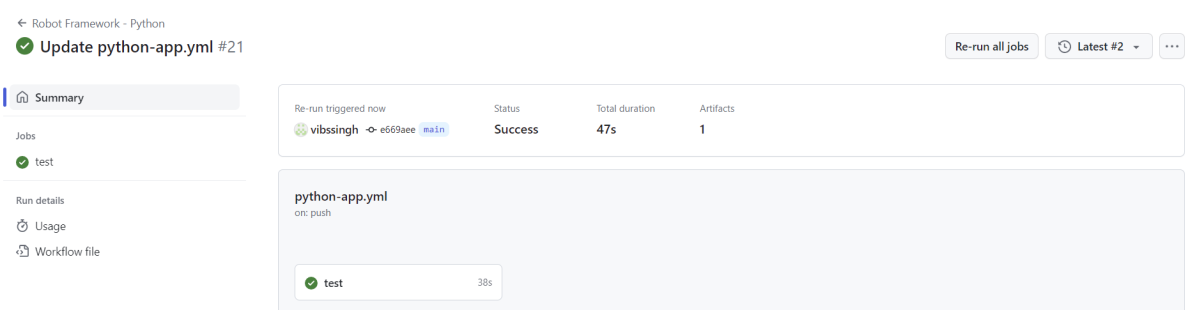
Passed – If the build is successful, you will see a green tick mark. 

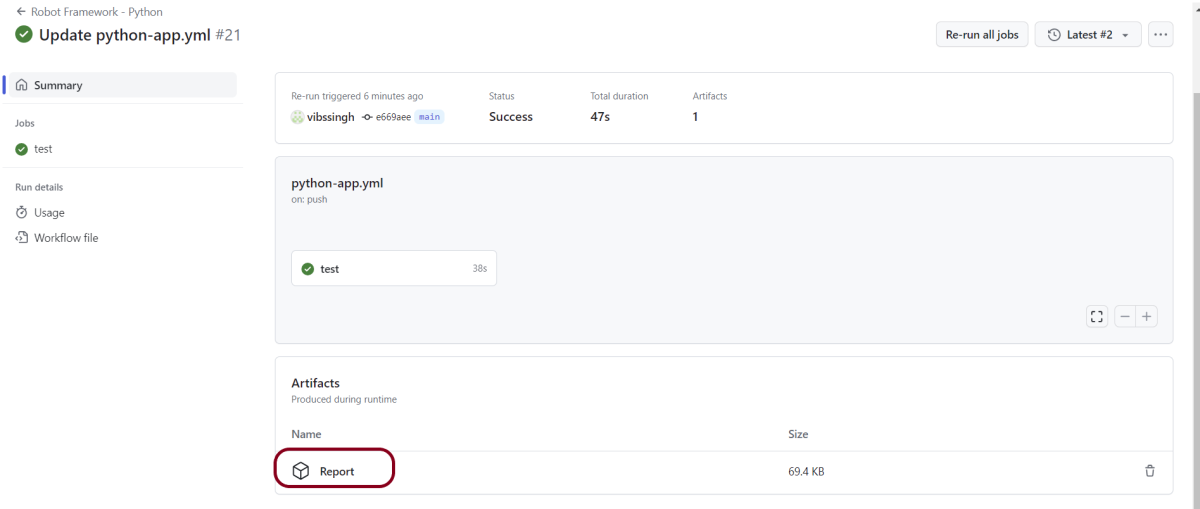
Click on the workflow and the below screen is displayed. It shows the status of the run of the workflow, the total time taken to run the workflow, and the name of the .yml file.

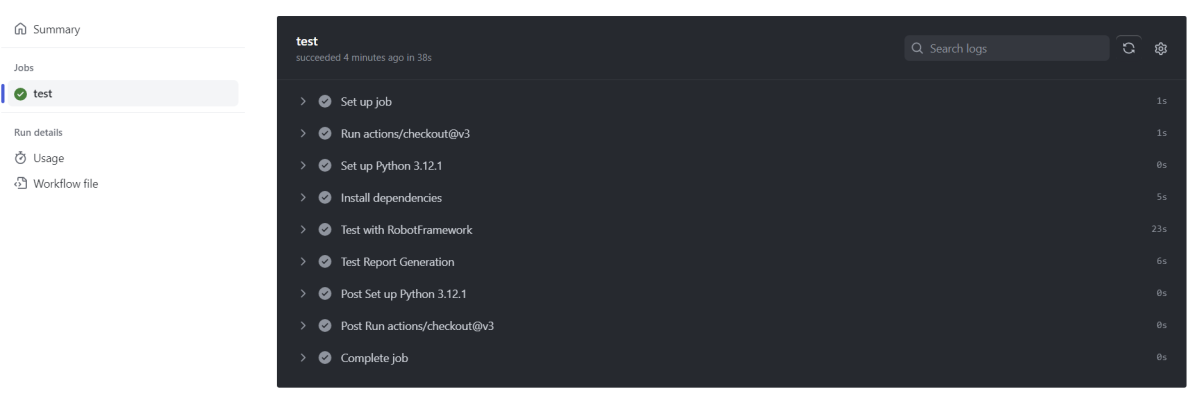
Below shows all the steps of the workflow.

The complete code can be found here on GitHub – vibssingh/RobotFramework_POM.

Congratulations! We just created our CI workflow for running our Python Robot Framework.