ChainTest Reports can be run on docker (dynamic report).
What is ChainLP?
ChainLP (Chain-Long-Playing like LP Record) is a Java (Spring) server which packs the Angular frontend and is distributed as a Docker image. ChainLP is the framework component providing historical analytics.
The recommended way to run ChainLP is with docker-compose. Currently, the supported databases are listed below but most RDBMS database should work.
- H2
- MySQL
- PostgreSQL
For each database, there is a separate docker-compose.yml available at chainlp/docker. H2 provides the most straight-forward way to test, but it is NOT recommended for production use.
Docker image is available from https://hub.docker.com/r/anshooarora/chaintest.
We need to have Desktop Docker up and running. To know how to install the Desktop Docker, please refer to this tutorial – How to install Desktop Docker on Windows 11
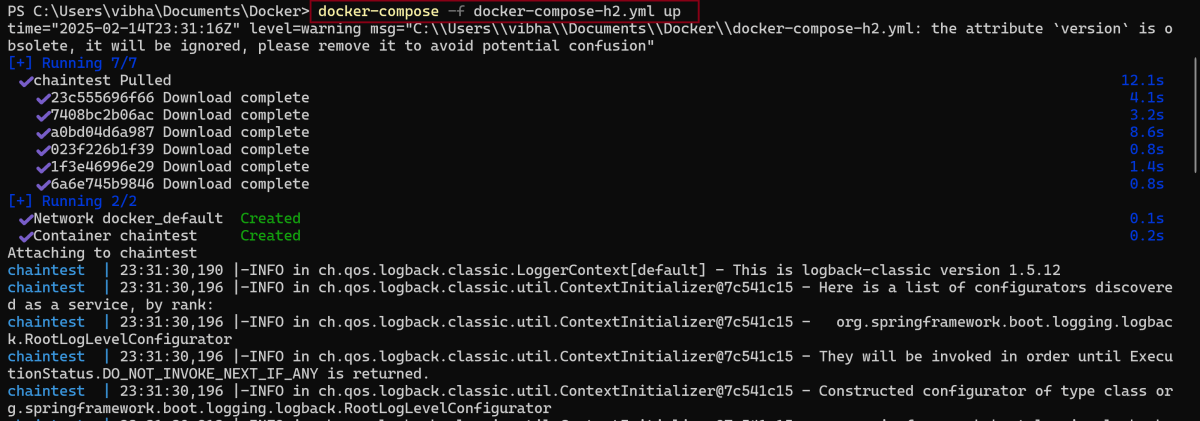
Go the location where these docker images are placed and run the below command. In this example, we are running h2 docker image.
docker-compose -f docker-compose-h2.yml up
The output of the above execution is
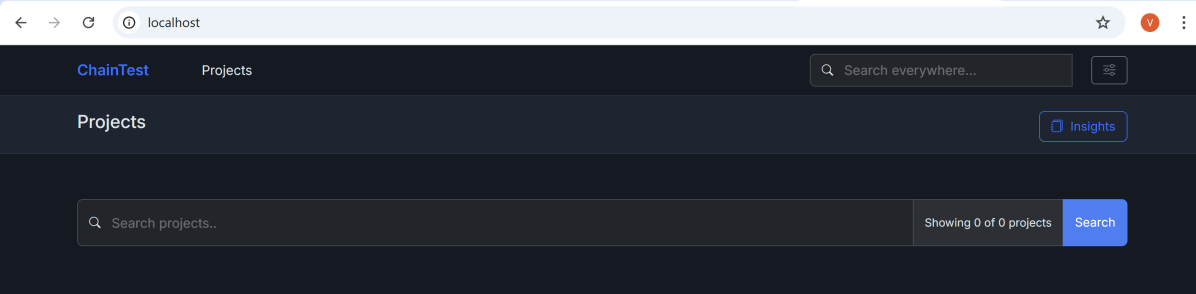
Go to the http:localhost:80 and we will see an empty ChainTest Report.
Run the project contains the ChainTest report configuration. Refer this tutorial to get the ChainTest Report configuration – ChainTest Report with Cucumber and TestNG.
Add the following properties to chaintest.properties file in src/test/resources
# chaintest configuration
chaintest.project.name= ChaninTest Report with Cucumber and TestNG

# generators:
## chainlp
chaintest.generator.chainlp.enabled=true
chaintest.generator.chainlp.class-name=com.aventstack.chaintest.generator.ChainLPGenerator
chaintest.generator.chainlp.host.url=http://localhost/
chaintest.generator.chainlp.client.request-timeout-s=30
chaintest.generator.chainlp.client.expect-continue=false
chaintest.generator.chainlp.client.max-retries=3
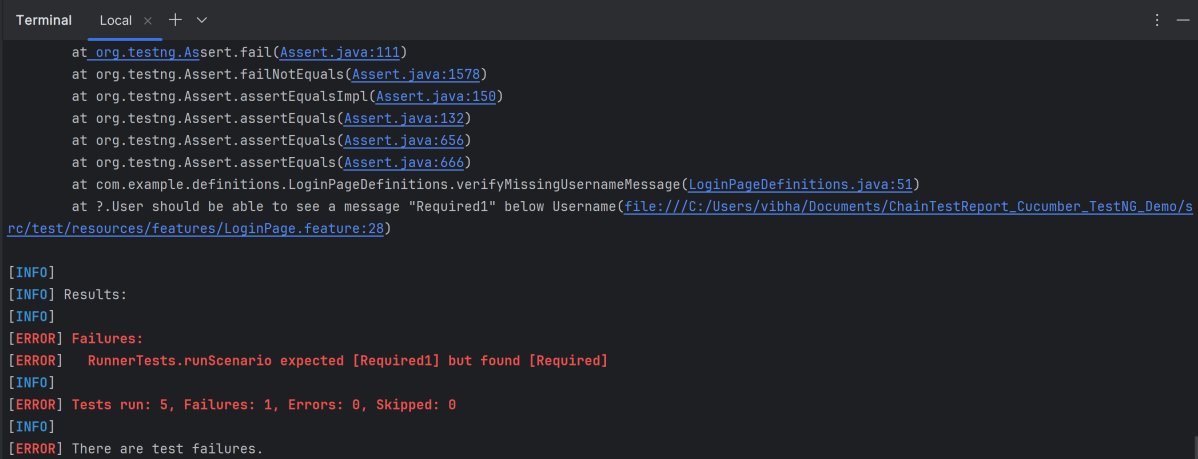
Run the test either through command line or through Test Runner class.
Run the tests through command line
To run the tests, use the below command
mvn clean test
Updation of ChainTest Report
ChainTest Report is updated with the current test run as shown below:
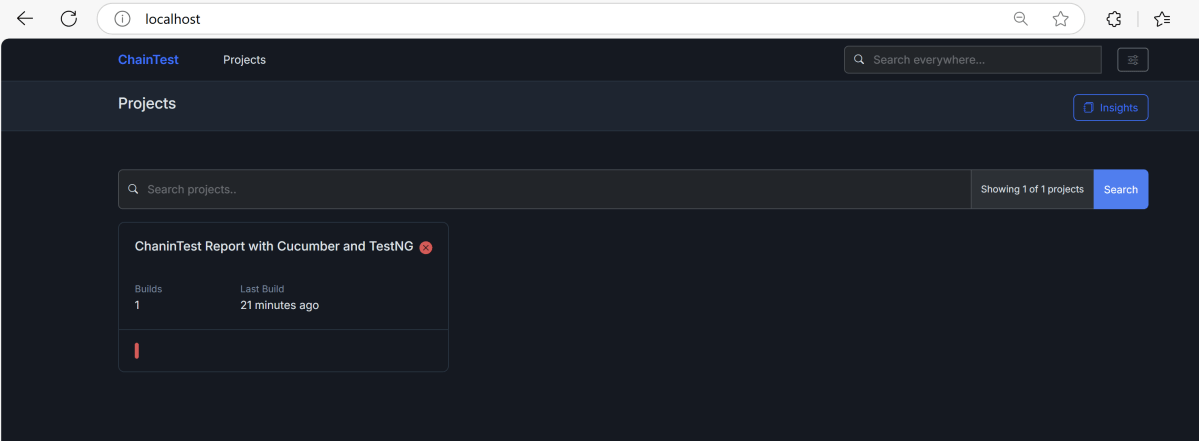
Click on the project and it will show the complete test execution report.
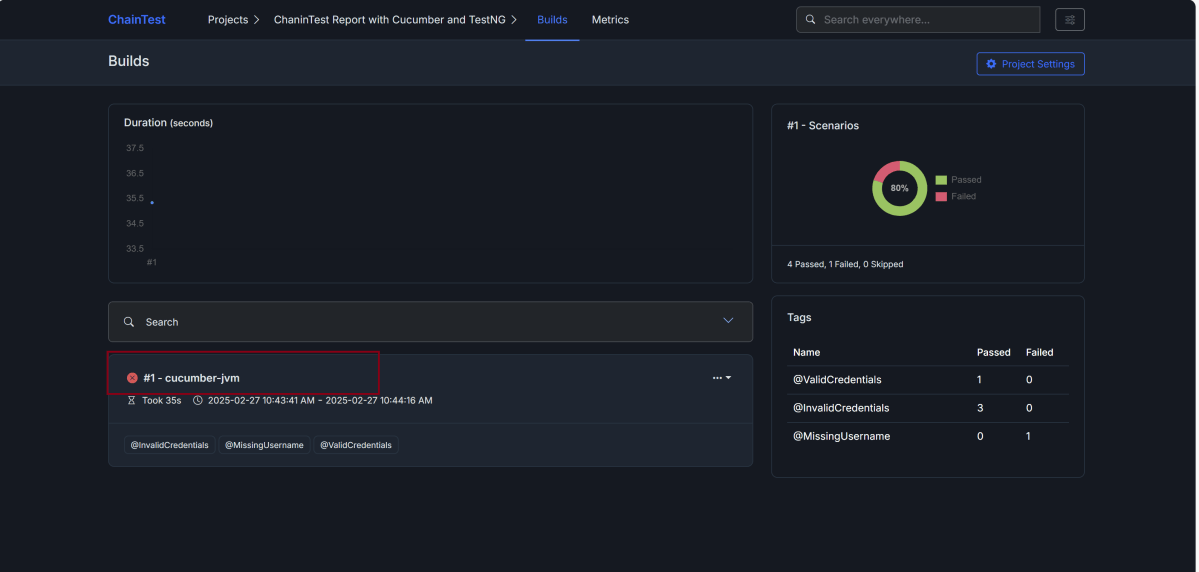
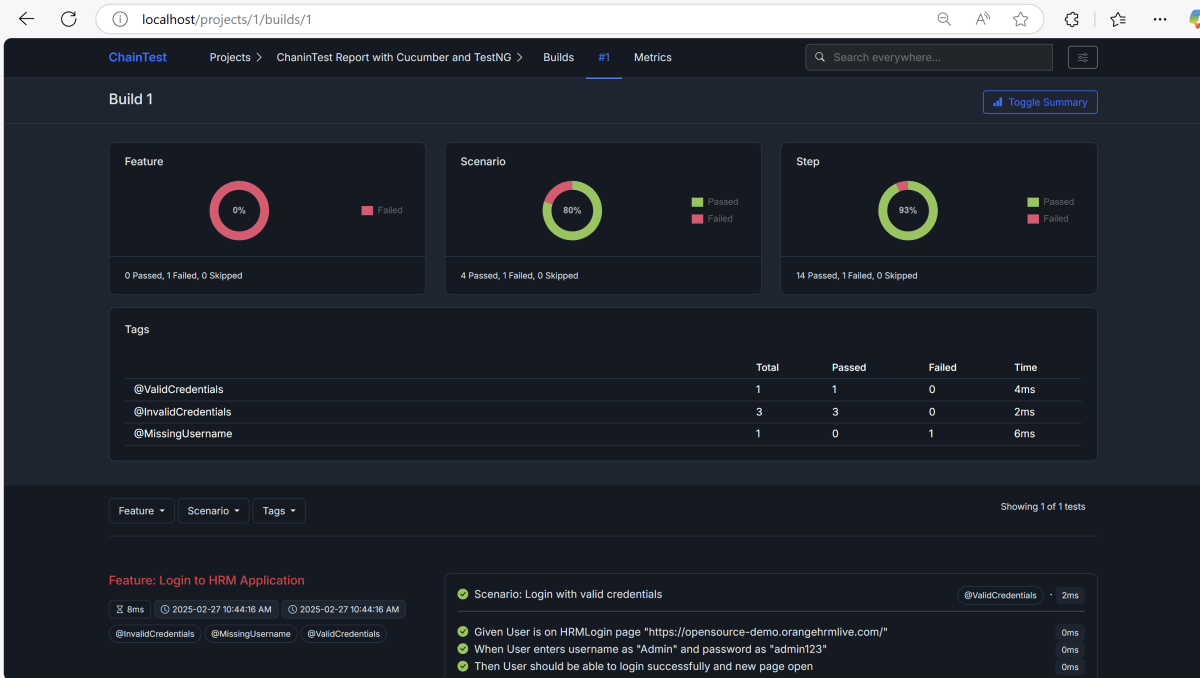
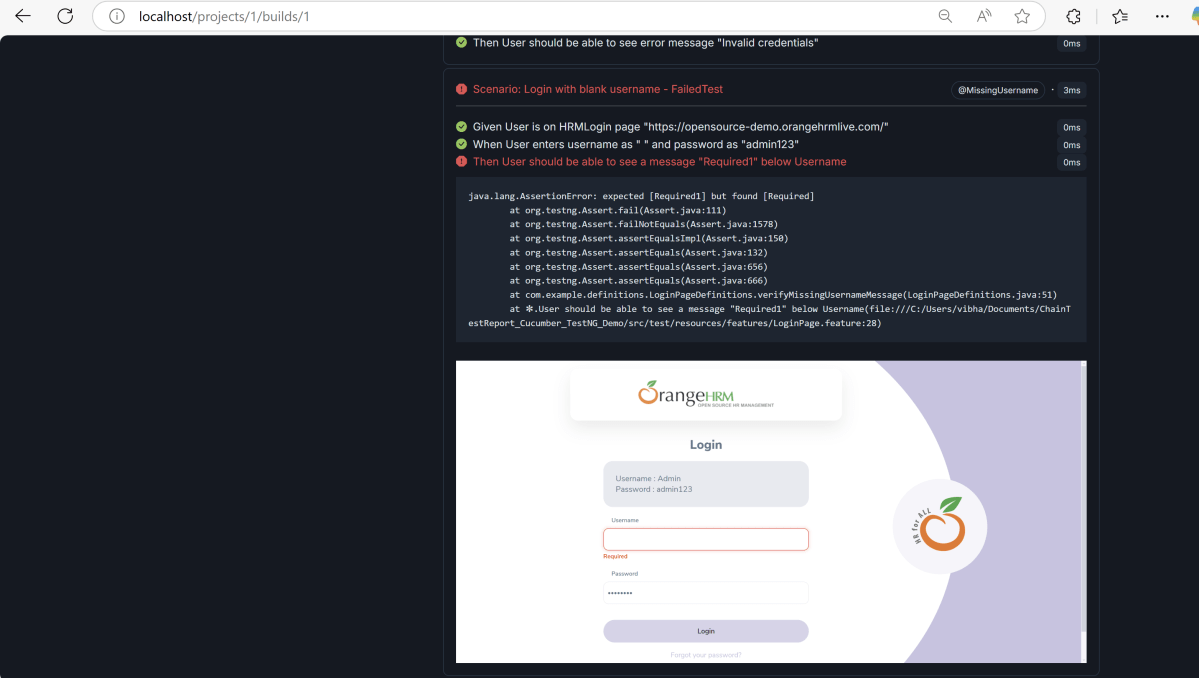
Click on cucumber-jvm option. It will show the detailed execution report. This report includes a pie chart for the feature, Scenario and Steps. Here, we have executed 1 feature file and 1 scenario. The Feature file has failed. So, the Feature pie chart shows 100% failed. There are 5 scenarios. Out of 5, 4 tests are passed. 1 test failed. Therefore, the Scenario pie chart shows 80% passed. This report also shows error message for the failed test.
We see that one of the tests has failed. The screenshot of the failed test is also attached in the report.
We are done! Congratulations on making it through this tutorial and hope you found it useful! Happy Learning!!

 QA Automation Expert