Last Updated On
In the web development, user experience plays a crucial part. Testers should ensure that style guides are followed across different pages. They should also be applied consistently to components. Verifying that the colors on a web page match design specifications helps maintain brand consistency. It ensures that the user interface looks as intended. There are chances that colors render differently across browsers and devices. Testing across different environments ensures that no matter where the website is accessed, the experience remains consistent.
To find the text color and background color of a web element in Selenium (Java), use the “getCssValue” method. Use “color” for the text color. Use “background-color” for the background color. You can convert the result to HEX using
org.openqa.selenium.support.Color.
Find Text color
In the below example, we want to find the text color of the highlighted text.

Below is the Selenium program that find the text color and match it with the expected color.
import org.openqa.selenium.By;
import org.openqa.selenium.WebDriver;
import org.openqa.selenium.WebElement;
import org.openqa.selenium.chrome.ChromeDriver;
import org.openqa.selenium.chrome.ChromeOptions;
import org.openqa.selenium.support.Color;
import java.io.IOException;
import java.time.Duration;

public class Color_Example {

    public static void main(String args[]) throws IOException {

        String expectedColor = "#ffffff"; // White color in HEX

        ChromeOptions chromeOptions = new ChromeOptions();
        WebDriver driver = new ChromeDriver(chromeOptions);
        driver.manage().timeouts().implicitlyWait(Duration.ofSeconds(10));
        driver.manage().window().maximize();

        try {
            // Navigate to Url
            driver.get("https://www.selenium.dev/");

            WebElement element = driver.findElement(By.id("dev-partners"));

            // Retrieve the font color CSS property as RGBA
            String rgbaColor = element.getCssValue("color");
            System.out.println("rgbaColor : " + rgbaColor);

            // Convert the RGBA color to hex using the Color class
            String hexColor = Color.fromString(rgbaColor).asHex();
            System.out.println("hexColor : " + hexColor);

            // Convert the RGBA color to RGB using the Color class
            String rgbColor = Color.fromString(rgbaColor).asRgb();
            System.out.println("rgbColor : " + rgbColor);

            // Verify the color (example: verifying against expected #ffffff color)
            if (hexColor.equals(expectedColor)) {
                System.out.println("Hex color is as expected.");
            } else {
                System.out.println("Hex color is not as expected. Found: " + hexColor);
            }

        } finally {
            // Close the browser
            driver.quit();
        }
    }
}
The output of the above program is
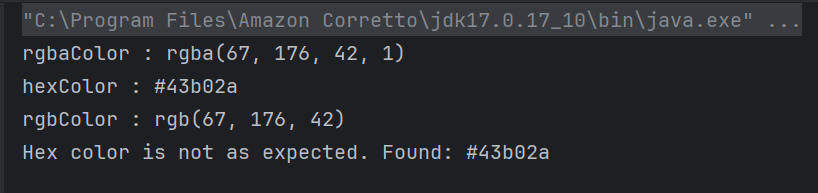
Explanation:
1.Define Expected Color
Variable expectedColor is defined to hold the expected hexadecimal color value (`#ffffff`, representing white).
String expectedColor = "#ffffff"; // White color in HEX
2. Set Up Chrome Options and WebDriver
ChromeOptions is created. A ChromeDriver object driver is created to control the Chrome browser. implicitlyWait is set to 10 seconds to wait for elements to be present before throwing an exception. The browser window is maximized for better visibility during the test.
ChromeOptions chromeOptions = new ChromeOptions();
WebDriver driver = new ChromeDriver(chromeOptions);
driver.manage().timeouts().implicitlyWait(Duration.ofSeconds(10));
driver.manage().window().maximize();
3. Navigate to a Webpage
The get() method of driver is used to navigate to the specified URL.
driver.get("https://www.selenium.dev/");
4. Find Element and Retrieve CSS Property
The element is located by the specified id, “dev-partners”. The getCssValue method retrieves the color of the element in RGBA format.
WebElement element = driver.findElement(By.id("dev-partners"));

// Retrieve the font color CSS property as RGBA
String rgbaColor = element.getCssValue("color");
System.out.println("rgbaColor : " + rgbaColor);
5. Convert Color Formats
RGBA to Hex: `Color.fromString(rgbaColor).asHex()` converts the RGBA color to hexadecimal format.
RGBA to RGB: `Color.fromString(rgbaColor).asRgb()` converts the RGBA color to RGB format for additional representation.
 // Convert the RGBA color to hex using the Color class
String hexColor = Color.fromString(rgbaColor).asHex();
System.out.println("hexColor : " + hexColor);

// Convert the RGBA color to RGB using the Color class
String rgbColor = Color.fromString(rgbaColor).asRgb();
System.out.println("rgbColor : " + rgbColor);
6. Verify Color
The hexadecimal color of the element is compared with expectedColor. If they match, it prints a confirmation message. If they do not match, it prints a message indicating the color did not match the expected value.
 // Verify the color (example: verifying against expected #ffffff color)
 if (hexColor.equals(expectedColor)) {
          System.out.println("Hex color is as expected.");
} else {
          System.out.println("Hex color is not as expected. Found: " + hexColor);
}
7. Clean Up
The finally block ensures that the browser is closed irrespective of whether the test passes or fails, using driver.quit() to close all browser windows and end the session.
// Close the browser
driver.quit();
Find Background color
If we want to find the background color, then use the below command:
getCssValue("background-color")
Below is an example to find the background color.
import org.openqa.selenium.By;
import org.openqa.selenium.WebDriver;
import org.openqa.selenium.WebElement;
import org.openqa.selenium.chrome.ChromeDriver;
import org.openqa.selenium.chrome.ChromeOptions;
import org.openqa.selenium.support.Color;

import java.io.IOException;
import java.time.Duration;

public class BackgroundColor_Example {

    public static void main(String args[]) throws IOException {

        ChromeOptions chromeOptions = new ChromeOptions();
        WebDriver driver = new ChromeDriver(chromeOptions);
        driver.manage().timeouts().implicitlyWait(Duration.ofSeconds(10));
        driver.manage().window().maximize();

        try {
            // Navigate to Url
            driver.get("https://www.selenium.dev/");

            WebElement element = driver.findElement(By.id("dev-partners"));

            // Retrieve the background color CSS property
            String bgColorValue = element.getCssValue("background-color");
            System.out.println("color : " + bgColorValue);

            // Convert the background color to HEX format
            String hexColor = Color.fromString(bgColorValue).asHex();
            System.out.println("hexColor : " + hexColor);

            // Convert the background color to RGB format
            String rgbColor = Color.fromString(bgColorValue).asRgb();
            System.out.println("rgbColor : " + rgbColor);

            // Verify the color (example: verifying against expected #43b02a color)
            String expectedColor = "#43b02a"; // Green color in HEX
            if (hexColor.equals(expectedColor)) {
                System.out.println("Background color is as expected.");
            } else {
                System.out.println("Background color is not as expected. Found: " + hexColor);
            }
        } finally {
            // Close the browser
            driver.quit();
        }
    }
}
The output of the above program is
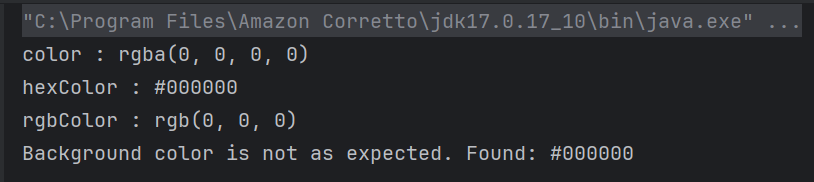
Summary:
1. Initialize a WebDriver and direct it to interact with your target webpage.
2. Identify the desired web element using suitable locators.
3. Retrieve and print out the CSS values for text and background colors using getCssValue.
More details about colors in Selenium can be found from this page – https://www.selenium.dev/documentation/webdriver/support_features/colors/
That’s it! Congratulations on making it through this tutorial and hope you found it useful! Happy Learning!!
 QA Automation Expert