How to Upload a File using Selenium Webdriver

HOME

 ChromeOptions options = new ChromeOptions();
WebDriver driver = new ChromeDriver(options);
driver.manage().window().maximize();
driver.get("https://demoqa.com/upload-download");
 WebElement upload = driver.findElement(By.id("uploadFile"));

 //Upload the file
upload.sendKeys("C:\\Users\\Vibha\\Documents\\SeleniumTest.txt");

public class Upload_Demo {

    public static void main(String[] args) {

        ChromeOptions options = new ChromeOptions();
        WebDriver driver = new ChromeDriver(options);
        driver.manage().window().maximize();
        driver.get("https://demoqa.com/upload-download");

        // Locating upload button
        WebElement upload = driver.findElement(By.id("uploadFile"));

        //Upload the file
        upload.sendKeys("C:\\Users\\Vibha\\Documents\\SeleniumTest.txt");

        String Message = driver.findElement(By.id("uploadedFilePath")).getText();
        System.out.println("Message is :" + Message);

        // close the browser
        driver.close();
    }
}

The web page after uploading the file looks something like as shown below

How to use FileHandler Class to take Screenshot in Selenium WebDriver

 HOME

In the previous post, I have explained how to capture screenshots in Selenium using FileUtils. In this post, will see another way of capturing the screenshots in Selenium.

FileHandler is new Class in Selenium which help us to store screenshots, create directory and so on. You can get full documentation of FileHandler here

Step 1- Import the new package which is

import org.openqa.selenium.io.FileHandler;

Step 2 – To capture a screenshot in Selenium, we can make use of an interface, called TakesScreenshot. This method indicates the driver, that it can capture a screenshot and store it in different ways

TakesScreenshot ts = (TakesScreenshot) driver;

Step 3 – In order to capture screenshot and store it in a particular location, there is a method called “getScreenshotAs“, where OutputType defines the output type for a screenshot.

File source = ts.getScreenshotAs(OutputType.FILE);

Step 4- Call copy method of FileHandler Class which is static method and will ask two argument First is src and another is destination. Code will look like 

FileHandler.copy(source, new File("/Screenshots/SeleniumScreenshot" + System.currentTimeMillis() + ".png"));

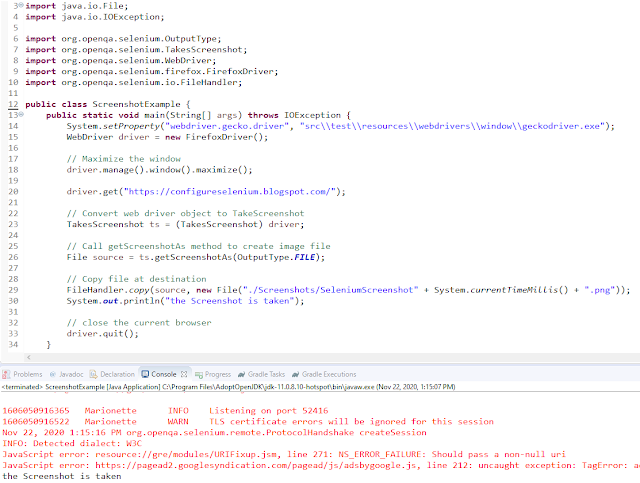
Let’s see this in a Selenium program:-

import java.io.File;
 
import java.io.IOException; 
import org.openqa.selenium.OutputType;
import org.openqa.selenium.TakesScreenshot;
import org.openqa.selenium.WebDriver;
import org.openqa.selenium.firefox.FirefoxDriver;
import org.openqa.selenium.io.FileHandler;
 
public class ScreenshotExample {
      public static void main(String[] args) throws IOException {

            System.setProperty("webdriver.gecko.driver", "src\\test\\resources\\webdrivers\\window\\geckodriver.exe");
            WebDriver driver = new FirefoxDriver();

            // Maximize the window
            driver.manage().window().maximize();
            driver.get("https://configureselenium.blogspot.com/");

            // Convert web driver object to TakeScreenshot
            TakesScreenshot ts = (TakesScreenshot) driver;

            // Call getScreenshotAs method to create image file
            File source = ts.getScreenshotAs(OutputType.FILE);

            // Copy file at destination
            FileHandler.copy(source, new File("./Screenshots/SeleniumScreenshot" + System.currentTimeMillis() + ".png"));
            System.out.println("the Screenshot is taken");

            // close the current browser
            driver.quit();
      } 
 
}

A folder with name “Screenshots” created and the screenshot placed in that folder as you can see the image below

The Screenshot looks like something as shown below

How to Capture Screenshot in Selenium Webdriver

 HOME

In Automation, it is advisable to take screenshots of failed test cases for further analysis and proof of failure. Selenium provides the capability to take screenshot. But, before we see how to capture Screenshot in Selenium, we need to add a dependency in the Maven project.

Recently Selenium has done some changes in recent version so if you are using Selenium 3.6.0 then you need to add below jar to project or if you are using then you can provide below dependency in project.

https://mvnrepository.com/artifact/commons-io/commons-io

To capture a screenshot in Selenium, we can make use of an interface, called TakesScreenshot. This method indicates the driver, that it can capture a screenshot and store it in different ways

TakesScreenshot ts = (TakesScreenshot) driver;

In order to capture screenshot and store it in a particular location, there is a method called “getScreenshotAs“, where OutputType defines the output type for a screenshot.

File source = ts.getScreenshotAs(OutputType.FILE);

Copy file to Desired Location

FileUtils.copyFile(source, newFile("./Screenshots/Selenium" + System.currentTimeMillis() + ".png"));

Let’s see the complete program

import java.io.File;
 
import java.io.IOException;
import org.apache.commons.io.FileUtils;
import org.openqa.selenium.OutputType;
import org.openqa.selenium.TakesScreenshot;
import org.openqa.selenium.WebDriver;
import org.openqa.selenium.chrome.ChromeDriver;
 
public class ScreenshotDemo {
      public static void main(String[] args) throws IOException {
                        
          System.setProperty("webdriver.chrome.driver", "src\\test\\resources\\webdrivers\\window\\chromedriver.exe");
          WebDriver driver = new ChromeDriver();
                        
          // Maximize the window
          driver.manage().window().maximize();
          driver.get("https://configureselenium.blogspot.com/");
                        
          // Convert web driver object to TakeScreenshot
          TakesScreenshot ts = (TakesScreenshot) driver;
                        
          // Call getScreenshotAs method to create image file
           File source = ts.getScreenshotAs(OutputType.FILE);
                        
          // Copy file at destination
          FileUtils.copyFile(source, new File("./Screenshots/Selenium" + System.currentTimeMillis() + ".png"));
           System.out.println("the Screenshot is taken");
                        
          // close the current browser
          driver.quit();
     }
 
}

A folder with name Screenshots created and the screenshot is placed in that folder as you can see the image below

The Screenshot looks like something below

If you don’t want to use Maven Dependency common-io, then you can use FileHandler from

import org.openqa.selenium.io.FileHandler;
 
FileHandler.copy(source, new File("C:\\Screenshots\\Selenium" + System.currentTimeMillis() + ".png"));

Difference between getText() and getAttribute() method in Selenium WebDriver

In this tutorial, we will discuss GetText() method as well as the getAttribute() method in Selenium WebDriver. These methods are used extensively in automating a web application. Before going through these methods, we should know what HTML attributes are.

What are HTML attributes?

Attributes are the additional information provided by developers in HTML tags. Attributes are normally defined using “name-pair” values. Let us see, here div is the tag, and corresponding attribute with the property name is id, and the property value is nav-xshop.
<div id= “nav-xshop”>


What is getAttribute() method?

The getAttribute() method is declared in the WebElement interface, and it returns the value of the web element’s attribute as a string. It fetches the value of an attribute, in HTML code whatever is present in the left side of ‘=’ is an attribute, and the value on the right side is an attribute value.

  • getAttibute() returns ‘null’ if there is no such attributes
  • getAttribute() method will return either “true” or null for attributes whose value is Boolean.

Where to use getAttribute() method?

Consider a scenario of movie ticket booking. The colour of booked and available seats in the movie theatre is different. So the same seat will have the supposed white colour for the available seat and blue for the booked seat. So, the colour attribute of the seat changes from white to blue for the same seat, which can be identified by the getAttribute() method. The snippet below shows the HTML code of the search box of the Amazon Home page

Below is an example of how the getAttribute() method can be used.

import org.openqa.selenium.By;
import org.openqa.selenium.WebDriver;
import org.openqa.selenium.WebElement;
import org.openqa.selenium.chrome.ChromeDriver;
 
public class GetAttributeDemo {
      public static void main(String[] args) {
 
            System.setProperty("webdriver.chrome.driver",
                                                "C:\\Users\\Vibha\\Desktop\\Drivers\\chromedriver_win32\\chromedriver.exe");
 
             WebDriver driver = new ChromeDriver();
 
             driver.get("https://www.amazon.com/");
             driver.manage().window().maximize();
 
             WebElement AmazonSearchBox = driver.findElement(By.name("field-keywords"));
             System.out.println("Name of the Email Textbox is:- " + AmazonSearchBox.getAttribute("name"));
 
             System.out.println("Class of the Email Textbox is:- " + AmazonSearchBox.getAttribute("class"));
 
             System.out.println("Value of the Email Textbox is:- " + AmazonSearchBox.getAttribute("tabindex"));
 
             System.out.println("Type of the Email Textbox is:- " + AmazonSearchBox.getAttribute("type"));
 
             System.out.println("Id of the Email Textbox is:- " + AmazonSearchBox.getAttribute("id"));
 
             // getAttibute() returns 'null' if there no such attribute
 
             System.out.println("Value of nonExistingAttribute is:- " + AmazonSearchBox.getAttribute("test"));
 
            driver.close();
       }
 
}

Output
Name of the Email Textbox is:- field-keywords
Class of the Email Textbox is:- nav-input
Value of the Email Textbox is:- 19
Type of the Email Textbox is:- text
Id of the Email Textbox is:- twotabsearchtextbox
Value of nonExistingAttribute is:- null

What is getText() method?

getText() is a method that gets us the visible (i.e. not hidden by CSS) innerText of this element, including sub-elements, without any leading or trailing white space.

Inner text is the text between the opening tags and closing tags.

This is an example of getText().

In the above example, the text  “This is the example of getText” between opening and closing tags of h1 are called inner text.

The snippet below shows the HTML code of the search box of the Amazon Home page

Below is an example of how the getText() method can be used.

import java.util.concurrent.TimeUnit;

import org.openqa.selenium.By;
import org.openqa.selenium.WebDriver;
import org.openqa.selenium.chrome.ChromeDriver;
 
public class GetTextDemo {
 
      public static void main(String[] args) {
           System.setProperty("webdriver.chrome.driver",
                                                "C:\\Users\\Vibha\\Desktop\\Drivers\\chromedriver_win32\\chromedriver.exe");
 
            WebDriver driver = new ChromeDriver();
 
            driver.get("https://www.facebook.com/");
            driver.manage().window().maximize();
            driver.manage().timeouts().implicitlyWait(30, TimeUnit.SECONDS);
 
            String FacebookText = driver
                                    .findElement(By.xpath("//*[@id='content']/div/div/div/div/div[2]/div/div[1]/div[1]/span")).getText();
            System.out.println("Text on Facebook Site:- " + FacebookText);
         driver.close();
      }
 
}

Output
Text on Facebook Site:- Create an account

Execute JavaScript with executeAsyncScript() Method in Selenium

HOME

In the previous blog, we have discussed about executeScript() method in JavaScript. JavascriptExecutor interface comprises of executeAsyncScript() method that is called an additional final argument “arguments[arguments.lenght-1];”which is a callback function to signal that async execution has finished. We have to call from JavaScript, to tell Webdriver, that our Asynchronous execution has finished. If we do not do that, then executeAsyncScpriptwill timeout and throw a timeout exception.

Before executing AsyncScript method, we have to make sure to set the script timeout. Its default is 0. If we do not set a script timeout, our executeAsyncScript will immediately timeout and it won’t work.

Below is the program which shows how to use executeAsyncScript() method

  1. First  will get the start time before waiting 5 seconds by using executeAsyncScript() method.
  2. Then, will use executeAsyncScript() to wait 5 seconds.
  3. Then, will get the current time
  4. Will subtract (current time – start time) = passed time and print the value
import org.openqa.selenium.JavascriptExecutor;
import org.openqa.selenium.WebDriver;
import org.openqa.selenium.chrome.ChromeDriver;
 
public classExecuteAsycSleepBrowserDemo {
        public static void main(String[] args) { 
    

System.setProperty("webdriver.chrome.driver","C:\\Users\\Vibha\\Desktop\\Drivers\\chromedriver_win32\\chromedriver.exe");
        WebDriver driver = newChromeDriver();
                                        
        //Create the JavascriptExecutor interface object by Type casting              
        JavascriptExecutor js = (JavascriptExecutor)driver;              
        driver.get("https://www.google.com/");                              
        driver.manage().window().maximize();
                        
        //Declare and set start time
        long startTime = System.currentTimeMillis();
                 
        //Call executeAsyncScript() method                       js.executeAsyncScript("window.setTimeout(arguments[arguments.length - 1], 5000);"); 
                 
        //Get the difference (currentTime - startTime) it should be greater than 5000
        System.out.println("Passed time: " + (System.currentTimeMillis() - startTime));
                        
          if ( (System.currentTimeMillis() - startTime) > 5000)
             {
                 System.out.println("Time difference must be greater than 5000 milliseconds");
             }
          driver.quit();      
      }

Output
Passed time: 5040
Time difference must be greater than 5000 milliseconds

Execute JavaScript with executeScript() Method in Selenium

HOME

In the previous tutorial, we have discussed about JavaScript. There are some conditions where we cannot handle some problems with WebDriver only, web controls don’t react well against selenium commands. In this kind of situations, we use Javascript. JavaScriptExecutor comes separately and also comes under the WebDriver but both do the same thing. Within the WebDriver, it is named as ExecuteScript.

JavaScriptExecutor is an interface that provides a mechanism to execute Javascript through selenium driver. It provides “executescript” & “executeAsyncScript” methods, to run JavaScript in the context of the currently selected frame or window.

ExecuteScript Method – This method executes JavaScript in the context of the currently selected frame or window in Selenium. The script used in this method runs in the body of an anonymous function (a function without a name). We can also pass complicated arguments to it. 

Execute the below selenium script. In this example,

  • Launch the site
  • Fetch the domain name of the site.
  • Fetch the URL of the site
  • Fetch the title name of the sit
  • Then navigate to a different page – google.com
  • Display Alert popup                                                                        
package SeleniumTutorial;
import org.openqa.selenium.JavascriptExecutor;
 
import org.openqa.selenium.WebDriver;
 
import org.openqa.selenium.chrome.ChromeDriver;
 
public classJavaScript_Demo {
        public static voidmain(String[] args) {
                        System.setProperty("webdriver.chrome.driver","C:\\Users\\SingVi04\\Desktop\\Drivers\\chromedriver_win32\\chromedriver.exe");
 
        WebDriver driver= new ChromeDriver();
                                        
        //Create the JavascriptExecutor interface object by Type casting                
        JavascriptExecutor js = (JavascriptExecutor)driver;             
 
        driver.get("https://configureselenium.blogspot.com/");
 
        driver.manage().window().maximize();
  
 
       //Fetching the Domain Name of the site. Tostring() change object to name.                
        String DomainName = js.executeScript("return document.domain;").toString();                 
        System.out.println("Domain name of the site = "+DomainName);                                        
                        
        //Fetching the URL of the site. Tostring() change object to name          
        String url = js.executeScript("return document.URL;").toString();                
        System.out.println("URL of the site = "+url);                                      
                        
        //Method document.title fetch the Title name of the site. Tostring() change object to name          
       String TitleName = js.executeScript("return document.title;").toString();                        
       System.out.println("Title of the page = "+TitleName);                                  
                
        //Navigate to new Page i.e to generate access page. (launch new url)             
        js.executeScript("window.location = 'https://www.google.com/'");
        String NewTitleName = js.executeScript("return document.title;").toString();                      
        System.out.println("Title of the new page = "+NewTitleName);    
 
        //Alert
        js.executeScript("alert('Hello Everyone!');");
        driver.switchTo().alert().accept();
      
        driver.quit();
    }           
 }

JavaScript and JavaScriptExecutor in Selenium


What is JavaScript?
 

JavaScript is the preferred language inside the browser to interact with HTML dom. This means that a Browser has JavaScript implementation in it and understands the JavaScript commands.
WebDriver gives you a method called Driver.executeScript which executes the JavaScript in context of the loaded browser page. There are some conditions where we cannot handle some problems with WebDriver only, web controls do not react well against selenium commands. In this kind of situations, we use Javascript. It is useful for custom synchronizations, hide or show the web elements, change values, test flash/HTML5 and so on. In order to do these, we can use Selenium’s JavascriptExecutor interface that executes JavaScript through Selenium driver.

What is JavaScriptExecutor?

JavaScriptExecutor comes separately and comes under the WebDriver but both do the same thing. Within the WebDriver, it is name as ExecuteScript. JavaScriptExecutor is an interface that provides a mechanism to execute Javascript through selenium driver. It provides “executescript” & “executeAsyncScript” methods, to run JavaScript in the context of the currently selected frame or window.

ExecuteScript Method

This method executes JavaScript in the context of the currently selected frame or window in Selenium. The script used in this method runs in the body of an anonymous function (a function without a name). We can also pass complicated arguments to it.

The script can return values. Data types returned are 

  • Boolean 
  • Long 
  • String 
  • List 
  • WebElement 
JavascriptExecutor js = (JavascriptExecutor) driver;  
js.executeScript(Script,Arguments);

Script – This JavaScript needs to execute.

Arguments – It is the arguments to the script. It is optional

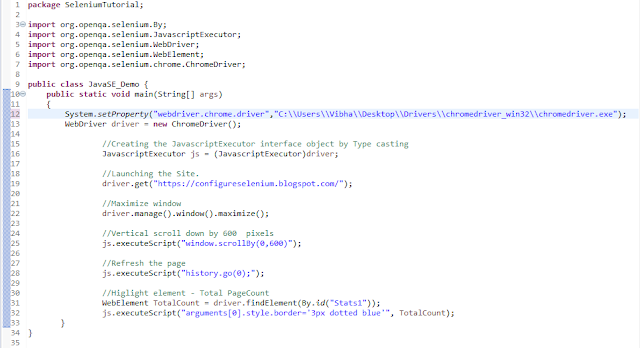
Below is an example, which shows how executeScript method can be use. In this example, 

  1. Launch the site
  2. Scroll down by 600 pixel
  3. Refresh the page
  4. Highlight a particular element
import org.openqa.selenium.By;
import org.openqa.selenium.JavascriptExecutor;
import org.openqa.selenium.WebDriver;
import org.openqa.selenium.WebElement;
import org.openqa.selenium.chrome.ChromeDriver;
 
public class JavaSE_Demo {
        public static void main(String[] args){        

System.setProperty("webdriver.chrome.driver","C:\\Users\\Vibha\\Desktop\\Drivers\\chromedriver_win32\\chromedriver.exe");
        WebDriver driver= new ChromeDriver();                         
 
        //Create the JavascriptExecutor interface object by Type casting              
         JavascriptExecutor js = (JavascriptExecutor)driver;                   
         driver.get("https://configureselenium.blogspot.com/");     
         driver.manage().window().maximize();               

         //Vertical scroll down by 600  pixels             
          js.executeScript("window.scrollBy(0,600)");                           
 
         //Refresh the page
          js.executeScript("history.go(0);");
                       
          //Higlight element - Total PageCount
          WebElement TotalCount= driver.findElement(By.id("Stats1"));
          js.executeScript("arguments[0].style.border='3px dotted blue'", TotalCount);                     
      }                          
}

How to enter text-using JavaScriptexecutor (Without Sendkeys)

import org.openqa.selenium.JavascriptExecutor;
import org.openqa.selenium.WebDriver;
import org.openqa.selenium.chrome.ChromeDriver;
 
public class JavaScript_EnterText {
        public static void main(String[] args) {
        System.setProperty("webdriver.chrome.driver","C:\\Users\\Vibha\\Desktop\\Drivers\\chromedriver_win32\\chromedriver.exe");
        WebDriver driver = newChromeDriver();
                                        
         //Creating the JavascriptExecutor interface object by Type casting              
          JavascriptExecutor js = (JavascriptExecutor)driver;              
                                        
          //Launching the Site.         
          driver.get("https://www.google.com/");                      
                     
          //Maximize window            
          driver.manage().window().maximize();       
                        
          js.executeScript("document.getElementsByName('q')[0].value = 'Selenium Introduction';");
   } 
}   

How to automate Radio Button in Selenium WebDriver

HOME

Let’s go through the scenario below:-

1) Launch Chrome Browser
2) Maximize the current window
3) Implicitly wait for 5 sec
4) Open browser – https://demo.automationtesting.in/Register.html
5) Find the locator of all Radio Buttons
6) Find the number of Radio Buttons available
7) Print the name of the first option of the radio button
8) Select the first option of the radio button
9) Print the name of the second option of the radio button
10) Select the second option of the radio button
11) Close the browser

    ChromeOptions options = new ChromeOptions();
    WebDriver driver = new ChromeDriver(options);
    
    driver.manage().window().maximize();
    
    driver.manage().timeouts().implicitlyWait(Duration.ofSeconds(5));
    driver.get("https://demo.automationtesting.in/Register.html");
    
    List<WebElement> Radio_Options = driver.findElements(By.xpath("//*[@name='radiooptions']"));
    
    int radioSize = Radio_Options.size();
    System.out.println("No Of Radio Button Options :" + radioSize);
    
    for (int i = 0; i < radioSize; i++) {
        System.out.println("Name of Radio Button :"+ Radio_Options.get(i).getAttribute("Value"));
        Radio_Options.get(i).click();
        System.out.println("Radio Button Option "+ (i+1) +" is selected");
    }
    
    driver.quit();
    

    import org.openqa.selenium.By;
    import org.openqa.selenium.WebDriver;
    import org.openqa.selenium.WebElement;
    import org.openqa.selenium.chrome.ChromeDriver;
    import org.openqa.selenium.chrome.ChromeOptions;
    
    import java.time.Duration;
    import java.util.List;
    
    public class RadioButton_Demo {
    
        public static void main(String[] args) throws InterruptedException {
    
            // Initiate Chrome browser
            ChromeOptions options = new ChromeOptions();
            WebDriver driver = new ChromeDriver(options);
    
            // Maximize the browser
            driver.manage().window().maximize();
    
            // Put an Implicit wait and launch URL
            driver.manage().timeouts().implicitlyWait(Duration.ofSeconds(5));
            driver.get("https://demo.automationtesting.in/Register.html");
    
            // Find locator of all Radio Buttons
            List<WebElement> Radio_Options = driver.findElements(By.xpath("//*[@name='radiooptions']"));
    
            // Find no of Radio Buttons available and print their values
            int radioSize = Radio_Options.size();
            System.out.println("No Of Radio Button Options :" + radioSize);
    
            Thread.sleep(5000);
    
            for (int i= 0; i< radioSize; i++) {
                System.out.println("Name of Radio Button :"+ Radio_Options.get(i).getAttribute("Value"));
                Radio_Options.get(i).click();
                System.out.println("Radio Button Option "+ (i+1) +" is selected");
            }
            driver.quit()  ;
        }
    }
    

    How to automate BootStrap DropDown using Selenium WebDriver

     
    In the previous post, we have already seen How to Handle Dropdowns in Selenium WebDriver . In this post, we will see how to handle Bootstrap Dropdown using Selenium WebDriver.
     
    What is Bootstrap?
     
    • Bootstrap is a free front-end framework for faster and easier web development
    • Bootstrap includes HTML and CSS based design templates for typography, forms, buttons, tables, navigation, modals, image carousels and many other, as well as optional JavaScript plugins
    • Bootstrap also gives you the ability to easily create responsive designs
    • Bootstrap is compatible with all modern browsers (Chrome, Firefox, Internet Explorer, Edge, Safari, and Opera)

    What is Responsive Web Design?

    Responsive web design is about creating web sites, which automatically adjust themselves to look good on all devices, from small phones to large desktops.
    Bootstrap dropdowns and interactive dropdowns that are dynamically position and formed using list of ul and li html tags. To know more about Bootstrap, please click here

    How to get all the options of a Bootstrap dropdown


    Below is an example which will explain how to get all the options of a Bootstrap dropdown.

    import java.util.List;
    import java.util.concurrent.TimeUnit;
    import org.openqa.selenium.By;
    import org.openqa.selenium.WebDriver;
    import org.openqa.selenium.WebElement;
     
    import org.openqa.selenium.chrome.ChromeDriver;
    public class BootStrapDemo {
            public static void main(String[] args) {
     System.setProperty("webdriver.chrome.driver","C:\\Users\\Desktop\\Drivers\\chromedriver_win32\\chromedriver.exe");
    
              WebDriver driver= new ChromeDriver();
              driver.manage().window().maximize();
              driver.get("https://www.seleniumeasy.com/test/");
              driver.manage().timeouts().implicitlyWait(20, TimeUnit.SECONDS);
    
                    // Clicking on Bootstrap Dropdown
                   driver.findElement(By.xpath("//*[@id='navbar-brand-centered']/ul[1]/li[1]/a")).click(); 
    
                    // Get the all WebElements inside the dropdown in List  
                   List dropdown_list =  driver.findElements(By.xpath("//ul[contains(@class,'dropdown-menu')]//li//a"));
    
                  // Printing the amount of WebElements inside the list
                   System.out.println("The Options in the Dropdown are: " + dropdown_list.size());
    
                  // Condition to get the WebElement for list
                  for(int i=0; i<dropdown_list.size(); i++)
                  {
                       // Printing All the options from the dropdown
                       System.out.println(dropdown_list.get(i).getText());
                }                                                                                       
          }
    }
    
    Output
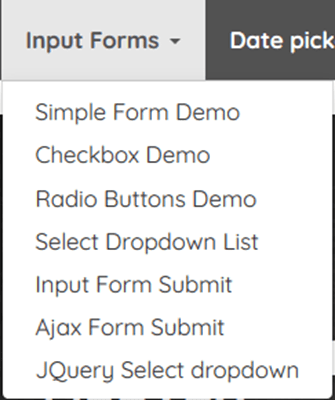
    The Options in the Dropdown are: 29
    Simple Form Demo
    Checkbox Demo
    Radio Buttons Demo
    Select Dropdown List
    Input Form Submit
    Ajax Form Submit
    JQuery Select dropdown


    Here,

    1) Open a web page – https://www.seleniumeasy.com/test/
    2) Click on BootStrap DropDown – Input Forms by using (“//*[@id=’navbar-brand-centered’]/ul[1]/li[1]/a”
    3) Get the all WebElements inside the dropdown in List  by using
    (“//ul[contains(@class,’dropdown-menu’)]//li//a”)
    4) Print all the options of DropDown using dropdown_list.get(i).getText()

    How to select a particular option from Bootstrap dropdown

    In the below example, there is a Bootstrap dropdown. I want to
    Check if an element – Checkbox Demo is present in the dropdown or not.
    If Yes, click on that option.

    import java.util.List;
    import java.util.concurrent.TimeUnit;
    import org.openqa.selenium.By;
    import org.openqa.selenium.WebDriver;
    import org.openqa.selenium.WebElement;
    import org.openqa.selenium.chrome.ChromeDriver;
     
    public class BootStrapDemo {
            public static void main(String[] args) {
    
    System.setProperty("webdriver.chrome.driver","C:\\Users\\Desktop\\Drivers\\chromedriver_win32\\chromedriver.exe");
    
              WebDriver driver= new ChromeDriver();
              driver.manage().window().maximize();
              driver.get("https://www.seleniumeasy.com/test/");
              driver.manage().timeouts().implicitlyWait(20, TimeUnit.SECONDS);
     
                    // Clicking on Bootstrap Dropdown
                   driver.findElement(By.xpath("//*[@id='navbar-brand-centered']/ul[1]/li[1]/a")).click(); 
     
                    // Get the all WebElements inside the dropdown in List  
                   List dropdown_list =  driver.findElements(By.xpath("//ul[contains(@class,'dropdown-menu')]//li//a"));
     
                  // Printing the amount of WebElements inside the list
                   System.out.println("The Options in the Dropdown are: " + dropdown_list.size());
     
                  // Condition to get the WebElement for list
                  for(int i=0; i<dropdown_list.size(); i++)
                  {
                       // Printing All the options from the dropdown
                       System.out.println(dropdown_list.get(i).getText());                 
    // Checking the condition whether option in text "Checkbox Demo" is coming
     
              if(dropdown_list.get(i).getText().contains("Checkbox Demo"))
                {
                     // Clicking if text "Checkbox Demo" is there
                     dropdown_list.get(i).click();
                  // Breaking the condition if the condition get satisfied
                     break;
              }
           }
       driver.quit();            
      }
    }
    
    OutPut
    The Options in the Dropdown are: 29
    Simple Form Demo
    Checkbox Demo
    

    This program can be re-written by using Enhanced for loop instead of For loop.

    getText() can be replaced by getAttribute(“innerHTML”)

    import java.util.List;
    import java.util.concurrent.TimeUnit;
    import org.openqa.selenium.By;
    import org.openqa.selenium.WebDriver;
    import org.openqa.selenium.WebElement;
    import org.openqa.selenium.chrome.ChromeDriver;
     
    public class BootStrapDemo {
            public static void main(String[] args) {
     System.setProperty("webdriver.chrome.driver","C:\\Users\\Desktop\\Drivers\\chromedriver_win32\\chromedriver.exe");
    
              WebDriver driver= new ChromeDriver();
              driver.manage().window().maximize();
              driver.get("https://www.seleniumeasy.com/test/");
              driver.manage().timeouts().implicitlyWait(20, TimeUnit.SECONDS);
     
                    // Clicking on Bootstrap Dropdown
                   driver.findElement(By.xpath("//*[@id='navbar-brand-centered']/ul[1]/li[1]/a")).click(); 
     
                    // Get the all WebElements inside the dropdown in List  
                   List dropdown_list =  driver.findElements(By.xpath("//ul[contains(@class,'dropdown-menu')]//li//a"));
     
                  // Printing the amount of WebElements inside the list
                   System.out.println("The Options in the Dropdown are: " + dropdown_list.size());
     
                  // Condition to get the WebElement using Enhanced For loop
     
                   for(WebElement element:dropdown_list)
     
                  {
                       // Printing All the options from the dropdown
                       System.out.println(element.getAttribute("innerHTML"));             
     
                      // Checking the condition whether option in text "Checkbox Demo" is coming
           if(element.getAttribute("innerHTML").contains("Checkbox Demo")) 
                {
                     // Clicking if text "Checkbox Demo" is there
                     element.click();
                  // Breaking the condition if the condition get satisfied
                     break;
              }
           }
       driver.quit();            
      }
    }


    How to get all the values from a Dynamic Table in Selenium WebDriver

    
    import org.openqa.selenium.By;
    import org.openqa.selenium.WebDriver;
    import org.openqa.selenium.chrome.ChromeDriver;
    
    import java.util.List;
    import java.util.concurrent.TimeUnit;
    
    public class TableDemo {
    
        public static void main(String[] args) {
    
            System.setProperty("webdriver.chrome.driver","C:\\Users\\Vibha\\Automation\\Chrome\\chromedriver\\chromedriver.exe");
    
            WebDriver driver = new ChromeDriver();
            driver.get("https://www.techlistic.com/p/demo-selenium-practice.html");
    
            driver.manage().window().maximize();
             driver.manage().timeouts().implicitlyWait(15, TimeUnit.SECONDS);
    
            // To find no of columns
            List ColumnList = driver.findElements(By.xpath("//*[@id='customers']/tbody/tr/th"));
            System.out.println("No of Columns are :"+ColumnList.size());
    
            //To find no of Rows, first row is heading
            List RowList = driver.findElements(By.xpath("//*[@id='customers']/tbody/tr"));
            System.out.println("No of Rows are :"+RowList.size());
            driver.close();
        }
    
    }


    1. findElements command returns a list of ALL the elements matching the specified locator.
    2. The count of columns is found using XPath – (“//*[@id=’customers’]/tbody/tr/th”)
    3. The count of rows is found using XPath – (“//*[@id=’customers’]/tbody/tr”)

    How to get all the values from a Dynamic Table

    In the above table, there are 3 columns and 7 rows, and we want to get the data from each cell. First row is heading, so we want to find the data of 6 rows only.

      import org.openqa.selenium.By;
      import org.openqa.selenium.WebDriver;
      import org.openqa.selenium.chrome.ChromeDriver;
      import java.util.concurrent.TimeUnit;
      
      public class DynamicTable_DataExtract {
      
          public static void main(String[] args) {
      
              System.setProperty("webdriver.chrome.driver","C:\\Users\\Vibha\\Automation\\Chrome\\chromedriver\\chromedriver.exe");
      
              WebDriver driver = new ChromeDriver();
              driver.get("https://www.techlistic.com/p/demo-selenium-practice.html");
      
              driver.manage().window().maximize();
              driver.manage().timeouts().implicitlyWait(15, TimeUnit.SECONDS);
      
              //Get number of rows In table.
              int Row_Count = driver.findElements(By.xpath("//*[@id='customers']/tbody/tr")).size();
              System.out.println("No of Rows are :"+Row_Count);
      
              //Get number of columns In table.
              int Column_Count = driver.findElements(By.xpath("//*[@id='customers']/tbody/tr/th")).size();
              System.out.println("No of Columns are :"+Column_Count);
      
              //divided xpath In three parts to pass Row_count and Col_count values.
              String first_part = "//*[@id='customers']/tbody/tr[";
              String second_part = "]/td[";
              String third_part = "]";
      
      
              //Used for loop for number of rows.
              for (int i=2; i<=Row_Count; i++){
      
                  //Used for loop for number of columns.
                  for(int j=1; j<=Column_Count; j++){
      
                      //Prepared final xpath of specific cell as per values of i and j.
                      String final_xpath = first_part+i+second_part+j+third_part;
      
                      //Will retrieve value from located cell and print It.
                      String Table_data = driver.findElement(By.xpath(final_xpath)).getText();
                      System.out.print(Table_data +" ");
                  }
      
                  System.out.println("");
                  System.out.println("---------------------------------");
              }
      
             driver.close();
          }
      }