How to Select value from Drop down list or perform Multiple Selection Operations in Selenium WebDriver

HOME


In the previous tutorial, it is explained how to automate Checkbox in Selenium. In this tutorial, we will learn how to handle Drop Down & Multiple Select Operations. DropDownMultiple Select Operations work together and almost the same way. The only difference between these two deselecting statements & multiple selections is not allowed on DropDown.

To identify DropDown or multi-select list on a web page, we can use any one of the options like idnamexpathcss, etc. 

To perform any operation on DropDown, we need to do 2 things:-

1) Selenium WebDrivers provides a class called “Select “class that is used to automate dropdown, and it is imported from the package:

org.openqa.selenium.support.ui.Select

2) Create a new Select object of class Select.

Select oSelect = new Select());

We can access all the methods residing inside the SELECT class by typing oSelect + dot.

Different Select Commands

Before we discuss various select commands, we should know how the HTML code of DropDown actually looks

1) selectByVisibleText 

selectByVisibleText(String arg0): void – Choose the option given under any dropdowns and multiple selection boxes with selectByVisibleText method. It takes a parameter of String that is one of the Value of Select element and it returns nothing.

To select the text One

select.selectByVisibleText("One");

2)  selectByIndex 

selectByIndex(int arg0): void – It is almost the same as selectByVisibleText but the only difference here is that we provide the index number of the option here rather than the option text. It takes a parameter of int which is the index value of the Select element and it returns nothing.

To select the value 3 using index

 select.selectByIndex(3);

3) selectByValue

selectByValue(String arg0): void –  It selects the option of the value. It takes a parameter of String that is of the value of the Select element and it returns nothing.

To select the value of two

 Select mselect = new Select(driver.findElement(By.id("redirect")));
 mselect.selectByValue("two");

Let us explain this with the help of an example.

1) Launch a new Browser and open https://www.selenium.dev/selenium/web/formPage.html
2) Print the list of options in the dropdown.
3) Select option ‘One’ (Use selectByVisibleText)
4) Select option ‘3’ (Use selectByIndex)
5) Select option ‘two’ (Use selectByValue)
6) Close the browser

The complete program looks like as shown below:

package org.example;

import org.openqa.selenium.By;
import org.openqa.selenium.WebDriver;
import org.openqa.selenium.WebElement;
import org.openqa.selenium.firefox.FirefoxDriver;
import org.openqa.selenium.firefox.FirefoxOptions;
import org.openqa.selenium.support.ui.Select;

import java.time.Duration;
import java.util.List;

public class DropDown_Demo {

    public static void main(String[] args)  {

        // Initiate Firefox browser
        FirefoxOptions firefoxOptions = new FirefoxOptions();
        WebDriver driver = new FirefoxDriver(firefoxOptions);

        // Implicit Wait
        driver.manage().window().maximize();
        driver.manage().timeouts().implicitlyWait(Duration.ofSeconds(5));

        // Pass application url
        driver.get("https://www.selenium.dev/selenium/web/formPage.html");

        //Get the list of options from dropdown
        Select select = new Select(driver.findElement(By.name("select-default")));
        List<WebElement> listElements = select.getOptions();
        System.out.println("List of options in dropdown:" );
        for(WebElement options: listElements)
            System.out.println(options.getText());

        // Select option 'Two' (Use selectByVisibleText)
        System.out.println("Select the Option by Text - One");
        select.selectByVisibleText("One");

        // Select option '3' (Use selectByIndex)
        System.out.println("Select the Option by Index 3 - Still learning how to count, apparently");
        select.selectByIndex(3);

        // Select option 'two' (Use selectByValue)
        System.out.println("Select the Option by selectByValue - two");
        Select mselect = new Select(driver.findElement(By.id("redirect")));
        mselect.selectByValue("two");

        // close the browser
        driver.close();
    }

}

The output of the above program is

Different DeSelect Methods

The way we select different values of DropDown and Multi Select, we can deselect the options similarly.

1) deselectAll

deselectAll( ): void – Clear all selected entries. This is only valid when the SELECT supports multiple selections.

Syntax:

oSelect.deselectAll;

2) deselectByIndex

deselectByIndex(int arg0): void –Deselect the option at the given index.

Syntax:

oSelect.deselectByIndex;

3) deselectByValue

deselectByValue(String arg0): void –Deselect all options that have a value matching the argument.

Syntax:

 oSelect.deselectByValue;

4) deselectByVisibleText

deselectByVisibleText(String arg0): void – Deselect all options that display text matching the argument.

Syntax:

oSelect.deselectByVisibleText

Below is an example of how to operate on multi-selection options.

1) Launch a new Browser and open https://www.selenium.dev/selenium/web/formPage.html
2) Print the list of options in the dropdown.
3) Select options ‘eggs’ and ‘sausages’.
4) Print and select all the options for the selected Multiple selection list.
5) Deselect option eggs.
6) Deselect all options
7) Close the browser

package org.example;

import org.openqa.selenium.By;
import org.openqa.selenium.WebDriver;
import org.openqa.selenium.WebElement;
import org.openqa.selenium.firefox.FirefoxDriver;
import org.openqa.selenium.firefox.FirefoxOptions;
import org.openqa.selenium.support.ui.Select;

import java.time.Duration;
import java.util.List;

public class MultiSelect_Demo {
    
    public static void main(String[] args) {

        // Initiate Firefox browser
        FirefoxOptions firefoxOptions = new FirefoxOptions();
        WebDriver driver = new FirefoxDriver(firefoxOptions);

        // Implicit Wait
        driver.manage().window().maximize();
        driver.manage().timeouts().implicitlyWait(Duration.ofSeconds(5));

        // Pass application url
        driver.get("https://www.selenium.dev/selenium/web/formPage.html");

        //Get the list of options from dropdown
        Select select = new Select(driver.findElement(By.name("multi")));
        List<WebElement> listElements = select.getOptions();
        System.out.println("List of options in dropdown:");
        for (WebElement options : listElements)
            System.out.println(options.getText());

        // Select option 'Ham' (Use selectByVisibleText)
        System.out.println("Select the Option by Text - Eggs");
        select.selectByVisibleText("Eggs");

        // Select option '2' (Use selectByIndex)
        System.out.println("Select the Option by Index 2 - Sausages");
        select.selectByIndex(2);

        System.out.println("*************************************");
        //Get the list of selected options
        System.out.println("The selected values in the dropdown options are -");
        List<WebElement> selectedOptions = select.getAllSelectedOptions();

        for(WebElement selectedOption: selectedOptions)
            System.out.println(selectedOption.getText());

        // Deselect the value "eggs" by Value
        System.out.println("*************************************");
        System.out.println("DeSelect option eggs by Value");
        select.deselectByValue("eggs");

        System.out.println("*************************************");
        System.out.println("The latest selected values in the dropdown options are -");
        List<WebElement> reselectedOptions = select.getAllSelectedOptions();

        for(WebElement selectedOption: reselectedOptions)
            System.out.println(selectedOption.getText());

        select.deselectAll();

        driver.quit();
    }
}

The output of the above program is

That’s it! Congratulations on making it through this tutorial and hope you found it useful! Happy Learning!!

What is Fluent Wait in Selenium WebDriver

HOME

Wait<WebDriver> wait =
        new FluentWait<>(driver)
            .withTimeout(Duration.ofSeconds(2))
            .pollingEvery(Duration.ofMillis(300))
            .ignoring(ElementNotInteractableException.class);

    wait.until(
        d -> {
          revealed.sendKeys("Displayed");
          return true;
        });

import org.openqa.selenium.By;
import org.openqa.selenium.ElementNotInteractableException;
import org.openqa.selenium.WebDriver;
import org.openqa.selenium.WebElement;
import org.openqa.selenium.chrome.ChromeDriver;
import org.openqa.selenium.support.ui.FluentWait;
import org.openqa.selenium.support.ui.Wait;

import java.time.Duration;

public class fluentwaitDemo {

    public static void main(String args[]) {

        WebDriver driver = new ChromeDriver();
        driver.manage().window().maximize();
        driver.manage().timeouts().implicitlyWait(Duration.ofSeconds(5));
        driver.get("https://www.selenium.dev/selenium/web/dynamic.html");
        driver.findElement(By.id("reveal")).click();

        WebElement revealTextBox = driver.findElement(By.id("revealed"));
        Wait<WebDriver> wait = new FluentWait<>(driver)
                        .withTimeout(Duration.ofSeconds(2))
                        .pollingEvery(Duration.ofMillis(300))
                        .ignoring(ElementNotInteractableException.class);

        wait.until(d -> {
                    revealTextBox.sendKeys("Selenium");
                    return true;
                });

        System.out.println("Input Text :" + revealTextBox.getDomProperty("value"));

        driver.quit();
    }
}

Wait wait = new FluentWait(driver)

  .withTimeout(Duration.ofSeconds(30))
  .pollingEvery(Duration.ofSeconds(5))
  .ignoring(NoSuchElementException.class);

WebElement foo = wait.until(new Function() {
  public WebElement apply(WebDriver driver) {
    return driver.findElement(By.id("foo"));
  } 
});

Below is an example which shows the use of Fluent Wait in real world
1) Launch new Browser and open https://www.rediff.com/
2) Click on Money Link present at the top center of the page
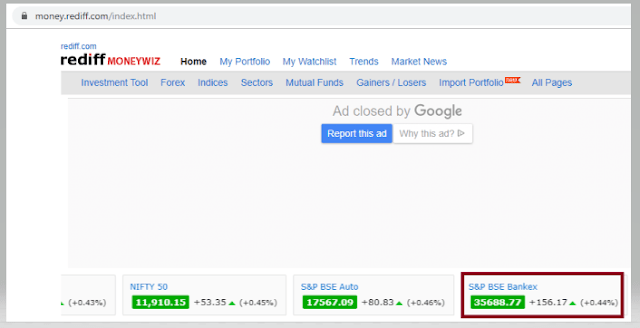
3) Sensex of different companies like S&P BSE Sensex, Nift 50, etc. appears at the center of the page
4) Don’t use Fluent Wait to find value of element S& BSE Sensex
5) Close the browser

package SeleniumTutorial;
import org.openqa.selenium.By;
import org.openqa.selenium.WebDriver;
import org.openqa.selenium.chrome.ChromeDriver;

public class FluentWaitDemo {
      public static void main(String[] args) {

System.setProperty("webdriver.chrome.driver","C:\\Users\\SingVi04\\Desktop\\Drivers\\chromedriver_win32\\chromedriver.exe");
           WebDriver driver= new ChromeDriver();
           driver.manage().window().maximize();
           driver.get("https://www.rediff.com/");    
           driver.findElement(By.xpath("//a[@href ='https://money.rediff.com']")).click();
            
           String Message= driver.findElement(By.xpath("//*[@id='indmarquee']/div[1]/span[2]")).getText();
           System.out.println("Value of S&P BSE Bankex :"+Message);
      driver.quit();
     }
}

Output
Exception in thread "main" org.openqa.selenium.NoSuchElementException: no such element: Unable to locate element
{"method":"xpath","selector":"//*[@id='indmarquee']/div[1]/span[2]"}
(Session info: chrome=78.0.3904.108)

Here, we can see that NoSuchElementException found, as the Web Element is dynamic. We need to wait for some time to find the Web Element.
In the below example, will use Fluent Wait to overcome the above stated issue.

import java.time.Duration;
import org.openqa.selenium.By;
import org.openqa.selenium.NoSuchElementException;
import org.openqa.selenium.WebDriver;
import org.openqa.selenium.WebElement;
import org.openqa.selenium.chrome.ChromeDriver;
import org.openqa.selenium.support.ui.FluentWait;
import org.openqa.selenium.support.ui.Wait;

import com.google.common.base.Function;
    public classFluentWaitDemo {
          public static void main(String[] args) {
 
System.setProperty("webdriver.chrome.driver","C:\\Users\\SingVi04\\Desktop\\Drivers\\chromedriver_win32\\chromedriver.exe");
         WebDriver driver = newChromeDriver();
          driver.manage().window().maximize();
          driver.get("https://www.rediff.com/");
 
          driver.findElement(By.xpath("//a[@href ='https://money.rediff.com']")).click();
           
          //Fluent Wait
          Wait wait = new FluentWait(driver)
                     .withTimeout(Duration.ofSeconds(15))  
                     .pollingEvery(Duration.ofSeconds(1))                           
                     .ignoring(NoSuchElementException.class);
 
                WebElement BSE_Sensex = wait.until(newFunction(){
                  public WebElement apply(WebDriver driver ) 
                  {
                      WebElement BSE_Bankex = driver.findElement(By.xpath("//*[@id='indmarquee']/div[1]/span[2]"));
           return BSE_Bankex;
                 }
          });
 
       String Message = BSE_Sensex.getText();
       System.out.println("Value of S&P BSE Bankex :"+Message);      
      }
}

Output 
Value of S&P BSE Bankex :42,597.43

Here,
Fluent Wait uses two parameters mainly – timeout value and polling frequency. In the above syntax we took time out value as 15 seconds and polling frequency as 2 seconds. The maximum amount of time (15 seconds) to wait for a condition and the frequency (2 seconds) to check the success or failure of a specified condition. 

If the element is located with in this time frame it will perform the operations else it will throw an “ElementNotVisibleException”

Few important points:-

1) NoSuchElementException. class – This class should be imported from org.openqa.selenium. By default Selenium shows 2 packages as shown in the image below.

If NoSuchElementException.class imported from java.util package, then we will see NoSuchElementException as shown below.

Wait wait = new FluentWait(WebDriver reference)
.withTimeout(timeout, SECONDS)
.pollingEvery(timeout, SECONDS)
.ignoring(Exception.class);

This is deprecate. So, do not use this syntax. Refer the below image for error

Implicit and Explicit Wait in Selenium WebDriver

HOME

 driver.manage().timeouts().implicitlyWait(Duration.ofSeconds(2));

import org.openqa.selenium.By;
import org.openqa.selenium.WebDriver;
import org.openqa.selenium.WebElement;
import org.openqa.selenium.chrome.ChromeDriver;
import java.time.Duration;

public class implicitDemo {

    public static void main(String args[]) {

        WebDriver driver = new ChromeDriver();
        driver.manage().window().maximize();
        driver.manage().timeouts().implicitlyWait(Duration.ofSeconds(5));
        driver.get("https://www.selenium.dev/selenium/web/dynamic.html");
        driver.findElement(By.id("adder")).click();
        WebElement added = driver.findElement(By.id("box0"));
        System.out.println("Color :" + added.getDomAttribute("class"));
        driver.quit();
    }

}

driver.manage().timeouts().implicitlyWait(TimeOut, TimeUnit.SECONDS);

Implicit wait will accept 2 parameters, the first parameter will accept the time as an integer value and the second parameter will accept the time measurement in terms of SECONDS, MINUTES, MILISECOND, MICROSECONDS, NANOSECONDS, DAYS, HOURS, etc.

Let me show how to use implicit wait in our program

import java.util.concurrent.TimeUnit;
import org.openqa.selenium.By;
import org.openqa.selenium.WebDriver;
import org.openqa.selenium.firefox.FirefoxDriver;
 
public class ImplicitWait_Example {
      public static void main(String[] args) {
                      
     System.setProperty("webdriver.gecko.driver","C:\\Users\\vibha\\Downloads\\geckodriver.exe");
      WebDriver driver = new FirefoxDriver();
                    
      //Implicit Wait
      driver.manage().timeouts().implicitlyWait(30, TimeUnit.SECONDS);
      driver.get("https://www.facebook.com");
      driver.findElement(By.name("email")).sendKeys("vibhasingh.verma");
          }
}

In the above example, we have waited for 30 sec, before redirecting the web page to the URL explicitly mentioned in the code.


Explicit Wait


An explicit wait is code you define to wait for a certain condition to occur before proceeding further in the code. The worst case of this is Thread.sleep(), which sets the condition to an exact time period to wait. There are convenience methods available to help write code that will only wait as long as required. 

WebDriverWait in combination with ExpectedCondition is one way to do this.

The explicit wait will tell the web driver to wait for certain conditions like visibilityOfElementLocated and maximum amount of time before throwing NoSuchElementException exception.

Wait<WebDriver> wait = new WebDriverWait(driver, Duration.ofSeconds(2));
 wait.until(d -> revealed.isDisplayed());

package org.example;

import org.openqa.selenium.By;
import org.openqa.selenium.WebDriver;
import org.openqa.selenium.WebElement;
import org.openqa.selenium.chrome.ChromeDriver;
import org.openqa.selenium.support.ui.Wait;
import org.openqa.selenium.support.ui.WebDriverWait;

import java.time.Duration;

public class explicitDemo {

    public static void main(String args[])  {

        WebDriver driver = new ChromeDriver();
        driver.manage().window().maximize();
        driver.manage().timeouts().implicitlyWait(Duration.ofSeconds(5));
        driver.get("https://www.selenium.dev/selenium/web/dynamic.html");
        driver.findElement(By.id("reveal")).click();

        WebElement revealTextBox = driver.findElement(By.id("revealed"));
        Wait<WebDriver> wait = new WebDriverWait(driver, Duration.ofSeconds(3));
        wait.until(d -> revealTextBox.isDisplayed());

        revealTextBox.sendKeys("Happy");
        System.out.println("Input Text :" + revealTextBox.getDomProperty("value"));

        driver.quit();
    }
}

WebDriverWait wait = new WebDriverWait(WebDriverRefrence,TimeOut);
wait.until(ExpectedConditions.visibilityOfElementLocated(By.id("Stats1_totalCount")));

Let me explain this with an example

import java.util.concurrent.TimeUnit;
 
import org.openqa.selenium.By;
import org.openqa.selenium.WebDriver;
import org.openqa.selenium.chrome.ChromeDriver;
import org.openqa.selenium.support.ui.ExpectedConditions;
import org.openqa.selenium.support.ui.WebDriverWait;
 
public class ExplicitWaitExample {

            public static void main(String[] args) {
                        System.setProperty("webdriver.chrome.driver",
                                           "C:\\Users\\Vibha\\Desktop\\SeleniumKT\\chromedriver.exe");
                        // Create a new instance of the Firefox driver
                        WebDriver driver = new ChromeDriver();
                        driver.manage().window().maximize();
                        driver.manage().timeouts().implicitlyWait(30, TimeUnit.SECONDS);
                        driver.get("https://configureselenium.blogspot.com/");
 
                        // Click on READ MORE link. New Page is opened
                        driver.findElement(By.linkText("READ MORE")).click();
 
                        // Explicit Wait
                        WebDriverWait wait = new WebDriverWait(driver, 60);
                    wait.until(ExpectedConditions.visibilityOfElementLocated(By.id("Stats1_totalCount")));
                        String Count = driver.findElement(By.id("Stats1_totalCount")).getText();
                        System.out.println("Count is :" + Count);
                  driver.close();
            }
}

In the above example, we have used Explicit Wait. We are waiting for the web element – Stats1_totalCount for 60 seconds before performing the next operation.

The following are the Expected Conditions that can used in Explicit Wait

  1. alertIsPresent()
  2. elementSelectionStateToBe()
  3. elementToBeClickable()
  4. elementToBeSelected()
  5. frameToBeAvaliableAndSwitchToIt()
  6. invisibilityOfTheElementLocated()
  7. invisibilityOfElementWithText()
  8. presenceOfAllElementsLocatedBy()
  9. presenceOfElementLocated()
  10. textToBePresentInElement()
  11. textToBePresentInElementLocated()
  12. textToBePresentInElementValue()
  13. titleIs()
  14. titleContains()
  15. visibilityOf()
  16. visibilityOfAllElements()
  17. visibilityOfAllElementsLocatedBy()
  18. visibilityOfElementLocated()

Note:-  Do not mix implicit and explicit waits! Doing so can cause unpredictable wait times. For example, setting an implicit wait of 20 seconds and an explicit wait of 35 seconds could cause a timeout to occur after 25 seconds.

Fluent Wait

The Fluent wait will tell the web driver to wait for certain conditions like visibilityOfElementLocated as well as the frequency with which we want to check before throwing NoSuchElementException exception.

To know more about Fluent Wait, please click here

How to maximize and minimize the window in Selenium

HOME

driver.manage().window().maximize();

package org.example;

import org.openqa.selenium.WebDriver;
import org.openqa.selenium.chrome.ChromeDriver;

import java.time.Duration;

public class Maximize_Demo {

    public static void main(String args[])  {

        WebDriver driver = new ChromeDriver();
        driver.manage().window().maximize();
        driver.manage().timeouts().implicitlyWait(Duration.ofSeconds(4));
        driver.get("https://www.bing.com/");
        System.out.println("Page Title :" + driver.getTitle());
        driver.quit();
    }
}

driver.manage().window().minimize();

package org.example;

import org.openqa.selenium.WebDriver;
import org.openqa.selenium.chrome.ChromeDriver;

import java.time.Duration;

public class Minimize_Demo {

    public static void main(String args[]) {

        WebDriver driver = new ChromeDriver();
        driver.manage().window().minimize();
        driver.manage().timeouts().implicitlyWait(Duration.ofSeconds(4));
        driver.get("https://www.bing.com/");
        System.out.println("Page Title :" + driver.getTitle());
        driver.quit();
    }
}

Switch Window Commands in Selenium WebDriver

HOME

One of the major testing workflows involves switching between multiple windows. Selenium WebDriver has specific switch commands to serve this purpose. Selenium WebDriver assigns an alphanumeric id to each window as soon as the WebDriver object is instantiated. This unique alphanumeric id is called a window handle. Selenium uses this unique id to switch control among several windows. In simple terms, each unique window has a unique ID, so that Selenium can differentiate when it is switching controls from one window to the other.

1) GetWindowHandle

To get the window handle of the current window. It returns a string of alphanumeric window handles.

String  parentHandle= driver.getWindowHandle();

2) GetWindowHandles

To get the window handle of all the windows. It returns a set of window handle.

Set  handle= driver.getWindowHandles();

3) SwitchTo Window

WebDriver supports moving between named windows using the “switchTo” method.

driver.switchTo().window("windowName");

Let us explain window switch with an example:-

1) Launch new Browser and open https://demoqa.com/browser-windows
2) Check the count of windows which is 1
3) Locate “New Window” button using Id – “windowButton” and click to open a new window
4) Get the count of both windows which is now 2.
5) Get the parent window handle and print it to console
6) Get the window handles of both the open windows and print them
7) Switch to the new window (child window)
8) Get the text of Child Window and print it
9) Close the new window (child window)

The program for the above scenario is shown below:

package com.example.definitions;

import org.openqa.selenium.By;
import org.openqa.selenium.WebDriver;
import org.openqa.selenium.WebElement;
import org.openqa.selenium.chrome.ChromeDriver;
import org.openqa.selenium.chrome.ChromeOptions;
import java.util.Iterator;
import java.util.Set;
import java.util.concurrent.TimeUnit;

public class WindowSwitchDemo {

    public static void main(String[] args) {

        ChromeOptions options = new ChromeOptions();
        options.addArguments("--start-maximized");
        WebDriver driver = new ChromeDriver(options);
        driver.manage().timeouts().implicitlyWait(10, TimeUnit.SECONDS);

        // Pass application url
        driver.get("https://demoqa.com/browser-windows");

        //Count of window - 1
        Set<String> allWindowHandles = driver.getWindowHandles();
        System.out.println("Count of Window :" + allWindowHandles.size());

        //Open a child window
        driver.findElement(By.id("windowButton")).click();

        //Count of windows , changed from 1 to 2
        Set<String> newAllWindowHandles = driver.getWindowHandles();
        System.out.println("New Count of Window :" + newAllWindowHandles.size());

        // Get the detail of the parent window
        String ParentHandle = driver.getWindowHandle();
        System.out.println("Parent Window :" + ParentHandle);

        //Get details of parent and child windows
        Iterator<String> iterator = newAllWindowHandles.iterator();
        String mainWindow = iterator.next();
        String childWindow = iterator.next();
        System.out.println("Parent Window :" + mainWindow);
        System.out.println("Child Window :" + childWindow);

        //Switch control to child window
        driver.switchTo().window(childWindow);

        //Verify the text present on child window
        WebElement text = driver.findElement(By.id("sampleHeading"));
        System.out.println("Child_Title :" + text.getText());

        // Close Child window
        driver.close();

        // Switch back to parent window
        driver.switchTo().window(ParentHandle);
        System.out.println("Parent Title :" + driver.getTitle());

        // Close Parent window
        driver.quit();
    }

}

What is the difference between driver.close() and driver.quit()?

When we are working on multiple windows and a selective window needs to be closed, then transfer the control to that window and use driver.close() to close the selective window. This will not stop the execution of the rest of the program. But, in case it is needed to close all the open windows, then use driver.quit() which will close all the windows opened in a particular session. It basically stops the driver instance, and any further actions to WebDriver may result in an exception.  It is generally the last statement of any code.

Congratulations. We have learnt about window switching in Selenium. I hope you find this tutorial helpful. Happy Learning!!

How to manage driver executables using WebDriverManager

HOME

The traditional way to use any browser in Selenium tests is to download browser binaries, and we need to set the path of these files in our script like below or its location should be added to the classpath.

System.setProperty("webdriver.chrome.driver", "/absolute/path/to/binary/chromedriver");

The process of manually downloading and managing these drivers for each of the operating systems is very painful. We also have to check when new versions of the binaries are released / new browser versions are released. We should check the compatibility for all the executables and add them.

How to download all the driver executables automatically?

The automatic download of the drivers can be done by WebDriverManager. WebDriverManager is a library that allows controlling web browsers programmatically. It provides a cross-browser API that can be used to drive web browsers (e.g., Chrome, Edge, or Firefox, among others) using different programming languages (e.g., Java, JavaScript, Python, C#, or Ruby). The primary use of Selenium WebDriver is implementing automated tests for web applications.

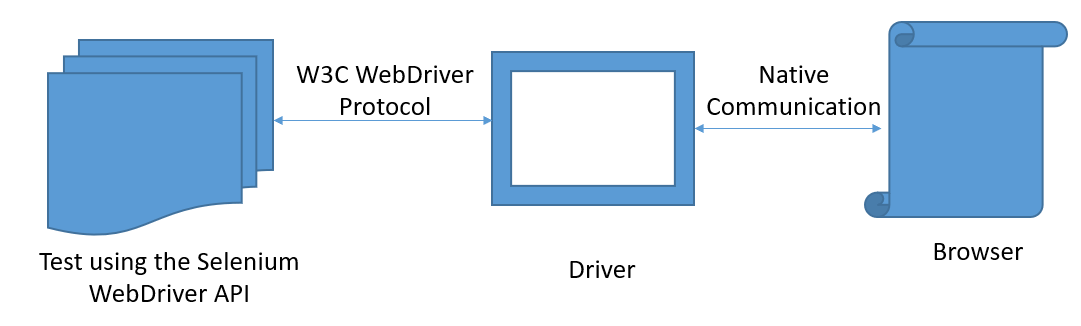
The communication between the WebDriver API and the driver binary is done using a standard protocol called W3C WebDriver (formerly the so-called JSON Wire Protocol). Then, the communication between the driver and the browser is done using the native capabilities of each browser.

How To add WebDriverManager to a Selenium project manually?

Download the latest version of WebDriverManager from here.

It will download a zip file. Now extract the jar/zip file. It will show various .jar under the folder, as shown below:

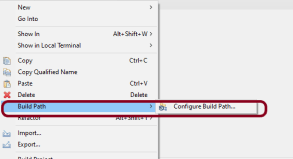
Once we extract the zip file, we have to reference these jar files in our project. For this, navigate to project properties and click Build Path-> Configure Build Path in Eclipse

Click “Add External Jars” as per the steps highlighted below to include all the WebDriverManager jars extracted.

After clicking on the “Add External JARs“, all the selected extracted JARs are added to the project.

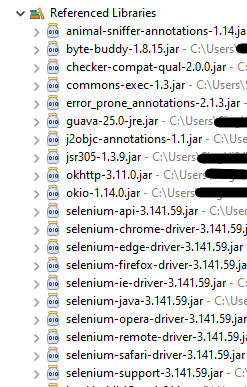
When this finishes, the project references show these referenced jars in the project explorer as highlighted below, and they are ready to be consumed in the Selenium test scripts.

Chrome

The below code snippet shows a quick usage of WebDriverManager with Chrome:

import org.openqa.selenium.WebDriver;
import org.openqa.selenium.chrome.ChromeDriver;
import org.openqa.selenium.chrome.ChromeOptions;

import io.github.bonigarcia.wdm.WebDriverManager;

public class Demo {

	public static void main(String[] args) {

		WebDriverManager.chromedriver().setup();

		// Create an object of Chrome Options class
		ChromeOptions chromeOptions = new ChromeOptions();

		// Create an object of WebDriver class and pass the Chrome Options object as
		// an argument
		WebDriver driver = new ChromeDriver(chromeOptions);

		System.out.println("Executing Chrome Driver");

		driver.get("https://www.bing.com/");
		System.out.println("Title of Page :" + driver.getTitle());
		System.out.println("Page URL : " + driver.getCurrentUrl());

		// Close the driver
		driver.close();

	}
}

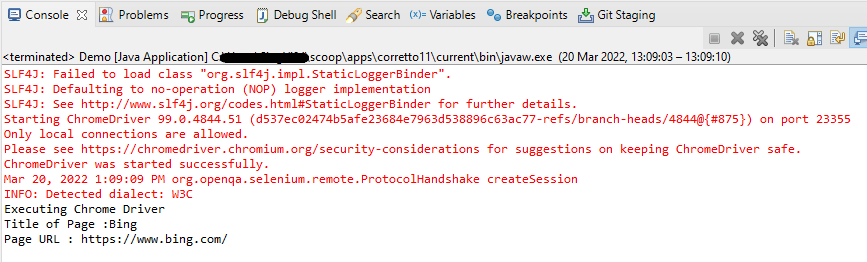
The output of the above program is

FireFox Driver

The below code snippet shows a quick usage of WebDriverManager with FireFox:

import org.openqa.selenium.WebDriver;
import org.openqa.selenium.firefox.FirefoxDriver;
import org.openqa.selenium.firefox.FirefoxOptions;

import io.github.bonigarcia.wdm.WebDriverManager;

public class FireFoxDemo {

	public static void main(String[] args) {

		WebDriverManager.firefoxdriver().setup();

		// Create an object of Firefox Options class
		FirefoxOptions firefoxOptions = new FirefoxOptions();

	    // Create an object of WebDriver class and pass the Firefox Options object
		// as an argument
		WebDriver driver = new FirefoxDriver(firefoxOptions);

		System.out.println("Executing Firefox Driver");

		driver.get("https://www.bing.com/");
		System.out.println("Title of Page :" + driver.getTitle());
		System.out.println("Page URL : " + driver.getCurrentUrl());

		// Close the driver
		driver.close();

	}
}

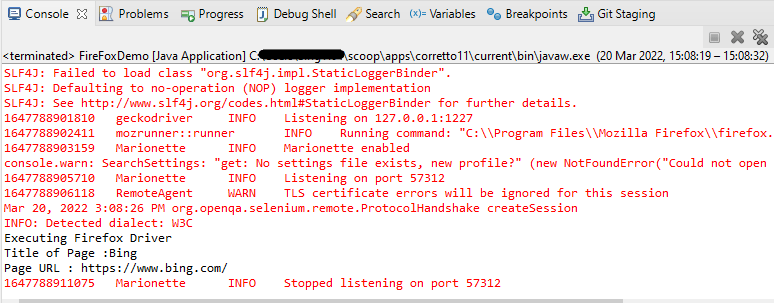
The output of the above program is

Microsoft Edge

The below code snippet shows a quick usage of WebDriverManager with Microsoft Edge:

import org.openqa.selenium.WebDriver;
import org.openqa.selenium.edge.EdgeDriver;
import org.openqa.selenium.edge.EdgeOptions;
import io.github.bonigarcia.wdm.WebDriverManager;

public class EdgeDemo {

	public static void main(String[] args) {

		WebDriverManager.edgedriver().setup();

		// Create an object of Edge Options class
		EdgeOptions edgeOptions = new EdgeOptions();

		// Create an object of WebDriver class and pass the Edge Options object
		// as an argument
		WebDriver driver = new EdgeDriver(edgeOptions);

		System.out.println("Executing Microsoft Edge Driver");

		driver.get("https://www.bing.com/");
		System.out.println("Title of Page :" + driver.getTitle());
		System.out.println("Page URL : " + driver.getCurrentUrl());

		// Close the driver
		driver.close();

	}
}

The output of the above program is

The basic use of these managers is the following:

WebDriverManager.chromedriver().setup();
WebDriverManager.firefoxdriver().setup();
WebDriverManager.edgedriver().setup();
WebDriverManager.operadriver().setup();
WebDriverManager.chromiumdriver().setup()
WebDriverManager.iedriver().setup();

How To add WebDriverManager to a Selenium project using Maven or Gradle?

To use WebDriverManager in a Maven built project, the below-mentioned dependency is needed to add to the pom.xml.

<!-- https://mvnrepository.com/artifact/io.github.bonigarcia/webdrivermanager -->
<dependency>
    <groupId>io.github.bonigarcia</groupId>
    <artifactId>webdrivermanager</artifactId>
    <version>5.1.0</version>
</dependency>

For Gradle project, add the below to the build.gradle.

dependencies {
    testCompile("io.github.bonigarcia:webdrivermanager:5.1.0")
}

How to instantiate a specific browser version using WebDriverManager?

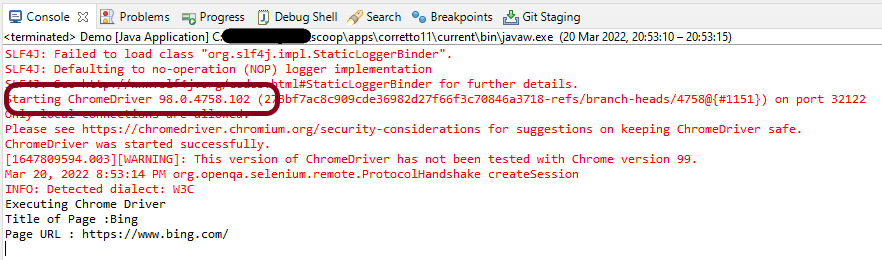
WebDriverManager provides the ability to download a specific version of the browser. For example, the latest chromedriver version is 100.0.4896.20 (released on 2022-03-04). But if we want an earlier version, say, Chromedriver version 98.0.4758.102, we have to add the following code.

import org.openqa.selenium.WebDriver;
import org.openqa.selenium.chrome.ChromeDriver;
import org.openqa.selenium.chrome.ChromeOptions;
import io.github.bonigarcia.wdm.WebDriverManager;

public class Demo {

	public static void main(String[] args) {

		WebDriverManager.chromedriver().driverVersion("98.0.4758.102").setup();

		// Create an object of Chrome Options class
		ChromeOptions chromeOptions = new ChromeOptions();

		// Create an object of WebDriver class and pass the Chrome Options object as
		// an argument
		WebDriver driver = new ChromeDriver(chromeOptions);

		System.out.println("Executing Chrome Driver");

		driver.get("https://www.bing.com/");
		System.out.println("Title of Page :" + driver.getTitle());
		System.out.println("Page URL : " + driver.getCurrentUrl());

		// Close the driver
		driver.close();

	}
}

The output of the above program is

As we can see from the above screenshot, as a result of executing the above program, the Chromedriver started successfully. We can see the details of starting the chrome driver instance in the first line of output. Here we have set the Chrome version to 98.0.4758.102″.

Congratulations!! We have learned to download drivers automatically.

How to run Chrome tests in headless mode in Selenium

HOME

This tutorial explains the steps to run the Selenium tests for Chrome browser in headless mode. We are going to run the tests in Selenium 4 as well as Selenium 3.

What is headless browser?

A headless browser is like any other browser, but without a Head/GUI (Graphical User Interface).  A headless browser is used to automate the browser without launching the browser. While the tests are running, we could not see the browser, but we can see the test results coming on the console.

Headless browser testing is generally faster when compared to actual UI testing as it doesn’t wait for the whole page to render before performing any action.

When we need to execute automated test cases remotely on a server or in any of the build and release pipelines for continuous integration servers like Gitlab or Jenkins, it is not always possible to install real browsers on such remote machines. We can use headless browsers to run automation tests efficiently.

It is easy to perform multi-tasking with a Headless browser. The browser or our machine can do anything else while the tests run in the background.

There are 2 ways to add dependencies to the Selenium project.

Download Selenium Version from here (Selenium 3 & Selenium 4)

Download ChromeDriver Binary (Selenium 3 only)

Download the latest version of WebDriverManager (Selenium 3 only)

Once the Selenium and WebDriverManager folders are downloaded, unzip the folder. Once the zip file is extracted, reference these jar files in the project. For this, navigate to project properties and click Build Path-> Configure Build Path in Eclipse. Click “Add External Jars“. After clicking on the “Add External JARs“, selected all the extracted JARs. The JARs files are present in the project.

2. Add the below dependencies to pom.xml or build.gradle.

Add below dependencies to the project.

 <dependency>
      <groupId>org.seleniumhq.selenium</groupId>
      <artifactId>selenium-java</artifactId>
      <version>4.16.1</version>
 </dependency>

package com.example.steps;

import org.openqa.selenium.WebDriver;
import org.openqa.selenium.chrome.ChromeDriver;
import org.openqa.selenium.chrome.ChromeOptions;
import org.openqa.selenium.firefox.FirefoxDriver;
import org.openqa.selenium.firefox.FirefoxOptions;

public class ChromeOptionsHeadless_Demo {

    public static void main(String[] args) {

        // Create an object of Chrome Options class
        ChromeOptions options = new ChromeOptions();

        // Set Firefox Headless mode as TRUE
        options.addArguments("--headless=new");

        // Create an object of WebDriver class and pass the Chrome Options object
        // as an argument
        WebDriver driver = new ChromeDriver(options);

        // Navigate to site url
        driver.get("https://duckduckgo.com/");

        System.out.println("Executing Chrome Driver in Headless mode..");
        System.out.println("Page Title : " + driver.getTitle());
        System.out.println("Page URL  : " + driver.getCurrentUrl());

        // Close the driver
        driver.quit();
    }

}

Add below dependencies to the project.

 <dependency>
      <groupId>org.seleniumhq.selenium</groupId>
      <artifactId>selenium-java</artifactId>
      <version>3.141.59</version>
 </dependency>

We know that to execute Selenium automation scripts on browsers like chrome or firefox, we must download the binary files of these drivers like chromedriver and geckodriver, etc. After this, we need to set the path to these binaries in the automation script or add the classpath location. Here, we want to execute Selenium WebDriver automation scripts on the Chrome browser, then you need first to download chromedriver.exe and then use the System.setProperty  method to set its path as follows:

	// Set the path of ChromeDriver
	System.setProperty("webdriver.chrome.driver",
				"C:\\Users\\Vibha\\Software\\chromedriver_win32_98.0.4758.102\\chromedriver.exe");

The complete program looks like as shown below:

import org.openqa.selenium.chrome.ChromeDriver;
import org.openqa.selenium.chrome.ChromeOptions;

public class ChromeOptionsHeadless1 {

	public static void main(String[] args) {

		// Set the path of ChromeDriver
		System.setProperty("webdriver.chrome.driver",
				"C:\\Users\\Vibha\\Software\\chromedriver_win32_98.0.4758.102\\chromedriver.exe");

		// Create an object of Chrome Options class
		ChromeOptions options = new ChromeOptions();

		// pass the argument –headless to Chrome Options class.
		options.addArguments("--headless");

		// Create an object of Chrome Driver class and pass the Chrome Options object as
		// an argument
		ChromeDriver driver = new ChromeDriver(options);

		System.out.println("Executing Chrome Driver in Headless mode..");
		driver.get("https://duckduckgo.com/");

		System.out.println("Title of Page :" + driver.getTitle());
		System.out.println("Page URL  : " + driver.getCurrentUrl());

		// Close the driver
		driver.close();

	}
}

How to run headless Chrome Tests in Selenium using WebDriverManager?

WebDriverManager

<!-- https://mvnrepository.com/artifact/io.github.bonigarcia/webdrivermanager -->
<dependency>
    <groupId>io.github.bonigarcia</groupId>
    <artifactId>webdrivermanager</artifactId>
    <version>5.1.0</version>
</dependency>

WebDriverManager has an automated way to download browser executables(exes) or binaries. It supports different browsers like Chrome, Firefox, Microsoft Edge, Internet Explorer, Opera, or PhantomJS.

WebDriverManager.chromedriver().setup: checks for the latest version of the specified WebDriver binary. If the binaries are not present on the machine, then it will download the WebDriver binaries. Next, it instantiates the Selenium WebDriver instance with the ChromeDriver.

import org.openqa.selenium.chrome.ChromeDriver;
import org.openqa.selenium.chrome.ChromeOptions;

import io.github.bonigarcia.wdm.WebDriverManager;

public class ChromeOptionsHeadless2 {

	public static void main(String[] args) {

		// WebDriverManager downloads chrome browser executables or binaries.
		WebDriverManager.chromedriver().setup();

		// Create an object of Chrome Options class
		ChromeOptions options = new ChromeOptions();

		// pass the argument –headless to Chrome Options class.
		options.addArguments("--headless");

		// Create an object of Chrome Driver class and pass the Chrome Options object as
		// an argument
		ChromeDriver driver = new ChromeDriver(options);

		System.out.println("Executing Chrome Driver in Headless mode..");
		driver.get("https://duckduckgo.com/");

		System.out.println("Title of Page :" + driver.getTitle());
		System.out.println("Page URL  : " + driver.getCurrentUrl());

		// Close the driver
		driver.close();

	}

}

Congratulations!! We are able to run Chrome tests in Selenium in headless mode.

How to run Firefox tests in headless mode in Selenium

HOME

This tutorial explains the steps to run the Selenium tests on Firefox browser in headless mode. We are going to run the tests in Selenium. To run the Selenium tests on Chrome browser in headless mode, refer this tutorial.

To start with, we need to add dependencies to the project.

Manually add the dependencies to the project

Download Selenium Version from here

Download Firefox Binary from here

Download the latest version of WebDriverManager (Download this if you want to use WebDriverManager to download browser executables(exes) or binaries automatically, then skip downloading FireFox Binary).

<dependency>
    <groupId>org.seleniumhq.selenium</groupId>
    <artifactId>selenium-java</artifactId>
    <version>4.16.1</version>
</dependency>

import org.openqa.selenium.WebDriver;
import org.openqa.selenium.firefox.FirefoxDriver;
import org.openqa.selenium.firefox.FirefoxOptions;

public class FirefoxOptionsHeadless_Demo {

    public static void main(String[] args) {

        // Create an object of Firefox Options class
        FirefoxOptions options = new FirefoxOptions();

        // Set Firefox Headless mode as TRUE
        options.addArguments("-headless");

        // Create an object of WebDriver class and pass the Firefox Options object
        // as an argument
        WebDriver driver = new FirefoxDriver(options);

        // Navigate to site url
        driver.get("https://duckduckgo.com/");

        System.out.println("Executing Firefox Driver in Headless mode..");
        System.out.println("Page Title : " + driver.getTitle());
        System.out.println("Page URL  : " + driver.getCurrentUrl());

        // Close the driver
        driver.quit();
    }

}

Add the below dependencies to pom.xml or build.gradle.

<!-- https://mvnrepository.com/artifact/org.seleniumhq.selenium/selenium-java -->
    <dependency>
      <groupId>org.seleniumhq.selenium</groupId>
      <artifactId>selenium-java</artifactId>
      <version>3.141.59</version>
    </dependency>

What is headless browser?

A headless browser is like any other browser, but without a GUI (Graphical User Interface).  A headless browser is used to automate the browser without launching the browser. While the tests are running, we could not see the browser, but we can see the test results coming on the console. This makes the test execution faster than normal execution. This is suitable for parallel testing as UI tests needs a lot of memory and resources.

import org.openqa.selenium.WebDriver;
import org.openqa.selenium.firefox.FirefoxDriver;
import org.openqa.selenium.firefox.FirefoxOptions;

public class FirefoxOptionsHeadless1 {

	public static void main(String[] args) {

		// Set the path of GeckoDriver
		System.setProperty("webdriver.gecko.driver",
				"C:\\Users\\Vibha\\Software\\geckodriver\\geckodriver.exe");

		// Create an object of Firefox Options class
		FirefoxOptions options = new FirefoxOptions();

		// Set Firefox Headless mode as TRUE
		options.setHeadless(true);

		// Create an object of WebDriver class and pass the Firefox Options object
		// as an argument
		WebDriver driver = new FirefoxDriver(options);

		// Navigate to site url
		driver.get("https://duckduckgo.com/");

		System.out.println("Executing Firefox Driver in Headless mode..");
		System.out.println("Page Title : " + driver.getTitle());
		System.out.println("Page URL  : " + driver.getCurrentUrl());

		// Close the driver
		driver.close();
	}
}

How to run headless Firefox Tests in Selenium using WebDriverManager?

WebDriverManager

<!-- https://mvnrepository.com/artifact/io.github.bonigarcia/webdrivermanager -->
<dependency>
    <groupId>io.github.bonigarcia</groupId>
    <artifactId>webdrivermanager</artifactId>
    <version>5.1.0</version>
</dependency>

WebDriverManager.firefoxdriver().setup(): checks for the latest version of the specified WebDriver binary. If the binaries are not present on the machine, then it will download the WebDriver binaries. In this case, it is not needed to download Firefox binary and set up the path

import org.openqa.selenium.WebDriver;
import org.openqa.selenium.firefox.FirefoxDriver;
import org.openqa.selenium.firefox.FirefoxOptions;

import io.github.bonigarcia.wdm.WebDriverManager;

public class FirefoxOptionsHeadless2 {

	public static void main(String[] args) {

		WebDriverManager.firefoxdriver().setup();

		// Create an object of Firefox Options class
		FirefoxOptions options = new FirefoxOptions();

		// Set Firefox Headless mode as TRUE
		options.setHeadless(true);

		// Create an object of Firefox Driver class and pass the Firefox Options object
		// as an argument
		WebDriver driver = new FirefoxDriver(options);

		// Navigate to the url
		driver.get("https://duckduckgo.com/");

		System.out.println("Executing Firefox Driver in Headless mode..");
		System.out.println("Page Title : " + driver.getTitle());
		System.out.println("Page URL  : " + driver.getCurrentUrl());

		// Close the driver
		driver.close();
	}

}

Congratulations!! We have run the tests in headless mode in FireFox.

WebDriver Navigation Commands – Navigate, Forward, Back, Refresh in Selenium WebDriver

HOME

1) Navigate

This command loads a new web page in the current window as mentioned in the argument. This command accepts a string parameter and returns nothing.

This command performs the same action as the get() command.

Syntax:

to(String arg0):void

Command:

driver.navigate().to(URL);

2) Forward

This command acts as the same as clicking on the Forward button of any web browser. This command does not require any parameter, and void means return nothing. 

Syntax:

forward(): void 

Command:

driver.navigate().forward();

3) Back

This command acts the same as clicking on the Back button of any web browser. This command does not require any parameter, and void means return nothing. 

Syntax:

back(): void

Command:

driver.navigate().back();

4) Refresh

This command refreshes the current page. This command does not require any parameter, and void means return nothing. 

Syntax:

 refresh(): void 

Command:

driver.navigate().refresh();

How to use Navigation Commands in Selenium WebDriver:

  • Create an instance of ChromeDriver() to handle Navigation commands.
  • Wait until Page Load.
  • Navigate to URL – https://selenium.dev
  • Navigate to another URL.
  • Navigate to the back page.
  • Navigate to the forward page.
  • Refresh the current page.
  • Close the browser

import java.time.Duration;
import org.openqa.selenium.By;
import org.openqa.selenium.WebDriver;
import org.openqa.selenium.chrome.ChromeDriver;
import org.openqa.selenium.chrome.ChromeOptions;

public class navigationCommandsDemo {
	
	public static void main(String[] args) throws InterruptedException {

		ChromeOptions options = new ChromeOptions();
		options.addArguments("--start-maximized");
		options.setImplicitWaitTimeout(Duration.ofSeconds(10));
		
		WebDriver driver = new ChromeDriver(options);
        driver.navigate().to("https://selenium.dev");
        
        //Get the Title of web page
        String PageTitle= driver.getTitle();
        System.out.println("Title of Page 1 is : " + PageTitle);    
        
        Thread.sleep(2000);
        System.out.println("Navigate to New Page 2");
        driver.findElement(By.xpath("//*[@id='main_navbar']/ul/li[4]/a/span")).click();

        Thread.sleep(2000); 
        System.out.println("Navigate back to Old Page 1");
        driver.navigate().back();
 
        Thread.sleep(2000);
        System.out.println("Navigate forward to New Page 2");    
        driver.navigate().forward();
    
        Thread.sleep(2000);
        System.out.println("Refresh the existing page");    
        driver.navigate().refresh();
        
        //quit the browser
        driver.quit();
	}

}

How to handle Alerts in Selenium WebDriver

HOME

driver.switchTo().alert()

Below is a perfect example that shows how to handle Simple Alert with Selenium

import org.openqa.selenium.Alert;
import org.openqa.selenium.By;
import org.openqa.selenium.chrome.ChromeDriver;
import org.openqa.selenium.chrome.ChromeOptions;

import java.time.Duration;

public class SimpleAlert_Demo {
    public static void main(String[] args) throws InterruptedException {

        ChromeOptions options = new ChromeOptions();
        options.setImplicitWaitTimeout(Duration.ofSeconds(10));
        options.addArguments("start-maximized");
        ChromeDriver driver = new ChromeDriver(options);
        driver.navigate().to("https://the-internet.herokuapp.com/javascript_alerts");

        //Click on button to open Confirmation Box
        driver.findElement(By.xpath("//button[@onclick='jsAlert()']")).click();


        // accepting javascript alert
        Alert simpleAlert = driver.switchTo().alert();
        String alertText = simpleAlert.getText();

        //Print the message mentioned on the AlertBox
        System.out.println("Alert text is :" + alertText);

        //This step is only for demonstration purpose to show the alert box
        Thread.sleep(2000);
        simpleAlert.accept();

        //Close the current page
        driver.quit();
    }
}

2) Confirmation Alert

This alert comes with an option to accept or dismiss the alert. To accept the alert we can use Alert.accept() and to dismiss we can use the Alert.dismiss()

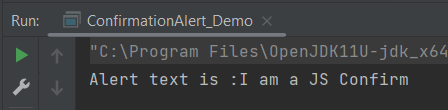
Below is an example that shows how to handle Confirmation Alert with Selenium.

import org.openqa.selenium.Alert;
import org.openqa.selenium.By;
import org.openqa.selenium.chrome.ChromeDriver;
import org.openqa.selenium.chrome.ChromeOptions;
import org.openqa.selenium.support.ui.ExpectedConditions;
import org.openqa.selenium.support.ui.WebDriverWait;
import java.time.Duration;

public class ConfirmationAlert_Demo {
    public static void main(String[] args) throws InterruptedException {

        ChromeOptions options = new ChromeOptions();
        options.setImplicitWaitTimeout(Duration.ofSeconds(10));
        options.addArguments("start-maximized");
        ChromeDriver driver = new ChromeDriver(options);
        driver.navigate().to("https://the-internet.herokuapp.com/javascript_alerts");

        //Click on button to open Confirmation Box
        driver.findElement(By.xpath("//button[@onclick='jsConfirm()']")).click();

        // accepting javascript alert
        Alert ConfirmationAlert = driver.switchTo().alert();
        String alertText = ConfirmationAlert.getText();
        System.out.println("Alert text is :" + alertText);
        ConfirmationAlert.accept();

        //Close the page
        driver.quit();
    }
}

3) Prompt Alert

In the prompt alert, we get an option to add text to the alert box. This is used when some input is required from the user. We will use the sendKeys() method to type something in the Prompt alert box. 

Below is an example that illustrates how to handle Prompt Alert using Selenium WebDriver.

import org.openqa.selenium.Alert;
import org.openqa.selenium.By;
import org.openqa.selenium.chrome.ChromeDriver;
import org.openqa.selenium.chrome.ChromeOptions;
import org.openqa.selenium.support.ui.ExpectedConditions;
import org.openqa.selenium.support.ui.WebDriverWait;

import java.time.Duration;

public class PromptAlert_Demo {
    public static void main(String[] args) throws InterruptedException {

        ChromeOptions options = new ChromeOptions();
        options.setImplicitWaitTimeout(Duration.ofSeconds(10));
        options.addArguments("start-maximized");
        ChromeDriver driver = new ChromeDriver(options);
        driver.navigate().to("https://the-internet.herokuapp.com/javascript_alerts");

        //Click on button to open Prompt Box
        driver.findElement(By.xpath("//button[@onclick='jsPrompt()']")).click();
        Alert promptAlert = driver.switchTo().alert();

        //Enter message in Alert Box
        promptAlert.sendKeys("Welcome to Selenium 4");
        promptAlert.accept();

        //This sleep is not necessary, just for demonstration
        Thread.sleep(2000);

        System.out.println("Prompt Alert text is :" + driver.findElement(By.id("result")).getText());

        //Close the current page
        driver.quit();
    }

}

That’s it! Congratulations on making it through this tutorial and hope you found it useful! Happy Learning!!