Welcome to the DevOps Quiz! This blog post features more than 20 multiple-choice questions that explore key DevOps concepts, covering foundational principles and commonly used tools in a typical DevOps pipeline.
1. What are the key components of DevOps?
Select the best answer
a) Continuous Testing b) Continuous Integration c) Continuous Delivery & Monitoring d) All of the above
3. Which one of the following statements about DevOps is incorrect?
Choose one option
a) DevOps is only suitable for start-up companies b) DevOps is suitable for brownfield software products and services c) DevOps is suitable for greenfield software products and services d) Some of the most exemplary DevOps initiatives started in companies with giant and mature IT organizations
9. What does the term “Immutable Infrastructure” refer to?
Choose one option
a) Infrastructure that can be easily changed and adapted b) Infrastructure components that are never updated once deployed c) Frequently changing infrastructure d) Infrastructure that is resistant to hacker attacks
12. Which tooling can best be used to automate the building and configuration of environments?
Choose one option
a) A ticketing system for the provision of a development, test or acceptance environment ​ b) A tool that copies the production environment settings to the development, test and acceptance environments c) Configuration files per environment that are manually distributed and maintained in order to keep the environments in sync d)Infrastructure as code and configuration management tools that enable the programmers in changing the environments themselves
a) Telemetry is a widely known SaaS tool to plan and execute DevOps projects. b) Telemetry is a communication tool used by DevOps teams at geographically distributed locations. c) Telemetry is the process of recording the behaviour of your systems. d) Telemetry is a tool to design, code and execute automated unit tests.
16. The DevOps team at Innovation Solutions is adopting Infrastructure as Code (IaC) for managing their cloud infrastructure. What is a key advantage of using IaC in terms of infrastructure provisioning and configuration?
Choose one option
a) Manual intervention for each infrastructure change. b) Infrastructure changes performed only by the operations team. c) Reproducible and version-controlled infrastructure changes. d) Infrastructure changes documented in a separate manual document.
17. As a DevOps engineer at AWS DevOps Certification Services, you are tasked with improving the security posture of the CI/CD pipeline. What security practice should be implemented to detect and address vulnerabilities in third-party dependencies during the build process?
Choose one option
a) Manual code review by security experts. b) Regularly updating dependencies without security analysis. c) Implementing automated Dependency Scanning in the CI/CD pipeline. d) Ignoring third-party dependencies to prioritize faster builds.
18. The DevOps team at DevOps Foundation Inc (Part of DevOps Institute) is considering the adoption of a hybrid cloud strategy. What is a key advantage of a hybrid cloud approach compared to a purely on-premises or public cloud solution?
Choose one option
a) Reduced flexibility in choosing cloud providers. b) Higher costs associated with data transfer between on-premises and the cloud. c) Optimized for either fully on-premises or fully public cloud solutions. d) Allows flexibility to choose the best environment for specific workloads.
19. The DevOps team at Microsoft DevOps Azure Solutions is implementing automated deployment pipelines. What is a key advantage of using immutable infrastructure in the deployment process?
a) Requires manual configuration for each deployment. b) Allows for in-place updates to running infrastructure. c) Minimizes consistency across different environments. d) Enables reproducible and consistent deployments with pre-built images.
20. Devops supports the elimination of _ because it can hamper collaboration, operations and morale within the company.
Choose one option
a) Excessive Documentation, which tends to create bottlenecks and hinder effective communication. b) Siloed Development, as it impedes the flow of information and slows down the overall delivery process. c) Traditional Waterfall Methodology, which lacks agility and responsiveness to changing requirements. d) Manual Testing Practices, as they introduce delays and are prone to human errors.
21. How does DevOps impact security of an application or machine?
a) Security is increased by including it earlier in the process. b) Security is increased because of the automation process. c) Security is reduced because of the automation process. d) Both (a) and (b)
23. Certain companies utilize immutable deployment, in which changes to the system are _ as opposed to _.
a) Changes deployed by creating new instances with the updates applied, modifying existing instances directly. b) Changes are temporarily implemented, allowing adjustments post-deployment. c) Changes are dynamically applied, enabling real-time system modifications. d) Changes are stored in a separate environment for future manual application.
a) Developers collaborate on code in a single branch called “trunk”. b) Trunk is a special private branch in a developer workstation. c) Trunk is the process of merging code in DevOps deliveries. d) Trunk is a special source code version controlling system which stores mission critical special projects of your DevOps organization.
25. Which one of the following is not one of the DevOps principles for good test automation?
a) Test Automation should give quick and early feedback about your quality of work. b) Never mix test driven development (TDD) together with your test automation approach. c) Tests should generate consistent, deterministic and repeatable results provided same conditions for different test runs. d) With your test automation, avoid slow and periodic feedback. What you need is fast feedback whenever you or your developer attempts to check-in code to your trunk.
API stands for Application Programming Interface. APIs are mechanisms that enable two software components to communicate with each other using a set of definitions and protocols. Example of an API is the Twitter API. It enables developers to access and interact with Twitter’s platform programmatically. Developers can use the Twitter API to retrieve tweets. They can also post tweets, search for tweets, and manage user accounts. Additionally, developers can perform various other actions related to Twitter’s services.
API architecture is usually explained in terms of client and server. The application sending the request is called the client, and the application sending the response is called the server.
2. What is API Testing?
API testing is a type of software testing that focuses on verifying the functionality, reliability, performance, and security of an application programming interface (API). Since APIs don’t have a GUI, API testing is performed at the message layer of the system.
3. What are the advantages of API Testing?
1. Independent of UI – API testing can detect issues in the early stages of development. It is independent of the GUI. This allows for timely resolution and prevents more significant problems later on.
2. Faster Execution – API tests typically take less time than functional GUI testing. GUI testing takes longer because the web components need to be polled.
3. Integration with CI/CD Pipelines – API testing can be easily automated. It can be integrated into continuous integration (CI) pipelines. This enables rapid feedback and faster release cycles.
4. Ensures Security – API testing allows for thorough security testing. It includes authentication, authorization, data encryption, and protection against common security vulnerabilities.
5. Language Independent – An API test uses XML or JSON to exchange data. These transfer modes are not language-dependent; therefore, you can use any programming language when writing automated tests for your API.
4. How is API testing different from UI testing?
API Testing
UNIT Testing
API is owned by QA team
Unit testing is owned by development team
API testing primarily involves testing the functionality of APIs without knowledge of their internal implementation details, making it a form of black-box testing.
Unit Testing is white box testing. In unit testing, the tester typically has knowledge of the internal workings of the code being tested.
It tests the integration and interaction between multiple units or components, typically involving larger portions of the codebase.
Unit tests are more granular and targeted, verifying the behavior of individual functions or methods.
It often involves testing the interaction between different components, services, or systems, including external dependencies such as databases or third-party APIs.
Unit tests typically focus on testing a single unit of code in isolation from its dependencies. It uses the techniques like mocking, stubbing, dependency injection.
API Testing can be conducted in various environments, including development, staging, and production, as long as the APIs are accessible.
Unit Tests can be generally conducted within the development environment or on developers’ local machines.
5. What are the types of APIs?
SOAP APIs
These APIs use Simple Object Access Protocol. Client and server exchange messages using XML. This is a less flexible API that was more popular in the past.
RPC APIs
These APIs are called Remote Procedure Calls. In RPC communication, the client program sends a request to the server program, specifying the procedure or function to be executed and any required parameters. The server receives the request, executes the specified procedure, and sends back the result to the client.
RPC APIs can use various communication protocols for transmitting data between the client and server, including HTTP, TCP/IP, and UDP. Examples of RPC APIs include XML-RPC, JSON-RPC, gRPC, and Microsoft’s Distributed Component Object Model (DCOM).
Websocket APIs
Websocket API is another modern web API development that uses JSON objects to pass data. A WebSocket API supports two-way communication between client apps and the server. The server can send callback messages to connected clients, making it more efficient than REST API.
REST APIs
These are the most popular and flexible APIs found on the web today. The client sends requests to the server as data. The server uses this client input to start internal functions and returns output data back to the client.
GraphQL APIs
GraphQL is a query language and runtime for APIs developed by Facebook. GraphQL APIs enable clients to request only the data they need using a single endpoint and a flexible query syntax. They provide more flexibility and efficiency compared to traditional REST APIs for fetching and manipulating data.
Database APIs
These APIs provide access to databases, allowing applications to perform CRUD (Create, Read, Update, Delete) operations on data stored in the database. Examples include JDBC (Java Database Connectivity) for Java applications and SQLAlchemy for Python applications.
6. Mention a few common tools used for API testing.
1. Postman: A popular tool for designing, testing, and documenting APIs. It provides a user-friendly interface for sending requests, inspecting responses, and automating tests.
2. Swagger: A widely used tool for designing, building, and documenting RESTful APIs. It provides a visual editor for designing API contracts and generating documentation.
3. SoapUI/ReadyAPI: It is a comprehensive tool for testing SOAP and RESTful APIs. It supports various protocols, message formats, and authentication methods and provides advanced testing features such as data-driven testing and security testing.
4. JMeter: Apache JMeter is a popular open-source tool for performance testing and load testing of web applications, including APIs. While it’s primarily known for its performance testing capabilities, JMeter can also be used for API testing by sending HTTP requests and analyzing responses.
5. REST Assured: REST Assured is a Java library for testing RESTful APIs. It provides a domain-specific language (DSL) for writing expressive and readable API tests, making it popular among Java developers for automated API testing.
7. What is the difference between RESTful API and SOAP API?
Rest API
SOAP API
RESTful API follows the principles of Representational State Transfer (REST) and typically uses HTTP methods such as GET, POST, PUT, and DELETE for operations.
SOAP is a protocol with specific requirements and infrastructure. It involves strict rules for data exchange and the structure of messages.
Supports multiple data formats such as JSON, XML, HTML, and plain text. JSON is the most commonly used format due to its simplicity and ease of use with JavaScript.
Primarily uses XML to format messages. The structure of the message is heavyweight and includes elements like Envelope, Header, and Body.
Typically uses HTTP/HTTPS for communication.
Uses HTTP/HTTPS, SMTP, and other protocols.
It is faster and more scalable due to its stateless nature and caching capabilities.
It is generally slower due to the verbosity of XML and the need to process extensive SOAP headers.
Custom security features like OAuth, JWT.
Built-in security features like WS-Security for secure messaging.
Best suited for web and mobile applications where performance, scalability, and simplicity are required.
Ideal for enterprise applications that require high security, reliability, and compliance with strict protocols.
8. What is an API endpoint?
An API endpoint is a specific URL that is exposed by an API to allow applications to interact with a system by performing various operations, such as creating, reading, updating, or deleting data. Each endpoint represents a unique path to a resource or a set of resources within the system that the API provides access to.
Characteristics of API Endpoint
URL Path: A specific URL for accessing resources or performing actions in an API. Example: “https://api.example.com/users“
HTTP Methods: Different methods (GET, POST, PUT, DELETE) define actions on the endpoint.
Parameters: Endpoints can include query, path parameters, headers, and request bodies. Example: “https://api.example.com/users?page=2&limit=20“ uses query parameters to paginate the list of users.
Responses: Contain status codes and data returned by the server.
9. What are the core components of an HTTP request?
An HTTP request contains five key elements:
An action showing HTTP methods like GET, PUT, POST, and DELETE.
Uniform Resource Identifier (URI), which is the identifier for the resource on the server.
https://www.qaautomation.expert
HTTP Version, which indicates HTTP version, for example-HTTP v1.1.
Request Header, which carries metadata (as key-value pairs) for the HTTP Request message. Metadata could be a client (or browser) type, format supported by the client, format of a message body format, cache settings, and so on.
9. Mention common HTTP methods used in API testing
GET: Used to retrieve data or resources from an API.
POST: Used to create new data or resources on an API.
PUT: Used to update existing data or resources on an API.
DELETE: Used to delete data or resources from an API.
PATCH: Used to update existing data or resources on an API partially.
10. What is the difference between POST and PUT?
POST
PUT
It is used to create a new resource on the server.
It is used to update an existing resource or create one if it does not exist (depending on the context and implementation).
It is not idempotent. Making the same `POST` request multiple times can result in multiple resources being created with different identifiers.
It is Idempotent. Making the same `PUT` request multiple times will have the same effect as making it once. The resource will be created or updated to the same state.
11. What is the purpose of HTTP status codes in API testing?
The purpose of HTTP status codes in API testing is to indicate the outcome of an API request that whether the request is successfully processed, encountered an error or needs further action. Status codes are three-digit numbers included in the response message from the server to provide information about the result of the request.
HTTP status codes clearly communicate the outcome of an HTTP request. They enable clients and APIs to understand the result of their interactions without ambiguity.
1xx (100 – 199): The response is informational
2xx Success: The request was successfully received, understood, and accepted (e.g., 200 OK, 201 Created).
3xx Redirection: Further action is needed to fulfill the request (e.g., 301 Moved Permanently, 302 Found).
4xx Client Errors: The request contains incorrect syntax or cannot be fulfilled (e.g., 400 Bad Request, 401 Unauthorized).
5xx Server Errors: The server failed to fulfill a valid request (e.g., 500 Internal Server Error, 503 Service Unavailable).
12. What is the purpose of authentication in API testing?
Authentication in API testing is a critical component that ensures secure and controlled access to the API endpoints.
Authentication prevents unauthorized users or systems from accessing the API, thereby protecting sensitive data and operations. Ensures that data is only accessible to authenticated users, protecting it from unauthorized exposure.
Supports compliance with regulations that require user authentication, such as GDPR, HIPAA, and others.
13. What are some common authentication methods used in API testing?
1.Basic Authentication: This involves sending the username and password as part of the API request headers, encoded in base64 format.
Authorization: Basic dXNlcm5hbWU6cGFzc3dvcmQ=
2. Token-Based Authentication: This method issues a token to the client after successful authentication. The client then includes this token in subsequent API requests for authorization.
3. OAuth: This is a widely used authorization framework. It allows for the delegation of access rights from one entity to another. Credentials are not shared. It uses access tokens obtained via authorization servers.
4. API Keys: It is simple tokens that map to a specific user or application. It is sent as a header, query parameter, or part of the request body.
x-api-key: YOUR_API_KEY
14. What are the different types of error responses in API testing?
1. HTTP error status codes: These are standard HTTP status codes, such as 4xx and 5xx codes, that indicate errors in the API request or response. Some of the examples are
400 Bad Request: The server could not understand the request due to invalid syntax. Possible reasons include malformed request syntax, invalid request message framing, or deceptive request routing.
401 Unauthorized: The request requires user authentication. This means the request lacks valid authentication credentials for the target resource.
403 Forbidden: The server understood the request but refuses to authorize it. This is usually due to insufficient permissions.
404 Not Found: The server cannot find the requested resource. This could mean the endpoint is incorrect or the resource has been deleted.
405 Method Not Allowed: The request method is known by the server but has been disabled and cannot be used. For example, a request method is not supported by that resource.
409 Conflict: There is a conflict with the current state of the resource. This code is used in situations where the request could not be processed because of conflict in the request.
429 Too Many Requests: The user has sent too many requests in a given amount of time (“rate limiting”).
2. Custom error responses: These are custom error messages or error objects returned by the API in case of errors or exceptions. These custom responses provide meaningful and detailed information that helps users and developers understand the nature of the error, the possible cause, and potential ways to resolve it. Example: Providing guidance like “Invalid input: Email field cannot be empty” is more helpful than a vague error message.
15. What is API mocking, and why is it used in API testing?
API mocking simulates the behavior of an API endpoint during testing. It does this without actually invoking the real API. This mock API can be configured to return predefined responses for specified requests. API mocking is particularly useful in various scenarios for both development and testing purposes.
1. Independent Development: Mock APIs allow front-end developers to work independently from back-end developers. They can simulate responses from the back end before the actual API is fully developed or functional.
2. Cost Management: When dealing with third-party APIs that bill based on usage, it can be cost-effective to use mock APIs during development. This approach reduces unnecessary expenses.
3. Simulation of Edge Cases: Mocking can be used to simulate different scenarios, including error cases and rare conditions that may be complex to reproduce with the actual API.
16. How do you perform load testing on APIs?
Load testing on APIs can be performed by simulating a large number of concurrent users or requests to the API endpoint using load testing tools or frameworks. The goal is to ensure that the API remains responsive and functional under stress.
Tools such as JMeter, Gatling, and k6 are popular open source tool for load testing APIs.
Tools like LoadRunner, BlazeMeter, and NeoLoad offer advanced features and support for various protocols.
Load Testing is used to identify performance bottlenecks, such as slow database queries, resource contention, or inefficient code. Implement fixes or optimizations based on the findings and rerun load tests to verify improvements.
Integrate load testing into the continuous integration/continuous deployment (CI/CD) pipeline to run tests automatically with each release.
Generate detailed reports summarizing the test results, including metrics, observations, and insights.
17. What is API security testing, and why is it important?
API security testing is a process of carefully evaluating API endpoints to identify and remediate vulnerabilities such as fuzzy input, parameter tampering, or injection attacks.
Why is API Security Testing Important?
1.Protection of Sensitive Data: APIs often handle sensitive information (user data, payment details). Security testing ensures compliance with data protection laws (e.g., GDPR, HIPAA). This protects data integrity and avoids potential reputational damage and the loss of customer trust.
2.Ensuring Service Availability: Malicious actors can exploit vulnerabilities to launch Denial-of-Service (DoS) attacks. They can overwhelm your APIs, making them unavailable to legitimate users. Securing APIs helps prevent downtime or service interruptions caused by security incidents.
3. Improving Stakeholder Trust: Customers and partners entrust the company with their data when they interact with their APIs. Regular security testing demonstrates your commitment to data protection, strengthening business relationships, and fostering customer confidence in your services.
18. What are the common security vulnerabilities found in API?
1. Injection Attacks: Attackers insert malicious code into the requests to manipulate the APIs’ intended behavior. SQL Injection, Host-Header Injection, and Command Injection are some of the most common attacks.
2. Brute Force Attacks: These attacks involve attempting various combinations of user credentials to gain unauthorized access. XML-RPC can be easily leveraged as an entry point for attacks and can execute multiple login attempts rapidly, leading to brute-force attacks.
3. Session Management Issues:Inadequate Session Management issues can lead to Authorization vulnerabilities.
4. Cross-Site Scripting (XSS): Injecting malicious scripts into API responses that can be executed in the client’s browser. An attacker injecting JavaScript into a response that steals session cookies.
5. WSDL Exposure: If the WSDL file is exposed to the attackers, they can view detailed information about the API structure. This information includes the operations. This allows attackers to craft more targeted attacks.
6. Cross-Site Request Forgery: This attack tricks a user into unknowingly executing unwanted actions. It happens on a web application where they are authenticated. It leverages the trust that a website has in the user’s browser. This can result in unauthorized actions like changing account settings, transferring funds, or deleting data.
7. Introspection Attack: It exploits an API’s introspection endpoint to gather information about access tokens, exposing sensitive details that attackers can use to compromise security. Introspection endpoints are designed to validate and retrieve metadata about tokens, such as their scopes, expiration, and the user they represent. If improperly secured, attackers can leverage them to gain unauthorized access or manipulate token data.
19. How to perform API Security testing?
1.SQL Injection – SQL Injection attacks are successful when the database processes the unsanitized API input. Hence, testing the REST API for any SQL Injection bugs is important. Try providing SQL commands in the input like:
'or 1=1--
"and 1=1--
2. Command Injection: Various OS commands can also inject API inputs, which are then executed on the server. However, the commands for different Operating systems(Windows, Linux, etc.) would differ. For Example, Redirecting output or appending data to files.
echo "malicious" >> /var/www/html/index.html
rm file.txt; cat /etc/passwd
The shell executes rm file.txt, deleting file.txt from the system. After deleting the file, the shell executes cat /etc/passwd, displaying the contents of the /etc/passwd file in the terminal.
3. Authentication Testing – Test whether the API properly implements authentication. Try to access the endpoint without using the authentication or invalid credentials.
JWT:Ensure tokens are signed, valid, and not modifiable
Basic Authentication: Validate if credentials are encrypted.
OAuth2/OpenID Connect: Verify token management (generation, expiration, and revocation).
4. Authorization Testing – Make sure that the users can only access resources they are authorized for. Test role-based access control (RBAC) or permission-based controls.
5. Rate Limiting and Throttling – Rate Limiting is a process of limiting the number of requests that can be sent to an API within a specific time. Testing for it means verifying that all the limits are properly set and enforced on all APIs. Simulate a high volume of requests to test the API’s resilience against Distributed Denial of Service (DDoS) attacks.
6. Discovering Zombie APIs – Zombie APIs are old or unused APIs that are still active but not updated or maintained. As they are not maintained, zombie APIs can lead to security risks and can be exploited for vulnerabilities.
Common Tests to Assess Zombie APIs:
Test for data accessed by zombie APIs(user data, financial data, etc.)
Test for Authentication and Authorization.
Test for weak encryption implementation.
Test for known vulnerabilities or CVEs.
20. What is the purpose of the request and response headers in API testing?
Request and response headers in API testing are used to transmit additional information about the request or response. Request headers can be used to specify a content type, authentication, caching, language preferences, etc.
Headers like Authorization include tokens, API keys, or credentials.
Specify the desired data format for the request or response.
Control or bypass caching mechanisms.
Response headers are sent by the server to the client, containing metadata about the response and instructions for handling it.
Specify the format and encoding of the response body.
Provide caching policies for the client to optimize performance.
Inform the client about rate limits or remaining quota.
Specify which origins are allowed to access the resource.
21. What is the purpose of query parameters in API testing?
Query parameters in API testing are used to pass additional parameters in the URL of an API request. These parameters are used to customize the behavior of the API request, such as filtering, sorting, or paginating results.
Pagination – APIs use query parameters to manage large datasets by breaking them into smaller chunks (pages).
https://api.example.com/items?page=2&limit=50
It returns the second page of results with 50 items per page.
Filtering Data – Query parameters are commonly used to filter the data returned by an API.
It will display products in the “electronics” category with a price less than $1000.
22. What are the major challenges faced in API testing?
Output verification and validation – APIs can return responses in different data formats like JSON, XML, or plain text. Parsing and validating these formats might require additional effort.
Security Tokens – APIs may require various types of authentication, such as OAuth, API keys, or JWT tokens. Managing and automating the generation and use of these tokens can be complex.
Version Management – Testing different versions of the API and ensuring backward compatibility can become complex, especially if multiple versions are in active use.
External Dependencies – When integrating with third-party APIs, there can be challenges related to their availability, reliability, and version changes over which testers have little control.
Setting Up the Test Environment – APIs often depend on other services or databases. Setting up a fully operational test environment that mimics production can be challenging.
23. What are the testing methods that come under API testing?
1. Unit Testing: It involves testing the smallest functional parts of the API, such as individual endpoints, services, or methods, to ensure they work as expected. Unit tests are typically written to validate the behavior and functionality of your code in isolation.
2. Functional Testing: It ensures that the API functions as expected and meets the requirements and specifications. It verifies responses for various inputs and parameters, HTTP status code.
3. Integration Testing: It tests the interaction between different modules or services to ensure they work together as intended. It verifies that APIs properly communicate with other APIs or systems.
4. Load Testing: It evaluates the API’s performance under a specific load to determine its behavior under normal and peak conditions.
5. Stress Testing: Subjects the API to extreme conditions to evaluate how it handles high traffic, large data volumes, or limited resources.
6. Fuzz Testing: Sends random or unexpected data to the API to see how it responds. Automatically generating malformed or random inputs to test the API’s robustness.
7. Security Testing: It Ensures that the API is secure and can protect data from unauthorized access or attacks. Checks for vulnerabilities such as SQL injection, XSS, and other attack vectors.
8. Usability Testing: Ensures that the API is user-friendly and its endpoints are easy to use. Reviewing API documentation and testing the ease of making requests and interpreting responses.
9. Compliance Testing: Verifies that the API adheres to specific standards, regulations, and guidelines. Ensures adherence to industry standards such as REST, SOAP, or specific compliance requirements (e.g., GDPR, HIPAA).
10. Penetration Testing: Simulates attacks on the API to identify security weaknesses. Identifies vulnerabilities that could be exploited by attackers.
11. Regression Testing: Ensures that recent changes to the API do not affect existing functionality. Running a comprehensive set of tests after a new feature is added to ensure existing functionalities are intact.
24. Why is API testing considered as the most suitable form for Automation testing?
API testing is now preferred over GUI testing and is considered as most suitable because:
1. APIs serve as the communication layer between different software components. By testing APIs, issues can be identified early in the development process before the UI is developed.
2. APIs tend to be more stable and less prone to frequent changes compared to the user interface (UI). This stability makes API tests more reliable and less likely to break with minor updates.
3. API tests are generally faster to execute. They are quicker because API tests do not require the overhead of rendering the user interface, unlike UI tests.
4. API tests do not depend on the UI, they can be executed even when the UI is not available or under development. This independence allows for continuous testing throughout the development cycle.
5. API tests focus on the core business logic and data layer, which are crucial for the functionality of the application. This ensures that the critical components are thoroughly tested.
6. APIs are ideal candidates for automation within CI/CD pipelines. Automated API tests can be seamlessly integrated into build and deploy processes, providing rapid feedback and ensuring continuous testing.
25. What type of bugs would often found in API testing?
1. Incorrect Response Data: API returns incorrect data due to logic errors.
2. Missing or Extra Fields: Response JSON or XML missing required fields or containing unexpected fields.
3. Incorrect Status Codes: API endpoints returning incorrect HTTP status codes (e.g., 200 OK for an error condition).
4. Unexpected Behavior: API does not perform operations as expected (e.g., CRUD operations not working correctly).
5. Slow Response Times: API takes too long to respond under normal or load conditions.
6. Throughput Issues: API cannot handle expected load, leading to reduced throughput.
7. Resource Utilization: High CPU, memory, or network usage during API requests.
8. Injection Attacks: Susceptibility to SQL, NoSQL, and other forms of injection attacks.
9. Cross-Site Scripting (XSS): API responses containing unescaped data leading to XSS vulnerabilities.
10. Authentication Issues: Failure to correctly implement authentication mechanisms (e.g., missing or expired tokens not handled properly).
26. What are the principles of an API test design?
1. Understand the API Specifications: Review the API documentation to understand the endpoints, request/response formats, parameters, authentication mechanisms, status codes, and error messages.
2. Identify Test Scenarios:
Positive Tests: Test with valid inputs to ensure the API returns the expected responses.
Negative Tests: Test with invalid inputs or boundary values to ensure the API handles errors gracefully and returns appropriate error messages.
Edge Cases: Consider unusual or extreme cases, such as very large inputs, empty inputs, or special characters.
Error Scenarios: Test the API’s behavior when it encounters errors, such as network failures, timeouts, or invalid inputs.
Logging and Monitoring: Ensure that the API has proper logging and monitoring to help diagnose and troubleshoot issues.
3. Execution: Send API requests with defined parameters, methods, and data, and observe how the system behaves.
4. Verification & Reporting: Validate the response against expected results, including status codes, response data, and schema. Document test outcomes, marking them as passed, failed, or blocked based on validation results.
5. Performance and Load Testing: Test how well the API scales under load and how it performs under peak traffic conditions.
6. Security Testing: Test that the API properly handles authentication and authorization and does not expose sensitive data.
7. Cleanup: Return the environment to its pre-test state, such as deleting test data or stopping services.
27. Can API tests run in CI/CD pipeline
Yes, API tests can and should run in a Continuous Integration/Continuous Deployment (CI/CD) pipeline to ensure the quality and reliability of your software.
Implementation Steps
1. Write and Prepare the API Tests: API Tests should be written using the suitable tools like Postman, Rest Assured, JUnit and JUnit for Java and PyTest for Python language.
2. Setup CI/CD Pipeline: CI/CD platform such as Jenkins, GitHub Actions, GitLab CI, or others can be used. example GitHub Actions workflow file to run API tests using Postman and Newman:
name: API Tests

on:
  push:
    branches:
      - main
  pull_request:
    branches:
      - main

jobs:
  test:
    runs-on: ubuntu-latest

    steps:
    - name: Checkout code
      uses: actions/checkout@v2

    - name: Set up Node.js
      uses: actions/setup-node@v2
      with:
        node-version: '14'

    - name: Install Newman
      run: npm install -g newman

    - name: Run API tests with Newman
      run: newman run test.json
3. Handle Test Results: CI/CD pipeline is configured to handle and report test results. Many CI/CD tools can integrate with test reporting tools for detailed results and logs.
4. Configure Notifications or Alerts: Configure notifications (e.g., emails or Slack messages) to alert the team when tests fail. This ensures that any issues are promptly addressed.
By integrating API tests into your CI/CD pipeline, you can automatically verify the stability and reliability of your APIs with each code change.
28. What is the difference between Authentication and Authorization in API testing?
Authentication – Authentication is the process of verifying the identity of a user or system attempting to access the API. It ensures that the person or system making the API request is who they claim to be.
Example – A user logs in to a banking API using their credentials and receives a token.
Common Methods:
API Keys: A unique identifier sent with the request to validate the user or application.
Username and Password: Basic authentication.
OAuth Tokens: Access tokens issued after a successful login.
Multi-Factor Authentication (MFA): Combining two or more methods (e.g., password + OTP).
JWT (JSON Web Token): A token that securely transmits user identity
{
  "token": "eyJhbGciOiJIUzI1NiIsInR..."
}
Authorization – Authorization is the process of verifying whether an authenticated user has the necessary permissions. This process checks if they can access specific resources or perform certain actions
Example – The same user tries to transfer money to another account. The API checks if the user’s role allows this action. If the user doesn’t have sufficient permissions, the API denies the request.
Common Methods:
Role-Based Access Control (RBAC): Permissions based on user roles (e.g., Admin, User).
Policy-Based Access Control (PBAC): Custom policies to determine access rights.
Scopes in OAuth: Limit the actions that a token allows (e.g., read-only, full access).
29. Can API testing be automated? If yes, how?
Yes, API testing can be automated using tools like RestAssured, Postman, or TestNG. Test scripts can be written to send requests and validate the response. Assert the following in your tests:
1. Status Codes (e.g., 200 OK, 401 Unauthorized). 2. Response Body: Check for required fields and values. 3. Headers: Validate Content-Type, Cache-Control, etc. 4. Performance: Measure response times.
Below is an example of automated test scripts using Java with Rest Assured.
import io.restassured.http.ContentType;
import org.json.JSONObject;
import org.junit.jupiter.api.Test;
import static io.restassured.RestAssured.given;
import static org.hamcrest.Matchers.equalTo;

public class APITests {

        String BaseURL = "https://reqres.in/api";

    @Test
    public void getUser() {

        // GIVEN
        given()
                .contentType(ContentType.JSON)

                // WHEN
                .when()
                .get(BaseURL + "/users/2")

                // THEN
                .then()
                .statusCode(200)
                .body("data.first_name", equalTo("Janet"))
                .log().all();

    }

}
These tests can be run as part of CI/CD pipelines using GitLab, GitHub, Jenkins and many more.
30. What is the difference between synchronous and asynchronous APIs?
Synchronous APIs: The client waits for the server to process the request and send back a response. Request and response happen in the same thread. The client is blocked until a response is received.
Suitable for real-time, sequential tasks where the response is required immediately (e.g., login authentication). Commonly uses HTTP/HTTPS with immediate response (e.g., REST APIs).
Use Case Examples**:
  - Login authentication: The client needs the server's response before proceeding.
  - Fetching data: The client requires the result immediately to display to the user.
Asynchronous APIs: The client sends a request and continues processing without waiting for the server’s response. Request and response happen in separate threads or processes. The client continues processing while waiting for the response.
Suitable for long-running processes or tasks that do not require an immediate response (e.g., batch processing). Often uses WebSockets, Message Queues, or event-driven systems (e.g., Webhooks).
**Use Case Examples**:
  - File upload or processing: The server processes the file and sends a notification when done.
  - Notification systems: Sending push notifications to multiple devices.
9. What is the purpose of using the PageFactory class in Selenium?
Choose one option
a) To find elements on a page using CSS selectors b) To manage the browser cookies c) To initialize web elements defined in a Page Object class d) To handle browser pop-ups
10. Which WebDriver method is used to wait until a web element is visible on the page?
Choose one option
a)  driver.waitForElement()

b)  new WebDriverWait().until(ExpectedConditions.elementToBeClickable())

c)  Thread.sleep()

d)  new WebDriverWait().until(ExpectedConditions.visibilityOfElementLocated())
15. How can data-driven tests be achieved in Selenium with TestNG?
Choose one option
a) By using the @DataProvider annotation b) By using the @DataDriven annotation c) By using the @Test annotation with parameters attribute d) By using the @TestData annotation
16. How can you run Selenium tests in parallel using TestNG?
Choose one option
a) Modify the test class constructor b) Use the synchronized keyword c) Configure the testng.xml file with parallel execution settings d) Use the parallel=true annotation
20. When integrating Selenium with a CI/CD pipeline, what is the role of the Headless browser mode?
Choose one option
a) To execute browser tests without a graphical user interface, reducing resource consumption b) To run tests exclusively on mobile devices c) To make browsers invisible while the graphical interface is still running d) To configure user sessions on virtual machines
21. How can you store sensitive information, such as Selenium Grid credentials, securely in GitHub Actions?
a) Directly hardcode the credentials into the YAML file b) Use GitHub Secrets to store and access sensitive information c) Email the credentials to team members d) Store the credentials in a public repository
It is not possible to test APIs or web services directly using Selenium WebDriver. Selenium is primarily designed for automating web browser interactions and performing functional testing of web applications by simulating user actions.
3) b) No
4) b) No
5) a) Yes
6) a) Yes
By using testing frameworks such as TestNG or JUnit, you can configure and run your Selenium tests in parallel.
7) b) No
Selenium cannot handle security testing on its own. However, it can assist in certain aspects of security testing when integrated with specialized security tools.
8) a) Yes
9) c) To initialize web elements defined in a Page Object class
10) d) new WebDriverWait().until(ExpectedConditions.visibilityOfElementLocated())
11) d) Actions.contextClick(element)
12) b) ((TakesScreenshot) driver).getScreenshotAs(OutputType.FILE)
13) a) Yes
14) a) Yes
15) a) By using the @DataProvider annotation
16) c) Configure the testng.xml file with parallel execution settings
17) a) Jenkins
18) a) HTML Publisher Plugin
19) c) Cross-Browser Testing
20) a) To execute browser tests without a graphical user interface, reducing resource consumption
21) b) Use GitHub Secrets to store and access sensitive information
22) a) Yes
23) b) No
Selenium is not designed for performance testing. For performance testing, specialized tools such as JMeter, Gatling, and LoadRunner are more appropriate.
24) b) No
Selenium does not have inbuilt functionality specifically for testing Excel files. We can use external libraries in conjunction with Selenium to work with Excel files, like Apache POI.
JSON Web Token (JWT) is an open standard (RFC 7519) that defines a compact and self-contained way for securely transmitting information between parties as a JSON object. This information can be verified and trusted because it is digitally signed. JWTs can be signed using a secret (with the HMAC algorithm) or a public/private key pair using RSA or ECDSA.
What is the JSON Web Token structure?
JSON Web Tokens consist of three parts separated by dots (.), which are:
Header: Contains metadata about the token, such as the algorithm used.
 {
    "typ":"JWT",
    "alg":"HS256"
 }
Payload: Contains claims, like subject, issuer, expiration, etc.
1. The JWT.decode() method from the auth0 library decodes the token into its components without verifying the signature.
DecodedJWT decodedJWT = JWT.decode(jwtToken);
2. Retrieving Components:
Header: The Base64Url-encoded header. Payload: The Base64Url-encoded payload. Signature: The cryptographic signature. getSubject() extracts the sub claim (subject). getIssuer() extracts the iss claim (issuer).
3. The Base64.getUrlDecoder() decodes the Base64Url-encoded header and payload into human-readable JSON strings.
String decodedHeader = new String(java.util.Base64.getUrlDecoder().decode(header));
String decodedPayload = new String(java.util.Base64.getUrlDecoder().decode(payload));
1. The DecodedJWT.getSubject() and DecodedJWT.getIssuer() methods already extract and decode the claims. The attempt to decode them manually as Base64 will fail. They are not separately Base64-encoded. They are JSON values embedded in the payload.
2. The header and payload are Base64Url-encoded, so you we decode them to get the full JSON structures.
3. The signature cannot be “decoded” because it is a hash. It can only be validated using the appropriate cryptographic key.
JSON Web Token (JWT) is an open standard (RFC 7519) that defines a compact and self-contained way for securely transmitting information between parties as a JSON object. This information can be verified and trusted because it is digitally signed. JWTs can be signed using a secret (with the HMAC algorithm) or a public/private key pair using RSA or ECDSA.
What is the JSON Web Token structure?
JSON Web Tokens consist of three parts separated by dots (.), which are:
Header: Contains metadata about the token, such as the algorithm used.
 {
    "typ":"JWT",
    "alg":"HS256"
 }
Payload: Contains claims, like subject, issuer, expiration, etc.
1. Stateless Authentication: JWTs allow for stateless authentication, meaning the server doesn’t need to store user session information. This scalability and reduced server-side storage make JWTs advantageous for distributed systems.
2. Performance: Since JWTs are stateless, server-side lookup is eliminated. It Reduces server load and Improves response times for authenticated requests.
3. Interoperability: JWTs are designed to work across different technologies and systems. This interoperability is particularly useful in microservices architectures, where services may be implemented in different languages.
4. Cross-Domain Authentication: JWTs work well for Single Sign-On (SSO) and cross-domain authentication since they are independent of the application’s storage mechanisms.Users can log in once and access multiple applications without repeatedly authenticating.
5. Secure Data Transfer: The use of signatures in JWTs ensures that the data has not been tampered with during transmission. This provides a level of security when exchanging information between the client and server. Ensures token integrity with algorithms like HS256 (HMAC) or RS256 (RSA).
6. Expiration and Revocation: JWTs include an exp (expiration) claim and can include a revocation mechanism via blacklists. Tokens expire automatically after a set time.
7. Flexibility with Custom Claims: JWT allows adding custom claims like user roles, permissions, or metadata. Tailor the token to your application’s needs.
2. To create a JWT, we use the JWT.create() method. The method returns an instance of the JWTCreator.Builder class. We will use this Builder class to build the JWT token by signing the claims using the Algorithm instance:
Explanation of Claims and Methods:
withIssuer(“QA_Automation”): Adds the iss (issuer) claim, identifying the source of the token.
withSubject(“QA_Automation Details”): Adds the sub (subject) claim, describing the token’s purpose or context (e.g., user or system identity).
withIssuedAt(new Date()): Sets the iat (issued at) claim to the current timestamp, indicating when the token was created.
withExpiresAt(new Date(System.currentTimeMillis() + 10000L)): Sets the exp (expiration) claim to 10 seconds from the current time. After this, the token will no longer be valid.
withJWTId(UUID.randomUUID().toString()): Adds a unique identifier (jti claim) for the token using a random UUID.
withNotBefore(new Date(System.currentTimeMillis() + 100L)): Adds the nbf (not before) claim, setting the token to be valid 100 milliseconds in the future.
In this tutorial, we will change the font style in Excel using Apache POI.
What is Apache POI?
Apache POI, where POI stands for (Poor Obfuscation Implementation) is the Java API for Microsoft Documents. It offers a collection of Java libraries. These libraries help us to read, write, and manipulate different Microsoft files such as Excel sheets, PowerPoint, and Word files.
Add the below mentioned dependencies to the project. The latest dependencies can be downloaded from Maven.
<!-- POI -->
    <dependency>
      <groupId>org.apache.poi</groupId>
      <artifactId>poi</artifactId>
      <version>5.3.0</version>
    </dependency>

    <!-- POI XML -->
    <dependency>
      <groupId>org.apache.poi</groupId>
      <artifactId>poi-ooxml</artifactId>
      <version>5.3.0</version>
    </dependency>
Every system comes bundled with a huge collection of fonts such as Arial, Impact, Times New Roman, etc. The collection can also be updated with new fonts, if required. Similarly there are various styles in which a font can be displayed, for example, bold, italic, underline, strike through, etc.
Apache POI provides methods to handle font in excel sheet. We can create font, set color, set size etc. The Font is an interface which provides methods to handle the font.
Font font = workbook.createFont();
Implementation
Step 1 – Create a blank workbook.
XSSFWorkbook workbook = newXSSFWorkbook();
Step 2 – Create a blank sheet and assign name to the sheet – Example_Sheet.
Step 7– Write the workbook to a File and close the workbook. Catches any IOException errors that might occur during the file creation or writing process.
Below is the sample code for changing the font style in the excel in Java.
package com.example.Excel;
import org.apache.poi.ss.usermodel.*;
import org.apache.poi.xssf.usermodel.XSSFSheet;
import org.apache.poi.xssf.usermodel.XSSFWorkbook;
import java.io.FileOutputStream;
import java.io.IOException;
public class ApplyFont_Excel {
public static void main(String[] args) throws IOException {
// create blank workbook
XSSFWorkbook workbook = new XSSFWorkbook();
// Create a blank sheet
XSSFSheet sheet = workbook.createSheet("Example_Sheet");
//Create a row
Row row = sheet.createRow(0);
//Create a cell
Cell cell = row.createCell(0);
//Set the value of the cell
cell.setCellValue("Happy Days");
//Create a new font
Font font = workbook.createFont();
font.setFontHeightInPoints((short) 24);
font.setFontName("Arial");
font.setBold(true);
font.setItalic(true);
font.setColor(IndexedColors.DARK_RED.getIndex());
font.setUnderline(Font.U_SINGLE);
//Create a cell style and set the font
CellStyle style = workbook.createCellStyle();
style.setFont(font);
//Apply the style to the cell
cell.setCellStyle(style);
//Write the output to the file
 try {
            FileOutputStream outputStream = new FileOutputStream("src/test/StyledCell.xlsx");
            workbook.write(outputStream);
            outputStream.close();
            System.out.println("StyledCell.xlsx Workbook is successfully created");
        } catch (IOException e) {
            e.printStackTrace();
        } finally {
            workbook.close();
        }
}
}
The output of the above program is
StyledCell.xlsx excel is created in src/test folder.
Open the excel and it looks like the below shown image:
To apply different font styles to different rows in an Excel sheet using Apache POI, you can define separate CellStyle objects, each associated with a unique Font, and apply these styles to the desired cells.
package com.example.Excel;

import org.apache.poi.ss.usermodel.*;
import org.apache.poi.xssf.usermodel.XSSFSheet;
import org.apache.poi.xssf.usermodel.XSSFWorkbook;

import java.io.FileOutputStream;
import java.io.IOException;

public class ApplyFontMultipleRows_Excel {

    public static void main(String[] args) throws IOException {

        // create blank workbook
        XSSFWorkbook workbook = new XSSFWorkbook();

        // Create a blank sheet
        XSSFSheet sheet = workbook.createSheet("Example_Sheet");

        //Create a new font1
        Font font1 = workbook.createFont();
        font1.setFontHeightInPoints((short) 12);
        font1.setFontName("Arial");
        font1.setBold(true);
        font1.setItalic(true);
        font1.setColor(IndexedColors.DARK_RED.getIndex());
        font1.setUnderline(Font.U_SINGLE);

        //Create a new font2
        Font font2 = workbook.createFont();
        font2.setFontHeightInPoints((short) 14);
        font2.setFontName("Times New Roman");
        font2.setBold(true);
        font2.setItalic(true);
        font2.setColor(IndexedColors.BLUE.getIndex());

        //Create a new font3
        Font font3 = workbook.createFont();
        font3.setFontHeightInPoints((short) 16);
        font3.setFontName("Courier New");
        font3.setBold(true);
        font3.setColor(IndexedColors.GREEN.getIndex());

        //Create a cell style and set the font
        CellStyle style1 = workbook.createCellStyle();
        style1.setFont(font1);

        CellStyle style2 = workbook.createCellStyle();
        style2.setFont(font2);

        CellStyle style3 = workbook.createCellStyle();
        style3.setFont(font3);

        // Apply styles to rows
        Row row1 = sheet.createRow(0);
        Cell cell1 = row1.createCell(0);
        cell1.setCellValue("Underlined Italic Bold Arial");
        cell1.setCellStyle(style1);

        Row row2 = sheet.createRow(1);
        Cell cell2 = row2.createCell(0);
        cell2.setCellValue("Bold Italic Times New Roman");
        cell2.setCellStyle(style2);

        Row row3 = sheet.createRow(2);
        Cell cell3 = row3.createCell(0);
        cell3.setCellValue("Courier New");
        cell3.setCellStyle(style3);

        //Write the output to the file
        try {
            FileOutputStream outputStream = new FileOutputStream("src/test/FontStyle.xlsx");
            workbook.write(outputStream);
            outputStream.close();
            System.out.println("Workbook FontStyle.xlsx is created");
        } catch (IOException e) {
            e.printStackTrace();
        } finally {
            workbook.close();
        }

    }
}
The output of the above program is
Open the excel and it looks like the below shown image:
In this example: 1. We created three different “Font“ objects with different styles (Underlined Italic Bold Arial, Times New Roman Bold Italic, and Courier New Italic). 2. We created three corresponding “CellStyle” objects and set the respective fonts. 3. We applied these styles to specific cells in different rows.
Congratulations on making it through this tutorial and hope you found it useful! Happy Learning!! Cheers!!
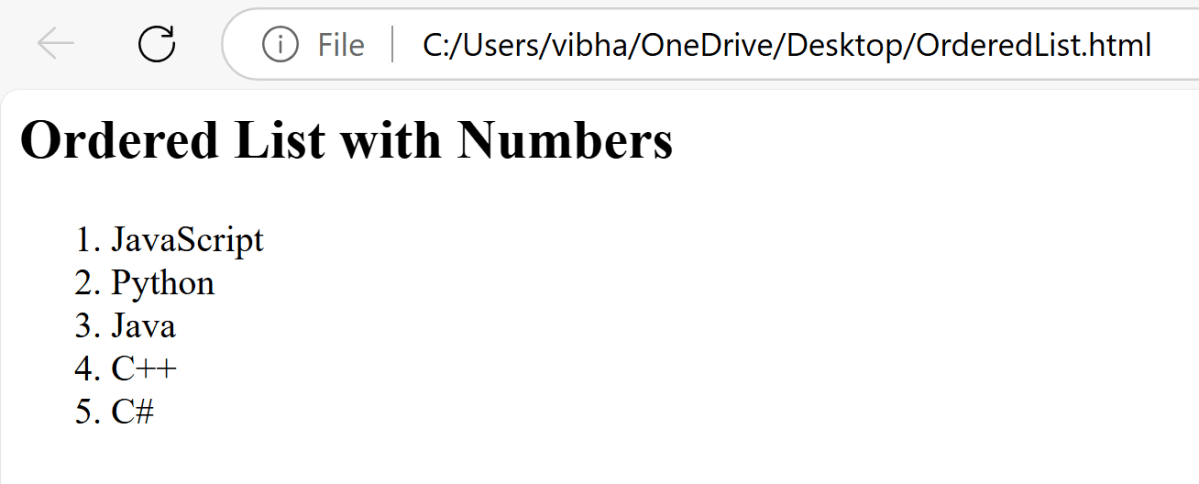
HTML Ordered List is created by the HTML <ol> tag, to display elements in an ordered form, either numerical or alphabetical. Within the <ol> tag, list items <li> are used to define the items in sequential order.
This attribute is used to specify the start value of the list.
<ol>
<html>

<head>
    <title>Numbered List Example</title>
</head>

<body>
    <h2>Ordered List with Numbers</h2>
    <ol>
        <li>JavaScript</li>
        <li>Python</li>
        <li>Java</li>
        <li>C++</li>
        <li>C#</li>
    </ol>
</body>

</html>
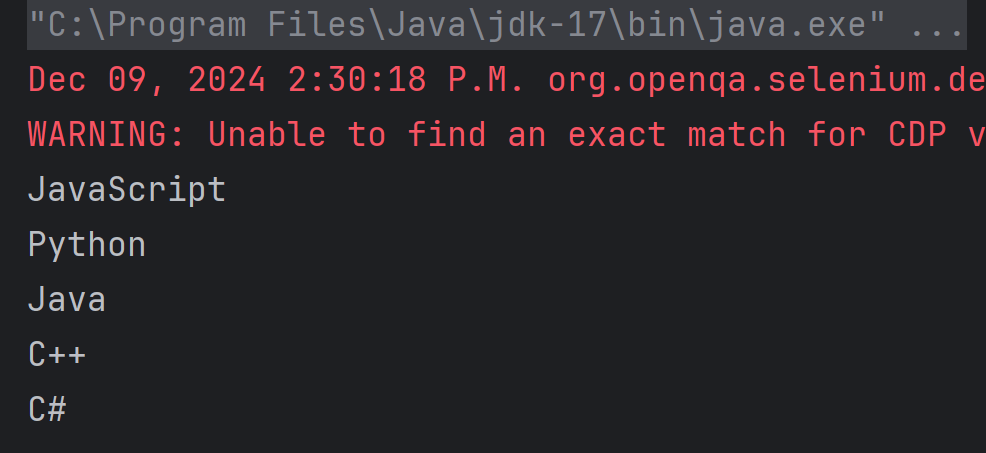
Below is the program to print all the elements present in the ordered list in Selenium.
package com.example;

import org.openqa.selenium.Alert;
import org.openqa.selenium.By;
import org.openqa.selenium.WebDriver;
import org.openqa.selenium.WebElement;
import org.openqa.selenium.chrome.ChromeDriver;
import org.openqa.selenium.chrome.ChromeOptions;

import java.time.Duration;
import java.util.List;

public class OrderedList {

    public static void main(String[] args) {

        // Setup the webdriver
        ChromeOptions options = new ChromeOptions();
        WebDriver driver = new ChromeDriver(options);

        // Put an Implicit wait and launch URL
        driver.manage().timeouts().implicitlyWait(Duration.ofSeconds(5));

        //Start Browser
        String filePath = "file:///C:/Users/vibha/OneDrive/Desktop/OrderedList.html";
        driver.get(filePath);

        //maximize browser
        driver.manage().window().maximize();

        //Locate the ordered list using its tag name
        WebElement orderedList = driver.findElement(By.tagName(("ol")));

        //Fetch all the list items
        List<WebElement> listItems = orderedList.findElements(By.tagName("li"));

        //Iterate through the list and print the contents
        for (int i = 0; i < listItems.size(); i++) {
            System.out.println(listItems.get(i).getText());
        }

        //Close the main window
        driver.quit();
    }

}
The output of the above program is
1. Initialize WebDriver
Initialize the WebDriver. Here, it is ChromeDriver.
// Setup the webdriver
ChromeOptions options = new ChromeOptions();
WebDriver driver = new ChromeDriver(options);
4. Testing __ applications are the primary use of JMeter, but other uses are functional testing, JDBC database connections, Web services, generic TCP connections, and OS native processes as well.
Choose one option
a) Web b) FTP c) Both a and b d) None of the above
5. The JMeter performance testing tool offers various test activities, such as __, Regression, and Functional testing, in order to determine your web server’s performance metrics accurately.
Choose one option
a) Performance b) Load c) Stress d) All of the above
10. What is the purpose of the Thread Group in JMeter?
Choose one option
a) To define the test plan b) To define the target system c) To define the number of users and the duration of the test d) To define the type of test to be performed
a) It is important to test the final software product for speed, scalability, and stability under a variety of load conditions before launching it into the market. b) It’s likely to cause slow processing and poor usability if the product goes live without performing performance testing, which can negatively affect the sales goal. c) Both A and B d) None of the above


 QA Automation Expert