Last Updated On
Command-line interfaces (CLI) are essential for automating tasks. Using CLI commands, you can integrate Playwright tests into Continuous Integration/Continuous Deployment (CI/CD) pipelines. This allows for automatic testing whenever code changes are made. This ensures quality and consistency.
Running tests via the command line can be more resource-efficient, as it minimizes overhead from graphical interfaces. This is particularly helpful in headless testing environments where UI rendering is unnecessary.
Table Of Contents
- Running all the tests
- Run single test file
- Specific File or Directory
- Using Test Title Filtering
- List Tests
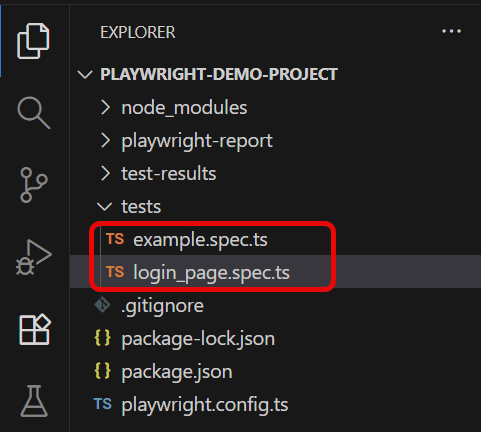
Below is the structure of the project.
playwright.config.ts
import { defineConfig, devices } from '@playwright/test';

/**
 * See https://playwright.dev/docs/test-configuration.
 */
export default defineConfig({
  testDir: './tests',

 /* Run tests in files in parallel */
  fullyParallel: true,

 /* Reporter to use. See https://playwright.dev/docs/test-reporters */
  reporter: 'html',

 /* Shared settings for all the projects below. See https://playwright.dev/docs/api/class-testoptions. */
  use: {

    /* Collect trace when retrying the failed test. See https://playwright.dev/docs/trace-viewer */
    trace: 'on-first-retry'

  },

  /* Configure projects for major browsers */
  projects: [
    {
      name: 'chromium',
      use: { ...devices['Desktop Chrome'] },
    },

    {
      name: 'firefox',
      use: { ...devices['Desktop Firefox'] },
    },

    {
      name: 'webkit',
      use: { ...devices['Desktop Safari'] },
    }

  ]

});
example.spec.ts
import { test, expect } from '@playwright/test';

test('has title', async ({ page, browserName }) => {
  await page.goto('https://playwright.dev/');

  // Print the browser name
  console.log(`Running test on browser: ${browserName}`);

  // Expect a title "to contain" a substring.
  await expect(page).toHaveTitle(/Playwright/);

});

test('get started link', async ({ page, browserName }) => {
  await page.goto('https://playwright.dev/');

  // Print the browser name
  console.log(`Running test on browser: ${browserName}`);

  // Click the get started link.
  await page.getByRole('link', { name: 'Get started' }).click();

  // Expects page to have a heading with the name of Installation.
  await expect(page.getByRole('heading', { name: 'Installation' })).toBeVisible();
});
login_page.specs.ts
import { test, expect } from '@playwright/test';

test('has title', async ({ page, browserName }) => {
  await page.goto('https://opensource-demo.orangehrmlive.com/');

  console.log(`Running test on browser: ${browserName}`);  // Print the browser name

  // Expect a title "to contain" a substring.
  await expect(page).toHaveTitle(/OrangeHRM/);
});


test('valid login', async ({ page, browserName }) => {

  const username = 'Admin';
  const password = 'admin123'

  await page.goto('https://opensource-demo.orangehrmlive.com/');

  // Print the browser name
  console.log(`Running test on browser: ${browserName}`);

  // Fill in the username
   await page.fill('input[name="username"]', username);

  // Fill in the password
    await page.fill('input[name="password"]', password);

  // Click the login button - Use XPath to locate and click the login button
  const loginButton = page.locator('//button[@type="submit" and contains(@class, "orangehrm-login-button")]');
  await loginButton.click();

  // Check if the page contains text Dashboard - Locate the element using XPath
  const dashboardElement = await page.locator('//h6[contains(@class, "oxd-topbar-header-breadcrumb-module")]');

  // Get the text content from the element
  const dashboardText = await dashboardElement.textContent();

  // Print the text
  console.log(`Dashboard text: ${dashboardText}`);

  expect(dashboardText).toContain('Dashboard');
});
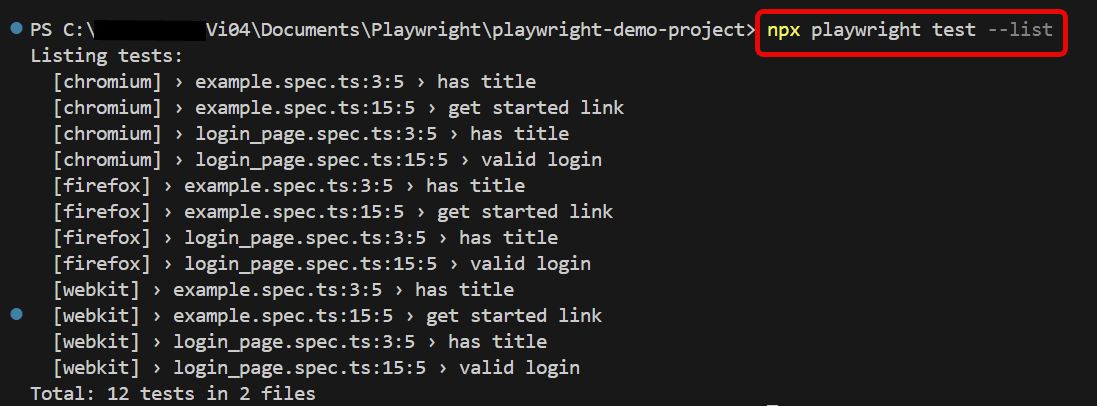
In the above playwright.config file, we have specified 3 browsers. So, a single test will run on 3 different browsers – chromium, firefox and webkit.
1. Running all the tests
You can run your tests with the playwright test command. This runs your tests on all browsers as configured in the playwright.config file, and results appear in the terminal. Tests run in headless mode by default, meaning no browser window opens while running the tests.
npx playwright test
2. Run single test file
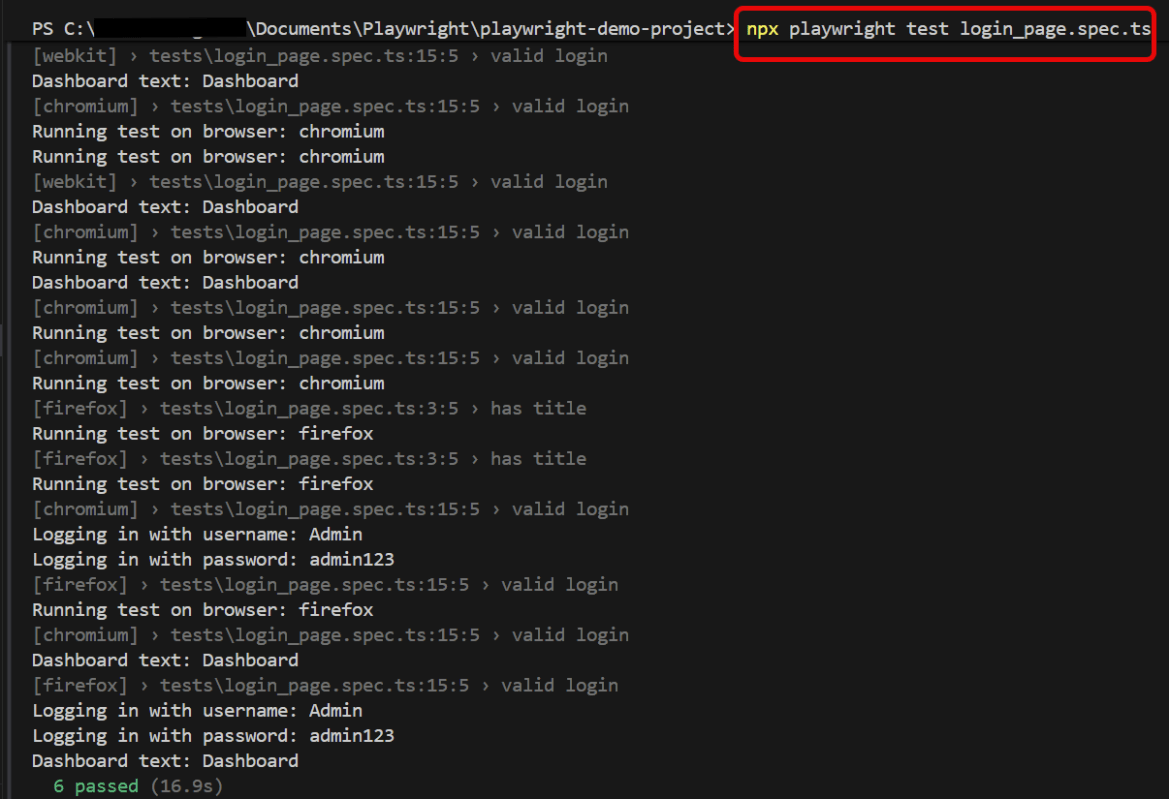
To run a single test file, pass in the test file name that you want to run.
npx playwright test login_page.spec.ts
3. Specific File or Directory
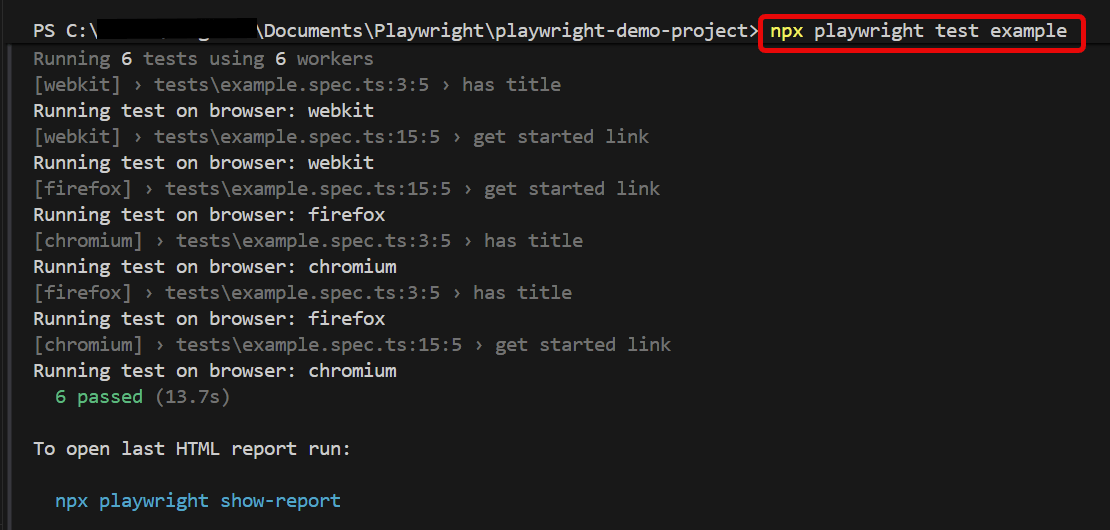
To run files that has example in the file name, simply pass in these keywords to the CLI.
npx playwright test example
4. Using Test Title Filtering
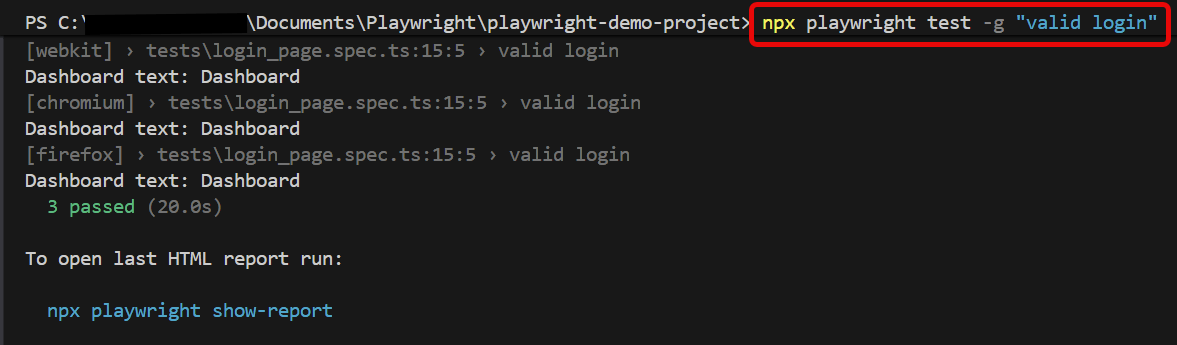
To run a test with a specific title, use the -g flag followed by the title of the test.
npx playwright test -g "valid login"
5. List Tests
You can list all available tests to verify which tests are being recognized by Playwright using:
npx playwright test --list
To know more about Playwright, please refer to this website – https://playwright.dev/.
 QA Automation Expert