In this tutorial, we will create a GET request in Postman and see how to execute it.
Table of Contents
What is GET Request?
A GET request gets the information from the server. When you make the GET request on the server, then the server responds to the request.
GET requests will not affect any data on the server. This means, there is no creation, updation, addition, or deletion of data on the server when you are making a GET request.
We will use the following URL for this Postman tutorial.
http://dummy.restapiexample.com/api/v1/employees
Implementation Steps
To create the first GET request in Postman, follow the following steps:
Create a Collection
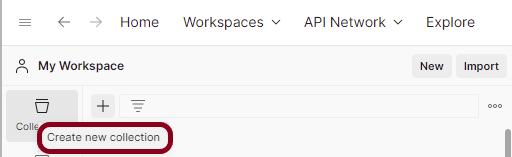
Step 1: Create a Collection, click on Collections, and then click on the “+” plus button.
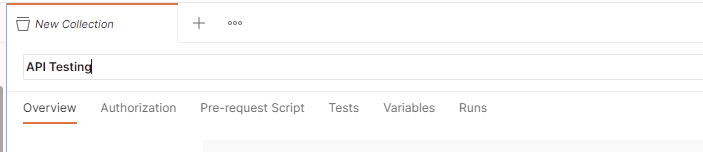
Step 2: Provide a name to the collection – “API Testing”.
Add a request to the Collection
Step 3: To create a new request, click on “Add a request”, if it is a new Collection. Otherwise, click on the 3 dots and select “Add request”.

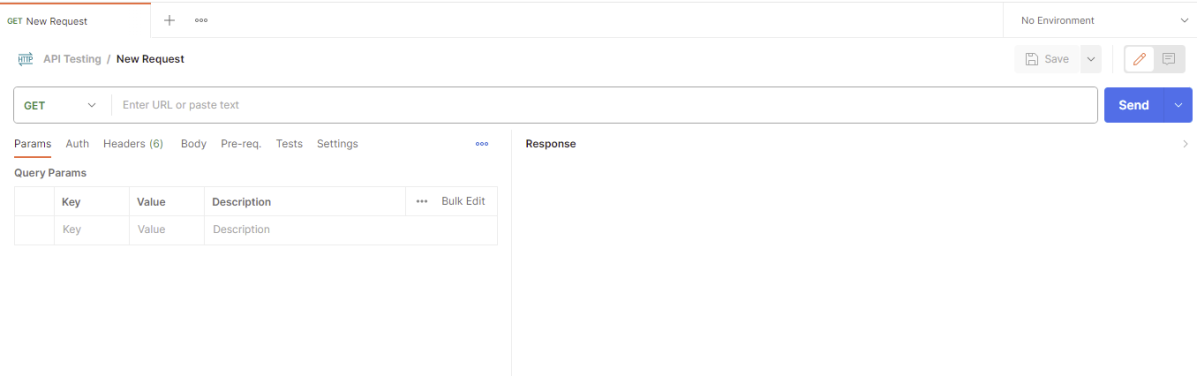
Step 4: Once you create a new request, then you will get the following window:
Enter the details of request
Step 5: Enter the “name” in the request. Here, the name is “GET Demo”.

Step 5: Enter the “URL” in the address bar.

Step 6: Now, select the “GET” request from the list of request methods.

Send the Request
Step 7: Press the “Send” button.

Verify the Response
Step 8: Once you press the send button, you will get the response from the server. Make sure you have a proper internet connection; otherwise, you will not get a response.

Status
You can check the status code. Here, we got the status code 200, which means we got a successful response to the request.

Body
In the Body tab of the response box, we have multiple options to see the response in a different format.

Format Type
Each request has a defined response to it as defined by the Content-Type header. That response can be in any format. Such as in the above example, we have JSON code file.
Below are the various format type present in Postman.
XML

HTML

Text

Headers
Headers are the extra information that is transferred to the server or the client. In Postman, headers will show like key-value pairs under the headers tab. Click on the Headers link as shown in the below image:

We are done! Congratulations on making it through this tutorial and hope you found it useful! Happy Learning!!
 QA Automation Expert